- What to know
- Why quests don’t automatically show on the map
- How to activate a quest and show it on the map
- How to automatically navigate to quest objectives
- How to find quest givers again if you lose them
- Common mistakes that make quests harder than they should be
- Understanding quest flow and navigation design
What to know
- You must manually track quests from the Journal for map markers to appear
- The game does not always auto-highlight objectives or NPCs
- Using the route function helps you reach objectives quickly
- You can re-track quest givers anytime if you lose them
Getting around Crimson Desert’s quest system can feel confusing at first, especially when the game doesn’t clearly mark where to go. If you’ve ever found yourself wandering without direction, you’re not alone. The good news is that once you understand how quest tracking works, you’ll be able to navigate objectives and locate quest givers with ease.
| Feature | What it does | Key Input |
|---|---|---|
| Journal Access | Opens all active quests | ESC / M |
| Quest Tracking | Marks selected quest on map | Spacebar |
| Auto Navigation | Guides your character to destination | F |
| NPC Tracking | Highlights quest giver location | Same as quest tracking |
Why quests don’t automatically show on the map
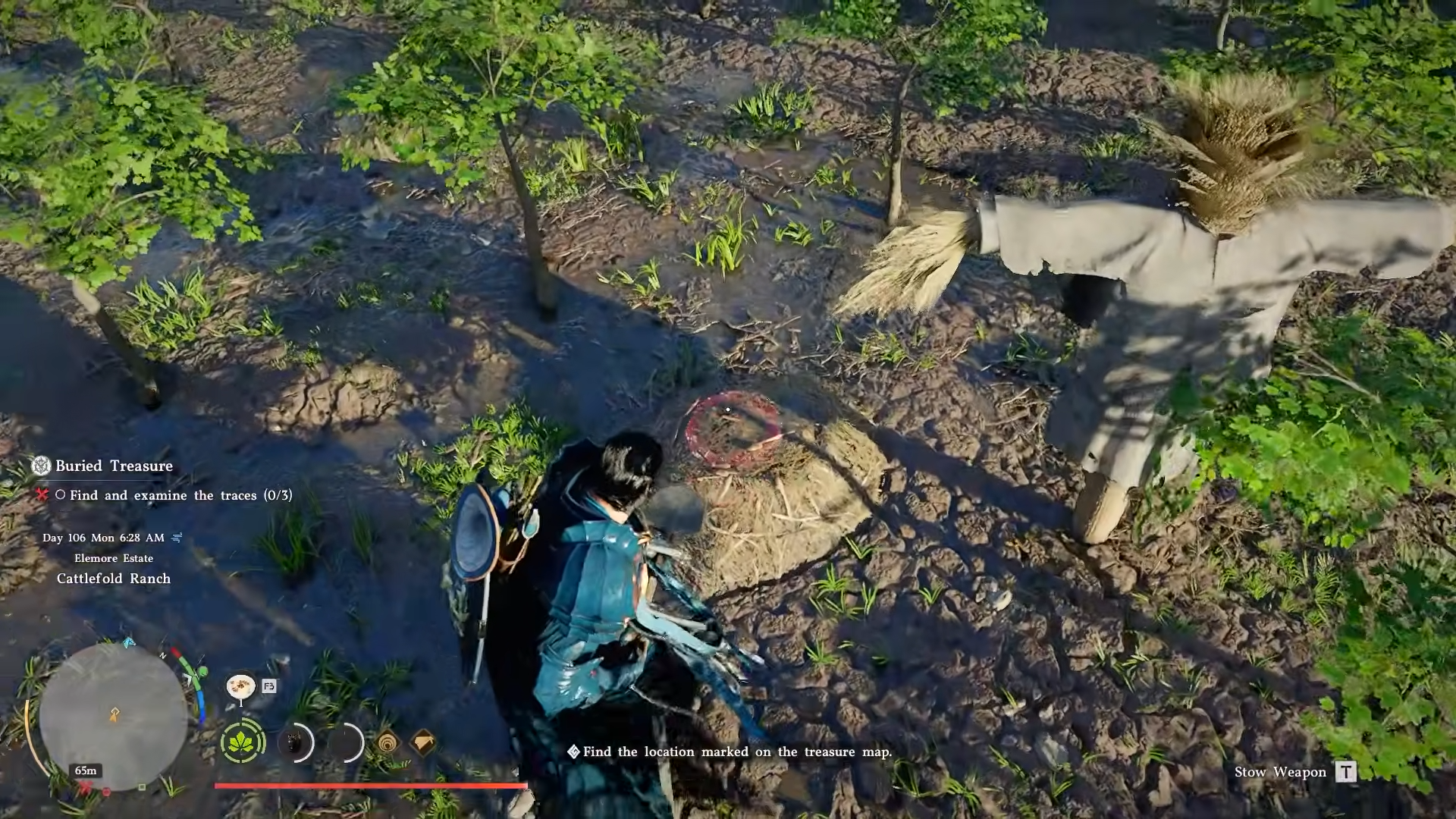
In Crimson Desert, the system is designed to encourage exploration rather than hand-holding. This means objectives and NPCs are often hidden until you actively choose to track them. If you don’t manually enable tracking, your map will remain mostly blank, even if you already accepted the quest.
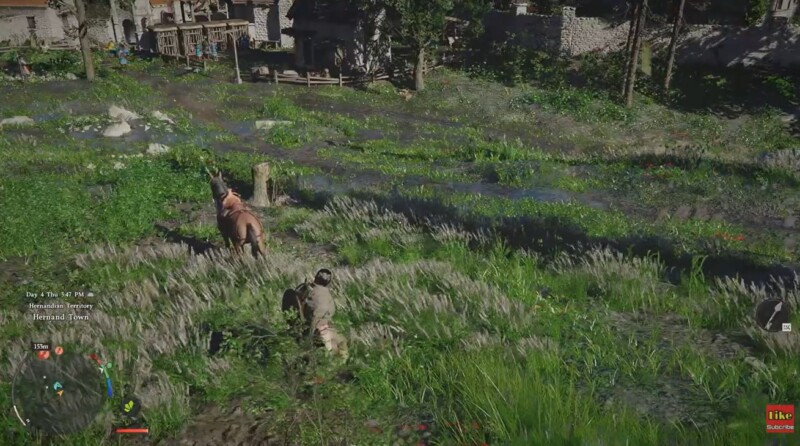
This design can feel unintuitive early on, but it gives you more control over which objectives you want to focus on. Once you start using the Journal properly, the system becomes much more manageable and efficient.
How to activate a quest and show it on the map
Step 1
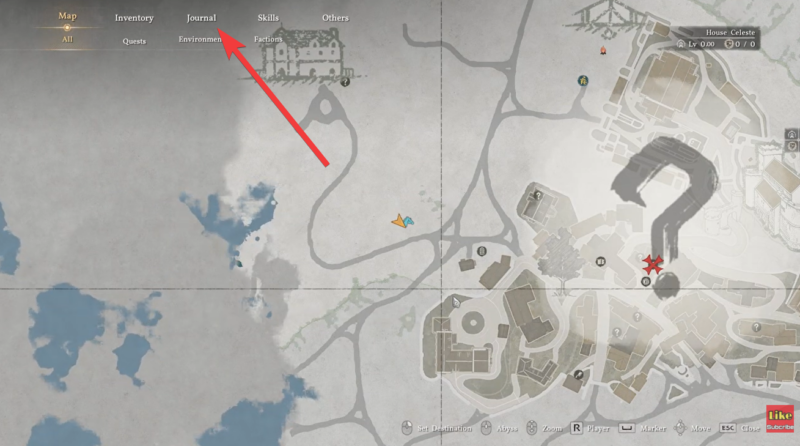
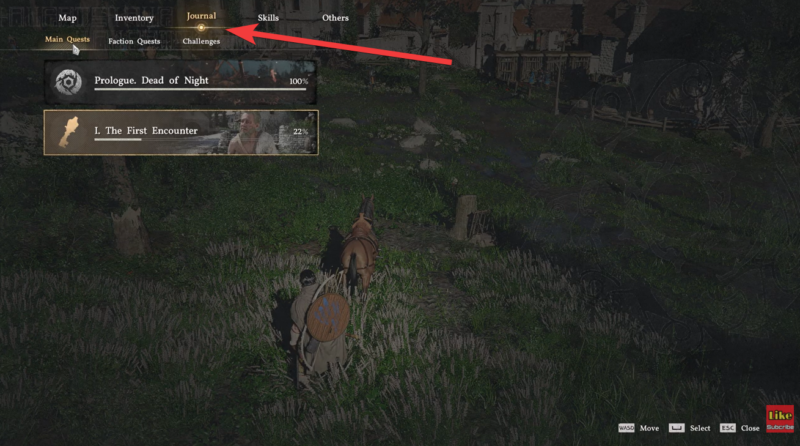
Open the main menu by pressing ESC or M, then navigate to the Journal tab where all your current quests are listed.
Step 2
Browse through your active quests and select the one you want to focus on. Each quest will show basic details, including its objective and location hints.
Step 3
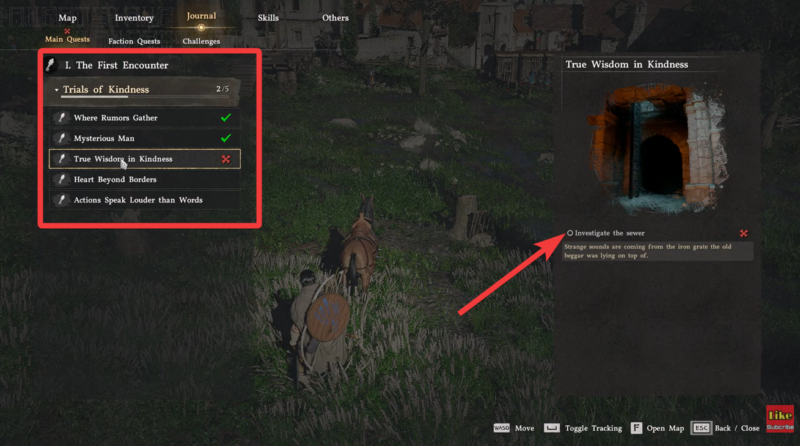
Press the Spacebar to start tracking the selected quest. This is the most important step, as it activates map markers and updates your HUD.
Step 4
Once tracked, check your map to see the highlighted objective area. You should now have a clear destination to follow.
Step 1
After tracking a quest, press F to activate auto-navigation.
Step 2
Your character will begin moving toward the objective automatically, following the most efficient route.
Step 3
You can interrupt movement anytime, but this feature is extremely useful for long-distance travel or when exploring unfamiliar regions.
How to find quest givers again if you lose them
Step 1
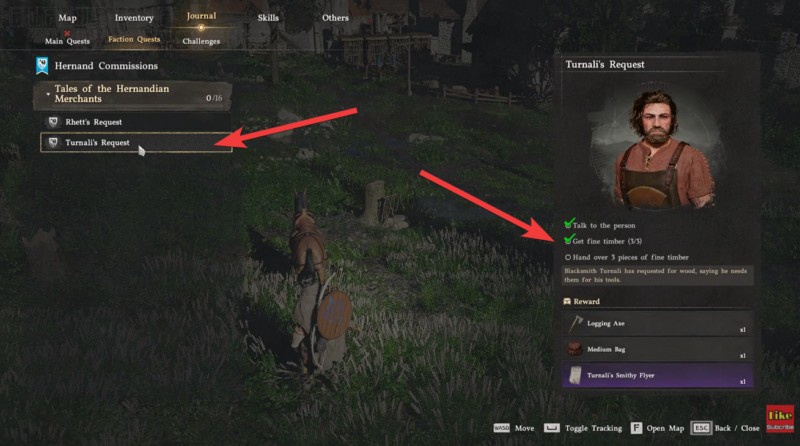
Open the Journal again and locate the quest tied to the NPC you’re trying to find.
Step 2
Select the quest and press Spacebar to re-enable tracking.
Step 3
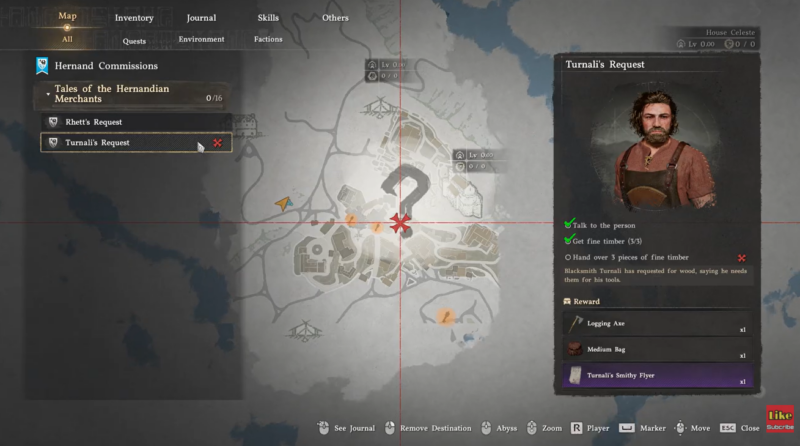
The game will highlight the quest giver’s location on your map, allowing you to return to them without guessing.
Step 4
Use the auto-route feature (F) if the NPC is far away or in a complex area.
Common mistakes that make quests harder than they should be
Many players struggle simply because they forget to track the quest after accepting it. Without tracking, the game provides almost no guidance, which can make objectives feel invisible.
Another common issue is ignoring the auto-navigation system. While optional, it significantly reduces travel time and confusion, especially in dense regions or cities.
Finally, switching between multiple quests without updating tracking can clutter your experience. Focusing on one tracked quest at a time keeps your map clear and easy to follow.
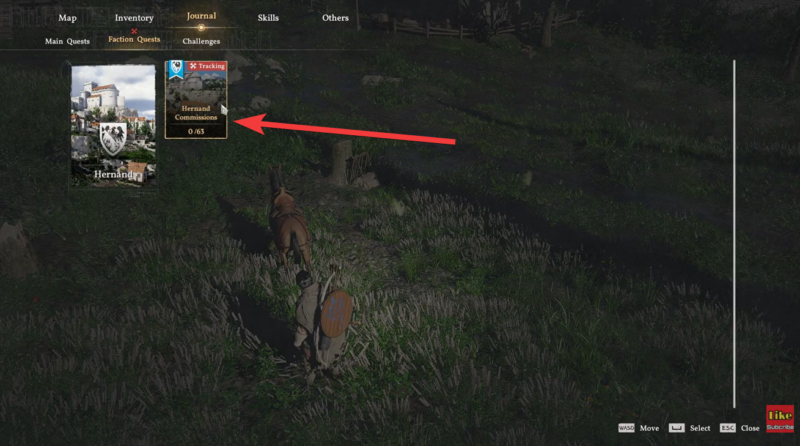
The quest system in Crimson Desert leans toward a semi-guided exploration style. Instead of constant markers, you’re expected to actively manage your objectives through the Journal. This creates a balance between freedom and direction.
Once you get comfortable with this approach, you’ll notice that tracking, routing, and re-locating NPCs becomes second nature, making your gameplay much smoother.