What to know
-
Access the setting via Escape > Settings > User Interface > Block Placement Preview.
-
Options include None (no preview), All (every block), and Multi-part (larger blocks only).
-
Press R to rotate blocks during placement for custom orientations.
-
Ideal for complex builds like fences, bridges, and roofs.
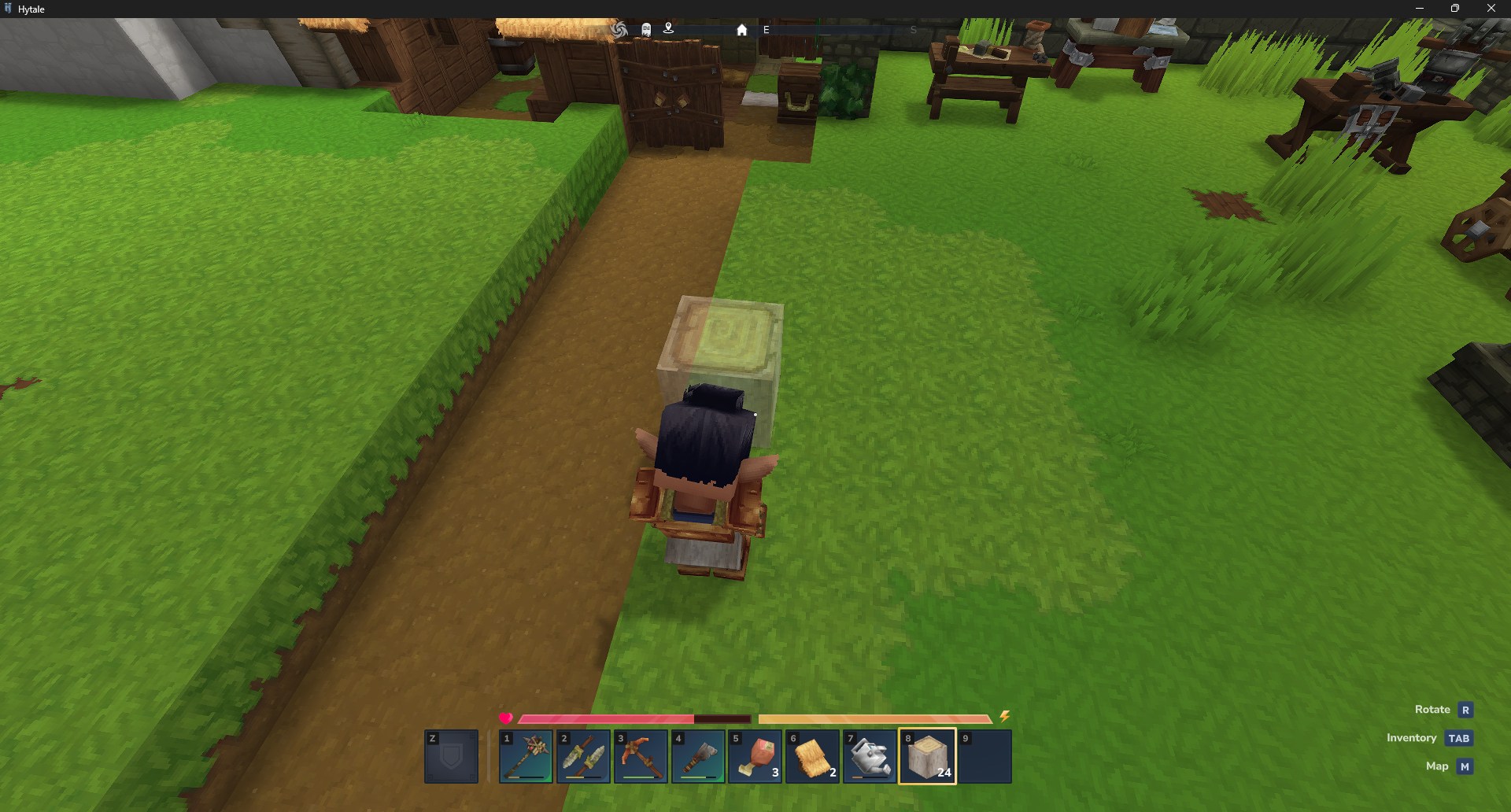
Building in Hytale offers several quality-of-life features that distinguish it from other sandbox games. One of the most useful tools for architects is the block placement preview. This feature allows you to see exactly where and how a block will fit into the world before you commit to placing it, reducing mistakes and making the construction of intricate designs much smoother.
How to enable block placement preview
Step 1
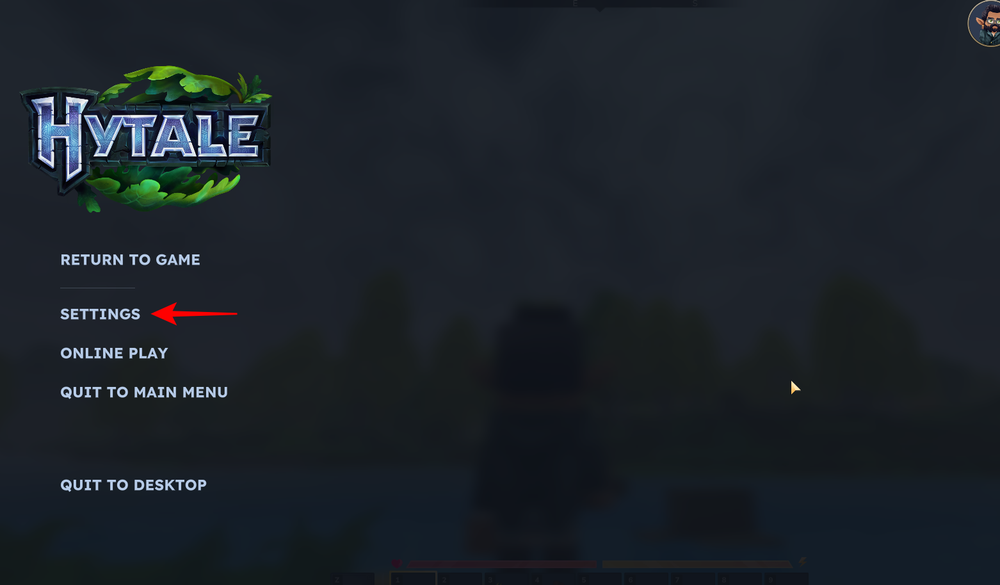
Press Escape to open the main menu while in-game.
Step 2
Select Settings from the menu.
Step 3
Go to the General tab and navigate to the User Interface section.
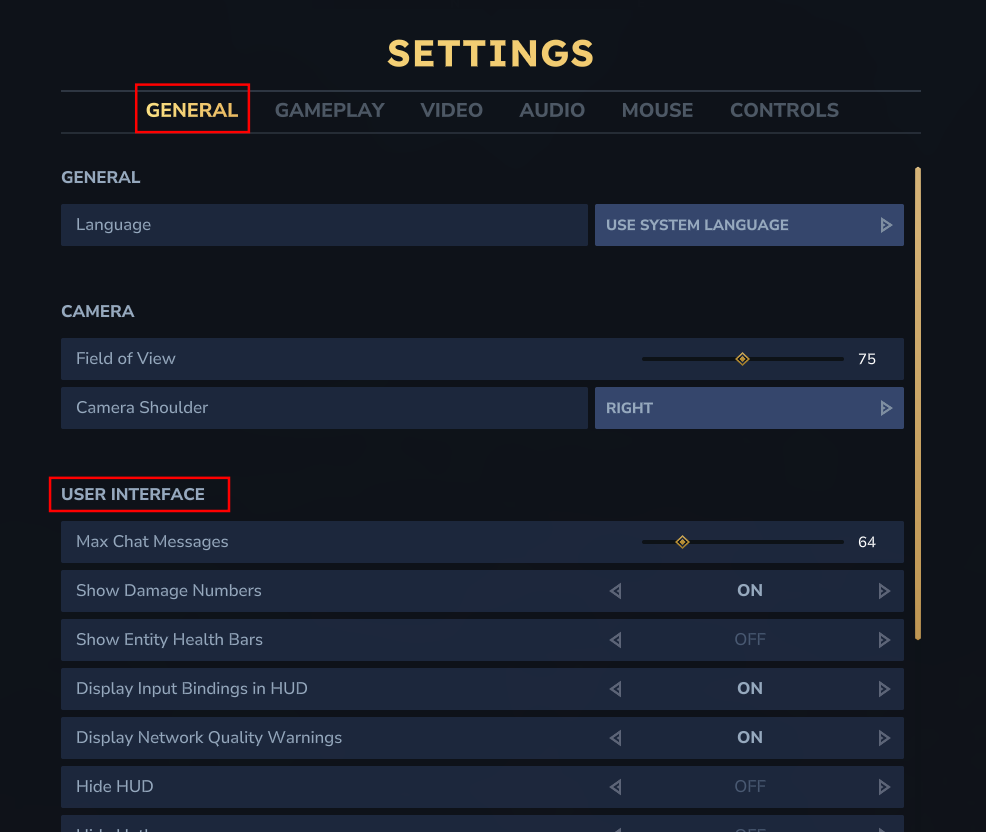
Step 4
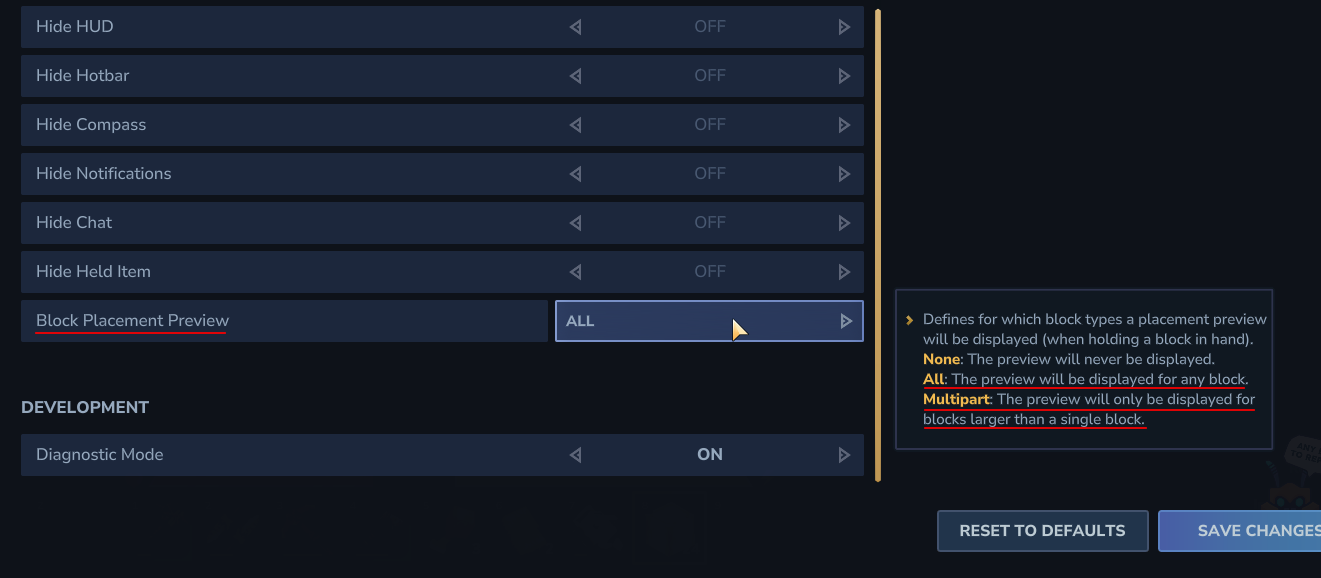
Scroll to Block Placement Preview at the bottom and set it to All or Multi-part.
- Multi-part will display preview for only blocks that are larger than a single block.
- All will display preview for any and all blocks.
Step 5
Click Save Changes to apply.
How to rotate blocks while placing
Once previews are on, use rotation for precise placement, especially with directional blocks like fences or slabs.
Step 1
Select your block from the hotbar (1-9 keys).
Step 2
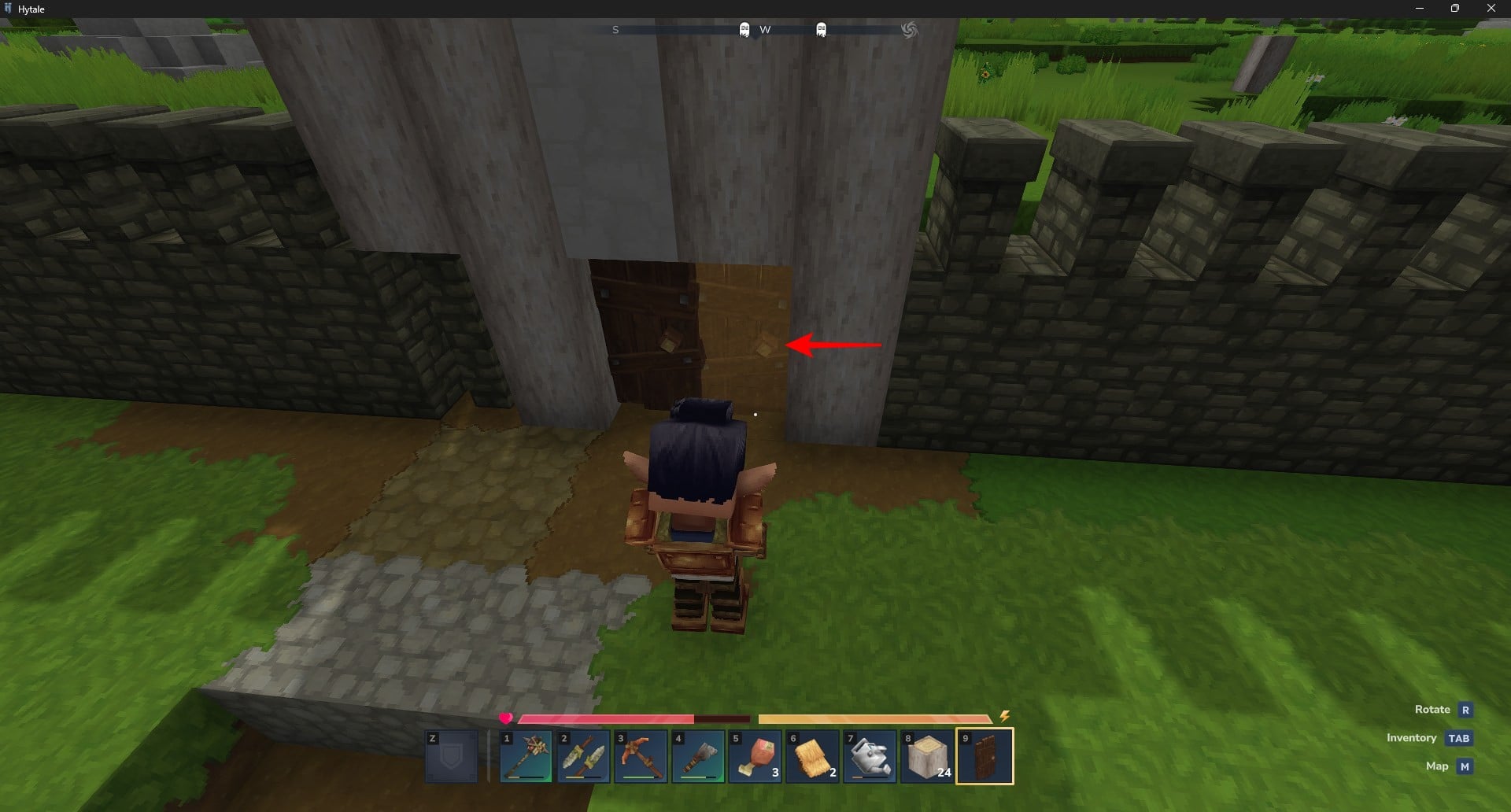
Aim at the surface where you want to place it; the full preview appears.
Step 3
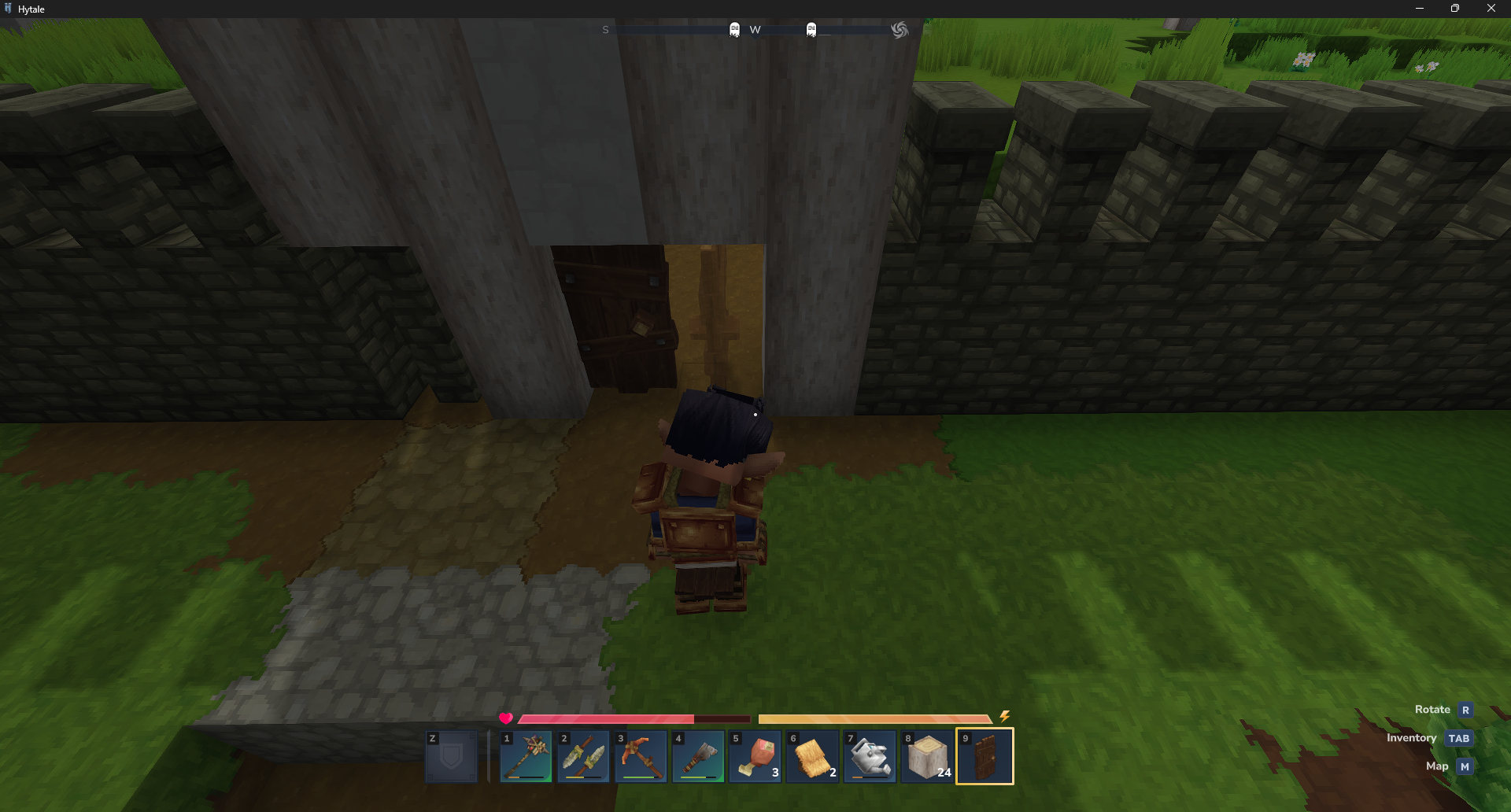
Press R to cycle rotations and view the updated preview.
Step 4
Right-click to place once oriented correctly.
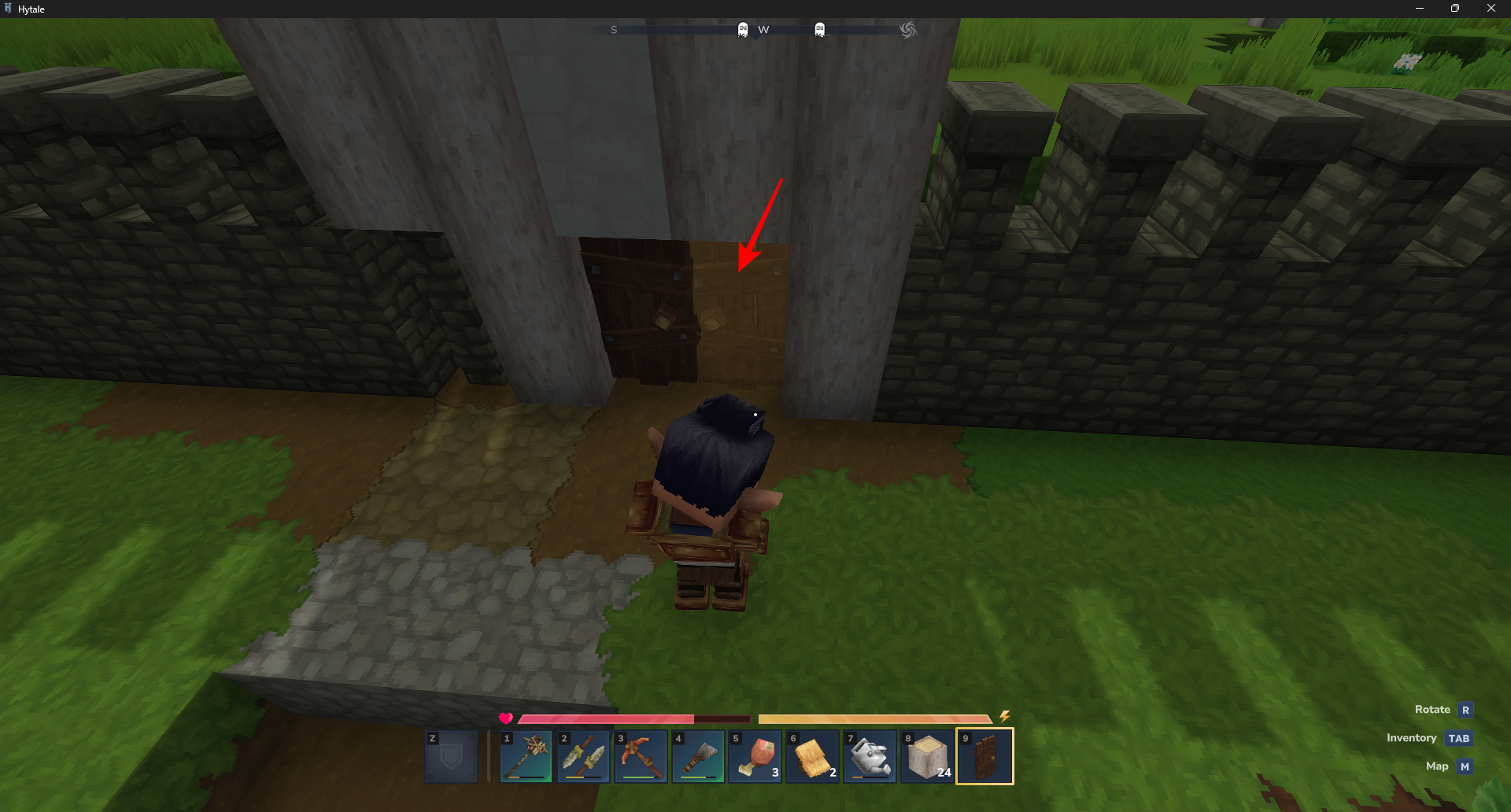
This works seamlessly with multi-part blocks like fences for bridges or walls. But if you chose All, you will see preview for single blocks also.
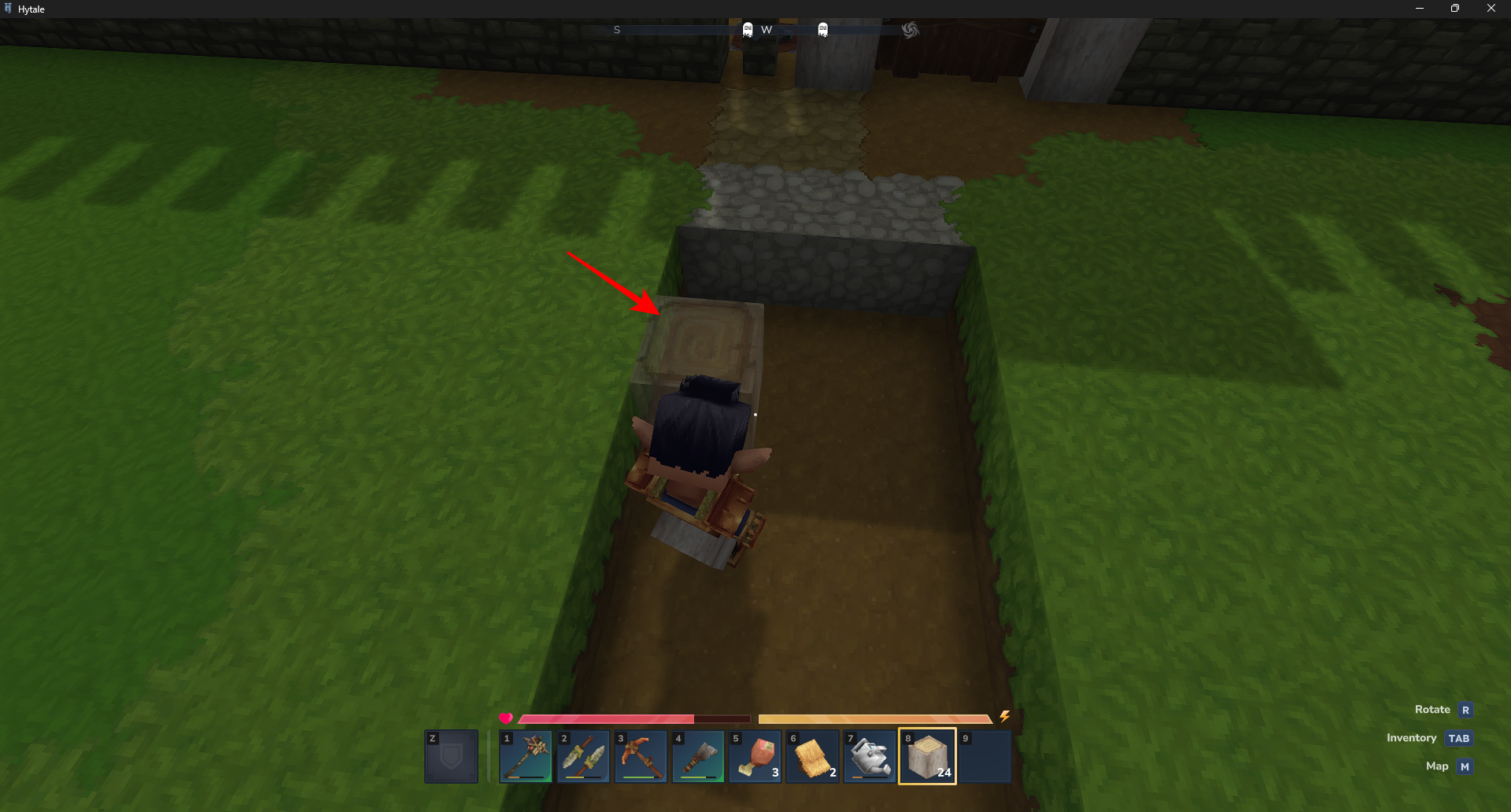
Previews work best with Hytale’s advanced blocks such as walls, beams, roofs, and fences, which support rotation and custom shapes. Set to “All” to avoid misplacements during creative sessions or server builds.