Battlefield 6 players are calling out sluggish controller aim, but custom tweaks can restore balance.
What to know
- Controller players report sluggish aim assist and large deadzones harming precision.
- Battlefield 6’s new “Aim Assist 2.0” system aims to balance fairness across devices.
- Developers encourage customization through slowdown and sticky aim sliders.
- Adjusting deadzones and sensitivity can drastically improve controller performance.
In the wake of Battlefield 6’s full release, discussion around its controller feel has exploded. A recent Reddit thread titled “This is why controller feels bad” has gained traction among console players frustrated with aim assist inconsistencies. Many describe missing shots due to sluggish reticle slowdown and poor target tracking compared to Battlefield 2042.
Aim Assist slowdown feels excessive
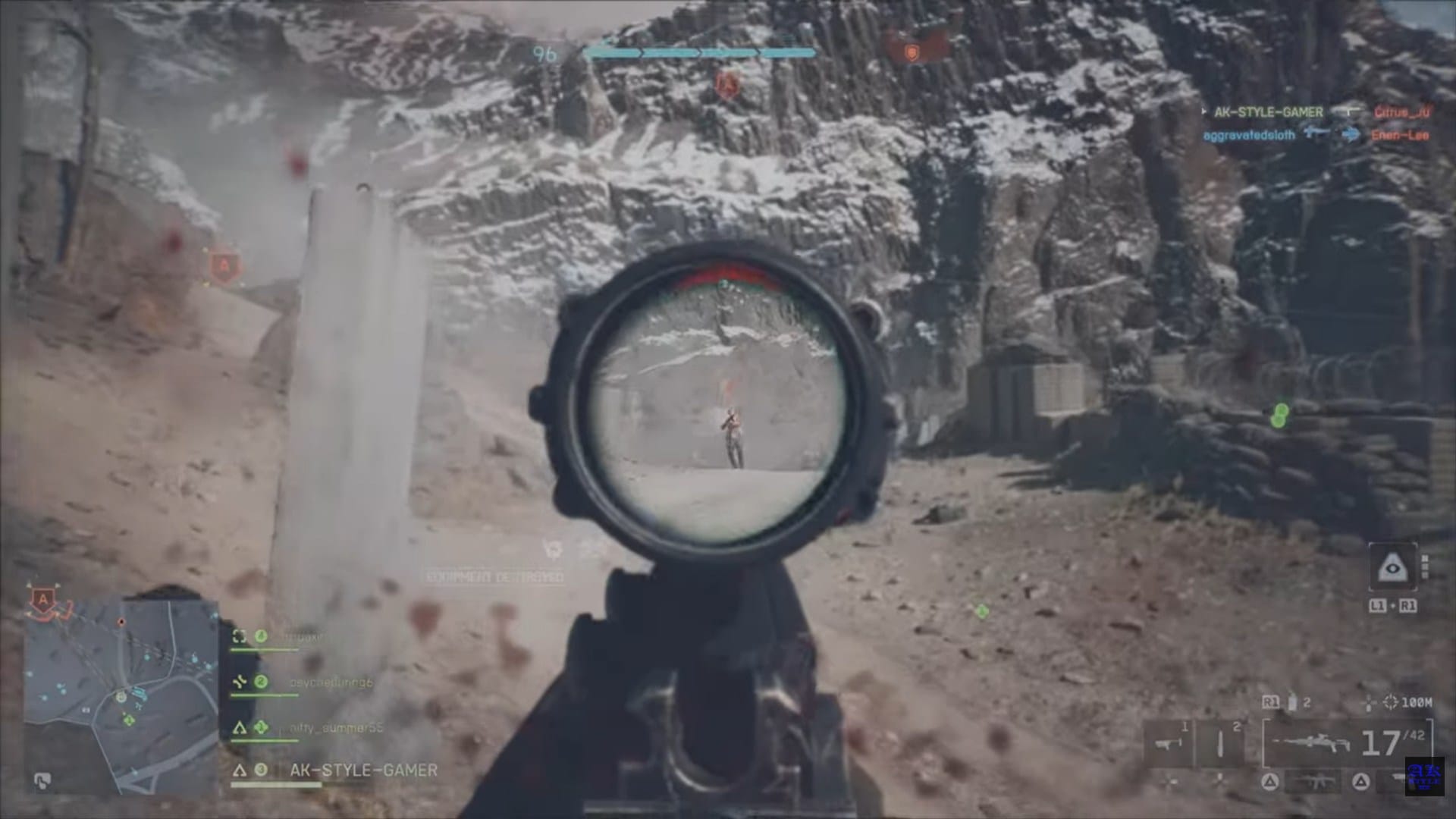
Players report that Battlefield 6’s aim assist introduces an invisible “bubble” around targets, slowing reticle movement excessively and making it difficult to track fast-moving enemies. This issue becomes more pronounced in gunfights with multiple enemies, where switching targets feels laggy.
The game’s developers call this system “Aim Assist 2.0,” designed to keep aim help minimal and make precision feel earned. While it’s meant to ensure parity between input types during crossplay, many controller users claim it overcorrects, removing the fluidity common in competitive shooters.
Fix: Best controller setting for Battlefield 6
| Setting Name | Recommended Value | Description / Notes |
|---|---|---|
| Infantry Aim Sensitivity | 40 – 45 | Controls overall camera turning speed when aiming or moving on foot. Balanced between precision and responsiveness. |
| Zoom Aim Sensitivity | 80 – 86 | Adjusts aim speed while aiming down sights (ADS); lower values provide greater control for precision shots. |
| Vertical Aim Ratio | 56 | Sets the ratio between vertical and horizontal sensitivity, preventing overshoot during elevation adjustments. |
| Field of View (FOV) | 105 – 110 | Expands peripheral visibility for better spatial awareness and reduced tunnel vision in combat. |
| Uniform Infantry Aiming | On | Maintains consistent sensitivity scaling across different zoom levels and optic magnifications. |
| Zoom Sensitivity Coefficient | 133 – 178 | Fine-tunes ADS scaling across scopes; higher values make scoped sensitivity feel faster. |
| Soldier Aim Input Curve | BF1 / BF4 Preset | Defines how aim acceleration reacts to stick movement. BF1 = smoother, BF4 = sharper response. |
| Stick Input Acceleration Preset | BF4 Standard | Matches the chosen input curve for a natural, predictable aim acceleration ramp-up. |
| Aiming Left / Right Acceleration | 12 – 25 | Limits lateral acceleration for steady tracking; ideal midpoint between flick and precision control. |
| Aim Assist Strength | 80 – 100 | Adjusts target magnetism intensity — higher values help stay on moving targets. |
| Aim Assist Slowdown | 80 – 100 | Determines slowdown intensity when aiming near enemies, enhancing target stickiness. |
| Aim Assist Zoom Snap | 100 | Controls snap-to behavior when entering ADS; 100 % ensures strong lock-on feel. |
| Center Deadzone (Both Sticks) | 3 – 10 | Smaller values allow finer control; increase if you notice stick drift. |
| Axial Deadzone (Both Sticks) | 3 – 15 | Balances diagonal stick movement and ensures uniform directional input. |
| Max Input Threshold | 100 | Registers full stick deflection, ensuring consistent maximum turn speed. |
| Trigger LT / RT Deadzone | 0 | Enables instant trigger response — ideal for precise timing in gunfights. |
| Trigger Max Input Threshold | 100 | Confirms full trigger press is recognized; ensures weapons fire at full rate. |
| Input Curve Modes | BF4 / BF1 / Standard | Choose based on playstyle: BF4 = aggressive, BF1 = smooth and linear, Standard = default response curve. |

How controller deadzones make aim feel worse
Another major complaint relates to Battlefield 6’s default deadzone settings. The deadzone dictates how much input the analog stick needs before movement registers. Large values make small aim corrections sluggish, while lower settings risk “stick drift.” Developers recommend tuning both center and axial deadzones until your stick responds smoothly without unintentional drift.
Input Method Comparison: Controller vs. Mouse & Keyboard
| Factor | Controller | Mouse & Keyboard |
|---|---|---|
| Aim Precision | Precision limited by analog stick range and sensitivity settings; smoother large movements but less micro-accuracy. | Offers high fine control and pixel-accurate aiming — ideal for long-range or precision play. |
| Aim Assist | Includes tracking, slowdown, and magnetism to balance stick limitations. | No aim assist, relying entirely on user precision and quick reaction. |
| Comfort | Provides high comfort with natural hand rest and relaxed posture, ideal for long sessions or couch play. | Ergonomic for seated desk setups, but can cause fatigue with extended use or poor positioning. |
| Recoil Management | Often assisted by built-in aim algorithms or subtle correction curves. | Requires fully manual recoil control, rewarding mechanical mastery. |
Developer stance on community feedback
Battlefield Studios has acknowledged community frustration and hinted that tuning patches may refine Aim Assist 2.0 parameters. While the team emphasizes fairness across input types, it admits that controller feel requires ongoing adjustment based on live data and user testing.
The right way to fix your settings
Mastering Battlefield 6 on controller means personal tuning. Adjust individual sensitivity and FOV options to create smoother camera transitions. Keep infantry sensitivity near 40–45, vehicle around 35, and play with vertical aim ratios until movement feels predictable. Many content creators now share optimized profiles that strike a balance between snappy response and stick stability.