4 ways to type spanish accessnts on your Windows PC easily!
If you’re learning Spanish, chatting with friends, or working on a project that needs perfect Spanish spelling, you’ll quickly realize the importance of typing accents like á, é, í, ó, ú, ñ, and ü. On Windows 10 and Windows 11, you have several easy ways to type these characters—even if you’re using a standard English keyboard. Here’s how you can do it without any hassle.
1. Use Alt Codes for Quick Accents
Alt codes are a fast and reliable way to type Spanish accents if you have a numeric keypad.
- Hold down the Alt key and type a specific number on your numeric keypad.
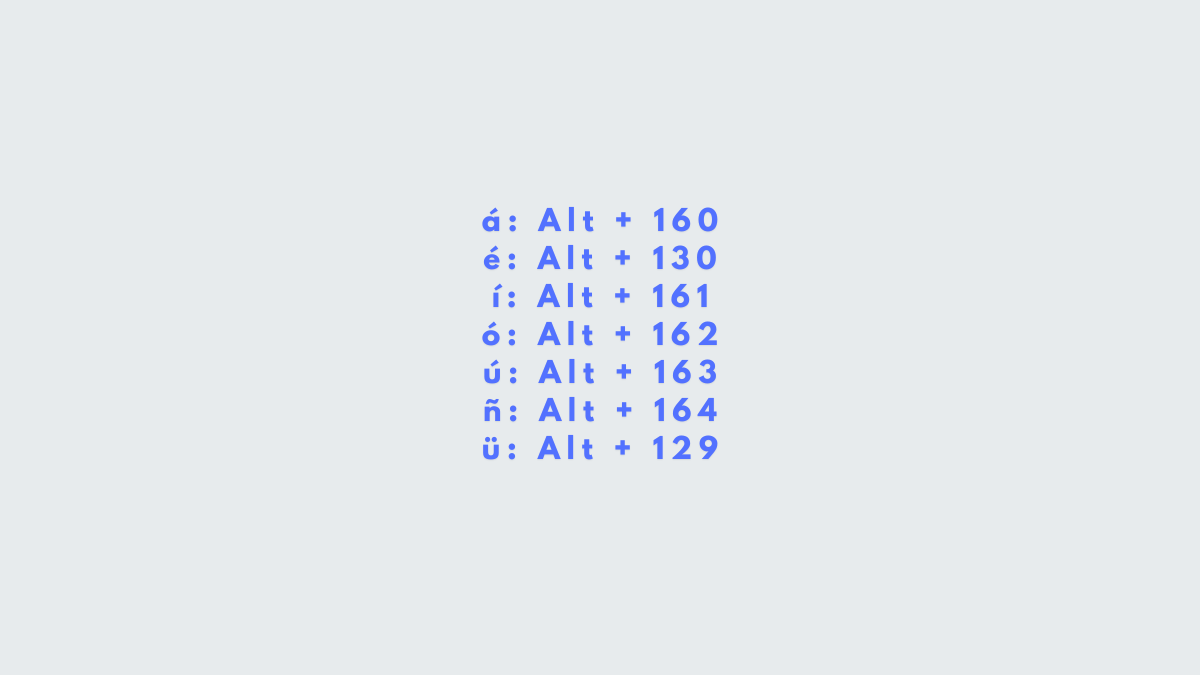
- For example:
- á: Alt + 160
- é: Alt + 130
- í: Alt + 161
- ó: Alt + 162
- ú: Alt + 163
- ñ: Alt + 164
- ü: Alt + 129
Make sure your Num Lock is on. This method is perfect when you only need to type a few accented characters.
2. Switch to a Spanish Keyboard Layout
If you type in Spanish regularly, switching your keyboard layout is the most efficient method.
- Windows 10/11 Steps:
- Go to Settings > Time & Language > Language.
- Click Add a language and choose Spanish (pick your preferred Spanish variant).
- After installation, switch between English and Spanish layouts by pressing Win + Spacebar or clicking the language icon in the taskbar.
- With the Spanish keyboard active, you can type accents directly:
- To type á, press the apostrophe key (‘) followed by the vowel (a, e, i, o, u).
- For ñ, press the semicolon key (;) or the ñ key (if visible).
This setup is ideal if you frequently write in Spanish—no need to memorize codes.
3. Use the US-International Keyboard Layout
The US-International layout lets you type accents easily without fully switching to a Spanish keyboard.
- How to Enable:
- Go to Settings > Time & Language > Language & Region.
- Click Add a language and add English (United States) if not already present.
- Under your language, click Options > Add a keyboard > United States-International.
- Switch to this layout using Win + Spacebar.
- Typing Accents:
- For á, é, í, ó, ú: Press ‘ (apostrophe) then the vowel.
- For ñ: Press ~ (tilde, usually Shift + `) then n.
- For ü: Press “ (double quote, Shift + ‘) then u.
This method is great for bilingual users who switch between English and Spanish.
4. Use Windows Character Map or On-Screen Keyboard
If you type accents only occasionally:
- Open the Character Map (press Win + R, type
charmap, and hit Enter). - Find and copy the accented character you need, then paste it into your document.
- Alternatively, use the On-Screen Keyboard from the Start menu and click the accented characters.
Summary Table: Spanish Accents Typing Methods
| Method | Best For | How to Use |
|---|---|---|
| Alt Codes | Occasional use | Hold Alt + numeric code |
| Spanish Keyboard Layout | Frequent Spanish typing | Switch layout, type accents directly |
| US-International Keyboard | Bilingual typing | Apostrophe/tilde + letter |
| Character Map/On-Screen KB | Rare use, all symbols | Copy-paste from Character Map |
You don’t need special hardware or advanced skills to type Spanish accents on Windows 10 or 11. Just pick the method that fits your workflow, and your Spanish writing will look polished and professional in no time.