What to know
- Pokopia allows you to adjust camera distance (FOV) through the in-game settings menu.
- The default camera is typically set to Close, which can feel restrictive.
- Switching the setting to Far gives you a wider and more comfortable perspective.
- The change is quick and can be done anytime through the pause menu settings.
Pokopia includes several customizable settings that help improve gameplay comfort, and one of the most useful is the camera distance option. If the camera feels too close to your character while exploring or battling, adjusting the Field of View can make the game much easier to navigate. Many players prefer a wider camera distance because it improves visibility, reduces the cramped feeling during movement, and makes it easier to track Pokémon and environmental details.
Below is a quick overview of how the camera distance setting works and where you can find it in the game.
| Feature | Details |
|---|---|
| Setting Name | Camera Distance (FOV) |
| Where to Find | Game Settings Menu |
| Default Option | Close |
| Other Options | Normal, Far |
| Recommended Setting | Far |
| Platforms | Nintendo Switch |
| Purpose | Improves visibility and player comfort |
How camera distance settings affect gameplay
Camera distance determines how far the game camera sits behind your character. A short camera distance means the camera is positioned closer to the player model, which can limit how much of the surrounding area you can see. This may make navigation feel tight, especially in crowded environments or during combat encounters.
When you increase the distance, the camera moves farther back. This wider view provides a broader perspective of the environment, making it easier to spot Pokémon, obstacles, and interactive objects. Many players switch to the far setting because it creates a more open and comfortable viewing experience.
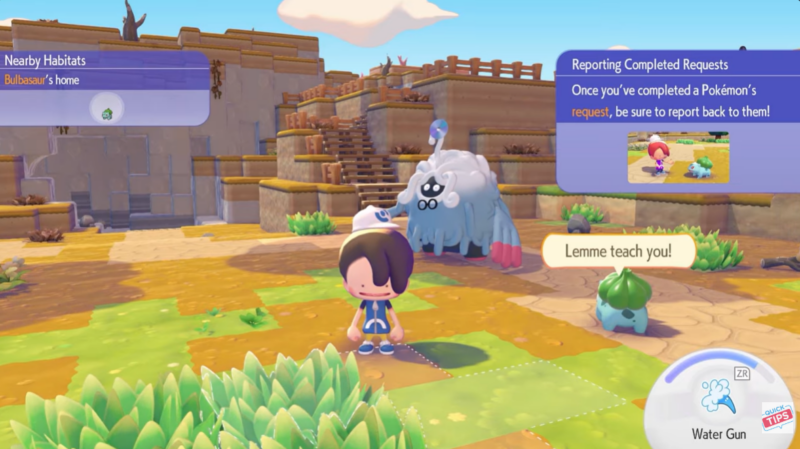
In Pokopia, the difference between Close, Normal, and Far can significantly affect how the game feels moment-to-moment. The Far setting is widely considered the most comfortable option, especially for exploration-heavy gameplay.
How to change camera distance in Pokemon Pokopia
Step 1
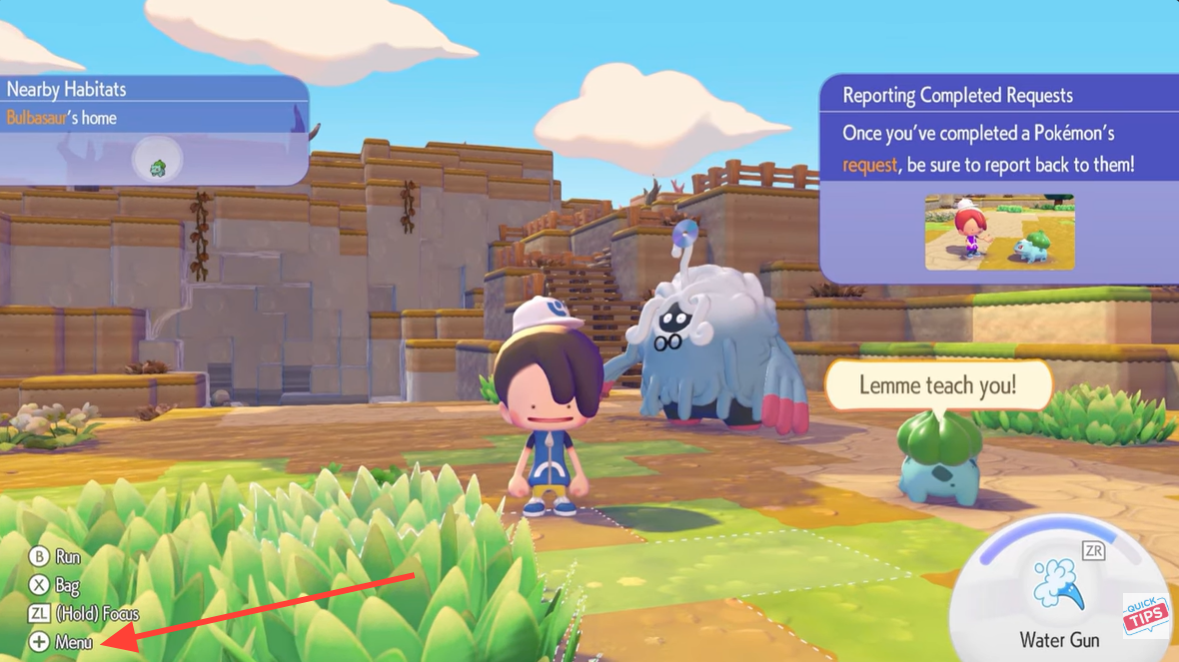
Press the Plus (+) button on your controller to open the main game menu. This pauses gameplay and brings up several options including inventory, settings, and system features.
Step 2
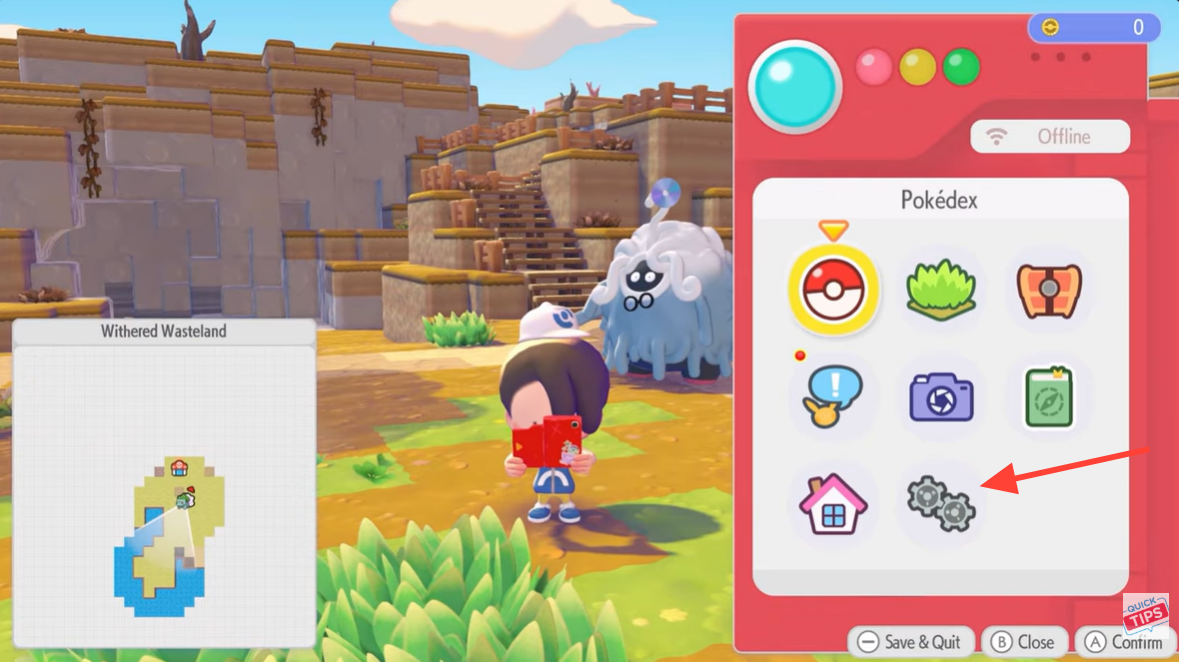
Navigate to the Settings section from the menu interface. The settings tab contains various configuration options that control gameplay preferences, controls, and visual adjustments.
Step 3
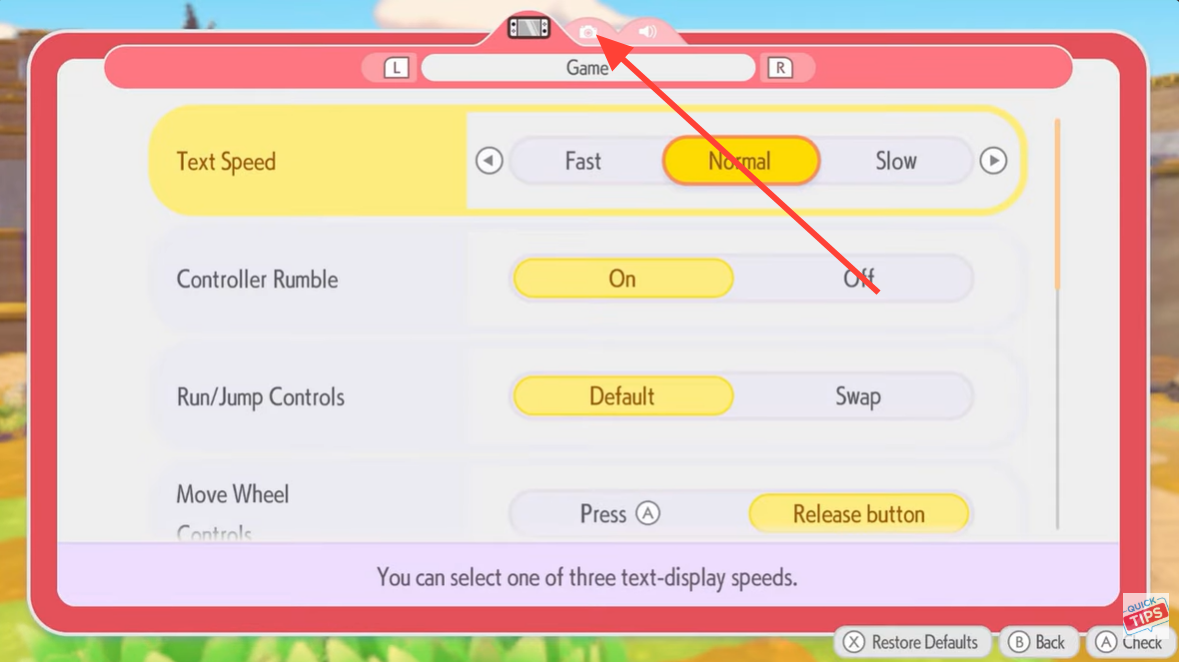
Once inside the settings screen, press the Right Bumper (RB) to move to the next settings category where camera options are located.
Step 4
Locate the Camera Distance option. The game typically sets this to Close by default, which places the camera relatively near your character.
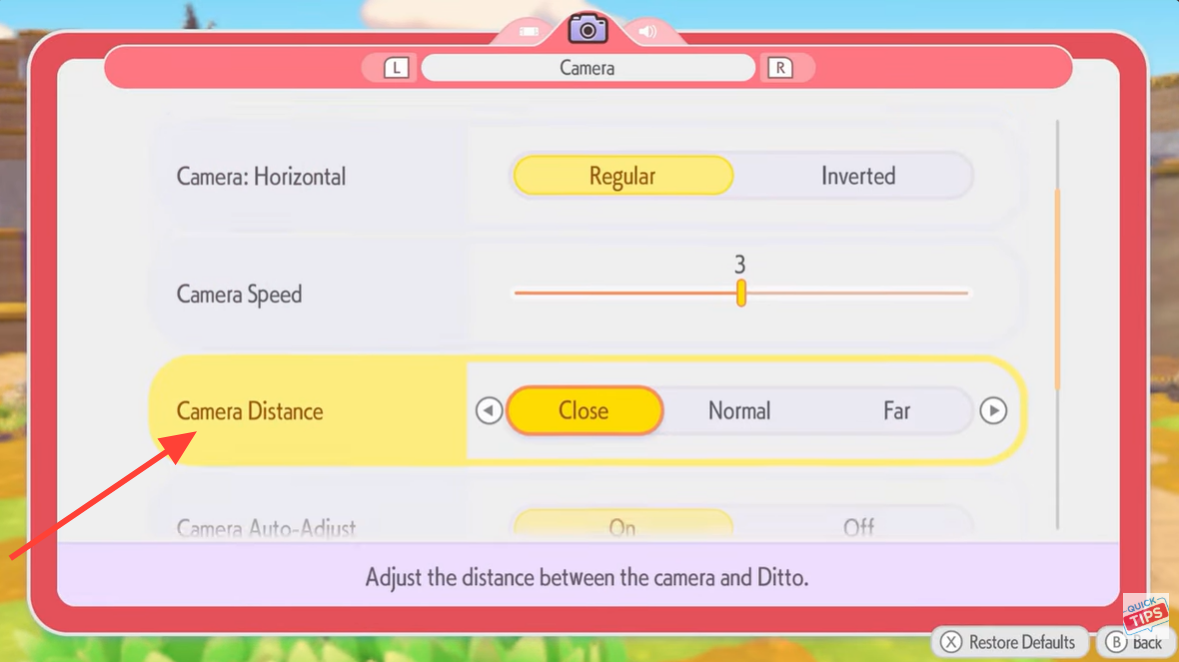
Change the option from Close or Normal to Far. This moves the camera farther away and significantly increases the visible area on screen.
Step 5
Press the Plus (+) button again to save the changes. Saving ensures the new camera distance is applied immediately.
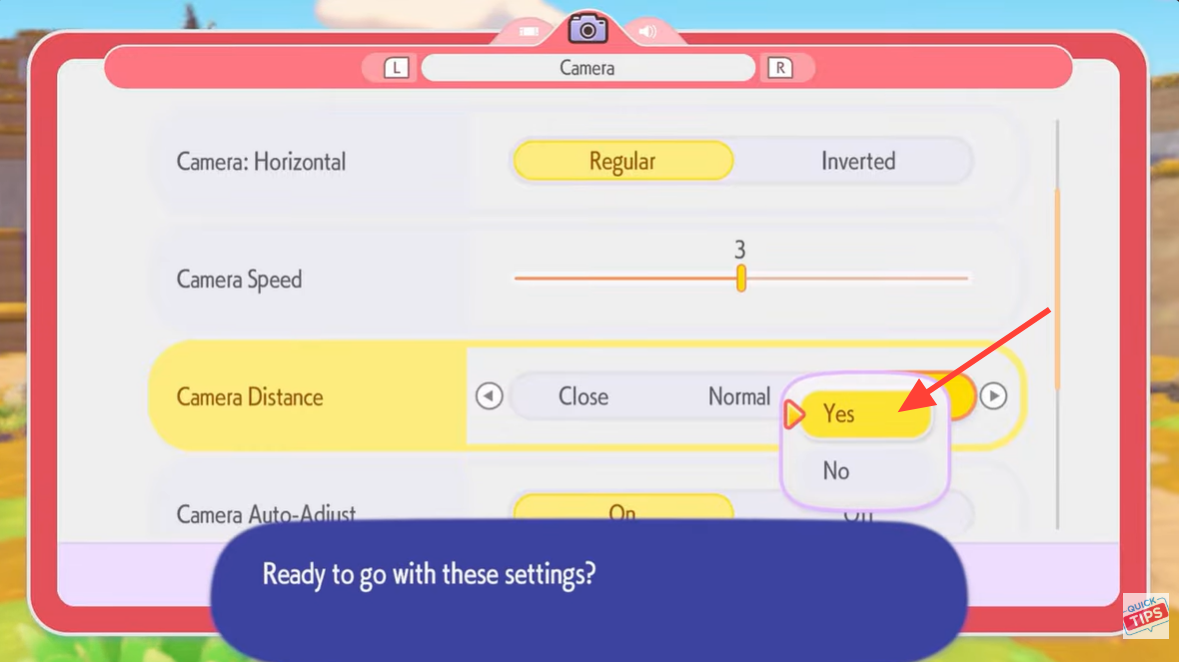
Press B to exit the settings menu and return to gameplay. The new camera distance will now remain active until you change it again.
Why the far camera setting is usually the best choice
Many players report that the default camera setting can feel restrictive during exploration. When the camera is too close, it reduces situational awareness and makes movement feel cramped. Switching to the Far camera distance creates a much more open and comfortable gameplay experience.
The wider field of view also helps in several gameplay situations. Players can track Pokémon movement more easily, navigate environments with fewer blind spots, and generally maintain better spatial awareness.
Because of these advantages, Far is often recommended as the ideal camera distance setting unless you specifically prefer a tighter perspective.
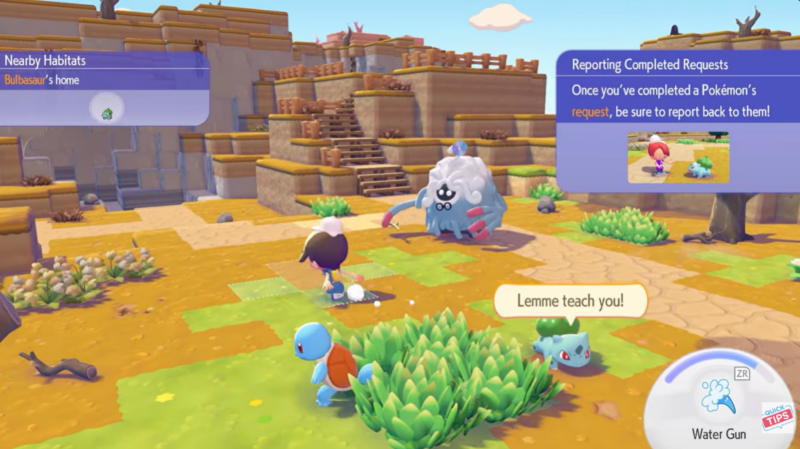
Adjusting Pokopia settings for better gameplay comfort
Camera distance is just one of several settings that can improve the overall experience in Pokopia. Players who spend long sessions exploring or battling often experiment with control sensitivity, camera speed, and other display options to create a setup that feels natural.
Making small adjustments like increasing the camera distance can have a surprisingly large impact on gameplay comfort. A wider view reduces visual clutter and helps you focus more on exploration and encounters rather than fighting with the camera.