What to Know Before You Start
-
You will need CrossOver 26 installed on your Mac to create the necessary environment for the game.
-
Enabling MSYNC is critical for maintaining stable performance within the Steam bottle.
-
Initial launches often result in a zoomed-in screen; this is a known issue that requires a manual window reset.
-
Standard Windows settings may cause audio crackling, which can be resolved by adjusting the application-specific compatibility mode to Windows XP.
While Mewgenics is blowing up right now, Mac users often face the challenge of compatibility. Using CrossOver 26, it is possible to run the game smoothly on macOS by following a specific setup process and applying targeted fixes for resolution and audio issues.
How to Play Mewgenics on Mac Using CrossOver 26!
Setting Up CrossOver and Steam
The first step is to establish a stable Steam environment within CrossOver to host the game.
Step 1
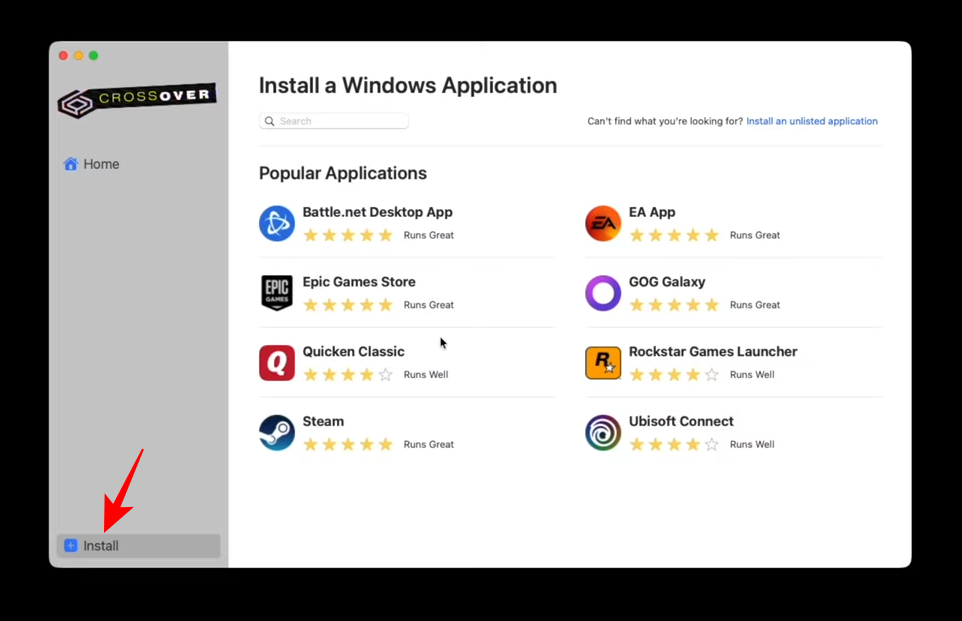
Open CrossOver 26 and select the Install option in the bottom left corner.
Step 2
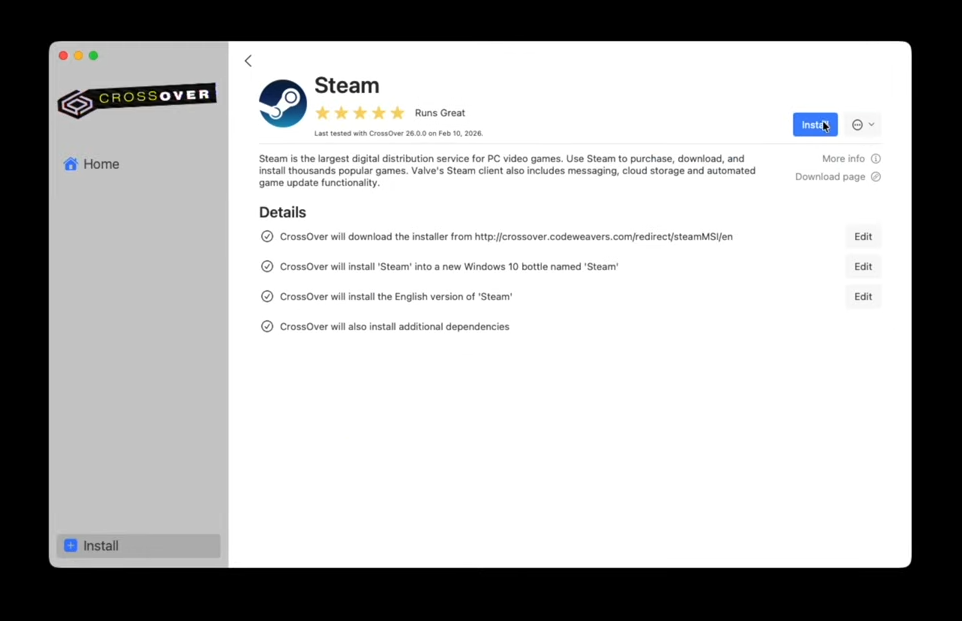
Search for Steam and proceed with the installation to create a dedicated Steam bottle.
Step 3
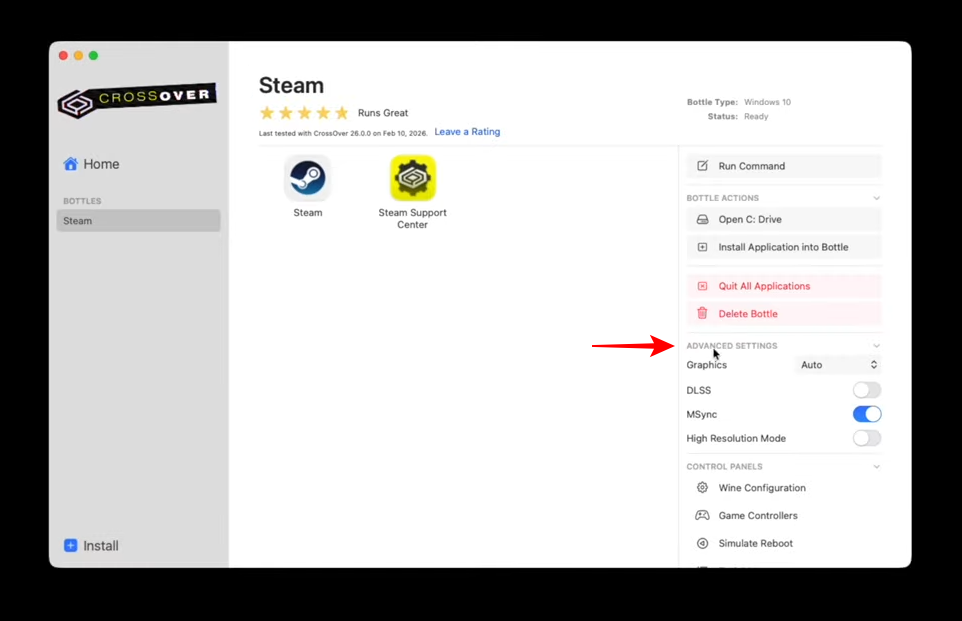
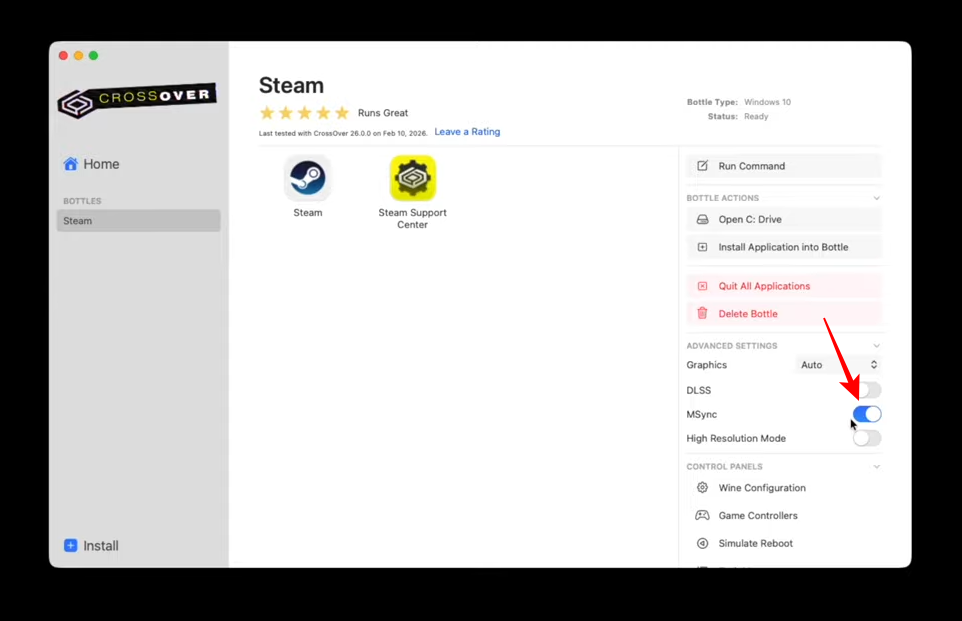
Once installed, navigate to the Advanced Settings for the Steam bottle.
Step 4
Under the Graphics section, ensure that MSYNC is toggled ON.
Step 5
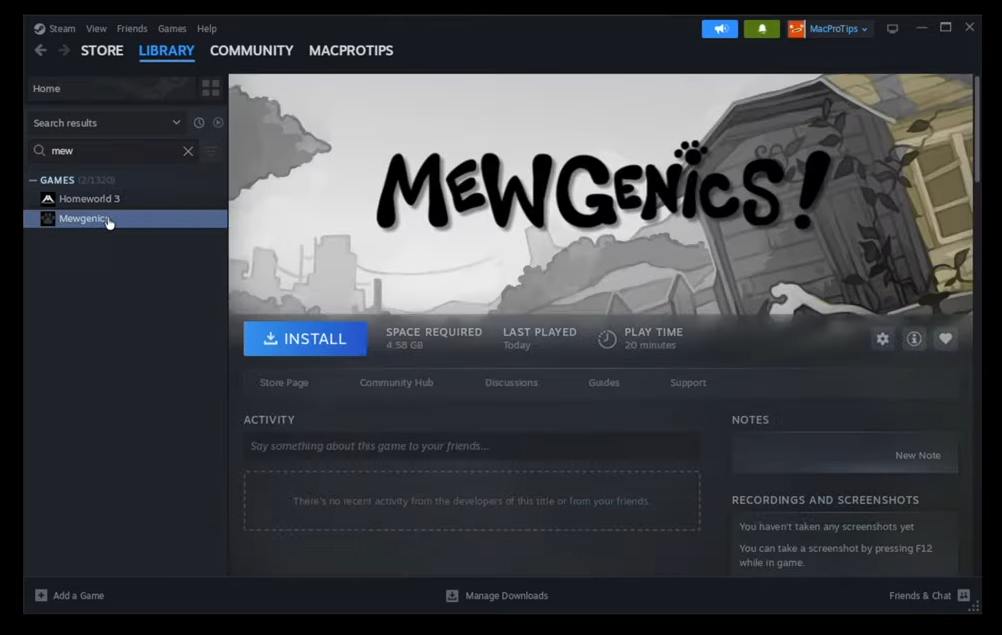
Launch Steam, log into your account, and install Mewgenics from your library.
Fixing Resolution and Input Issues
On the first launch, the game’s resolution may appear incorrectly zoomed, making it difficult to interact with menus.
Step 1
Launch Mewgenics from Steam.
Step 2
If the screen is zoomed in, press Command + Tab to switch out of the game, then click back into the game window to reset the view.
Step 3
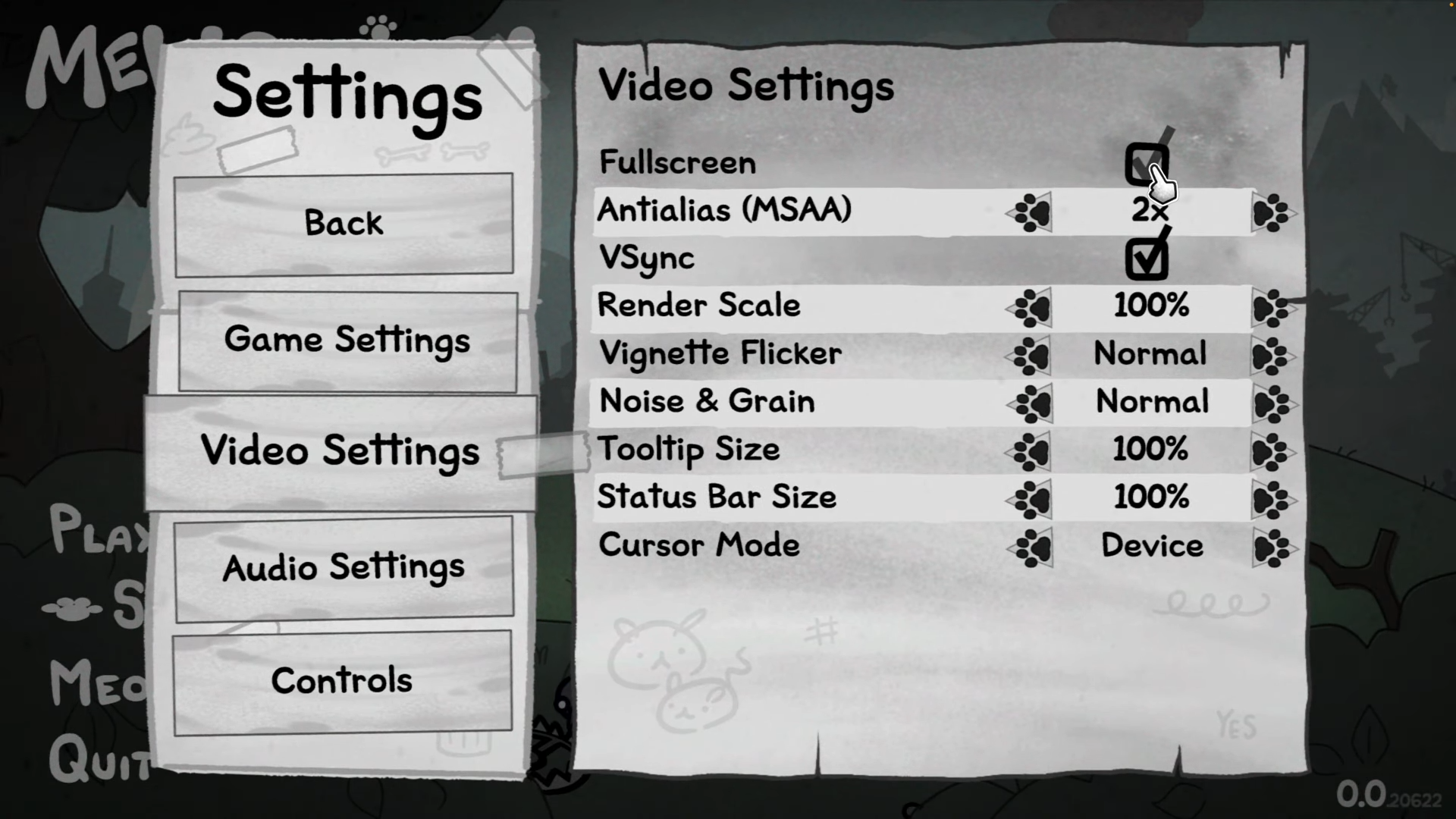
Once the full game is visible, go to the in-game Video Settings.
Step 4
Toggle Full Screen to OFF, then immediately back to ON. This ensures the resolution persists correctly in future sessions.
Resolving Audio Crackle
If you experience distorted or crackling audio during gameplay, you can apply an application-specific compatibility fix through the Wine configuration.
Step 1
Quit both Mewgenics and Steam completely.
Step 2
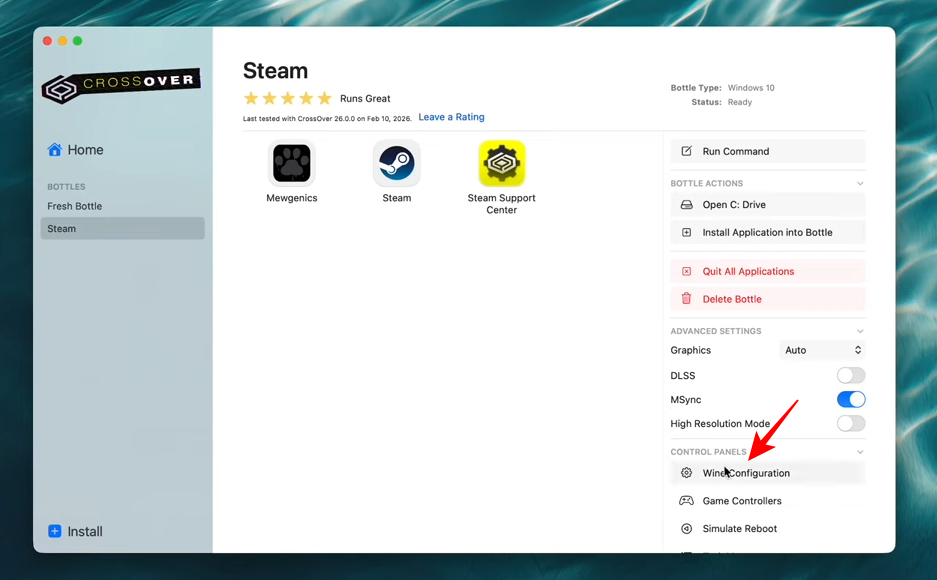
In CrossOver 26, select your Steam bottle and click on Wine Configuration.
Step 3
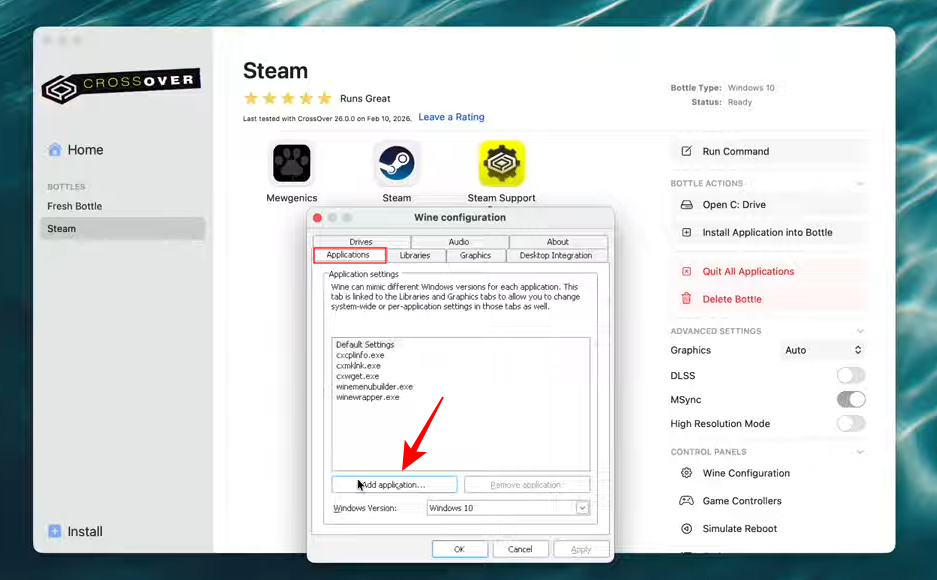
Go to the Applications tab and click Add Application.
Step 4
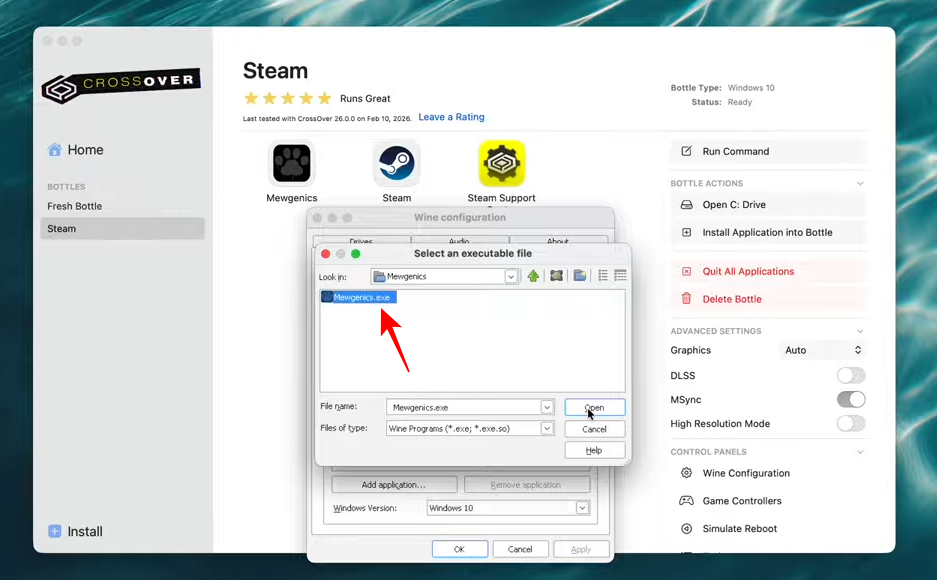
Navigate to the game’s executable file located at: Program Files (x86) > Steam > steamapps > common > Mewgenics > Mewgenics.exe
Step 5
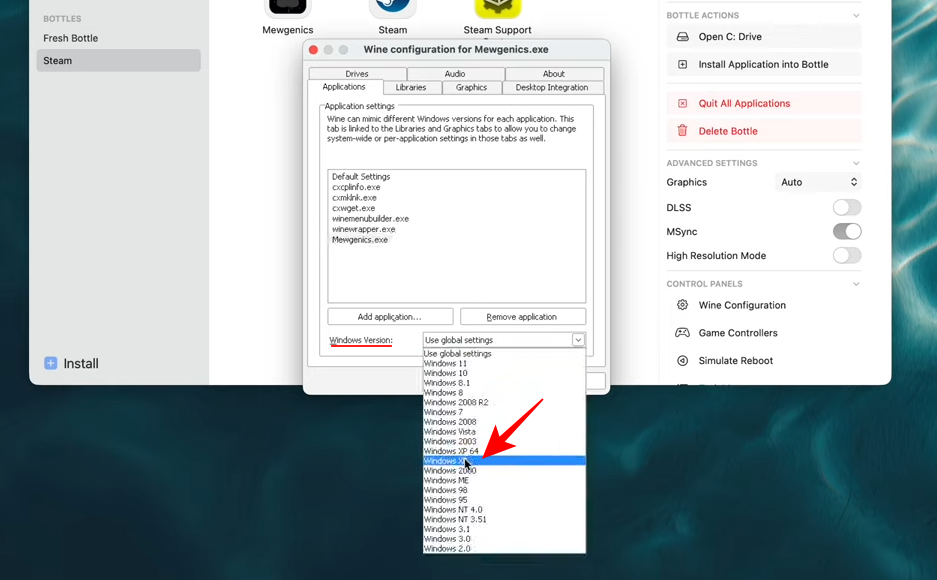
With Mewgenics.exe selected in the list, change the Windows Version to Windows XP.
Step 1
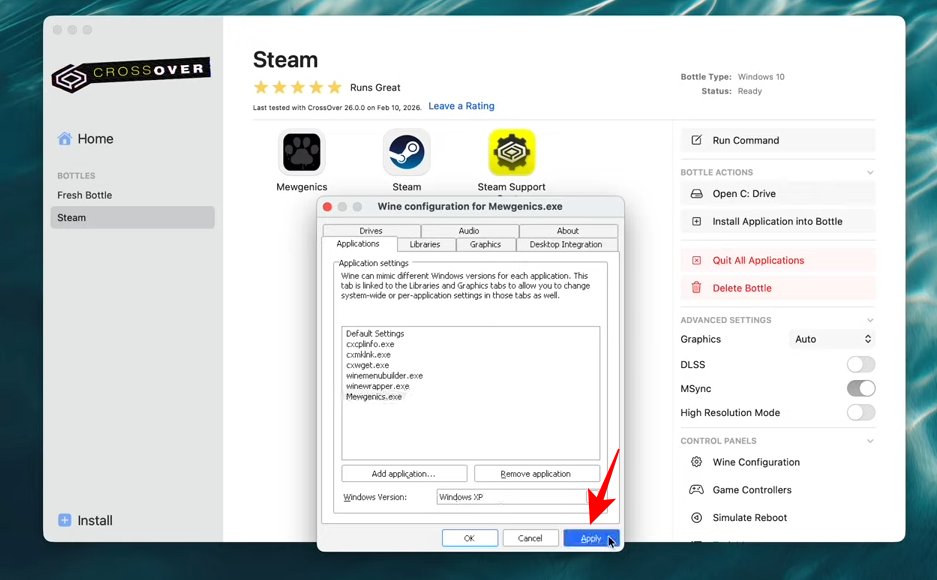
Click Apply and OK, then relaunch Steam and the game to enjoy clear audio.
By leveraging CrossOver’s advanced configuration tools and MSYNC, Mac players can experience Mewgenics with stable performance and corrected audio-visual settings.