Master Google Pixel 10’s Magic Cue with these setup tips for seamless, private AI suggestions tailored to your needs, available in select languages and regions.
- What to know
- Check Language and Region Requirements
- Keep Your Pixel 10 Up to Date
- Enjoy Magic Cue’s Default Activation
- Turn Off Magic Cue If You Need a Break
- Disable Specific Apps While Keeping Magic Cue Active
- Make sure you connect your device to Wi-Fi – Magic Cue needs it!
- Sign In with a Personal Google Account
- Enable Smart Features for Google Workspace
- Explore Where Magic Cue Shines
- Verify Suggestions Before Sharing
- Troubleshoot Magic Cue Issues
- Prioritize Privacy and Security
- Maximize Daily Hub for Personalized Insights
- Look Out for Expanding App Support
- Let Magic Cue Learn Your Style
What to know
- Magic Cue is enabled by default; customize app data access and language settings for optimal use.
- Connect to Wi-Fi for AI model downloads, which may take 24 hours to activate Magic Cue’s features.
- Sign into a personal Google Account and verify suggestions for accuracy before sharing.
- Update apps like Gmail and Messages to ensure compatibility with Magic Cue.
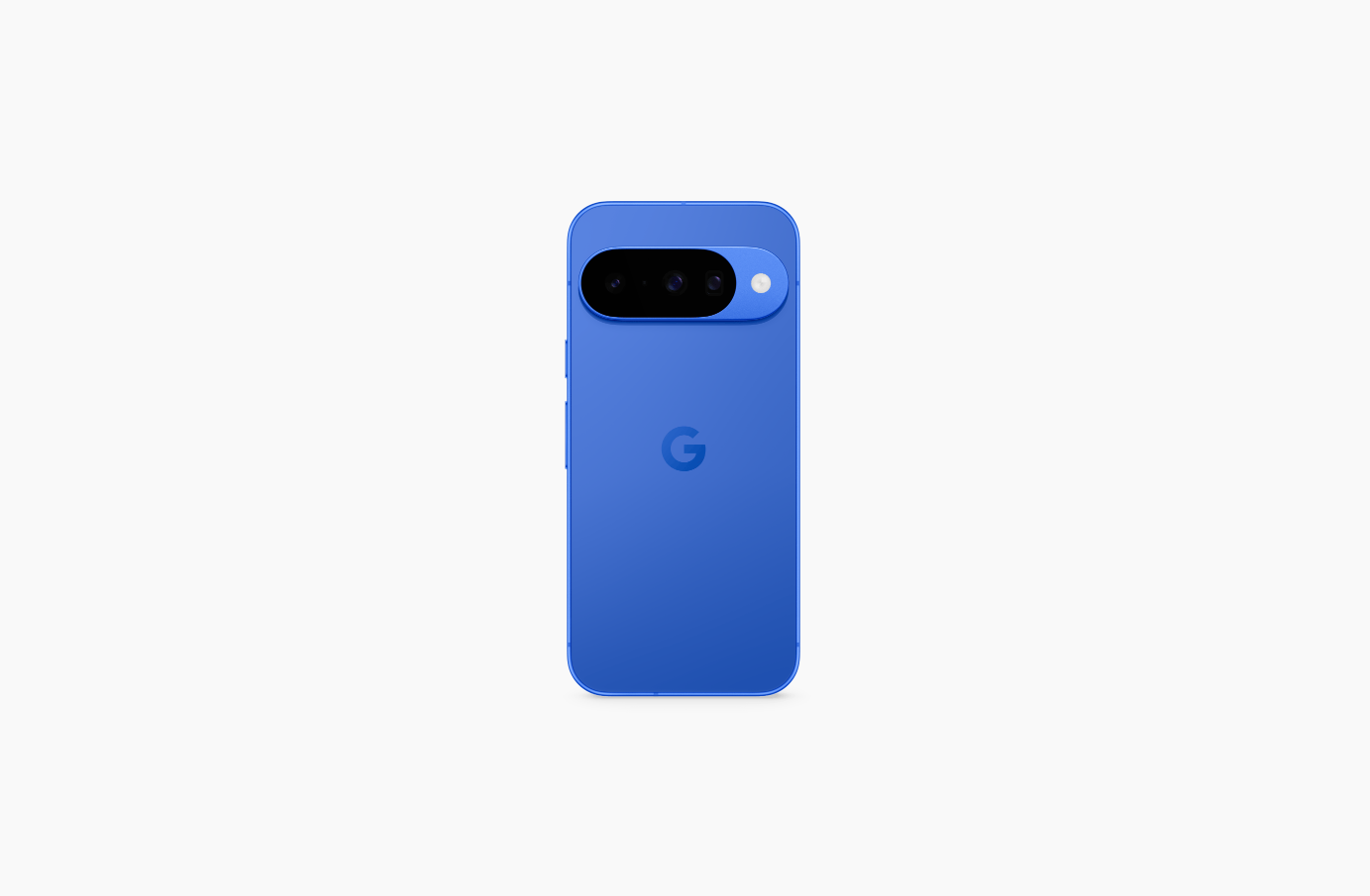
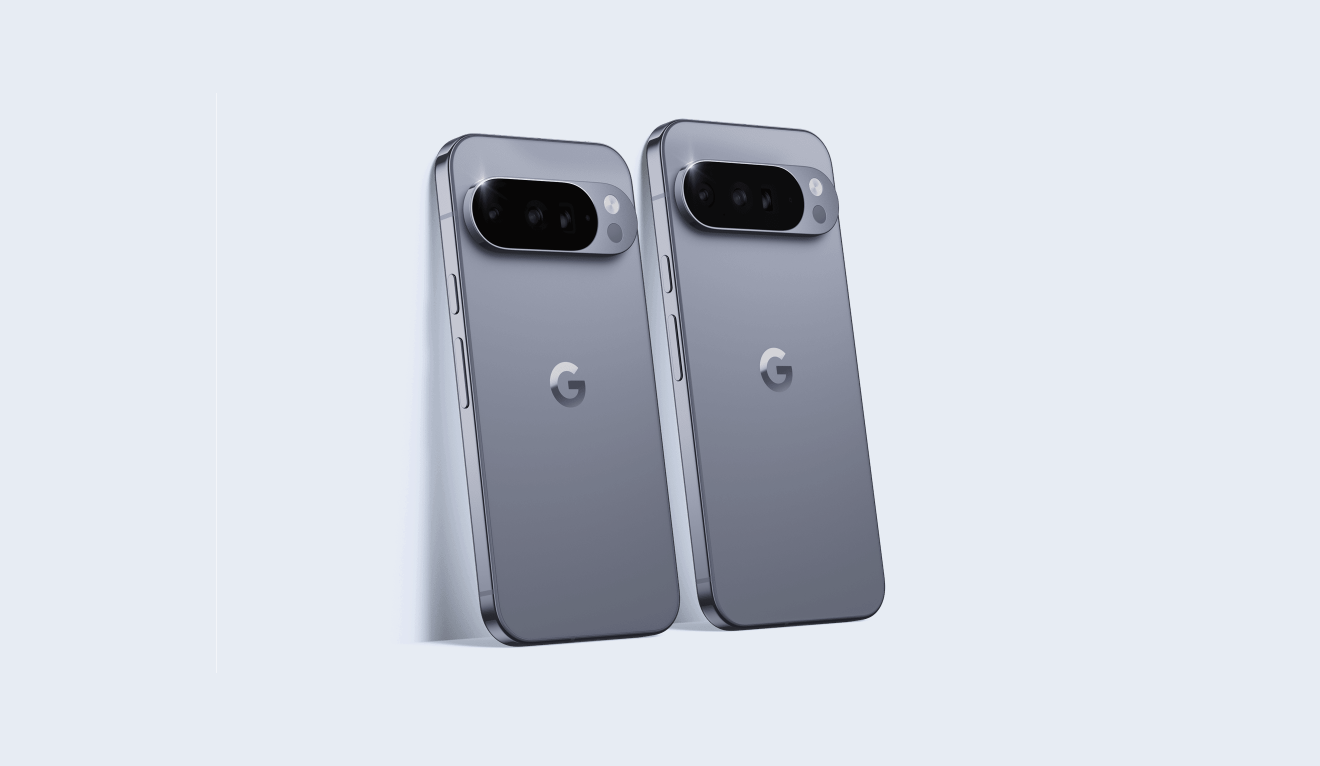
Magic Cue is Google’s game-changing AI feature for the Pixel 10 series, designed to make your life easier by offering personalized suggestions based on your app activity. Available on Pixel 10, Pixel 10 Pro, Pixel 10 Pro XL, and Pixel 10 Pro Fold, it pulls info from apps like Gmail, Messages, Calendar, and more to anticipate your needs. Whether you’re texting, calling, or searching, Magic Cue has your back. Here’s how to set it up for a flawless experience.
Check Language and Region Requirements
Magic Cue is available in specific countries and languages to ensure smooth performance. You can use it in:
- Australia (English only)
- Canada (English only)
- India (English only)
- Ireland (English only)
- Japan (Japanese only)
- Malaysia (English only)
- Singapore (English only)
- United Kingdom (English only)
- United States (English only)
Make sure your Pixel 10’s language is set to one of these supported options. Go to Settings > System > Languages & input > Languages to confirm or update your device’s language. If you’re in an unsupported region or language, Magic Cue won’t be available, so double-check your settings to avoid issues.
Keep Your Pixel 10 Up to Date
To get Magic Cue humming, your Pixel 10 needs to run Android 16 with the Tensor G5 chip. Head to Settings > System > System update to check for the latest software. This ensures Magic Cue has the foundation it needs to work smoothly.
Don’t forget to update apps like Google Messages, Gmail, Calendar, Photos, Maps, Chrome, Docs, Files, YouTube, Keep, and select third-party apps like Line. Open the Google Play Store, tap your avatar, and go to Manage apps & device > Updates available. Updating these apps prevents compatibility issues and keeps Magic Cue’s suggestions spot-on.
Enjoy Magic Cue’s Default Activation
Great news—Magic Cue comes enabled by default on your Pixel 10 series device, so you can start enjoying its AI-powered suggestions right out of the box. It’s ready to pull data from apps like Gmail, Calendar, and Messages to offer proactive tips, such as showing a flight time during a text or suggesting a location in Maps. However, you’ll still need to fine-tune its settings to match your preferences and ensure it’s accessing the right apps.
First suggestions from Magic Cue will start only a day or later after setup as the device processes things for Magic Cue when it charging and not used. That takes time. SO, expect some delay is first Magic Cue suggestions.
Turn Off Magic Cue If You Need a Break
Don’t want Magic Cue running all the time? You can easily turn it off without affecting other Pixel features. Follow these steps:
- Open the Settings app on your Pixel 10.
- Tap “Magic Cue”.
- Toggle off the Magic Cue option to disable all suggestions.
Turning it off stops Magic Cue from processing app data or monitoring screen activity. You can always turn it back on later in the same menu if you change your mind.
Disable Specific Apps While Keeping Magic Cue Active
Want Magic Cue to work with some apps but not others? You can customize which apps it pulls data from while keeping the feature active. Here’s how:
- Open the Settings app on your Pixel 10.
- Tap Magic Cue > Base suggestions on apps.
- Select which apps you want Magic Cue to use, such as Gmail, Calendar, Photos, Chrome, Docs, Files, YouTube, Maps, or third-party apps like Line.
- Deselect any apps you don’t want Magic Cue to access, like Keep or shopping apps, to limit its scope.
- Optionally, toggle off Use data from recent screen activity to prevent Magic Cue from analyzing what’s on your screen, or toggle off Use foundational data to stop it from using your Google Account’s email or phone number.
This way, you can keep Magic Cue working for, say, Messages and Calendar while disabling it for Photos or YouTube, tailoring it to your privacy and usage needs.
Make sure you connect your device to Wi-Fi – Magic Cue needs it!
Magic Cue uses Google’s Gemini Nano AI model, which processes everything on-device for top-notch privacy. To get started, it needs to download AI models, which only happens over Wi-Fi. If you see a “Wi-Fi connection needed” message, connect to a stable Wi-Fi network to complete the download. This process can take up to 24 hours after initial setup, especially as Magic Cue processes new data while your device charges.
Once the models are downloaded, Magic Cue works offline, so you can enjoy suggestions without constant internet access. Just make sure you’ve got that initial setup done.
Sign In with a Personal Google Account
To use Magic Cue, you must be signed into a personal Google Account and be at least 18 years old. Workplace accounts won’t work unless “smart features” are enabled in your Google Workspace settings. Check this by visiting your Workspace settings online or contacting your admin. If you use multiple accounts, Magic Cue defaults to your primary account. Switching accounts means opting in again, and data from the previous account is deleted from the device for privacy.
Your Google Account ties together data from apps like Gmail, Calendar, and Keep, letting Magic Cue offer contextual suggestions—like showing a restaurant address from a Calendar event when texting about dinner plans.
Enable Smart Features for Google Workspace
If you rely on Google Workspace apps (like Gmail, Calendar, or Keep for work), Magic Cue needs “smart features” enabled to access this data. Go to your Google Workspace settings online to confirm this is turned on. Without it, Magic Cue might miss work-related emails or events, limiting its usefulness. If you’re unsure, check with your Workspace admin to get this sorted.
Explore Where Magic Cue Shines
Magic Cue pops up across your Pixel 10 in various scenarios:
- Chat apps: Get suggestions in Google Messages or select third-party apps like Line, such as a flight time when someone asks about your travel plans.
- Phone app: See details like an order number when calling a business about a return.
- Weather app: View weather updates for upcoming trips or events.
- Daily Hub: Swipe left on your home screen to see a personalized feed with emails, texts, Keep notes, or even playlist suggestions.
- Other apps: Get action suggestions in Maps, shopping apps, or streaming apps, like opening a location in Maps when mentioned in a text.
You can also select text in Gmail, Keep, or Chrome to trigger action suggestions, like opening your calendar when someone asks about your availability.
Verify Suggestions Before Sharing
Magic Cue is smart, but it’s not infallible. It might pull outdated info, like an old flight number or incorrect contact details. Always double-check suggestions before sharing, especially for sensitive info like invoices, calendar invites, or payment reminders. Long-press a suggestion to see its source (e.g., Gmail or Calendar) and provide feedback or adjust settings if needed. This keeps your interactions accurate and secure.
Troubleshoot Magic Cue Issues
Not seeing suggestions? Here are some fixes:
- Wait it out: Magic Cue may take 24 hours to process data, especially after setup. Charge your device and use it normally to help it learn.
- Check system apps: Go to Settings > Apps, tap the three-dot menu, select Show system apps, and search for “Device Intelligence.” Update it if needed via App detail.
- Re-enable settings: If you restore your device, Magic Cue settings aren’t backed up. Re-enable them in Settings > Magic Cue and let it reprocess your data.
- Ensure Wi-Fi: Connect to Wi-Fi to complete model downloads if you see a “Wi-Fi connection needed” message.
Magic Cue gets better over time as it learns your habits, so give it a few days to deliver more relevant suggestions.
Prioritize Privacy and Security
Magic Cue processes data in a secure, isolated environment on your Pixel 10 using Gemini Nano and the Tensor G5 chip, so your info stays private and isn’t sent to the cloud. You control which apps it accesses, and you can turn off Magic Cue or limit its data sources anytime in Settings > Magic Cue. By using it, you agree to Google’s Terms of Service, AI Prohibited Use Policy, and Privacy Policy.
For security, always review suggestions before acting, especially for sensitive tasks like updating contacts, sending payments, or modifying appointments. If a suggestion seems off, ignore it and manually verify the info.
Maximize Daily Hub for Personalized Insights
Magic Cue’s Daily Hub is a gem. Accessible by swiping left on your home screen, it shows a feed of upcoming events, weather for planned trips, reminders from emails or Keep notes, and even tailored playlist suggestions. Ensure Magic Cue is enabled in Daily Hub settings to make the most of these insights. It’s like having a personal assistant who knows your schedule and preferences.
Look Out for Expanding App Support
At launch, Magic Cue supports key Google apps and limited third-party apps like Line in select regions. Google plans to add more third-party apps over time, so keep your Play Store updated to catch new integrations. This will make Magic Cue even more versatile, pulling info from your favorite apps.
Let Magic Cue Learn Your Style
Magic Cue gets smarter with use. It analyzes your app activity and screen data to refine its suggestions. For example, if you often share photos in Messages, it’ll start suggesting relevant images faster. Be patient for the first few days as it adapts to your routine, and you’ll see it become a seamless part of your Pixel experience.
With these steps, your Pixel 10’s Magic Cue will be ready to deliver personalized, private, and proactive assistance. From suggesting a flight time in a text to opening Maps for a mentioned location, it’s designed to save you time and effort. Set it up, tweak it to your liking, and let Magic Cue work its magic!