Photomode in Where Winds Meet is more than a screenshot tool. By controlling time, weather, camera distance, and visibility, players can create cinematic shots, and even force time or weather-locked quests to trigger instantly using the Camera interface.
At first glance, Photomode in Where Winds Meet appears to be a standard visual feature designed for capturing the game’s landscapes and martial arts animations. In practice, it functions as a hybrid system – part cinematic tool, part gameplay utility. Certain encounter quests and NPC events only trigger under specific conditions, such as a particular time of day or weather state, which can otherwise require long periods of waiting or repeated fast travel.
By manipulating these environmental variables through the Camera interface, players can immediately meet those conditions, refresh encounter checks, and force stubborn quests to appear. Understanding this interaction allows Photomode to be used strategically, not just artistically.
What is Photomode in Where Winds Meet
Photomode is an in-game camera system that pauses the world and gives players direct control over camera placement, environmental conditions, and visual presentation. Unlike standard screenshots, it allows manipulation of time, weather, lighting, and visibility, making it both a creative and mechanical tool within the game.
How it Works
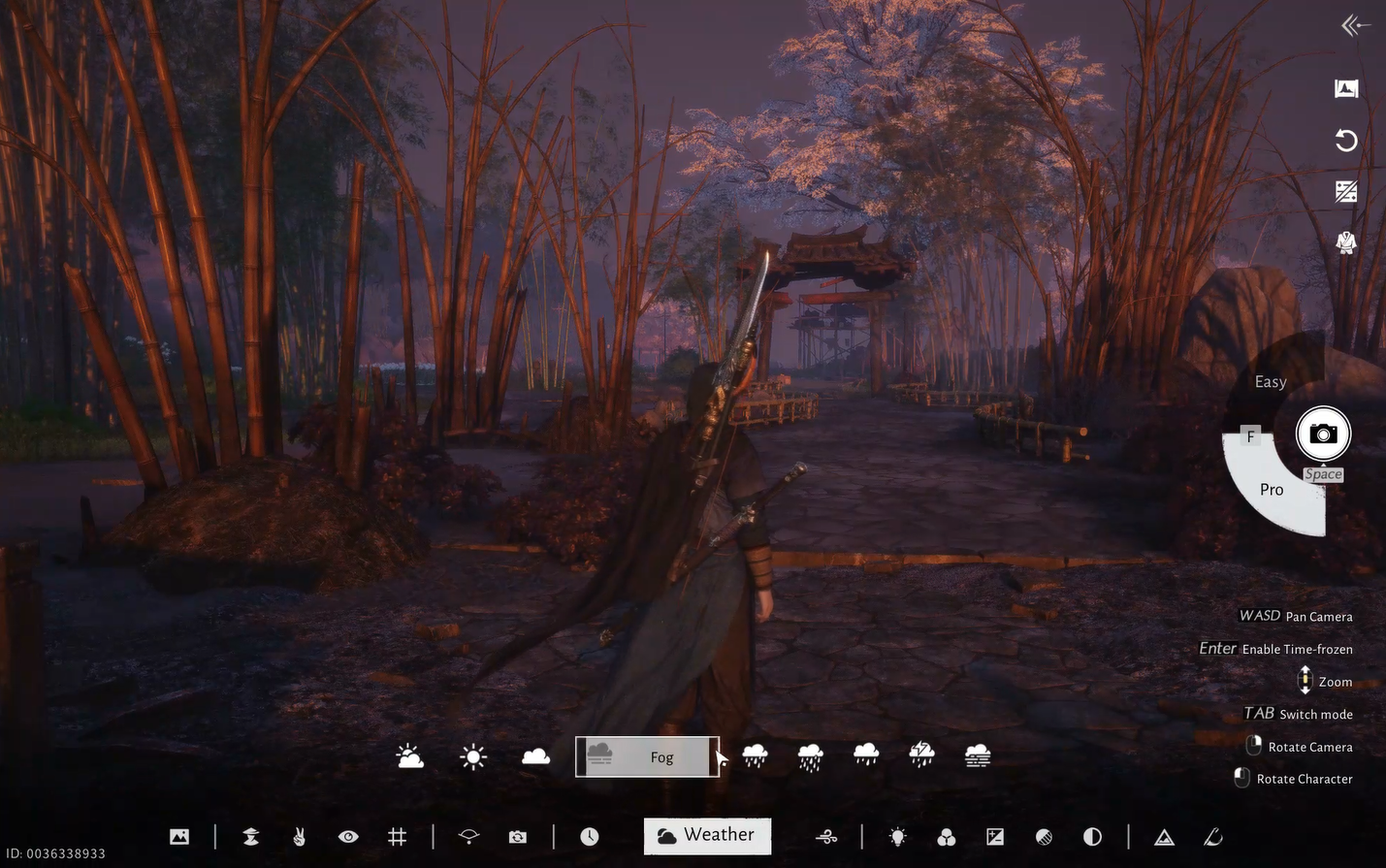
Once activated, Photomode presents options that range from basic presets to professional controls.

Easy Mode
- Offers preset poses, filters, and simple camera adjustments for quick, visually appealing shots with minimal effort.
- Suitable for casual capturing without deep tweaking.
Pro Mode
- Provides granular control over camera position, focal length, aperture (depth of field), tilt, gridlines, and environmental effects (time of day, weather, wind strength, lighting, filters).
- Allows hiding UI elements, other players, NPCs, or objects to clean up a scene.
Environmental Controls
- Time of day and weather sliders let you set sunrise, sunset, fog, rain, cloudy skies, and more for cinematic shots.
- These environmental controls also affect world simulation, such as NPC schedules and quest triggers
What you can do with it
Photomode in Where Winds Meet can be used to enhance visual storytelling, control environmental conditions, and influence time- or weather-dependent encounters, making it useful for both creative expression and practical gameplay advantages.
Screen recording by: NerdsChalk
Creative and technical photography
- Position and frame: Full camera mobility lets you angle shots for landscapes, portraits, or action moments.
- Lighting and mood: Adjust time of day and lighting direction to enhance drama or ambience.
- Weather effects: Set fog, rain, or clear skies for atmospheric images.
- Wind dynamics: Influence wind strength and direction to animate grass, hair, or clothing for a dynamic image.
- Filters and finishing: Apply color filters and exposure tweaks to finalize look.
Gameplay integration beyond screenshots
- Quest triggering: Because Where Winds Meet quests often depend on specific time-of-day or weather conditions, players can use the Camera interface to adjust these settings instantly, exit Photomode, and re-approach the trigger point to refresh NPC or event spawns. This is especially useful for encounters like Fate’s Farewell, which may not appear unless the correct time conditions are met, allowing players to bypass long waits and progress the quest immediately.
Social and community use
- Save and share: Images taken in Photomode are saved into an in-game album; you may also be able to share them via signposts or galleries, depending on version and platform.
What makes Photomode unique in Where Winds Meet
Unlike most games where Photomode is cosmetic only, Where Winds Meet allows camera-driven environmental changes to interact with quest logic. This effectively turns the Camera into a soft world-state controller, giving players agency over time-gated or weather-dependent content.
Photomode is both a creative feature and a functional gameplay tool. Used correctly, it saves time, bypasses waiting cycles, helps trigger stubborn quests, and enables cinematic storytelling. Players who treat it as more than a screenshot button gain a clear practical advantage.
We hope this Photomode Tips and Tricks guide cleared up everything you needed. Drop your feedback, suggestions, or questions in the comments below—we actively check them and will be happy to assist further whenever required.