What to know
-
A community mod on CurseForge adjusts Hytale’s color saturation to reduce overly bright visuals.
-
Addresses player complaints about Hytale’s aggressive greens, blues, and cyan fog.
-
Simple .jar file install via Hytale’s Mods folder; no file extraction needed.
-
Released amid Hytale’s early access launch in January 2026, with active modding scene.
Let’s face it, Hytale‘s colors are too saturated. Fortunately, Hytale’s modding scene provides a few quick fixes. The mod “Recolor (Desaturate)” lets you to easily add this tweak to personalize your gameplay without altering core files.
How to install Recolor (Desaturate)
Follow these steps to get the mod running quickly.
Step 1
Download the zip file for Recolor (Desaturated) from CurseForge.
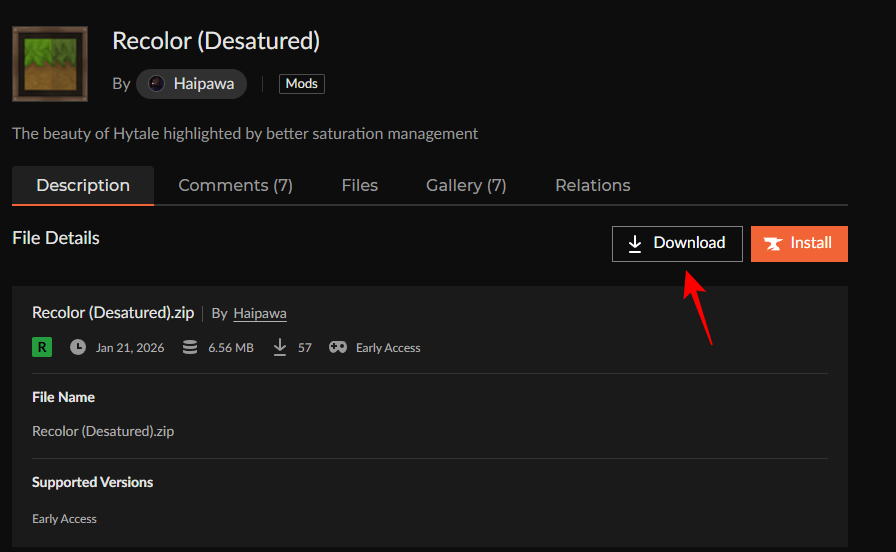
Step 2
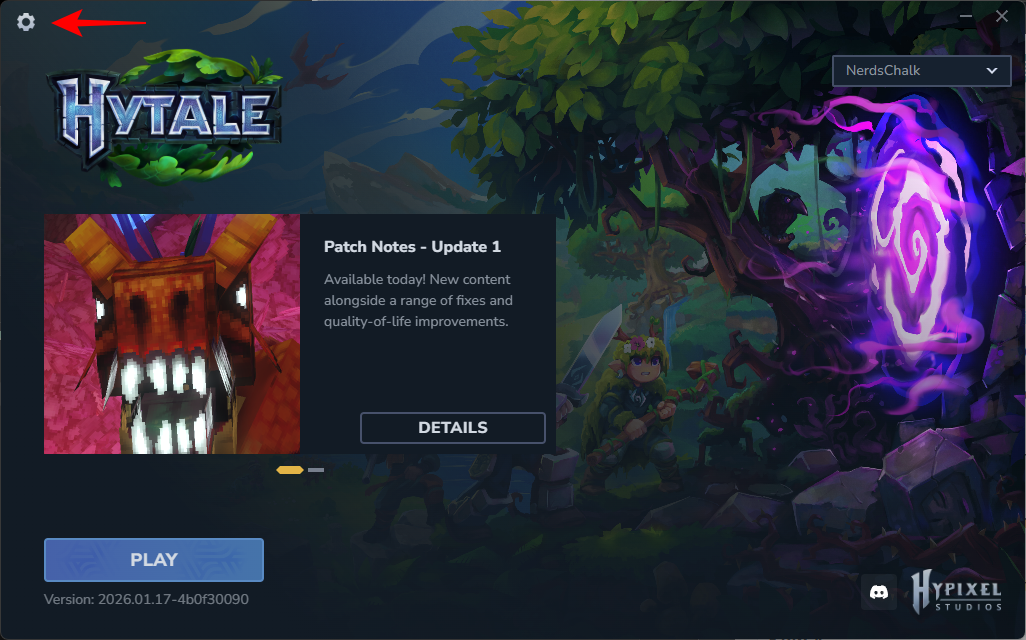
Open Hytale Launcher, go to Settings (gear icon).
Step 3
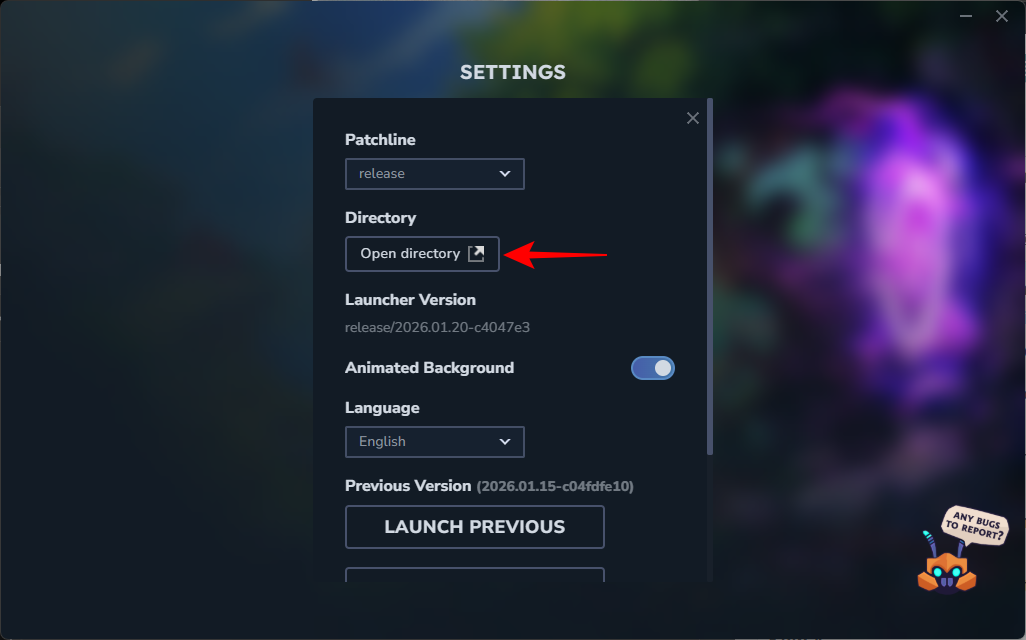
Click “Open Directory”.
Step 4
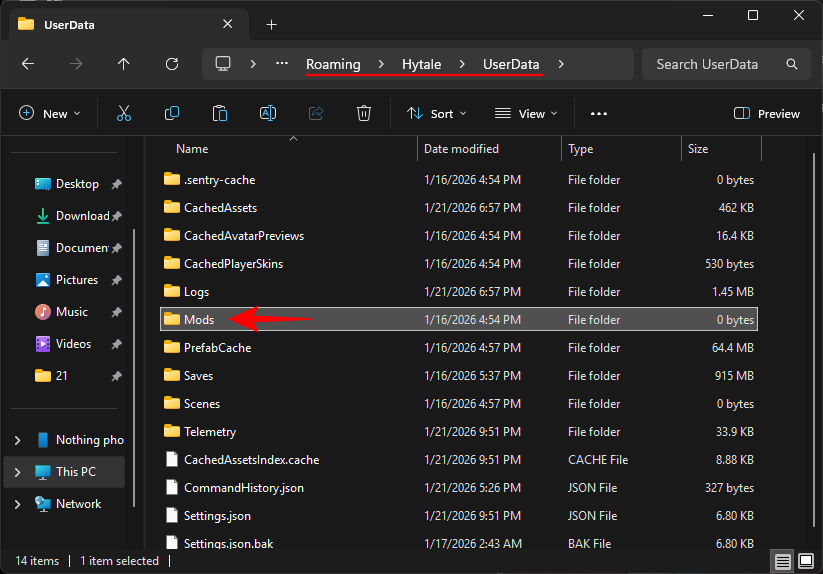
Navigate to the UserData/Mods folder.
Step 5
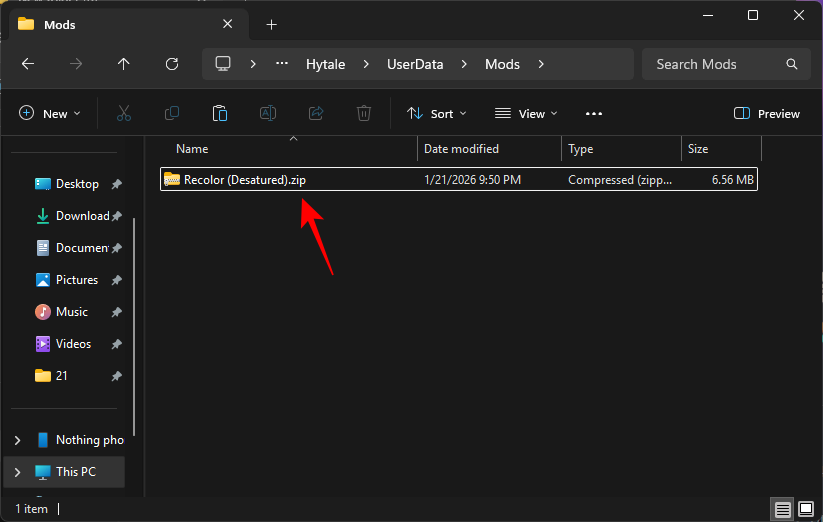
Drop the zip file into the folder—do not extract it.
Step 6
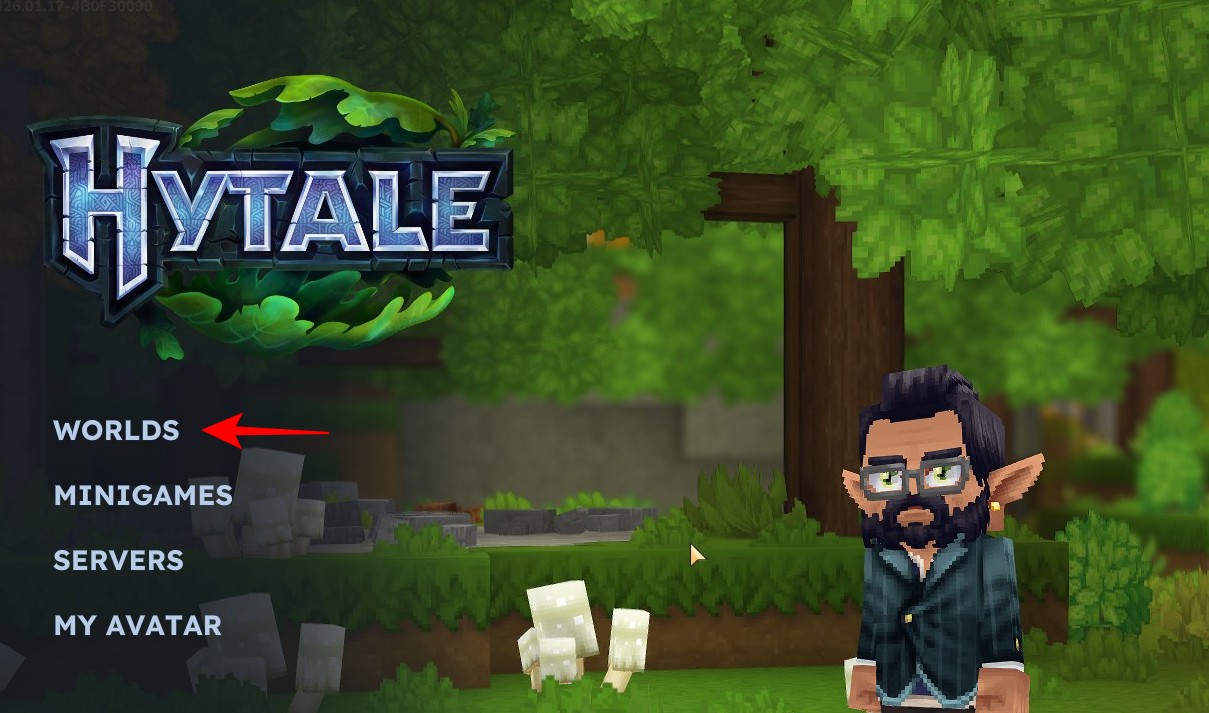
Open Hytale. Then go to Worlds.
Step 7
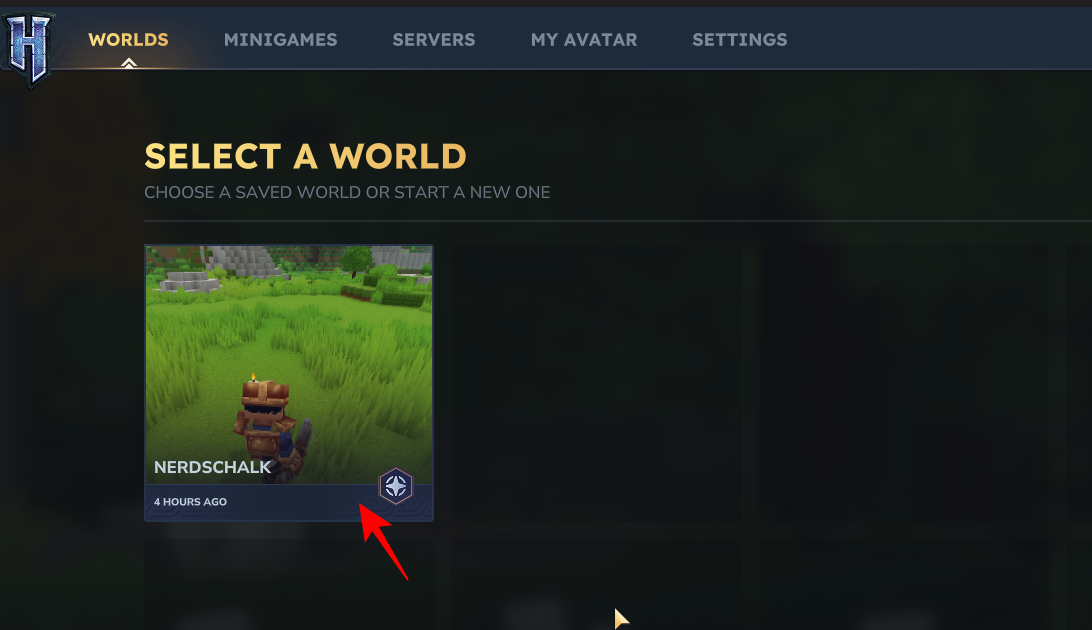
Right-click on a world.
Step 8
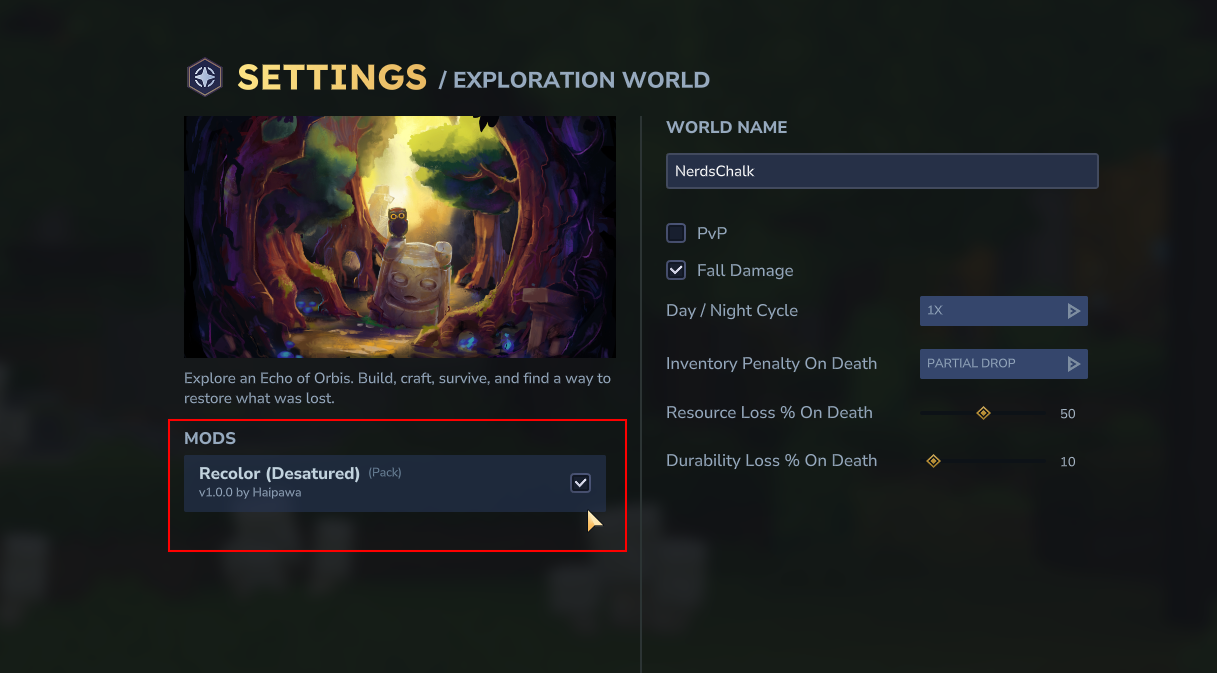
Under ‘Mods’, enable Recolor (Desaturated).
Step 9
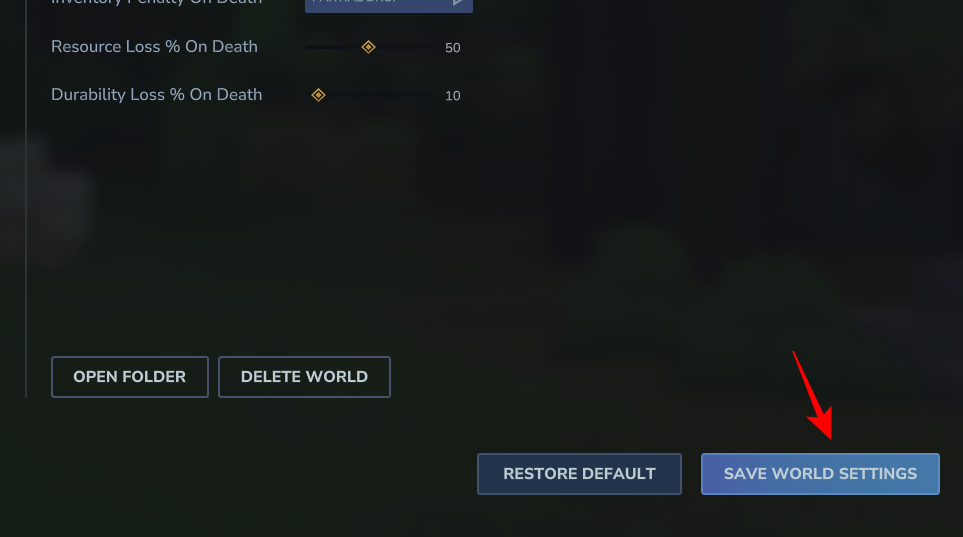
Click Save World Settings.
Step 10
Enter the World and you’ll notice the difference straightaway.
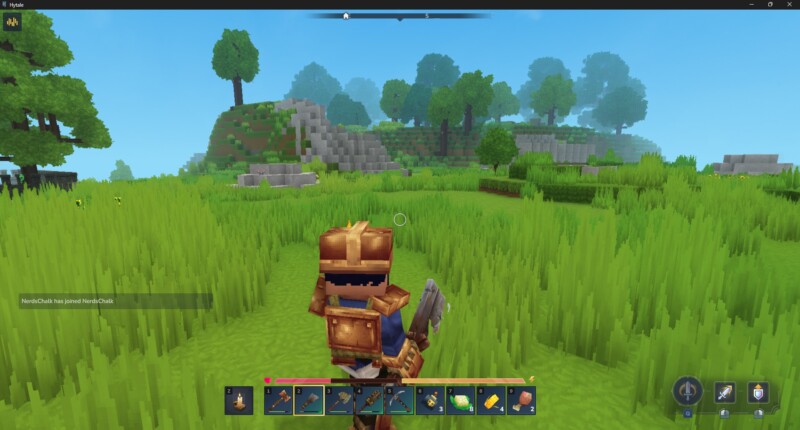
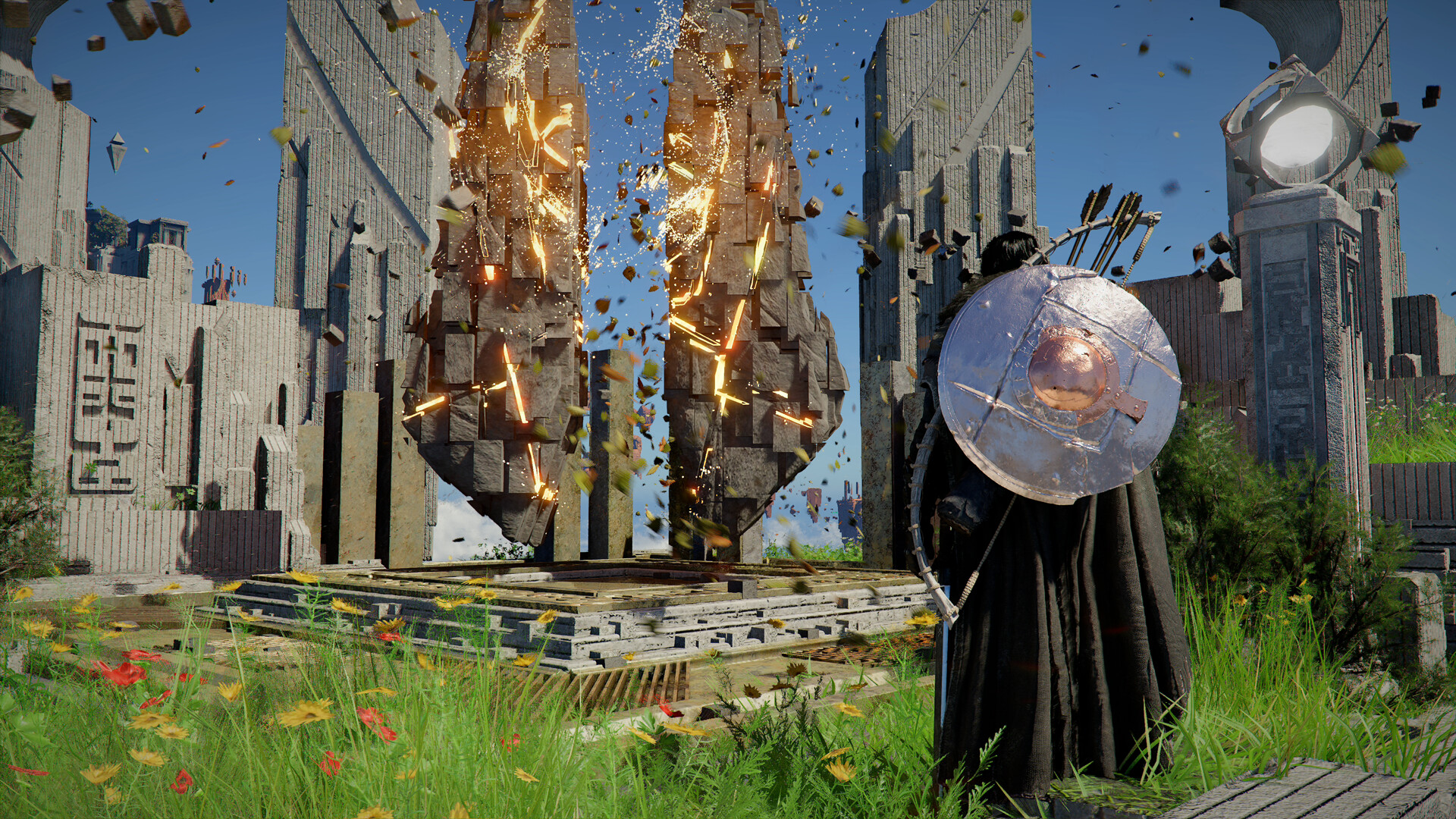
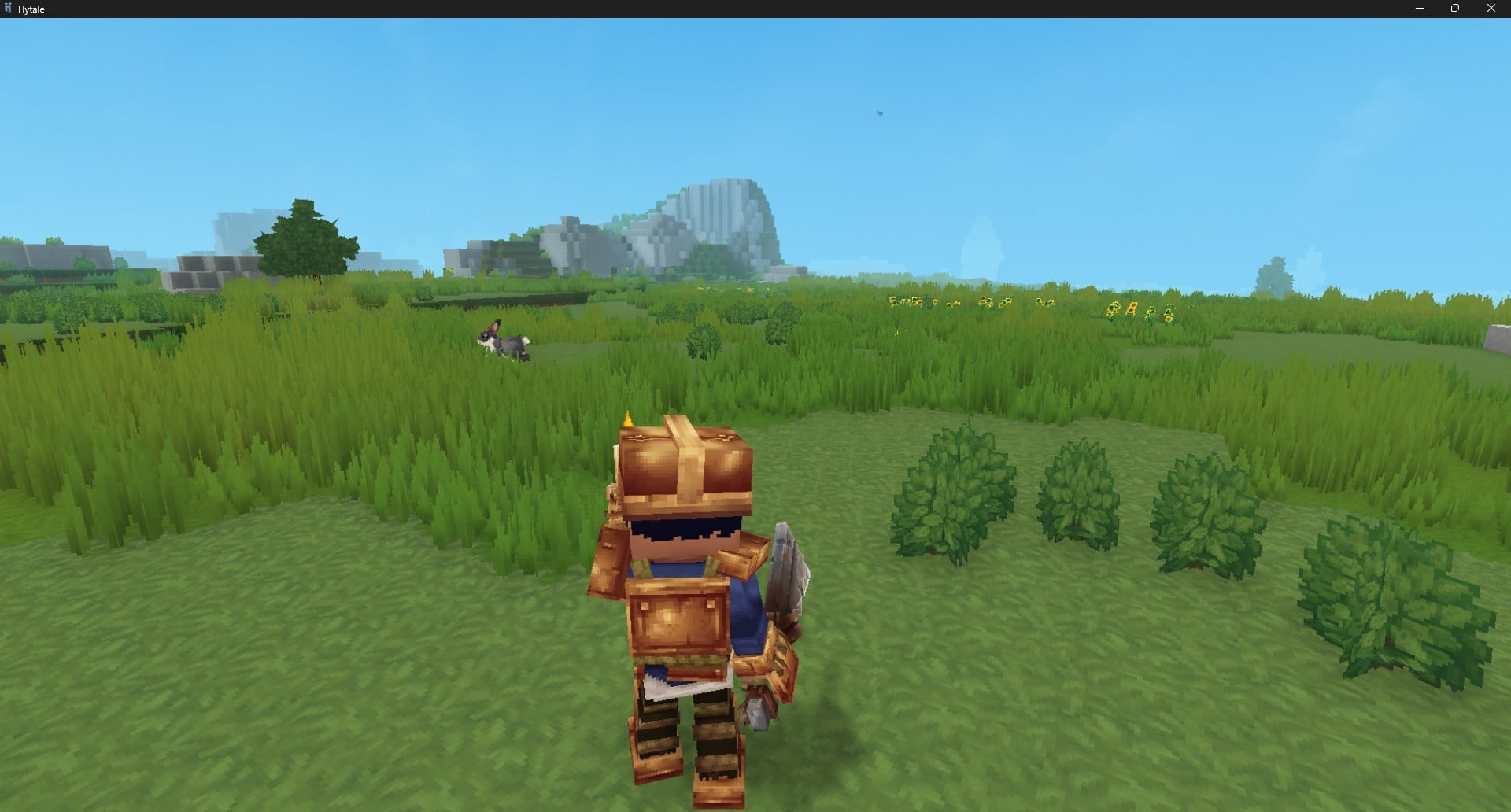
Normal 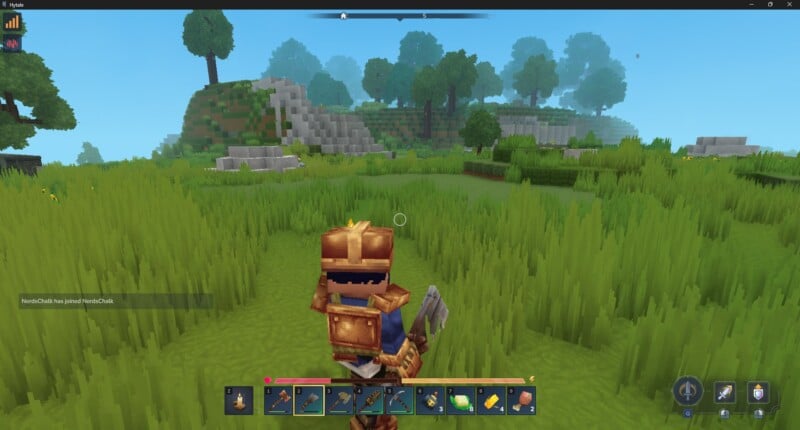
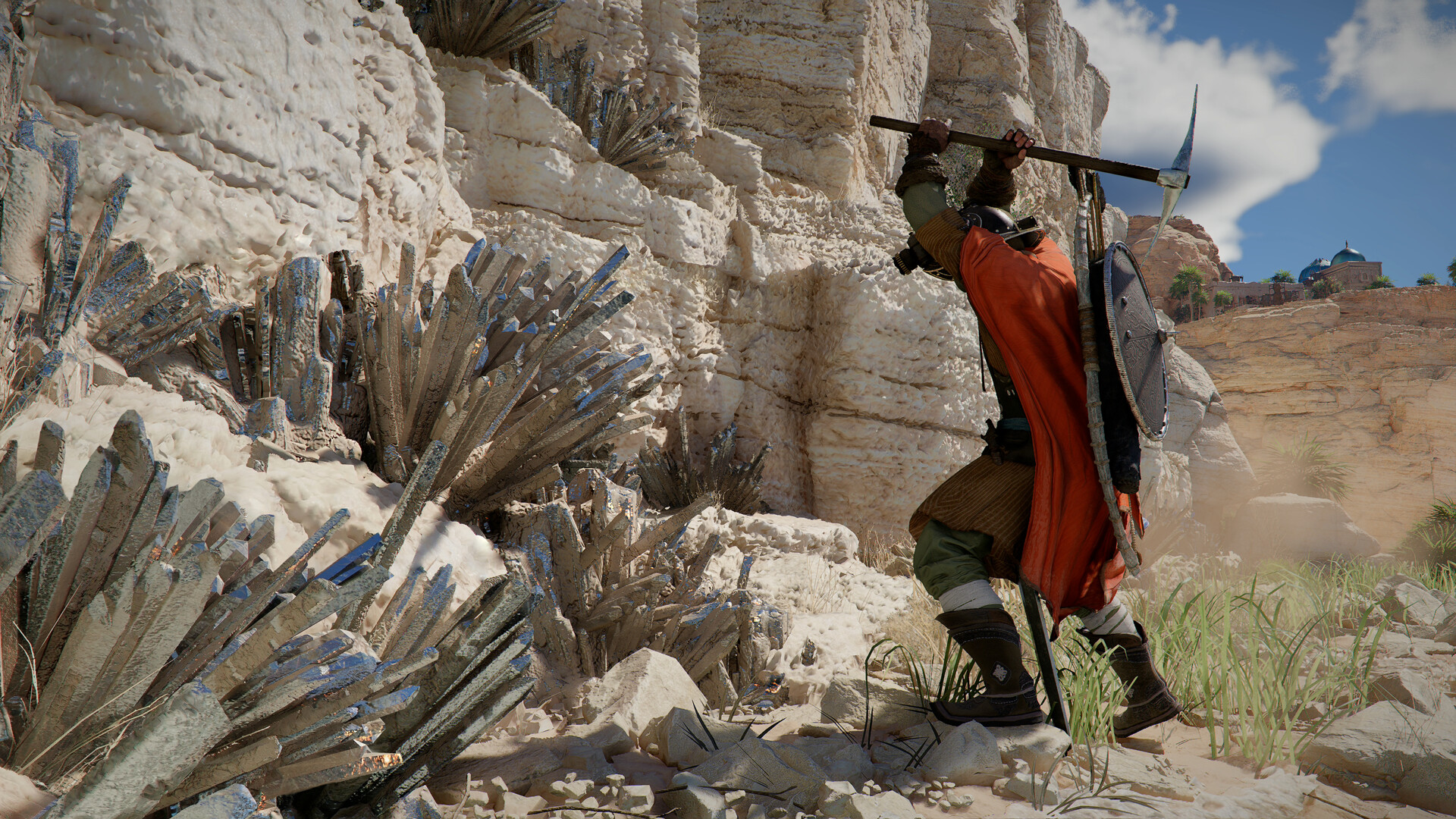
Modded
Hytale’s base palette feels artificial or overwhelming, especially in zones with heavy cyan fog. But this mod counters that by muting hues while keeping the voxel style intact.
Experiment with mod combinations for optimal results—you might layer it with lighter texture packs or ambient light mods. Recent patches like Update 1 (Jan 2026) improved particles and stability, making mods more reliable.