What to know
- Set Windows to High performance power plan and turn on Game Mode to prioritize the game.
- Lower Hytale’s graphics preset to Low and enable Unlimited FPS in the Video settings.
- Disable Steam Overlay and background apps that compete for CPU/GPU while playing.
- If the game still stutters, try running it as administrator and verify the launcher/game files.
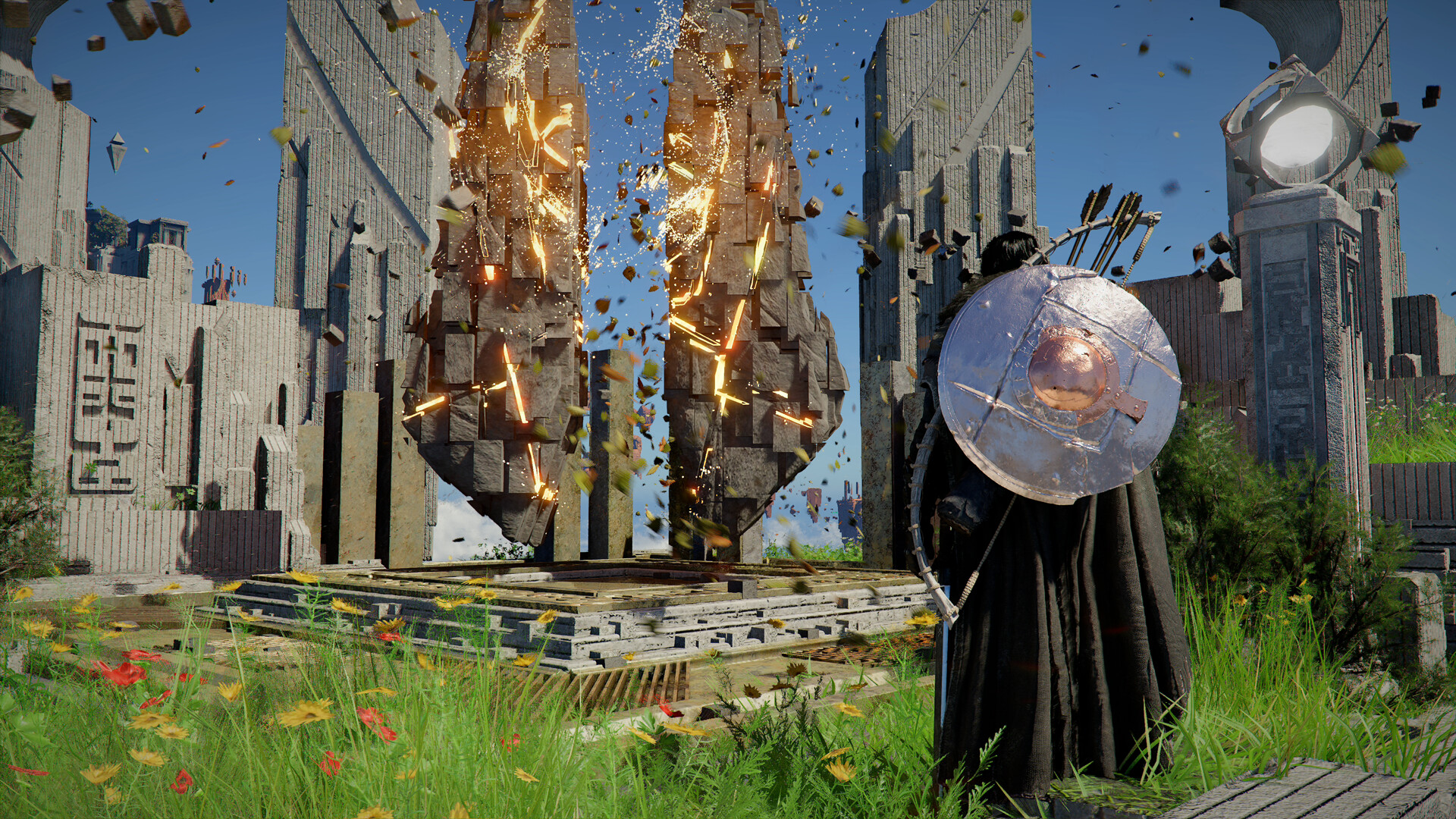
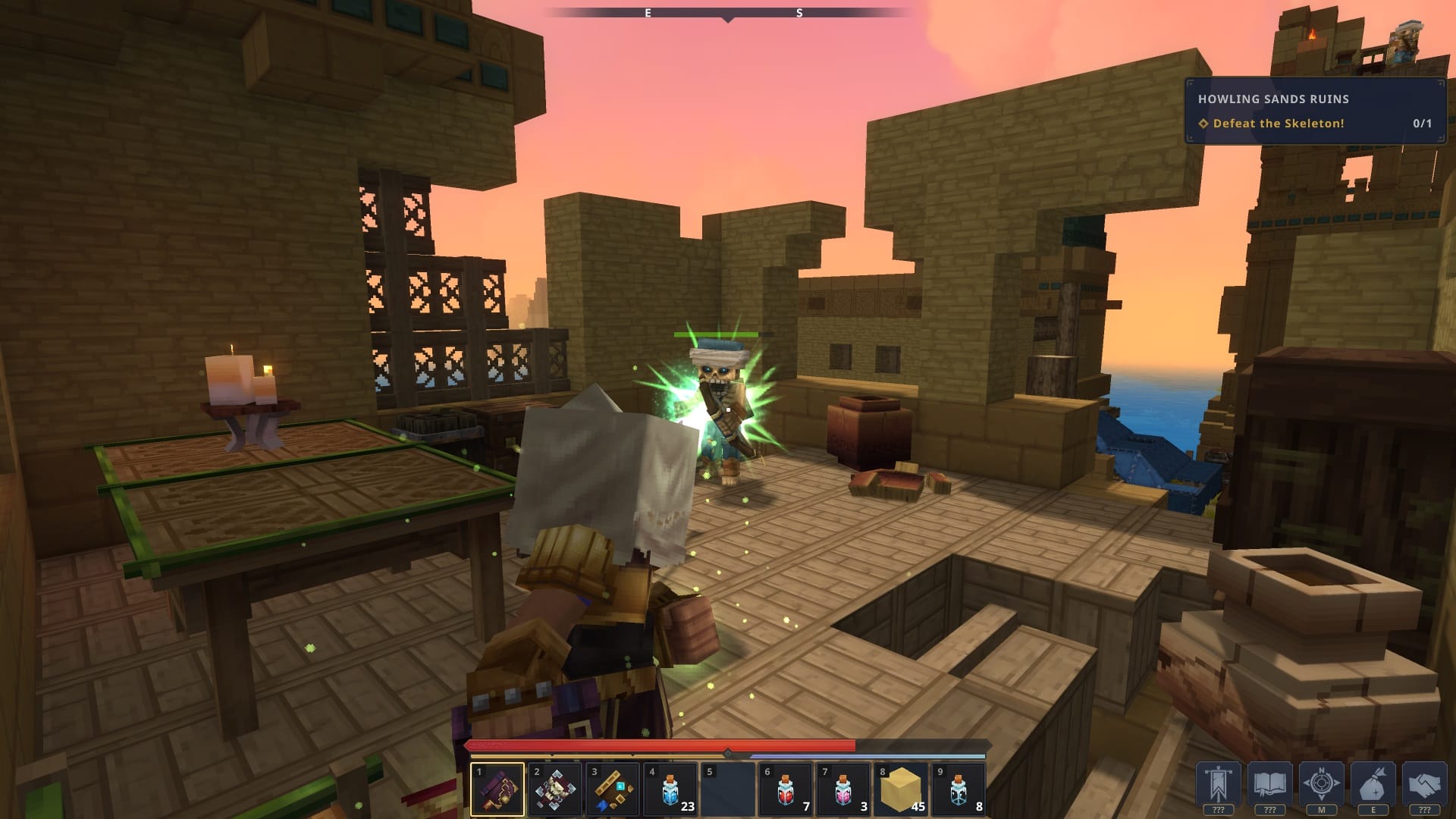
Hytale stuttering and FPS drops are usually caused by a mix of high in-game settings, Windows power limitations, and background apps fighting for system resources. This guide walks you through the most effective fixes—from optimizing Hytale’s video settings and Windows power options to disabling Steam overlays and background processes, so you can get smoother gameplay and more consistent performance.
How to adjust Hytale’s video settings
The fastest way to reduce stuttering is to lower the graphics load inside Hytale itself.
Step 1
Launch Hytale and press Esc to open the pause menu.
Step 2
Click Settings → Video tab.
Step 3
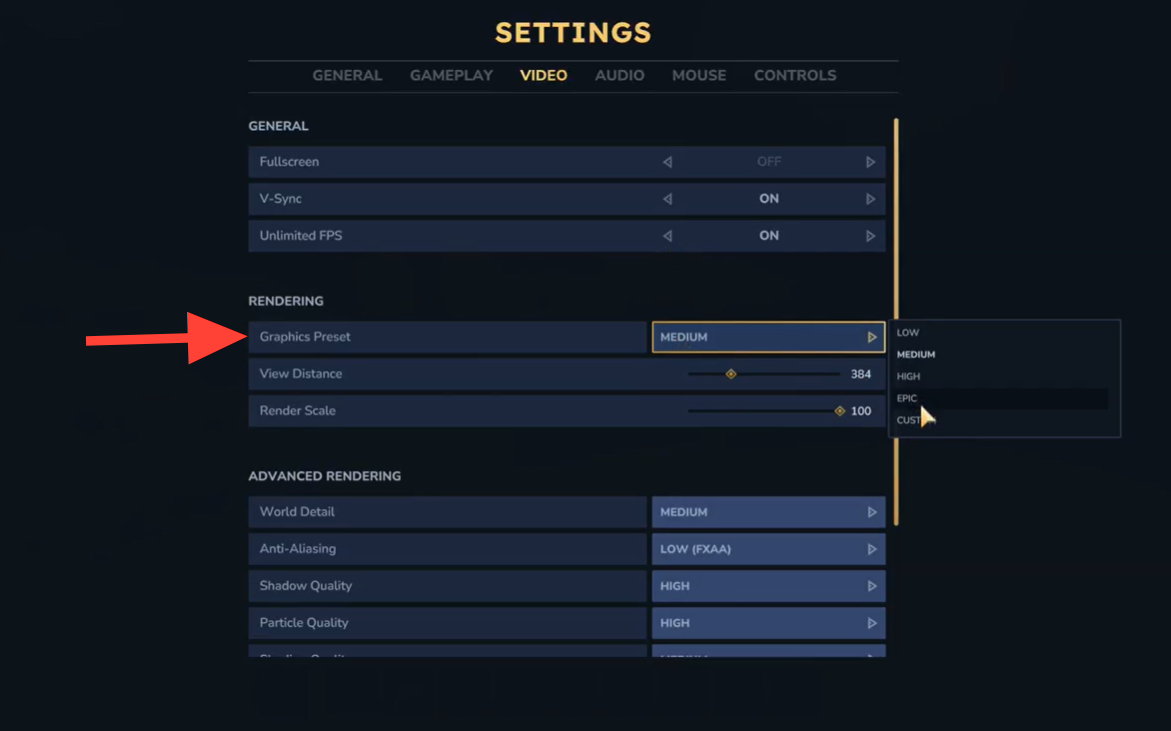
Change the all the graphic presets to Low. This will help boost better performance.
Step 4
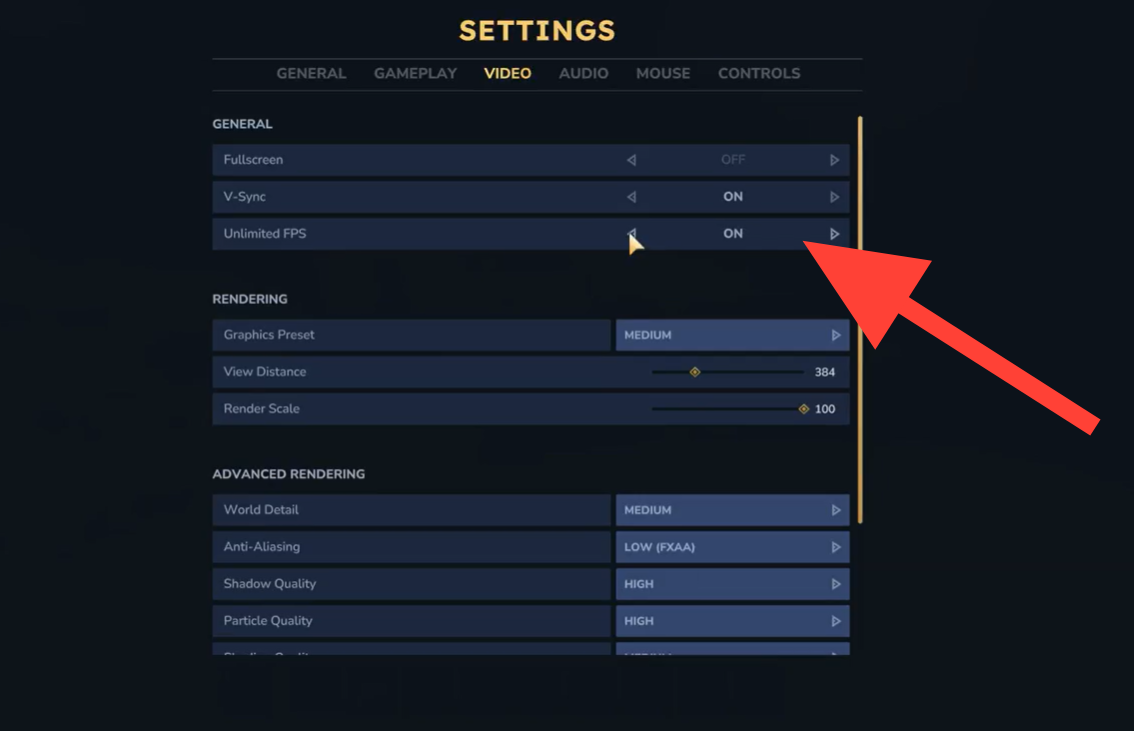
Scroll down and set Unlimited FPS to On. If you prefer a cap, set it to your monitor’s refresh rate (e.g., 60, 120, or 144 Hz).
Step 5
Click Save Changes and test the game in a busy area or during combat to see if stuttering improves.
How to Optimize Windows for Hytale
Windows power and gaming settings can cause stutters and FPS drops, especially on laptops.
- Enable High Performance mode
Open Power & sleep settings → Additional power settings → select High performance to prevent CPU throttling. - Set CPU power to 100%
In Power Options, go to Change plan settings → Advanced power settings → Processor power management → set Minimum and Maximum processor state to 100% (plugged in). - Turn on Game Mode
Go to Settings → Gaming → Game Mode and enable it to prioritize Hytale over background processes.
Steam’s overlay and background processes can cause FPS drops and stuttering in Hytale.
Steam settings
- Open Steam → Library
- Right-click Hytale → Properties
- In General, disable Enable the Steam Overlay while in-game
- Go to Local Files and click Verify integrity of game files
Background apps
- Press Ctrl + Shift + Esc to open Task Manager
- Under the Startup tab, disable non-essential apps (Discord, Chrome, launchers)
- Before launching Hytale, close heavy apps like browsers, editors, and recording software
These steps reduce background CPU and RAM usage, helping eliminate stutters caused by Steam and other running processes.
How to adjust compatibility settings
Sometimes Windows compatibility features interfere with fullscreen games and cause stuttering.
Step 1
Locate your Hytale executable (usually in SteamsteamappscommonHytaleHytale.exe)
Step 2
Right‑click the .exe file and choose Properties → Compatibility tab.
Step 3
Check Run this program as an administrator and Disable fullscreen optimizations.
Step 4
Click Apply → OK, then launch Hytale from Steam as usual.
When to check hardware and drivers
If stuttering persists after all software fixes, your hardware or drivers might be the bottleneck.
- Make sure your GPU drivers are up to date (NVIDIA GeForce Experience, AMD Adrenalin, or Intel Arc).
- Disable GPU overlays (NVIDIA GeForce Experience, AMD Radeon Software, etc.) while playing Hytale.
- Ensure Hytale is running on your dedicated GPU (not integrated graphics) in the GPU control panel.
- Monitor CPU, GPU, and RAM usage with Task Manager or MSI Afterburner to see if one component is maxed out.
Keep Hytale running smoothly
Most Hytale stuttering and lag comes from high graphics settings, Windows power plans, or background apps competing for resources. Start by lowering in‑game quality and enabling Unlimited FPS, then switch Windows to High performance mode and turn on Game Mode. Disable Steam Overlay and close heavy background programs to give Hytale more CPU and GPU headroom. If the game still stutters, tweak compatibility settings and consider reinstalling the launcher to rule out corrupted files.
Glad you followed along! If you have suggestions, questions, or want more details, just leave a comment—we’re always checking the section.