What to know
- Block Rotation in Hytale lets you turn a block’s direction (e.g., rotate stairs, slabs, logs, or torches) while placing it, so it fits the way you want.
- By default, some blocks place with a fixed or random orientation; rotation gives you control over face, angle, or inside/outside shape.
- In most builds, you rotate a block by pressing a key (often R in survival) while holding the block in hand but before placing it.
- This feature is especially useful for stairs, slabs, trapdoors, rails, and other directional blocks that can look “upside down” or awkward if not rotated.
Block Rotation in Hytale lets you control exactly how a block is oriented before you place it. Instead of being stuck with a default direction, you can rotate slabs, stairs, and other blocks to match your surface and design, ensuring everything looks clean and intentional. This makes it easy to avoid awkward placements and get the exact look you want with every block.
How to rotate blocks in Hytale
Follow to the steps below to learn how to rotate blocks in Hytale with ease:
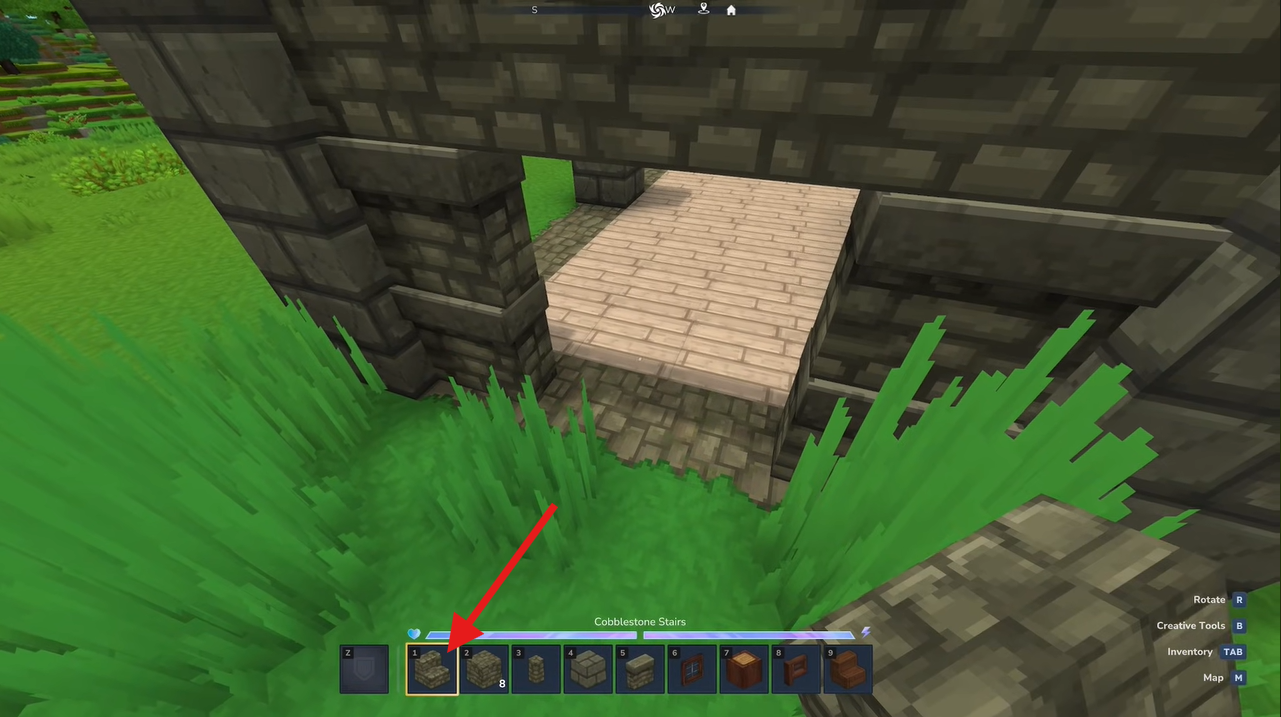
Step 1: Equip the block
Select the block you want to place (stairs, slab, torch, etc.) in your hotbar and hold it in your hand.
Step 2: Aim at the surface
Look at the block or face where you want to place it (e.g., the wall, floor, or side of a block).
Step 3: Rotate before placing
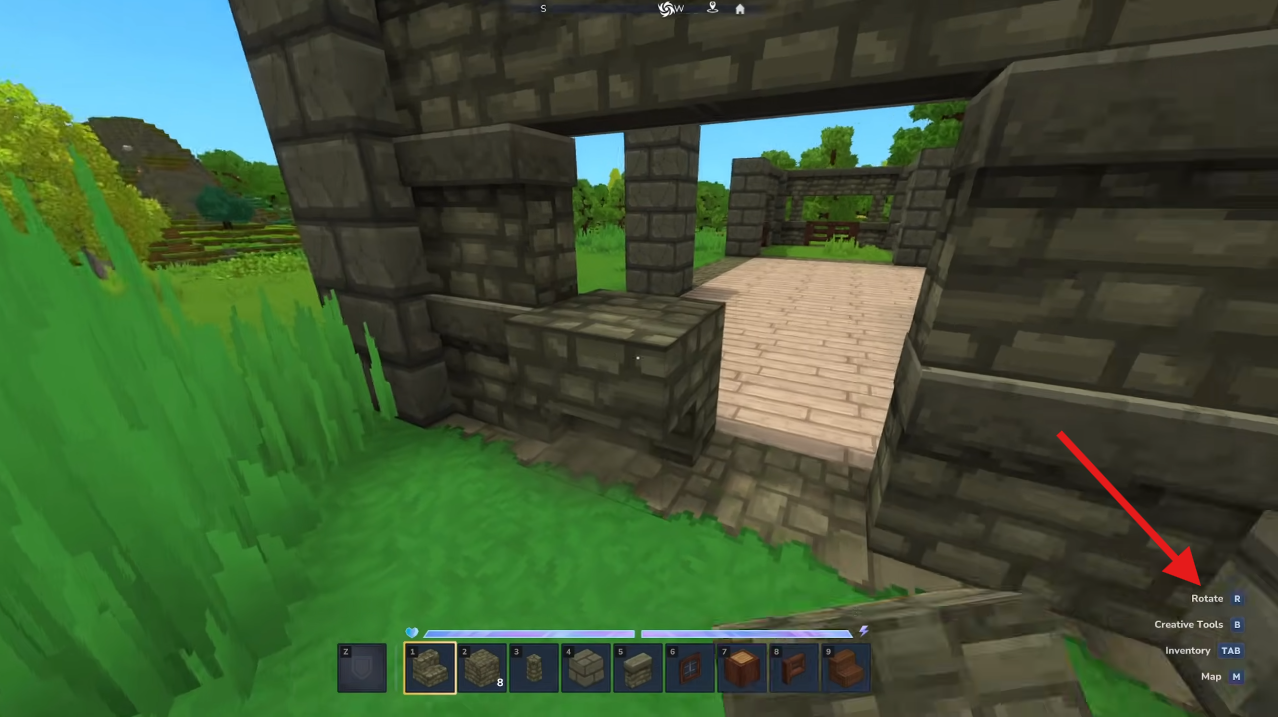
While holding the block in hand, press the rotation key (commonly R in survival mode) to cycle through its possible orientations. Each time you press R, the held block preview will rotate to show how it will be placed.
For example:
- A slab might switch from bottom, top, upside down, and side attachments.
- A log might rotate to change which direction the grain faces.
- A torch might cycle between floor, wall, and ceiling positions.
Step 4: Place the block
Once the block preview is oriented the way you want, left‑click (or equivalent) to place it.
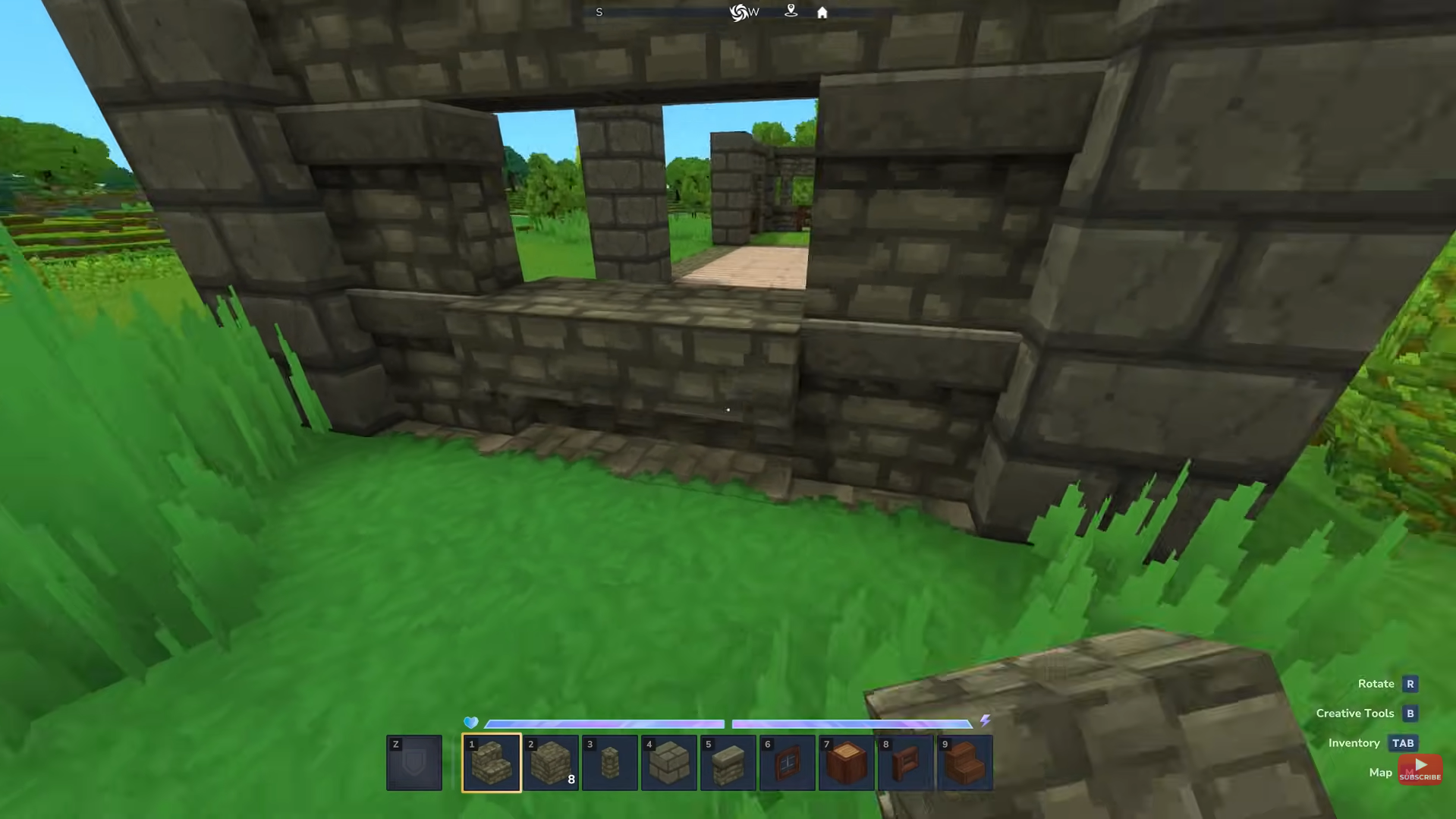
Common rotation behaviors by block type
- Stairs: Rotate to change which direction they face (north, south, east, west) and whether they form an inner or outer corner.
- Slabs: Rotate to flip between bottom, top, and upside‑down positions; some mod versions support side attachment.
- Torches / wall lights: Rotate between floor, wall (N/S/E/W), and ceiling placements.
- Logs / wood planks: Rotate to change the texture direction or mimic naturally placed wood.
- Rails / powered rails: Rotate to align them on straight or diagonal tracks.
- Doors / trapdoors: Rotate to control which side the hinge is on and which way they open.
Rotation controls to keep in mind
Rotation controls are part of the standard keybinds in Hytale’s building system. By default, R is used to rotate a block before placement, F is interact, and other building or utility actions use similar keys; these can be customized in settings if you prefer different controls.
It’s important to note that not all blocks rotate in every direction — some blocks have limited states depending on their shape — but the rotation feature lets you cycle through every allowable orientation before placing them. This is especially useful when constructing details like rooflines, curved staircases, or decorative trim where the default placement isn’t ideal. By rotating first and placing second, you reduce wasted blocks and avoid frustrating corrections later.
Why Rotation matters in building Hytale bases
Block rotation is essential for clean, professional-looking builds in Hytale. Without rotating, you’ll often get misaligned stairs, upside-down slabs, badly angled rails, or torches facing the wrong way. Using R before placing lets you match existing blocks, avoid rework, and build complex structures like curved roofs or spiral stairs far more easily.
For best results, test rotations on a small build, use sneak-placing to control how blocks attach, and always watch the placement preview, if something looks wrong, rotate it once or twice before placing.
Hope this answered your major questions. Drop your comments for feedback or support—we’re actively responding and always ready to help you further.