What to know
- Avatar customization is accessed from the main menu under My Avatar, not during normal gameplay.
- You can change skin tone, face shape, hairstyle, clothing, and body type in separate sections of the editor.
- Changes are only applied when you click Save; until then, they’re just a preview.
- You can randomize your look or lock certain parts (like hair) while randomizing the rest to keep favorite features.
Hytale lets you fully customize your character’s appearance before jumping into the world, and you can come back to tweak it later without losing progress. The system is built around a dedicated avatar editor that’s easy to find and use, even if you’re already exploring the game world.
How to Customize Your Avatar in Hytale
Here’s how you can customize your Avatar in Hytale with ease:
Open the Avatar editor
From the main menu, click My Avatar to open the Customize Avatar screen. If you’re already in a world, press Esc to return to the main menu first. You’ll see your character preview on the right and customization categories on the left.
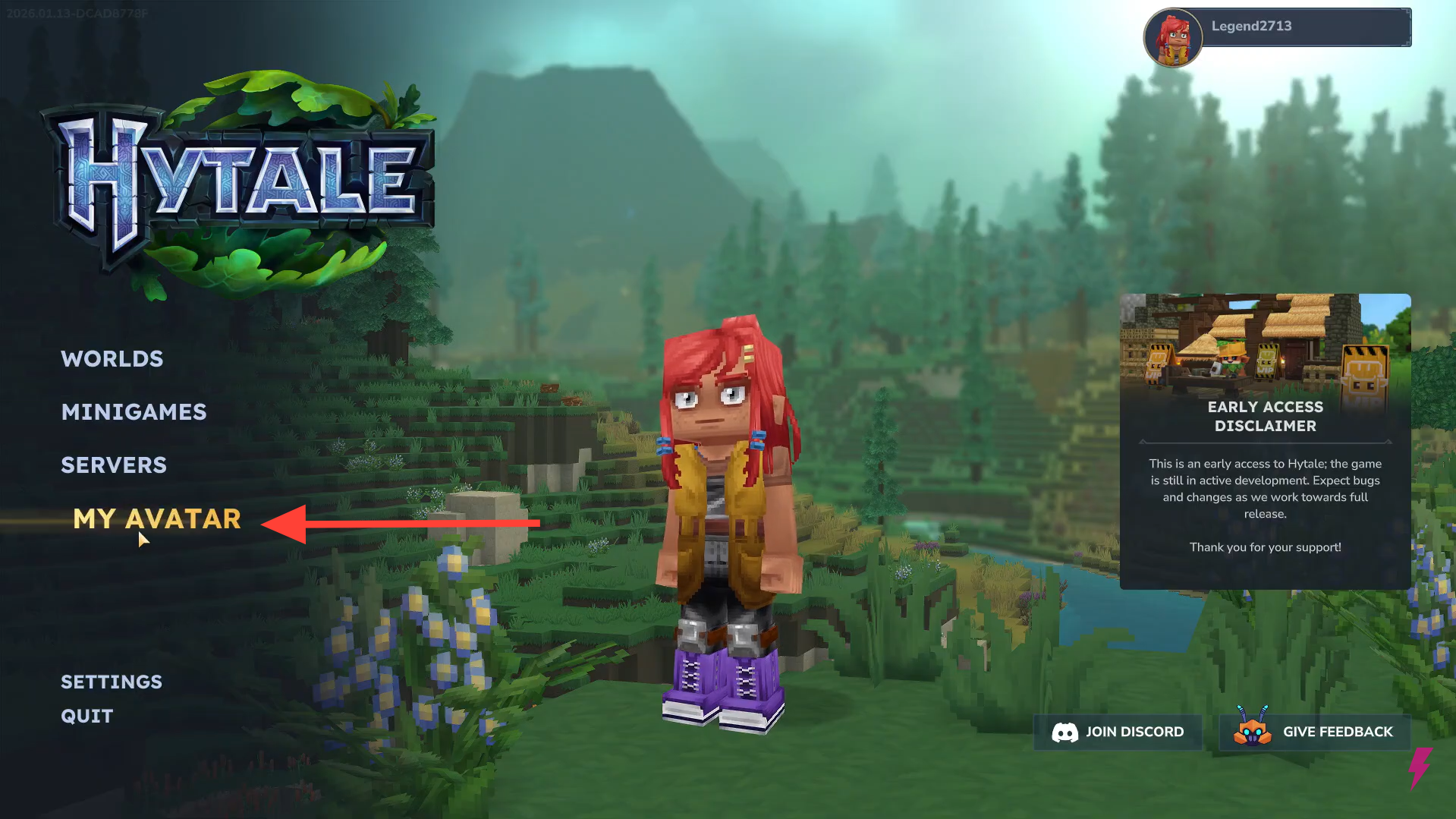
Change skin tone
Go to General → Body Characteristics, then select a color from the Color section to adjust your skin tone. Click Save once you’re satisfied.
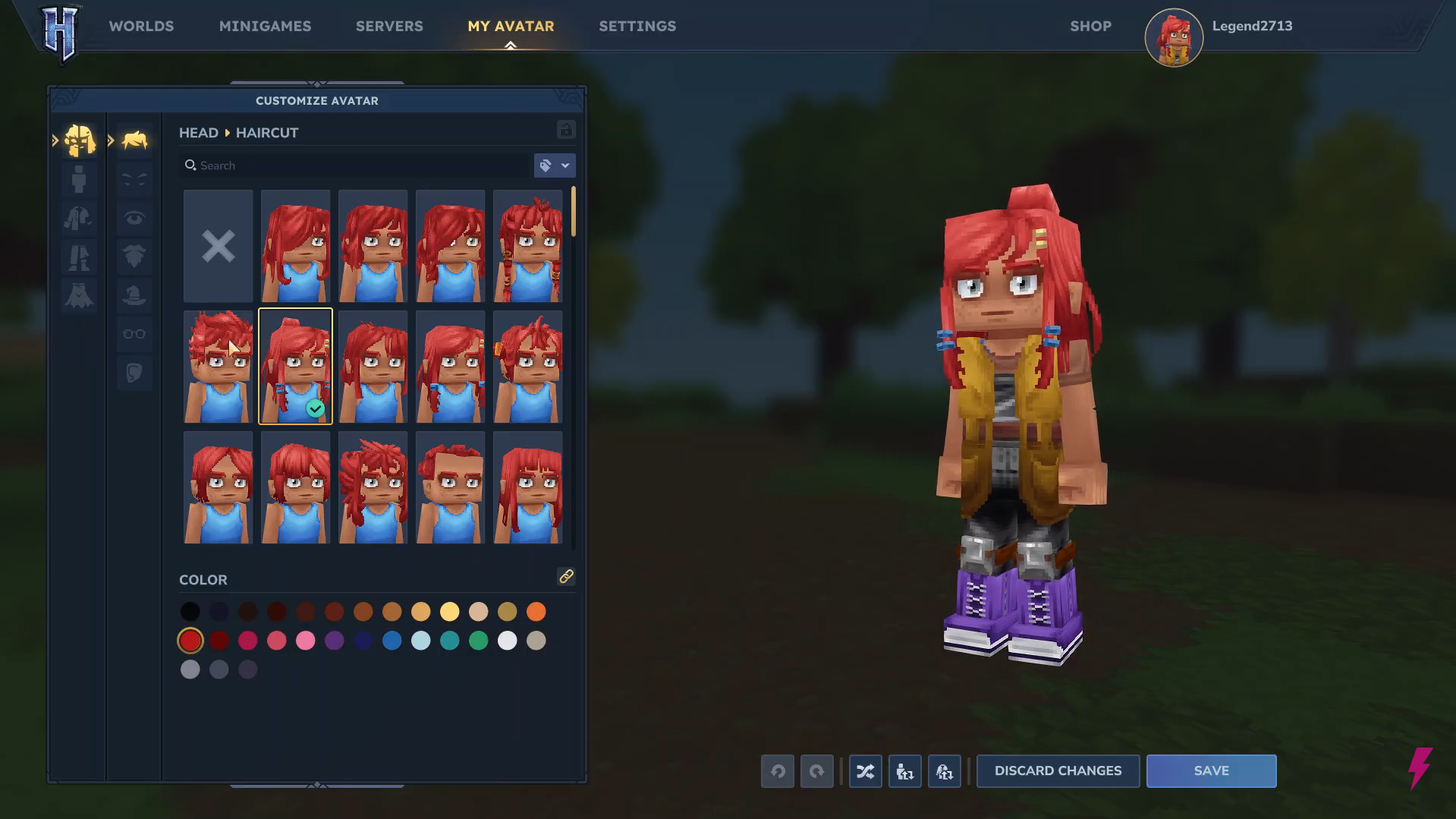
Edit face and hair
Open the Head tab to customize facial features, hairstyle, facial hair (if available), and hair color. Rotate the preview to check your look from all angles, then Save your changes.
Adjust body and clothing
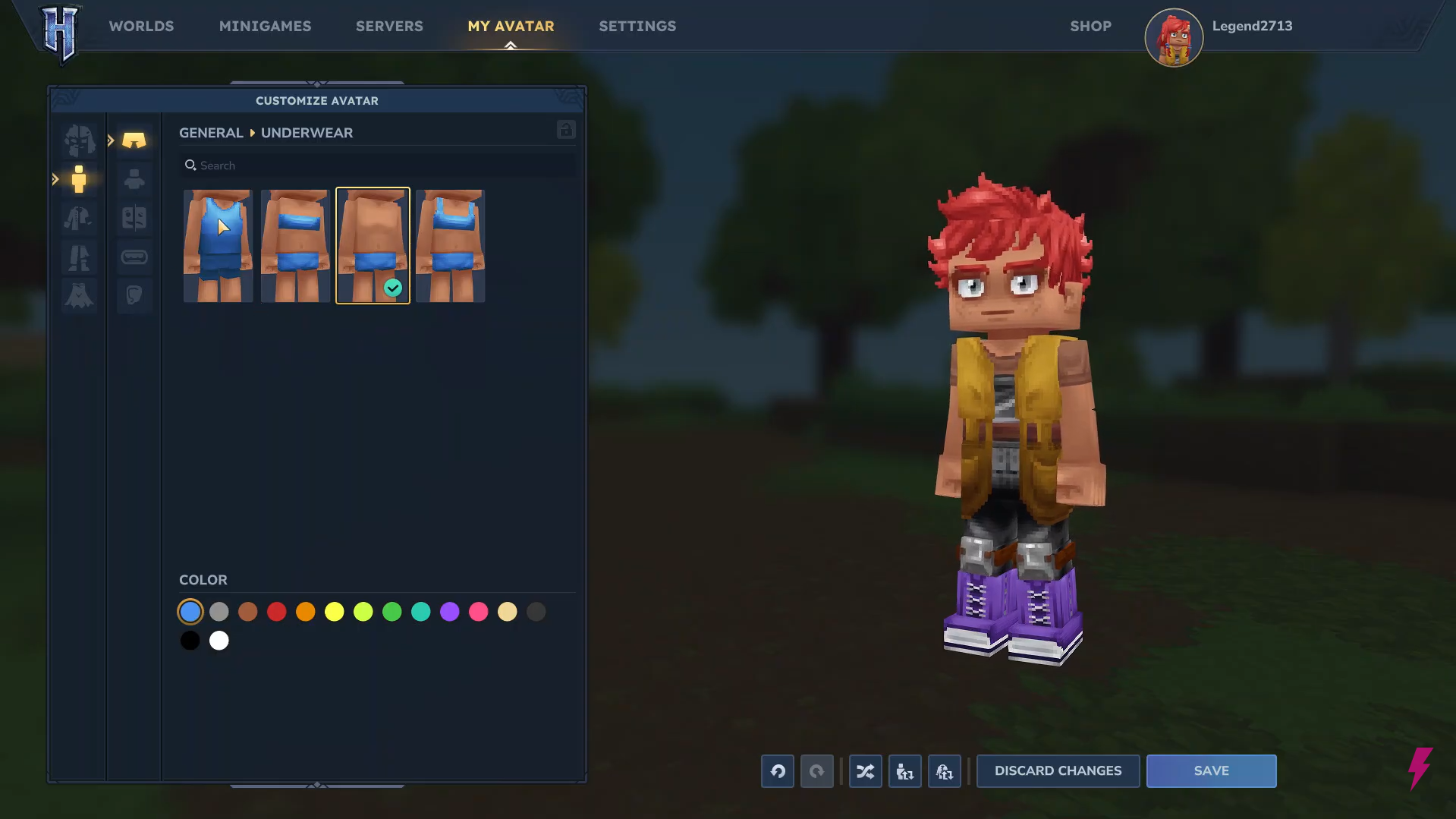
Under General → Body Characteristics, choose your body type. Switch to the Clothing/Outfit section to pick shirts, pants, armor, and accessories, layering and recoloring items if available. Don’t forget to Save.
Use randomize and locks
Use Randomize for quick presets, and Lock any parts you want to keep (like hair or face) before randomizing. Undo and Redo let you fine-tune changes easily.
When everything looks right, click Save to apply your avatar. Your new appearance will carry over into all worlds, and you can edit it anytime from My Avatar on the main menu.
What you can customize
- Head: Face shape, eyes, nose, mouth, eyebrows, facial hair, hairstyle, hair color.
- General / Body: Skin tone, body type (default, muscular, etc.), height/build options.
- Clothing / Outfit: Shirts, pants, armor, accessories, and layered clothing items.
- Colors: Multiple color palettes for skin, hair, and clothing, depending on the item.
When and how often you can change it
- You can change your avatar at any time from the main menu, even after playing for hours.
- Switching looks doesn’t reset your world, inventory, or progress; it only changes how your character looks.
- There’s no limit on how many times you can edit and save your avatar, so feel free to experiment.
Personalizing your Hytale avatar
Customizing your avatar in Hytale is quick and flexible. Just open My Avatar from the main menu, adjust your face, body, skin tone, and outfit, then hit Save. You can revisit the editor anytime, so feel free to experiment and refine your look until it perfectly matches the character you want to play.
Hope this answered your major questions. Drop your comments for feedback or support—we’re actively responding and always ready to help you further.