
What to know
- Looking at your character requires third-person view
- Camera rotation is a separate control from movement
- You can freely rotate the camera around your character
- This works anywhere during normal gameplay
If you want to check your character’s appearance, armor, or animations in Hytale, the game gives you simple camera controls that work instantly without opening any menus.
Quick keybinds for Hytale camera
| Action | Key |
|---|---|
| Toggle third-person view | V |
| Rotate camera | Hold C |
| Movement while viewing | Yes |
| Works in combat/exploration | Yes |
How to look at yourself in Hytale
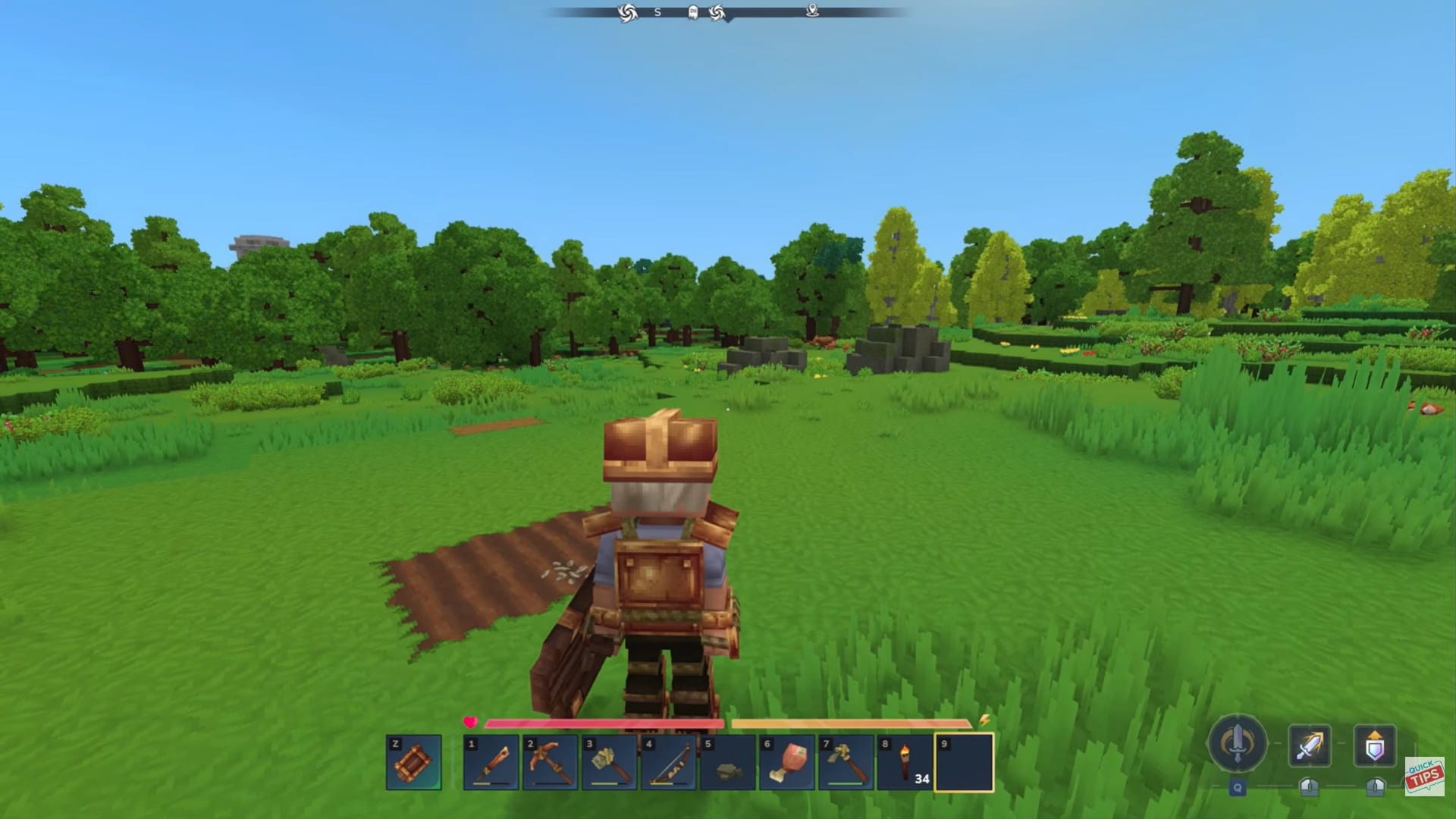
Step 1: Switch to third-person view
Press the V key to toggle from first-person to third-person mode. Your character will now be visible on screen.
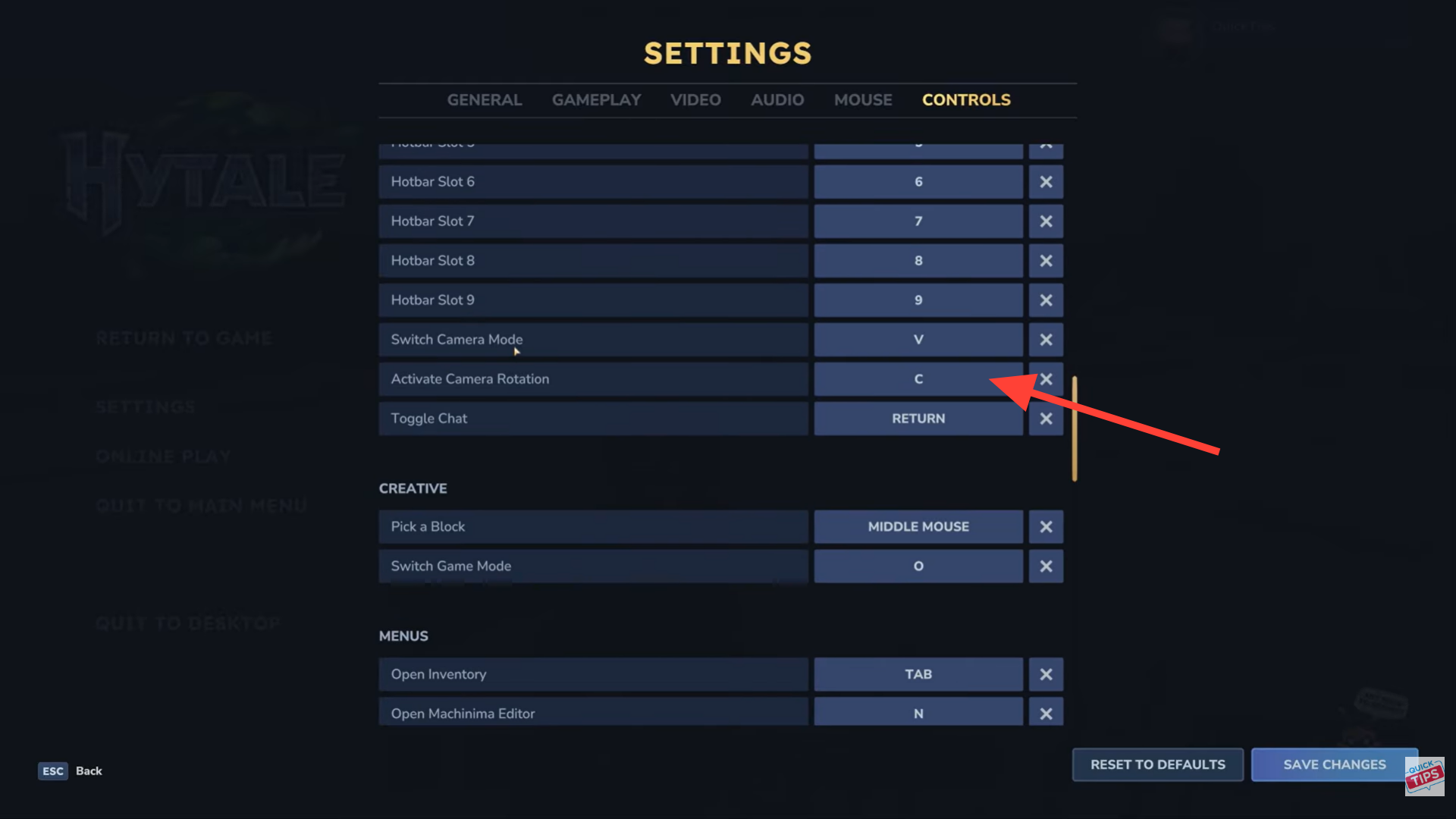
Step 2: Hold the camera rotation key
While in third-person, hold down C. This activates free camera rotation without moving your character.
Step 3: Rotate the camera around your character
Move your mouse while holding C to rotate the camera. You can view your character from the front, sides, or any angle you prefer.
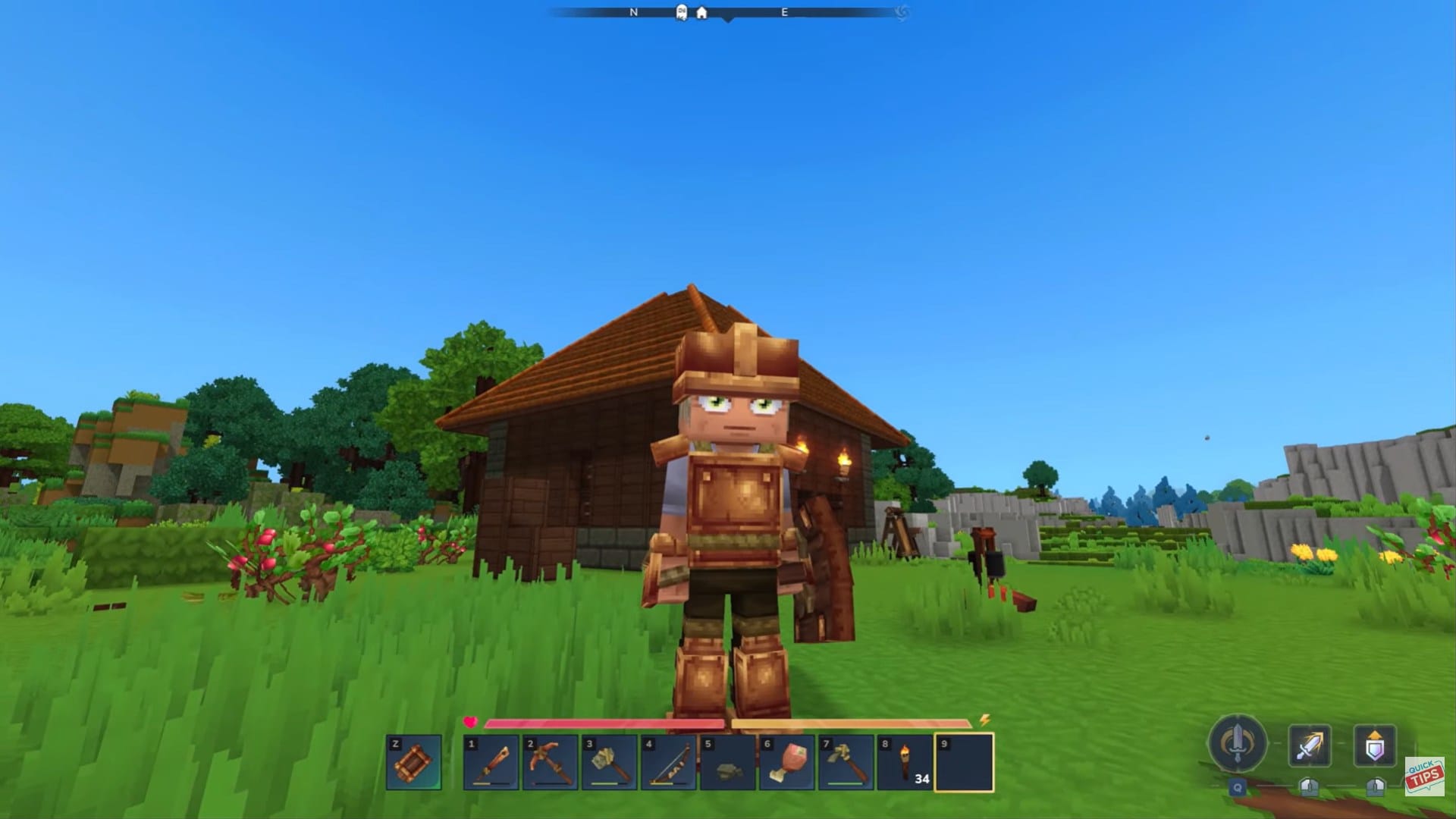
Once you let go of C, the camera snaps back to its standard third-person behavior.
When this is most useful
Looking at your character is especially helpful when:
- Checking new armor or clothing
- Reviewing character animations
- Taking screenshots or clips
- Making sure gear visuals updated correctly
Camera tips for better views
Combining third-person view with camera rotation lets you inspect details without stopping gameplay. It’s a quick way to confirm your character’s look before heading into combat or exploration.
Hytale’s camera controls are intentionally simple. With just two keys, you can instantly check your character from any angle without breaking immersion or opening extra menus.
Thanks for taking the time to go through this how to switch camera view guide for Hytale. If it helped you understand things better, do share your thoughts, impressions, or doubts in the comments section. We keep a close watch and try to respond promptly to ensure you always get the support you need.