- What to know
- How to see Bluesky comments on posts
- Comparison of comment access on Bluesky
- How to see comments on Bluesky on PC (desktop)
- How to see comments on Bluesky on mobile
- Why Bluesky hides comments by default
- How to tell you are in the correct comments view
- Common mistakes that prevent comments from appearing
- Understanding Bluesky comments the right way
What to know
- Comments only load inside the post’s expanded view, not from icons
- Clicking or tapping the post’s text area is mandatory
- Reply icons are for writing replies, not reading them
- Desktop and mobile follow the same interaction logic
Viewing comments on Bluesky often confuses new users because the platform intentionally separates browsing from conversation viewing. Unlike many social apps where replies expand inline, Bluesky requires you to open a post fully before comments appear. Once you understand where and how to interact with a post, the system becomes predictable and consistent.
This guide explains how Bluesky comments work, how to open them correctly, and why they’re designed this way, using tables and detailed explanations rather than short lists.
How to see Bluesky comments on posts
Bluesky uses two distinct views: the feed view and the post detail view. The feed view is designed for fast scrolling and discovery, while the post detail view is where conversations live. Comments are never shown in the feed view, regardless of how many replies a post has.
To access comments, you must intentionally open the post itself. This design keeps the timeline visually clean but makes the interaction less obvious if you expect comment icons to behave traditionally.
Comparison of comment access on Bluesky
| Aspect | Feed view | Post detail view |
|---|---|---|
| Comments visible | No | Yes |
| Reply icon behavior | Opens reply composer | Opens reply composer |
| Scrolling reveals comments | No | Yes |
| Used for reading discussions | No | Yes |
Important: If you are still scrolling the feed, comments will never appear—no matter what you tap.
How to see comments on Bluesky on PC (desktop)
On desktop browsers, Bluesky relies heavily on click positioning. Clicking the wrong area sends you somewhere else entirely.
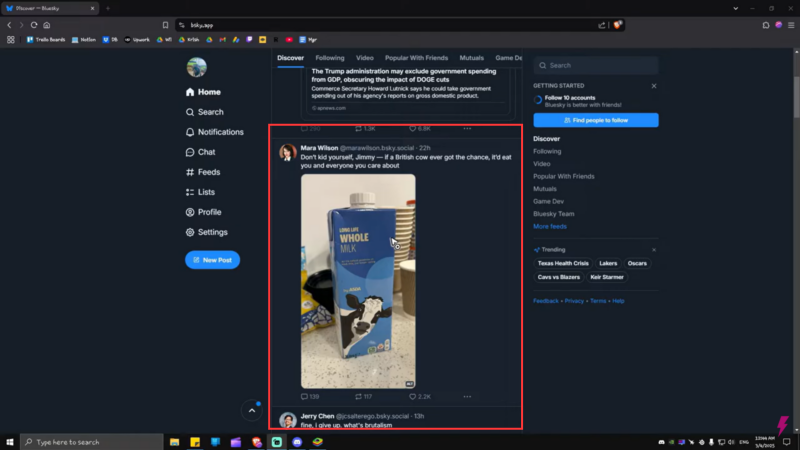
To open comments correctly, you must click the blank or text area of the post body. This is the central content area where the post’s text appears. When clicked properly, the post opens into its dedicated view, where comments are loaded underneath.
Once the post opens, scrolling down reveals the entire reply thread, including nested replies. Clicking the reply icon before opening the post only activates the reply input field and does not reveal existing comments.
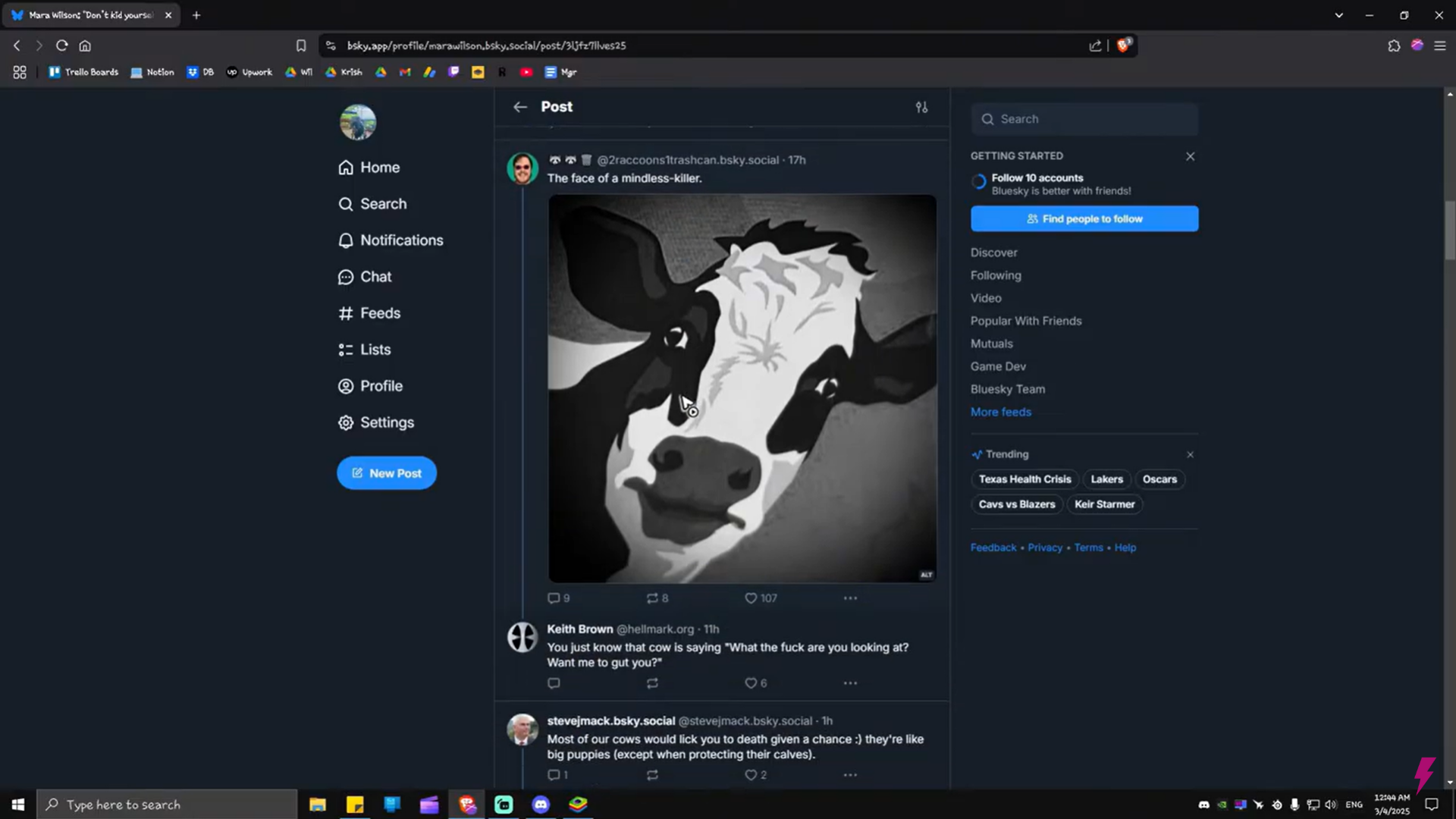
Desktop interaction behavior table
| Click location | Result |
|---|---|
| Post text or empty space | Opens full post with comments |
| Username | Opens user profile |
| Profile picture | Opens user profile |
| Reply icon | Opens reply composer only |
| Repost / like icons | Performs action, no comments shown |
Important: If you do not see comments after scrolling, the post itself is not open.
How to see comments on Bluesky on mobile
The mobile app follows the same logic as the desktop version, but precision matters even more due to touch input. Only tapping the post’s text or blank description area opens the full post.
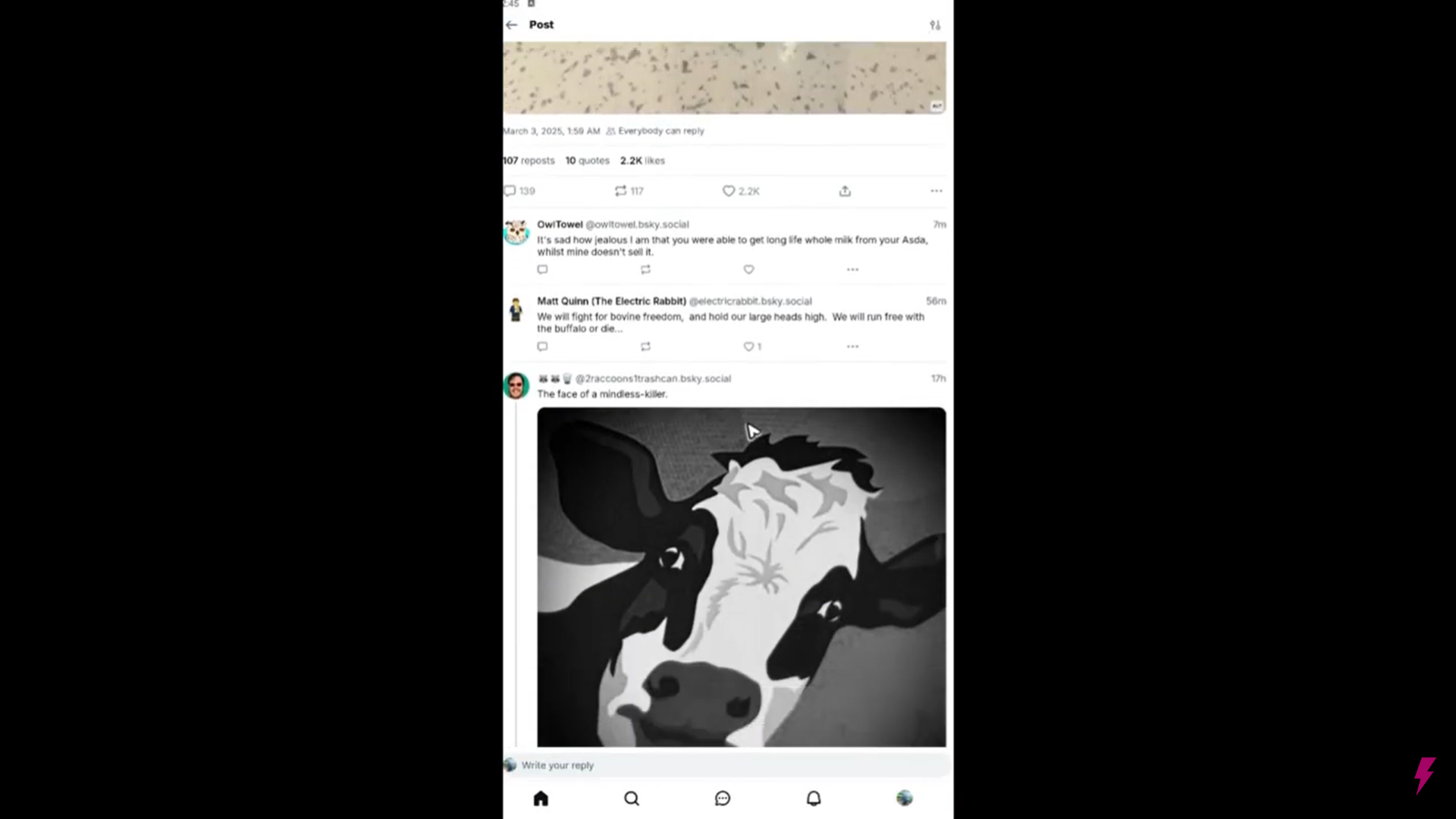
When tapped correctly, the app transitions to the post detail screen. From there, comments appear below the post content and can be viewed by scrolling.
Tapping icons behaves exactly the same as on desktop—reply icons open the keyboard, not the discussion.
Mobile tap behavior table
| Tap location | What happens |
|---|---|
| Post description/text area | Opens comments view |
| Profile image | Opens profile |
| Username | Opens profile |
| Reply icon | Opens reply editor |
| Like / repost icons | Performs action only |
Important: If you only see a reply box and no comments, the post is not fully opened.
Why Bluesky hides comments by default
Bluesky’s interface prioritizes signal clarity and timeline readability. By keeping replies out of the main feed, posts remain compact and easier to scan. Conversations are treated as intentional deep dives rather than passive content.
This design reduces visual noise but shifts responsibility to the user to open posts deliberately. Once you understand that comments are not part of the feed, the system becomes logical rather than confusing.
How to tell you are in the correct comments view
You are in the correct view when the post appears isolated from the feed and scrolling moves through replies instead of loading new posts. The presence of visible reply threads beneath the post confirms that the comments have loaded correctly.
Visual confirmation table
| Indicator | Meaning |
|---|---|
| Post fills its own screen | Full post opened |
| Replies appear below content | Comments loaded |
| Scrolling stays within post | Viewing discussion |
| Feed posts no longer visible | Correct view |
Common mistakes that prevent comments from appearing
Most issues come from tapping interactive elements that are not designed to open comments. Reply icons, profile links, and avatars all redirect or trigger actions without entering the post detail view. Bluesky does not warn you when this happens, which makes it feel like comments are missing.
Understanding that only the post body opens comments solves nearly every issue users encounter.
Understanding Bluesky comments the right way
Seeing comments on Bluesky is less about searching for a button and more about opening posts correctly. Once you know that comments only exist in the post detail view, the experience becomes consistent across PC and mobile.
If comments are not showing, the solution is almost always the same: open the post itself by tapping or clicking the text area, then scroll.