
What to know
- Scan is unlocked after some early story progress, so it may not show up immediately in a fresh save.
- Scan activates through the Easy Tools “current tool” input, meaning the same button triggers whichever Easy Tool is currently selected.
- If Scan seems to stop working, the most common reason is that another Easy Tool is currently selected instead.
- Control labels can be confusing because “Scan/Cancel Target Lock” may exist separately from the “Use Current Easy Tool” action, depending on platform and layout.
Scan feels straightforward once the Easy Tools flow clicks: open the tool wheel/menu, set Scan, press to trigger it, then repeat whenever exploration or the objective text implies searching. Most confusion comes from the game treating Scan as a selectable tool rather than a permanent ability in Arknights: Endfield.
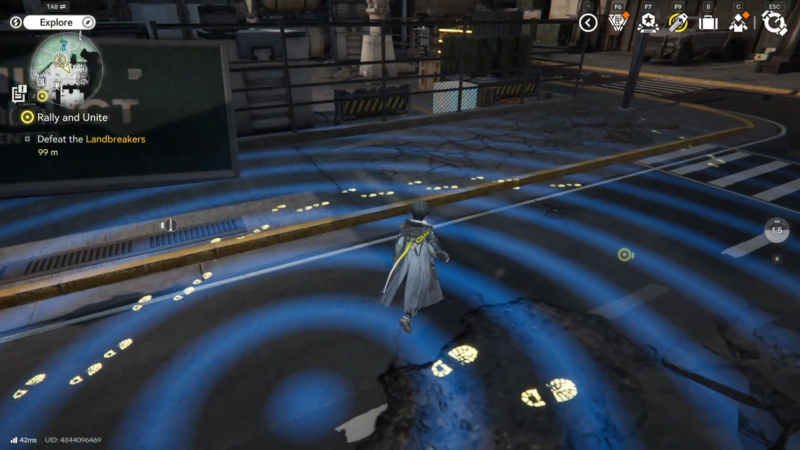
How Scan fits into Easy Tools and exploration
Scan lives inside the Easy Tools interface, which is essentially a quick-access system for utility actions. The game expects the active tool to change based on what is happening—exploration, story tracking, interacting with objects, or using another utility—so Scan is designed to be swapped in and out rather than always being “on.”
That design has two practical implications:
- Scan only fires if it’s currently equipped as the active Easy Tool.
- If another tool is equipped (even briefly), pressing the Easy Tools activation will trigger that tool instead of Scan.
In other words, if Scan “isn’t working,” it’s often working perfectly—just not selected anymore.
Controls: what to look for in settings
Depending on platform and control scheme, menus may present two different-looking “scan” related actions:
- An action that activates the current Easy Tool (this is the one Scan uses when it’s equipped).
- An action that mentions scan in relation to targeting or target lock cancellation (this can be separate and can mislead players into pressing the wrong button).
The fix is to identify which input is explicitly tied to using the current Easy Tool. Once that input is clear, Scan becomes consistent: select Scan in Easy Tools, then press the “use current tool” input to activate it.
How to use Scan step by step (detailed)
Step 1: Reach the point where Easy Tools is unlocked
If Scan isn’t visible anywhere yet, keep pushing the main story. Scan is commonly introduced through early progression rather than being available immediately. Once unlocked, an Easy Tools prompt or icon typically appears on the HUD.
Step 2: Learn the two actions: open vs activate
Easy Tools usually has two behaviors:
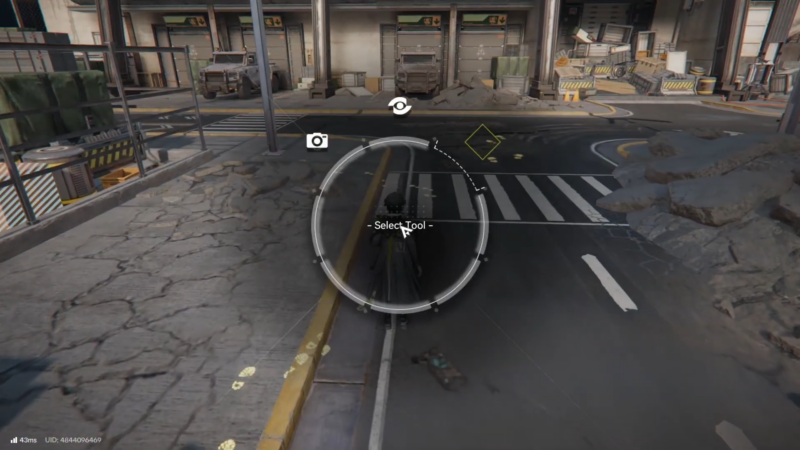
- Hold the Easy Tools input to open the tool selection interface.
- Tap/press the Easy Tools input to activate the currently selected tool.
Knowing which is which prevents the most common mistake: trying to “press to choose” instead of “hold to choose.”
Step 3: Open the Easy Tools interface
Hold the Easy Tools button/key until the interface appears. This interface is where Scan is selected and where tool swapping happens.
Step 4: Set Scan as the current tool (and confirm it)
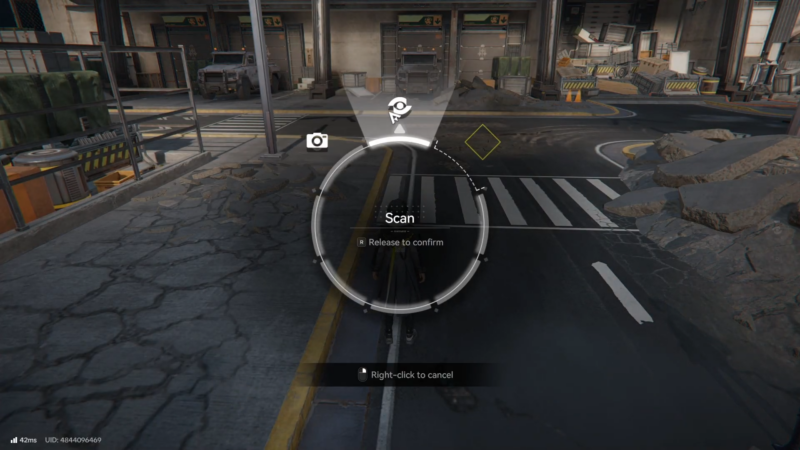
Select Scan in the interface so it becomes the active tool. Before closing the interface, confirm Scan looks like the currently equipped tool (often shown as a highlighted selection or a main-slot tool icon).
Step 5: Activate Scan in the field
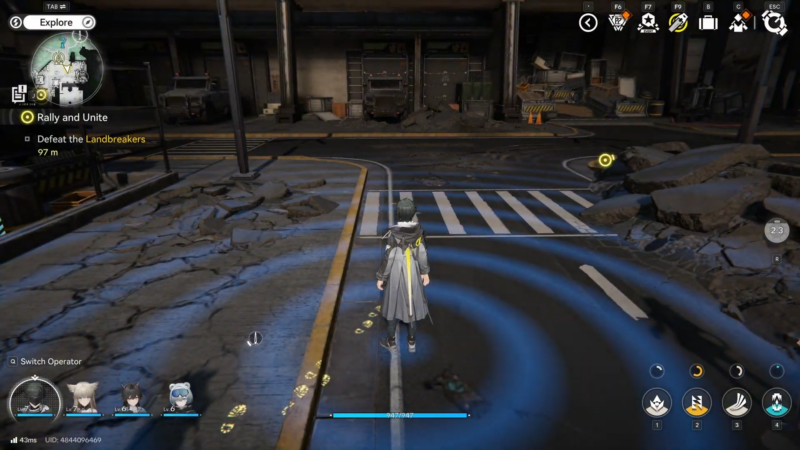
Exit the interface and press the Easy Tools activation input to fire Scan. Do this when:
- Entering a new area and wanting quick environmental awareness.
- The objective suggests searching, tracking, or investigating.
- Progress feels unclear and the game seems to want a clue-following moment.
Step 6: Use Scan specifically during story tracking moments
Scan shines most in story segments where the game provides “soft guidance” through environmental cues. If the story expects following a trail, Scan can make those cues easier to spot and reduces time spent circling the area.
Step 7: Swap tools for a task, then restore Scan immediately
If another tool is needed briefly, reopen Easy Tools, switch to that tool, use it, then switch back to Scan right away. Treat Scan like a default “exploration stance” tool and other utilities like temporary modes.
A good habit is: “Use other tool → finish task → switch back to Scan before moving on.”
Common issues and fixes (practical troubleshooting)
Scan doesn’t show up at all
Most likely cause: it hasn’t been unlocked yet. Continue main story progression until Easy Tools and its tools become available.
Scan is equipped but nothing obvious happens
Try these quick checks:
- Make sure the correct input is being pressed (the one that activates the current Easy Tool).
- Ensure the character is not in a state that blocks tool use (some interactions, menus, or transitions can prevent activation).
- Move a few steps and try again—some tools feel more obvious when used while actively exploring rather than standing still.
Pressing the “scan” button cancels target lock instead
This usually means the wrong action is mapped or the wrong button is being pressed—one “scan” label may refer to targeting behavior, while Scan the utility requires the “use current Easy Tool” action. Re-check control labels and bind intentions.
Scan worked earlier but now it “stopped”
This is the classic Easy Tools swap problem:
- Another tool was selected temporarily.
- The activation input is still being used correctly, but it’s activating the other tool.
Open Easy Tools and set Scan again.
Controller feels inconsistent on PC
If inputs are occasionally dropped or misread, connection stability can be a factor. A more stable connection method often improves consistency, and verifying the in-game input mode (controller vs keyboard prompts) can also reduce confusion.
A simple operating routine that keeps Scan useful
A reliable loop during exploration and story progression looks like this:
- Enter area → activate Scan once.
- Objective hints at searching → activate Scan again.
- Need a different tool → swap, use it, swap back to Scan.
- Progress the trail/clue → activate Scan at intersections or uncertain spots.
This routine reduces “dead time” and keeps tool usage intentional rather than reactive.
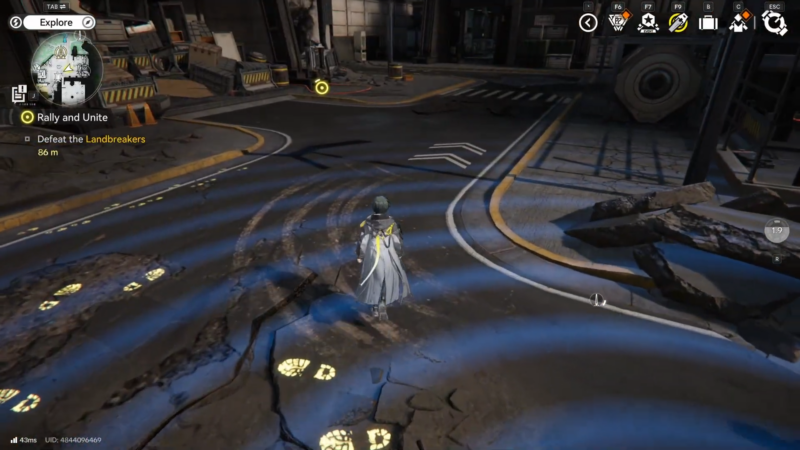
Keeping Scan effective through the whole session
Scan is easiest to use consistently when it’s treated as the default Easy Tool during exploration, with other tools used only as temporary swaps. Most frustrations come from control-label confusion or forgetting Scan is not currently selected, so the biggest upgrade is building the habit of checking the current Easy Tool whenever something feels off.