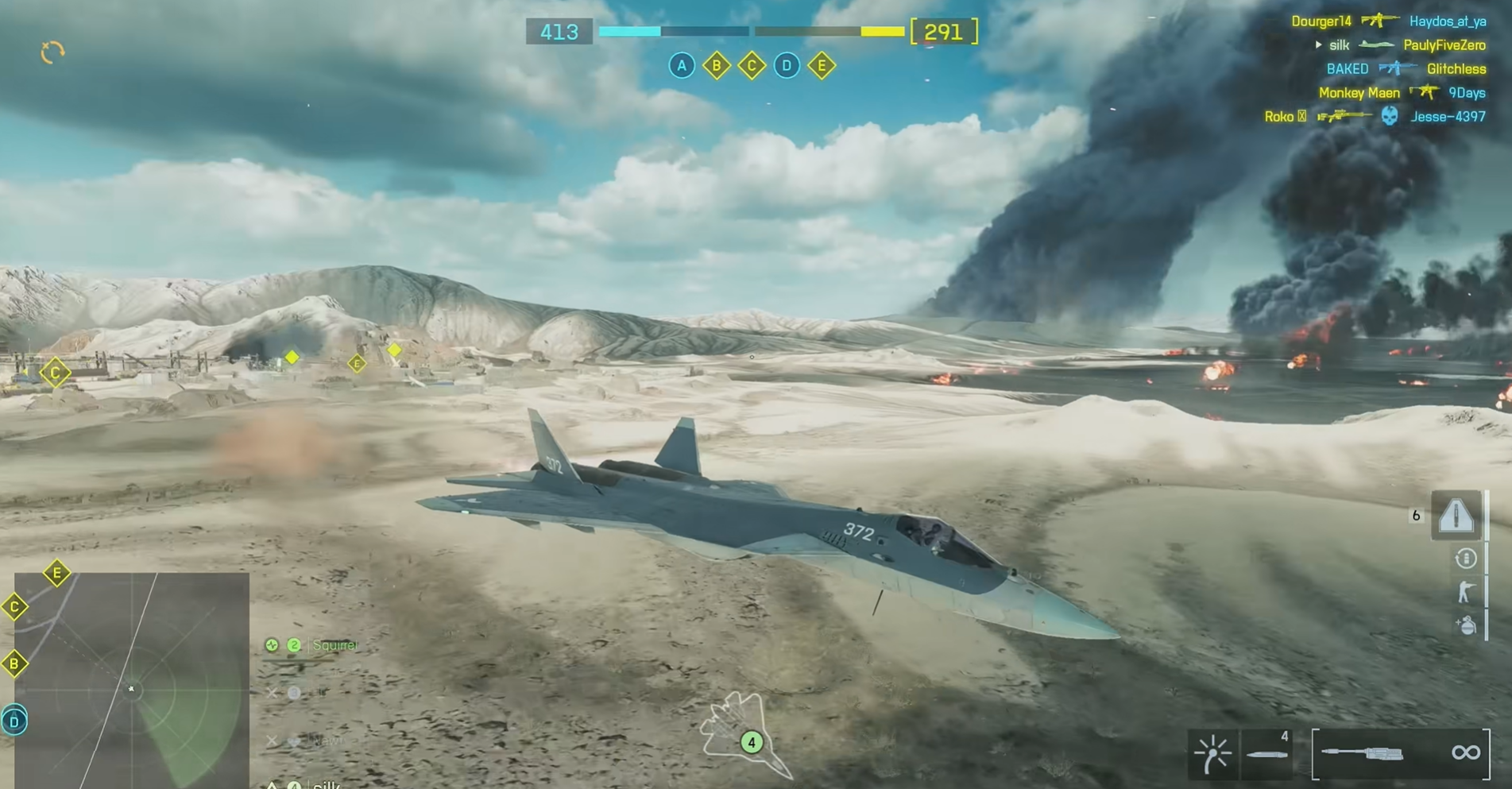
Learn how to enable Flick Look for jets on controller in Battlefield 6 and fine-tune your flight controls for smoother and faster camera movement.
What to know
- Flick Look lets you instantly snap your view in preset directions while flying or driving.
- It can be toggled in the Aircraft / Vehicle Controller settings.
- You may need to bind it manually to a button or stick direction.
- Some users report inconsistent performance for Flick Look in aircraft, especially jets.
Flick Look is a Battlefield 6 feature designed to give players more responsive camera control when piloting vehicles, especially jets. Instead of manually turning the camera using the right stick, Flick Look allows you to quickly snap your view 90° or 180° in a single flick. This makes situational awareness in fast-paced dogfights much easier, particularly for players using controllers.
It’s disabled by default for vehicles, so you’ll need to enable it manually through the control settings.
How to enable flick look for jets on controller
Step 1
Open Battlefield 6 and go to the Settings menu from the main screen. Select Controller or Input Settings, depending on your platform.

Step 2
Scroll to the Vehicle or Aircraft Controls section. This is usually labeled Aircraft / Jet Controller Settings. Choose Edit Controller Scheme to view or modify bindings specific to aircraft.

Step 3
Locate Flick Look in the aircraft control options. Toggle it On to enable the feature for jet flight.
If prompted, assign a specific button or stick movement for Flick Look. For example, you can bind it to the right stick when flicked in a direction, or to a button for quick snapping.

Step 4
Save your configuration and test it by entering a jet in a match. Flick your chosen input to check if your camera snaps in the desired direction.
Common issues and troubleshooting tips
If Flick Look doesn’t seem to work properly in jets, here are a few things to check:
- Confirm you’re in the aircraft control section, not infantry controls. Flick Look settings are separate for each category.
- Reset your controller layout, then re-enable Flick Look to ensure no conflicts with other bindings.
- Check for recent patches, as Flick Look occasionally malfunctions for aircraft after updates.
- Test different bindings. Some controller schemes work better than others depending on your input sensitivity.
- Reboot the game after saving changes to ensure your bindings are properly applied.
Recommended settings for smooth control
You can further enhance aircraft control while using Flick Look by adjusting related settings:
| Setting | Recommended Value | Description |
|---|---|---|
| Stick Sensitivity (Pitch/Yaw) | 65–75% | Keeps aircraft handling smooth while allowing quick adjustments. |
| Camera Turn Speed | Medium | Prevents over-rotation when Flick Look resets your view. |
| Invert Vertical Look | Optional | Choose based on preference; many pilots prefer inverted. |
| Controller Vibration | Off | Helps maintain control precision during flight. |
Why use flick look for jets
Flick Look gives you faster situational awareness during aerial battles. It helps when checking your six, locating enemy aircraft, or lining up bombing runs without manual camera dragging. Once you master the timing, you’ll find dogfights easier and navigation more fluid.
While still being fine-tuned, the feature can greatly improve your air combat experience if configured correctly.
Mastering flick look in Battlefield 6 jets
Turning on Flick Look for jets in Battlefield 6 can significantly improve how you track enemies and maneuver mid-air. By enabling it in the aircraft controller settings and binding it to your preferred input, you can achieve faster and more controlled flight awareness. Take time to test it in solo or practice modes before jumping into live battles—it’s worth the setup for any aspiring ace pilot.