
What to know
- Use Task Manager to find the exact file location of the Hypixel client while the game is running.
- Access the Windows Graphics settings menu under Gaming and Game Mode to manually add the application.
- Change the GPU preference from Let Windows decide to your specific dedicated high performance GPU .
- A game restart is required for the system to begin utilizing the dedicated hardware
If you are experiencing lag or low frame rates in Hytale, the culprit might be your computer using integrated graphics instead of your powerful dedicated graphics card. This common issue often occurs on laptops or systems with multiple GPUs. By manually telling Windows to prioritize your high-performance hardware, you can significantly boost your in-game performance and enjoy a smoother experience in Orbis.
How to Use Dedicated GPU For Hytale
To ensure Hytale runs with maximum performance, you should verify it is using your dedicated graphics card rather than integrated graphics. Here’s how:
Step 1
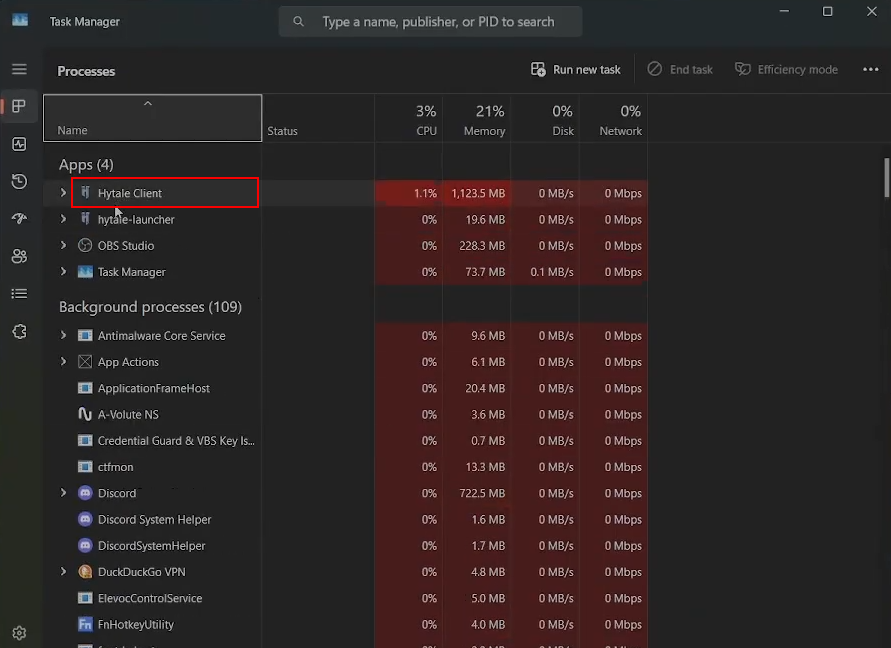
Start by launching the game. Then open the Task Manager. Locate the Hypixel client under the processes tab.
Step 2
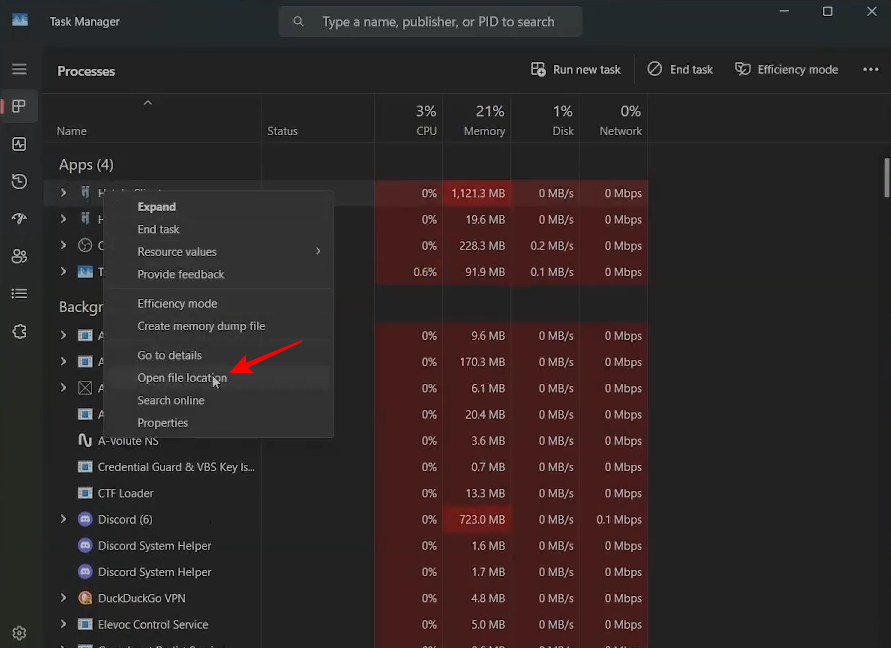
Right-click it, and select open file location.
Step 3
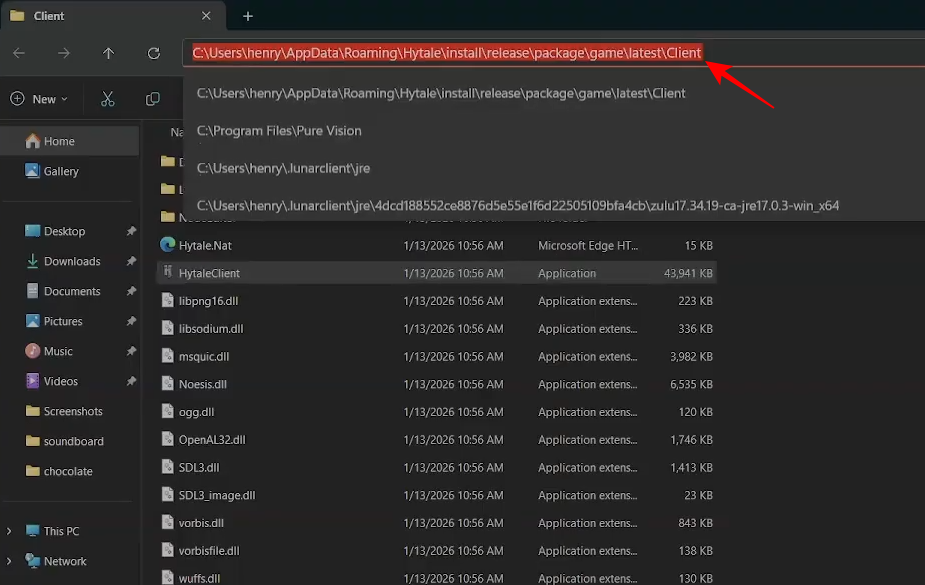
Copy the file path from the address bar at the top of the folder window.
Step 4
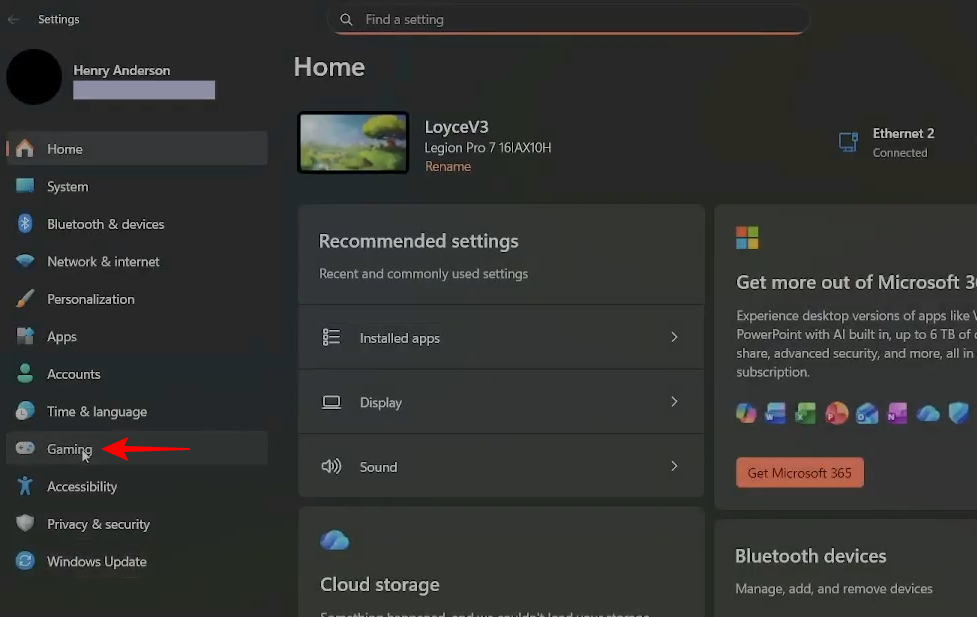
Next, open your Windows Settings and navigate to the Gaming section.
Step 5
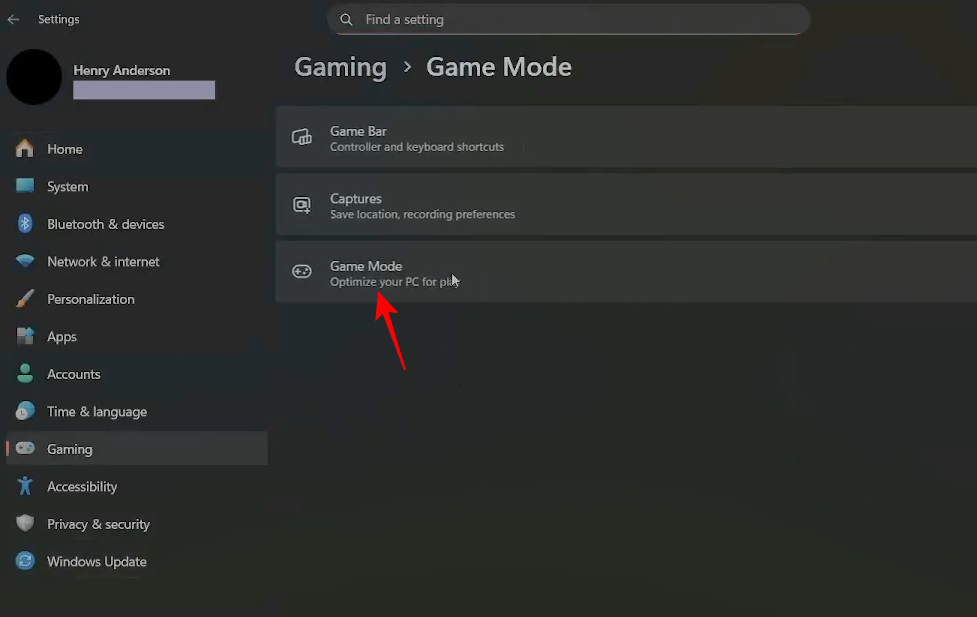
Then select Game Mode.
Step 6
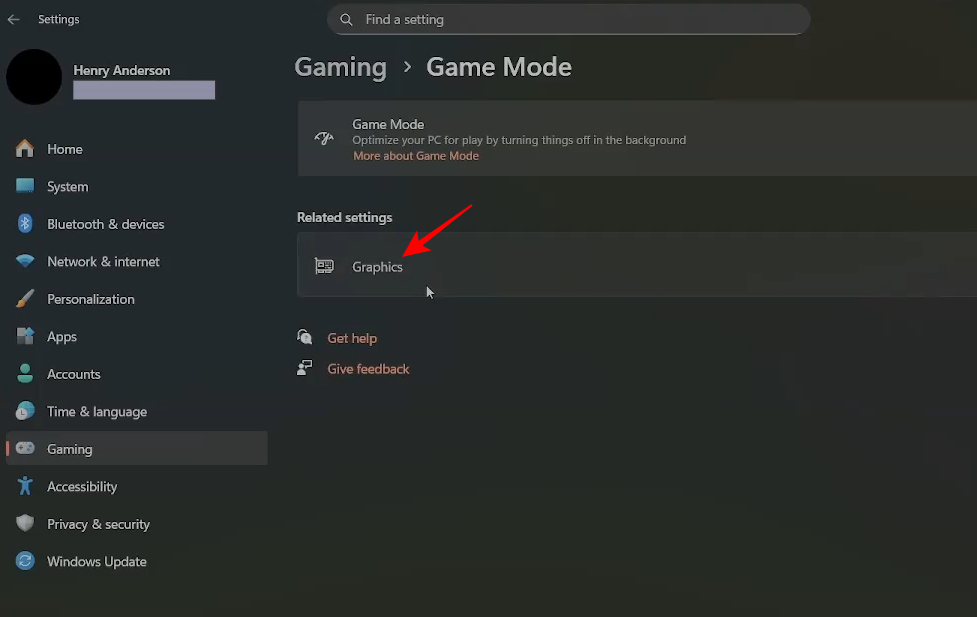
Click on Graphics.
Step 7
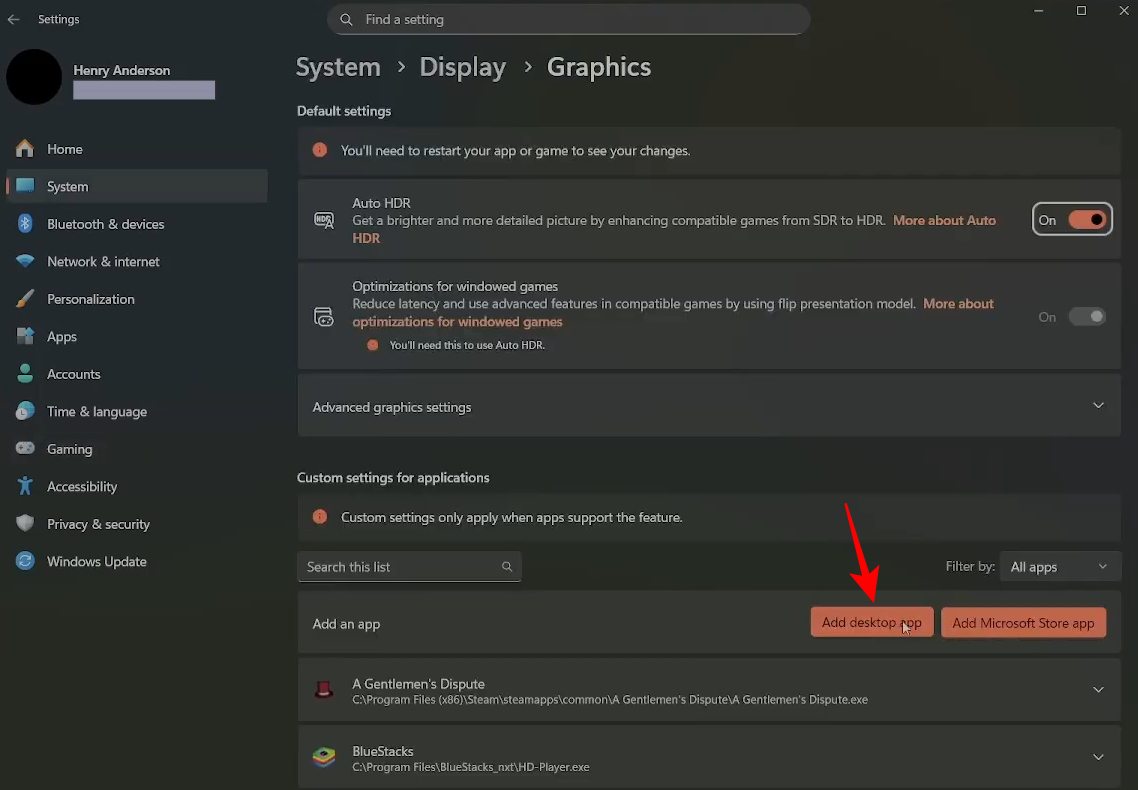
Click on Add Desktop app.
Step 8
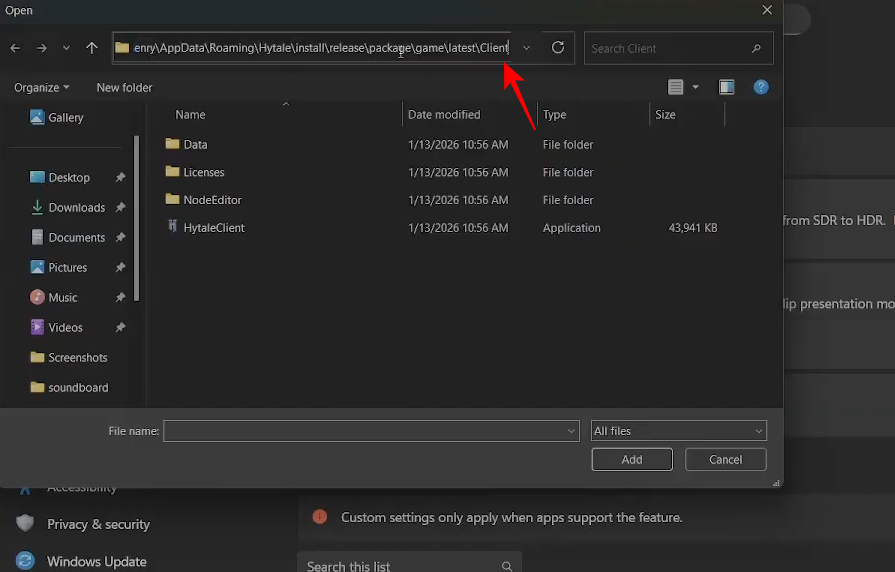
Paste the file path you copied earlier into the navigation bar and hit Enter.
Step 9
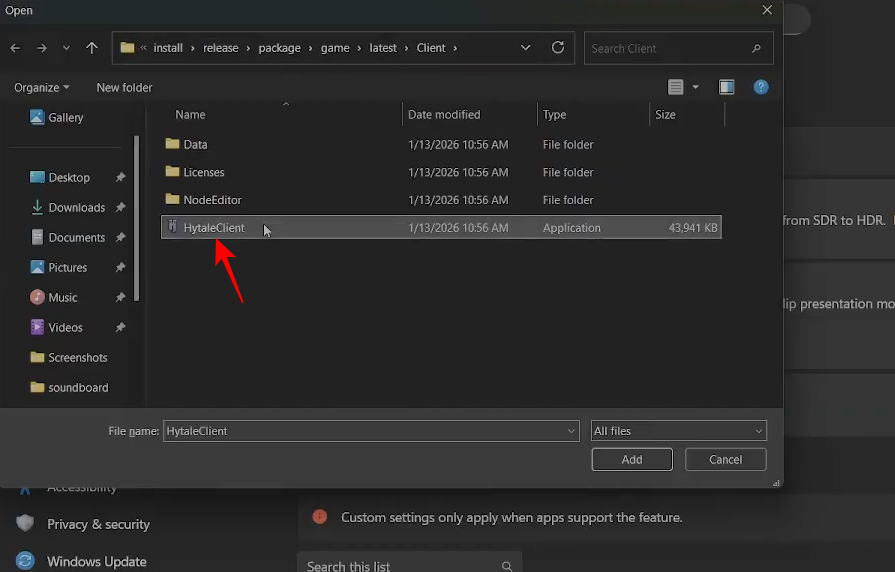
Select the Hytale Client executable to add it to your list.
Step 10
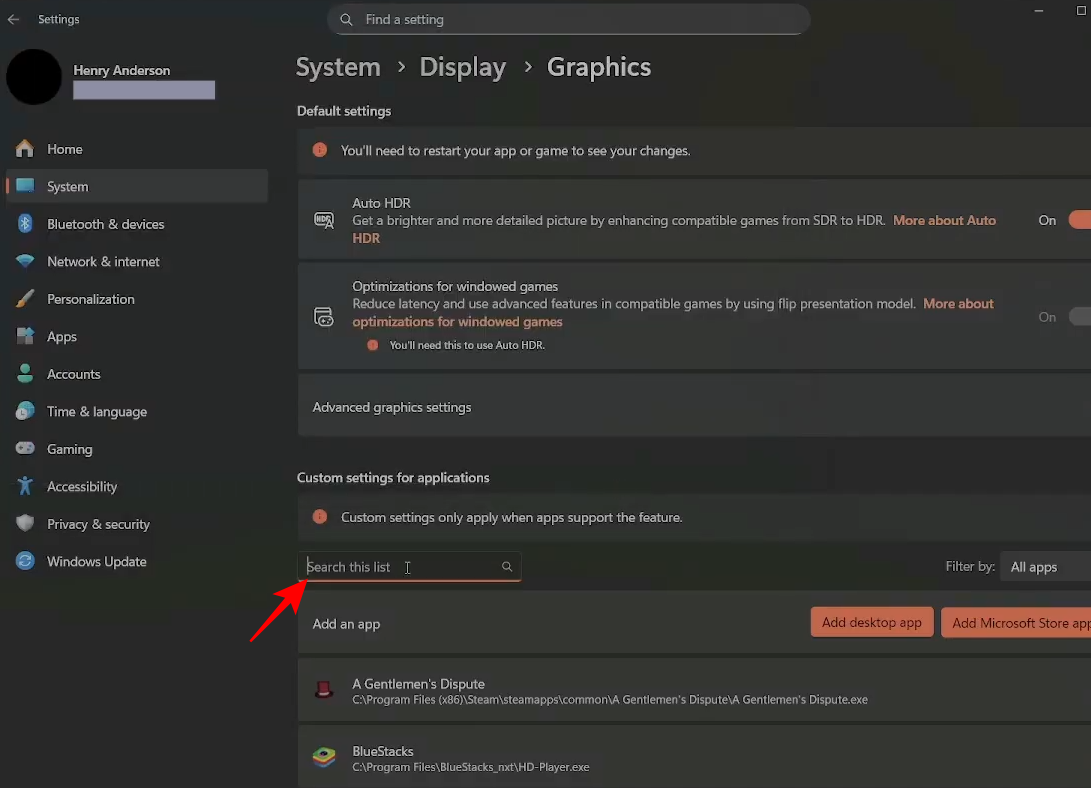
Once the Hytale Client is added, search for it in the list.
Step 11
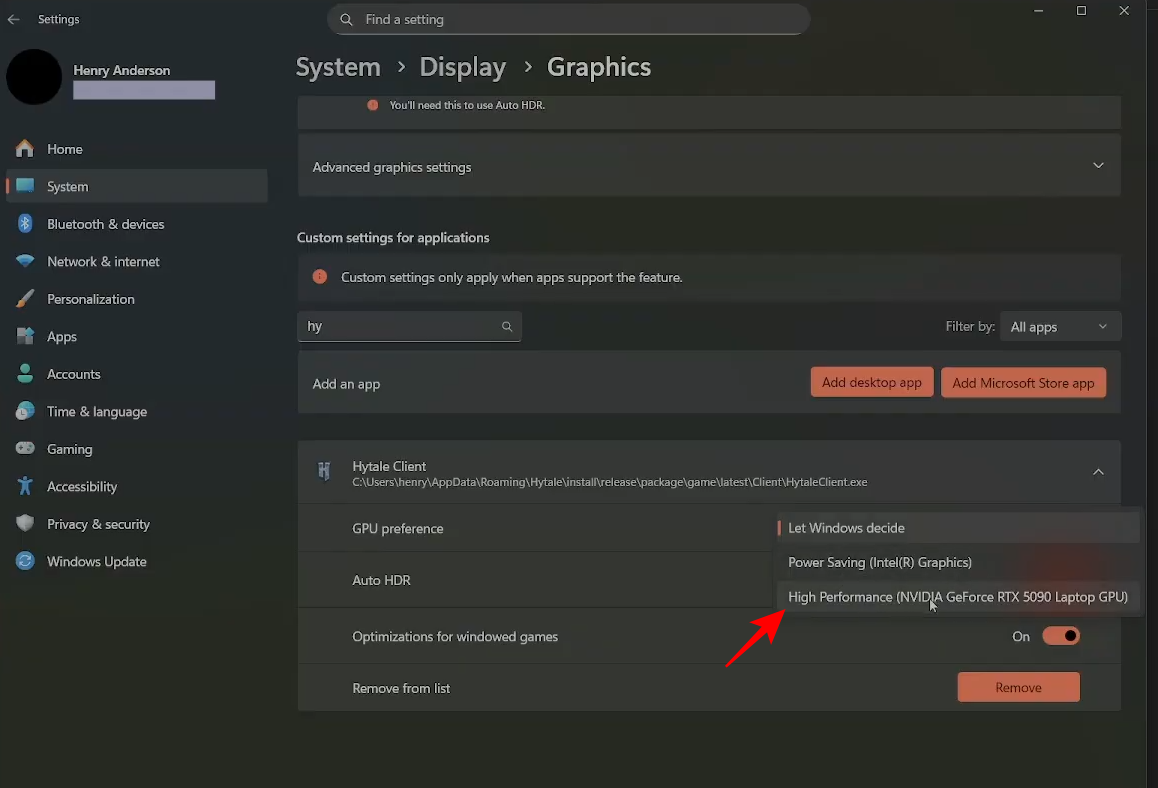
In the GPU preference window, move the selection from Let Windows decide to High performance, which should list your dedicated GPU model.
Step 12
Save your changes, close the game, and restart it. Your system will now prioritize your dedicated graphics card for the game.
Manually assigning your dedicated GPU ensures that Hytale utilizes your best hardware for better frame rates. Following these system-level steps is the most reliable way to prevent performance bottlenecks.