What to know
- Open the settings menu from the main game screen.
- Navigate to the gameplay tab to find accessibility options.
- Enable the arachnophobia mode to replace spiders with another model.
- Be sure to save your changes for them to take effect.
- Keep in mind that you’ll need to return to the main menu for the changes to fully apply.
Hytale is an upcoming game that promises a vast and immersive world to explore, but some players may find the presence of spiders to be a bit too much. For those with arachnophobia, Hytale offers a special mode that replaces spiders with a different model, making the game more accessible and enjoyable for everyone.
How to Turn On Arachnophobia
Step 1
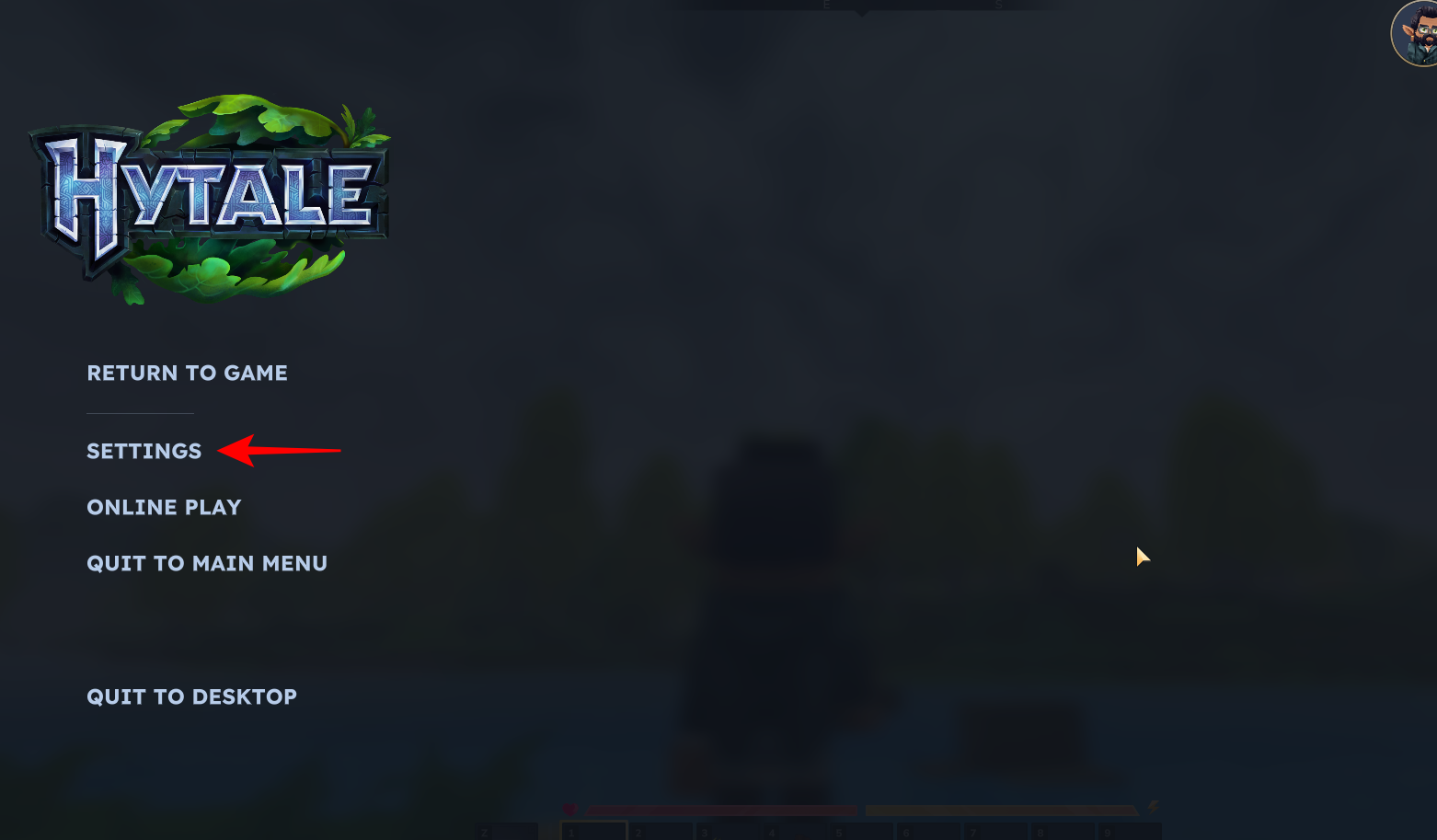
Open the settings menu in Hytale by pressing the Escape key and selecting “Settings” from the menu.
Step 2
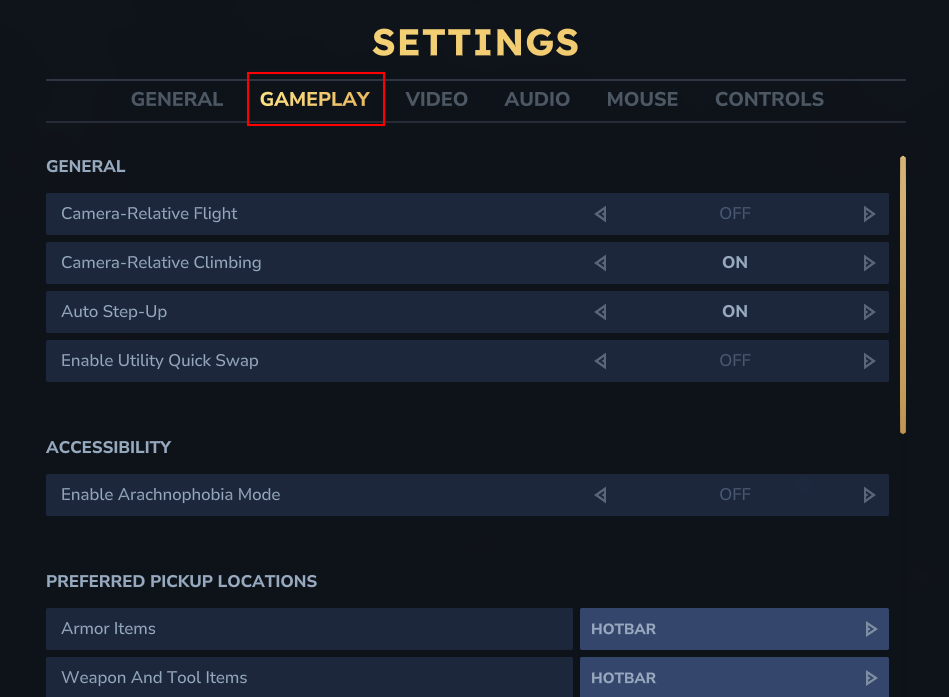
Once you’re in the settings menu, navigate to the “Gameplay” tab. This section contains various settings related to how the game is played, including accessibility options.
Step 3
Under the accessibility section, you’ll find the “Arachnophobia Mode” setting. Simply toggle this option to “On” to enable it.
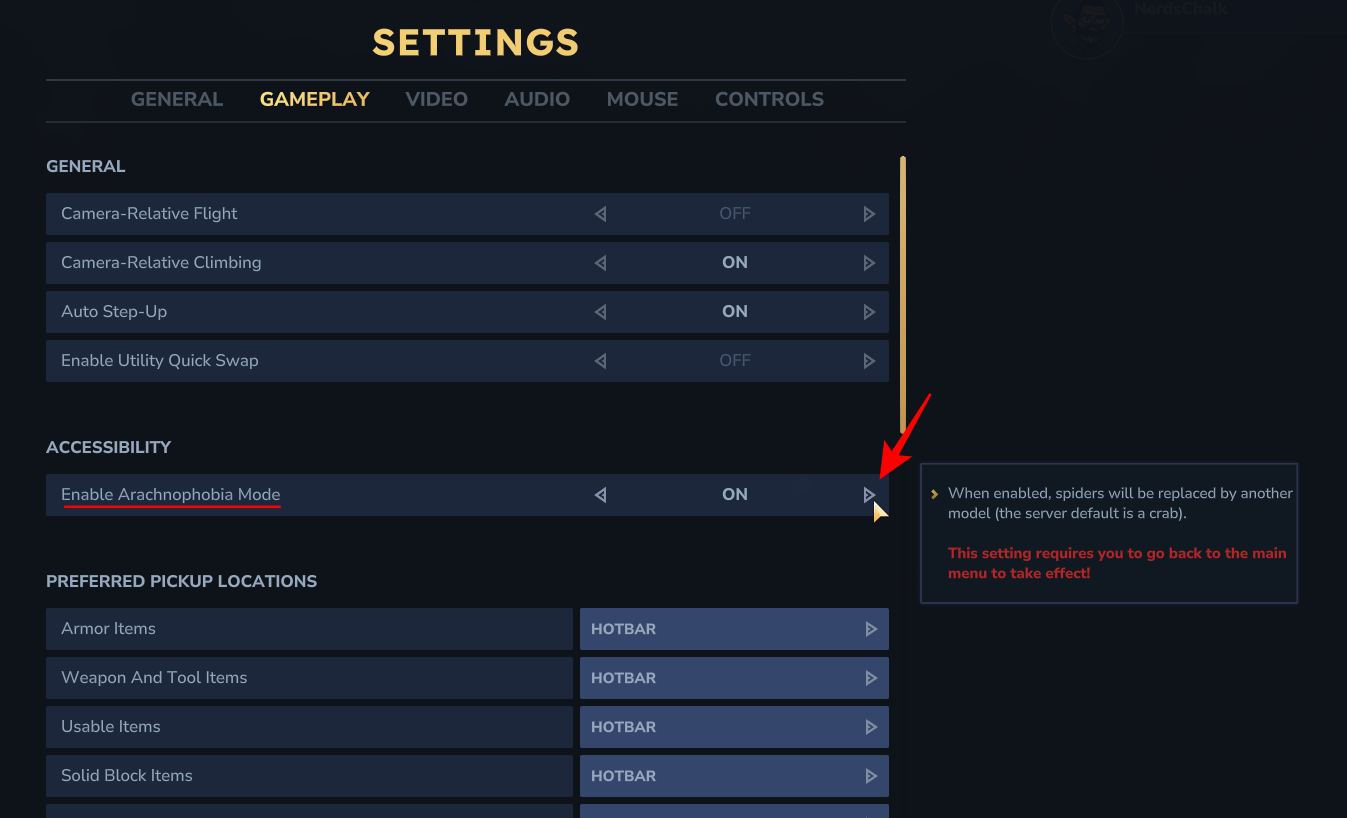
Once enabled, spiders in the game will be replaced with a different model, such as a crab.
Step 4
After you’ve enabled arachnophobia mode, be sure to click on the “Save Changes” button to apply the new setting.
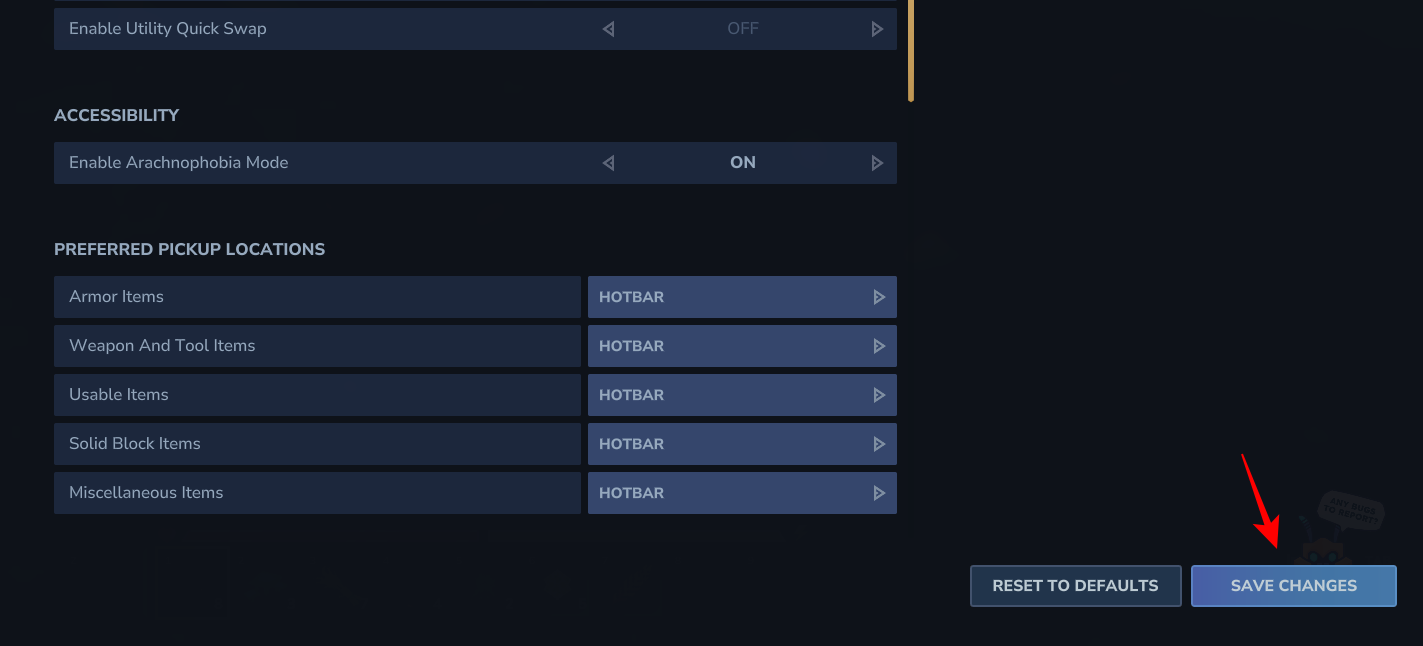
Keep in mind that you may need to return to the main menu for the changes to fully take effect.
Arachnophobia mode is a fantastic feature that makes Hytale more inclusive and accessible for players who may be uncomfortable with spiders. By following these simple steps, you can easily enable this mode and enjoy exploring the world of Hytale without any unwanted surprises.