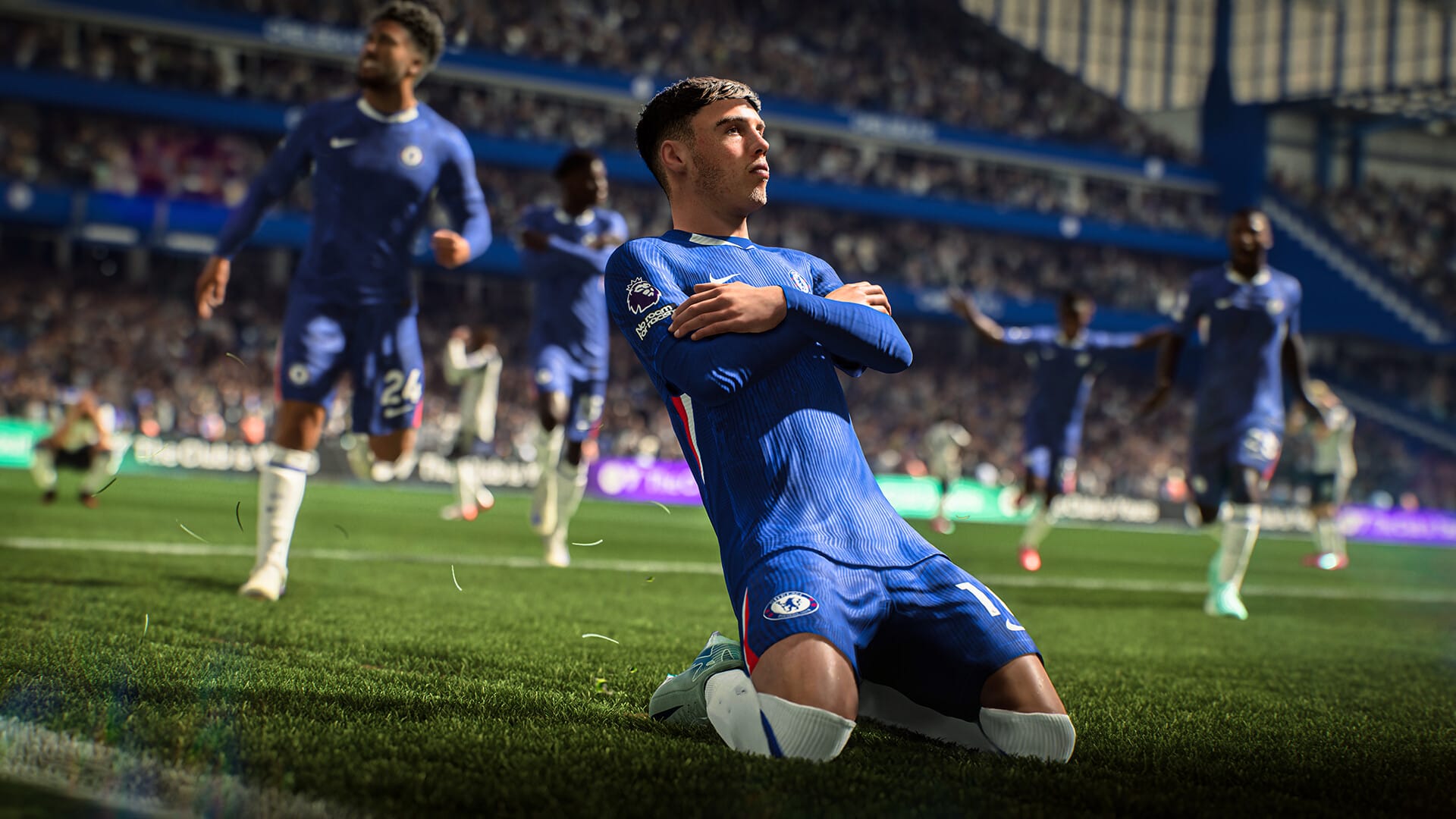
A quick guide on disabling the Trainer feature in FC 26 for a cleaner, less distracting gameplay experience.
What to know
- The Trainer appears during matches showing button prompts, tips, and indicators to assist players.
- It can be toggled off only during a match via the pause menu under the Trainer option.
- Disabling the Trainer removes on-screen guidance, making gameplay less cluttered.
- Some Trainer features can be selectively enabled or disabled based on preference.
- If the trainer comes back on by itself (a glitch), turn off all its sub options as a workaround and then toggle it to Hide.
The Trainer in FC 26 helps players learn the game by showing helpful button hints, positional indicators, and tactical tips during matches. While useful for newcomers, it can be a distraction to experienced players. Fortunately, turning it off is straightforward once you know where to look.
How to disable the Trainer during a match
Step-by-step, disabling the Trainer in EA FC 26 takes just a few moments once you’re in a game:
Step 1
Start any match in FC 26. It can be a kickoff, offline match, or any playable mode.

Step 2
Pause the game to bring up the pause menu.
Step 3
In the pause menu, scroll down to find and select the “Trainer” option.

Step 4
You will see a toggle for “FC Trainer.” Change this option from “Show” to “Hide” to disable the Trainer completely.

Step 5
Exit the pause menu and return to gameplay. The on-screen Trainer prompts and indicators will no longer appear.
Why the trainer sometimes comes back on
Some players report that even after disabling the Trainer, it reactivates when switching modes (e.g. from local matches to Manager Career) or on a new match. This seems to be a known issue with consistency in how settings are stored across sessions.
If that happens, you’ll need to repeat the above steps each time for the mode or match. Some suggest making these changes early (just after kick off) so they “stick” better.
Alternatively, you can turn every trainer setting Off, and then change FC Trainer Toggle to Off. This way, even if it glitches back to Show, none of its sub-options will disrupt your play.

Customizing Trainer settings instead of full disable
If preferred, you can customize what aspects of the Trainer are visible:
- Pass Receiver Indicator
- Shot Target
- Directed Runs Indicator
- Switch Indicator
- Defending Trainer
- Movement Indicator
- Button Hints
- Offside Indicator
Turning off individual features while keeping others helps reduce clutter but keep useful elements like the Pass Receiver Indicator for better in-game awareness.
Turning off the Trainer in FC 26 allows for a cleaner and less distracting gameplay experience suited for players already familiar with the game mechanics and looking for a more immersive challenge.