- What to know
- Purple Gear crafting quick reference
- The Blueprint Code
- How to import the Purple Gear component blueprint code
- How to place the blueprint and validate inputs/outputs
- How to prevent component jams and shortages
- Where Purple Gear blueprints fit into progression (and when to use them)
- Common issues and fast fixes
- Rewards awarded after completion (when using this approach)
- Purple gear crafting with an importable blueprint
What to know
- Purple Gear typically requires a steady factory pipeline that produces gear components; blueprints simplify the layout and routing.
- Shared Blueprints can be imported from a Share Code through the Blueprints menu inside AIC mode.
- Factory Simulations award blueprints that produce specific materials used to craft Gear, making them a strong starting point for gear progression.
- Imported blueprints may still need missing facilities/components added manually, depending on what’s available in the depot and unlocked tech.
In Arknights: Endfield, Purple Gear crafting is less about a single “farm spot” and more about consistency: ore in, components out, then gear crafted when enough materials are ready. A solid blueprint is the fastest path to a working production loop, especially when the goal is component throughput and repeatability across rebuilds.
Purple Gear crafting quick reference
| Topic | Quick reference |
|---|---|
| What purple gear depends on | Gear crafting depends on component production chains (blueprints often target “components first,” then gear crafting consumes those components). |
| Best way to start | Run Factory Simulations for early blueprints that produce gear-related materials, then expand into a dedicated component factory line. |
| Blueprint import location | Blueprints menu → Shared Blueprints → Import Blueprint → paste Share Code → preview → save. |
| When a blueprint won’t fully place | Some structures may be locked behind progression, missing from depot, or require power/logistics that the area doesn’t currently support. |
| What to do after import | Validate power coverage, confirm correct input materials, and ensure output storage doesn’t cap and jam the line. |
The Blueprint Code
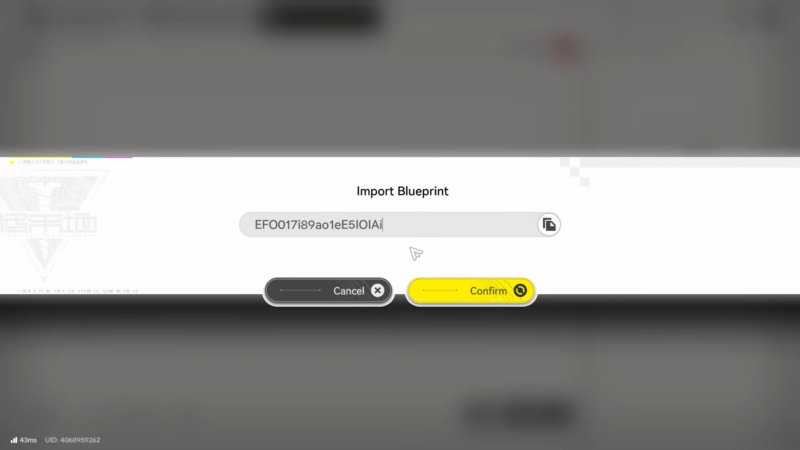
EFO017i89a01eE5IOIAI
How to import the Purple Gear component blueprint code
Step 1
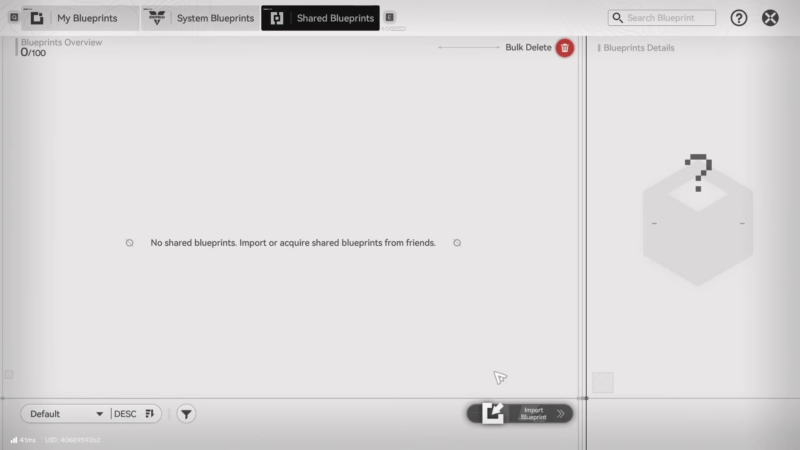
Enter the AIC building area and open AIC mode, then open the Blueprints menu.
Step 2
Switch to the Shared Blueprints tab (not System Blueprints / My Blueprints).
Step 3
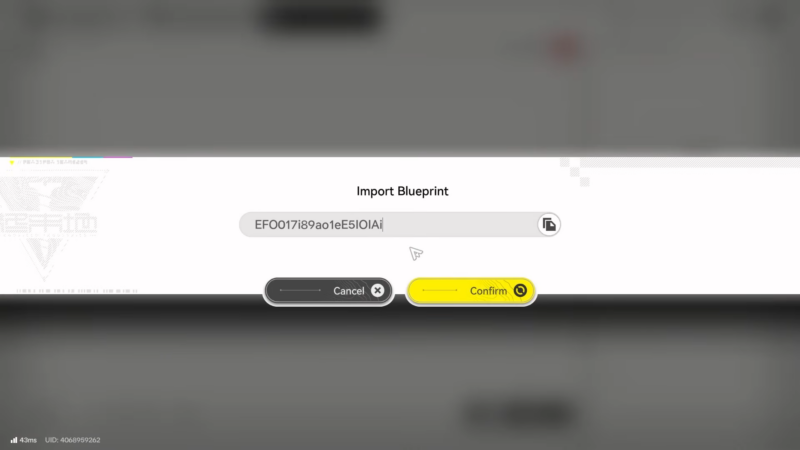
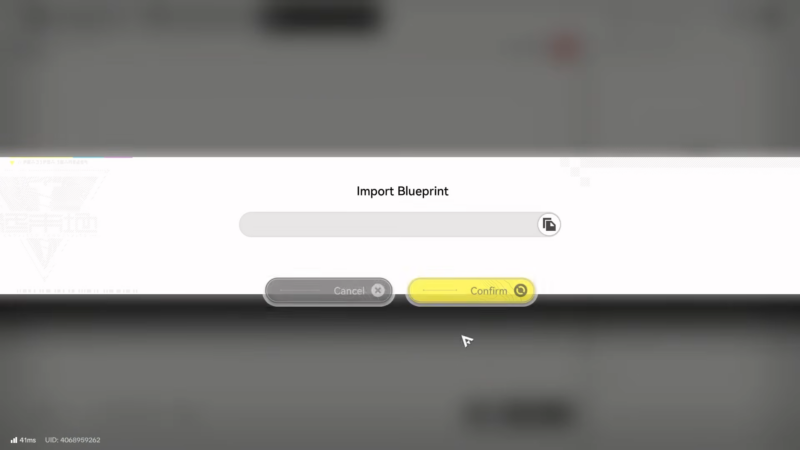
Select Import Blueprint and paste the Share Code exactly as provided (avoid leading/trailing spaces).
Step 4
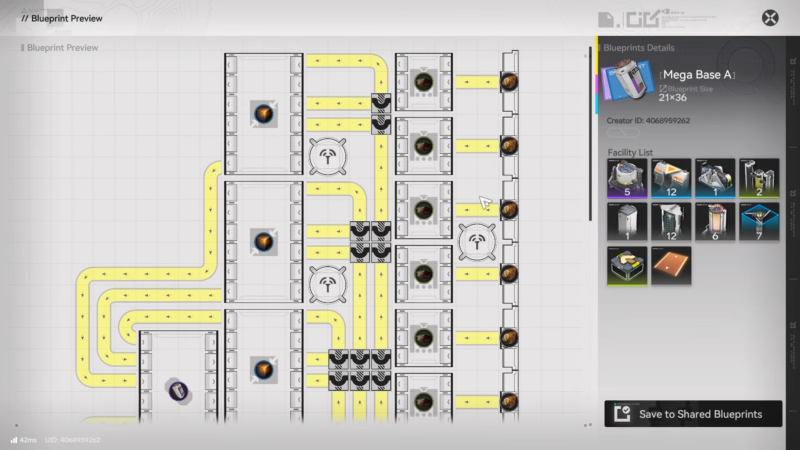
Preview the blueprint layout and confirm it is the intended “component production” setup, then save it to Shared Blueprints.
Step 5
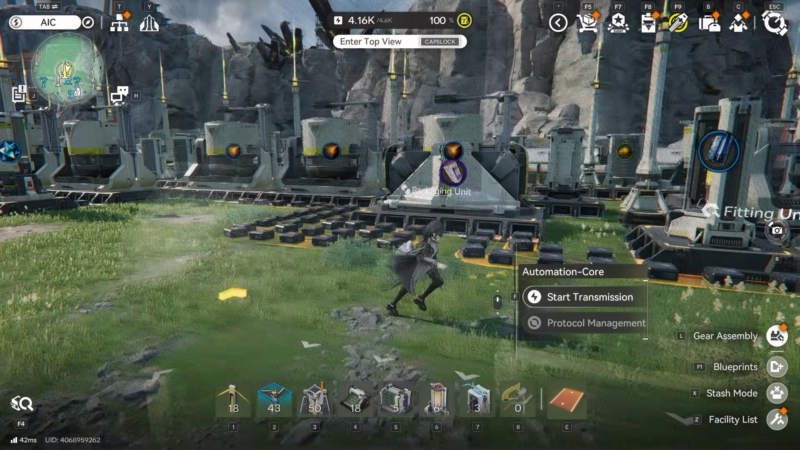
Place the blueprint hologram on an open area and confirm the build, allowing the game to construct facilities automatically or pull them from the depot when possible.
How to place the blueprint and validate inputs/outputs
A “purple components” blueprint usually assumes three things are stable: power, inputs, and uninterrupted outputs. If any one of these fails, production can appear to run but never actually deliver usable components to storage.
Step 1
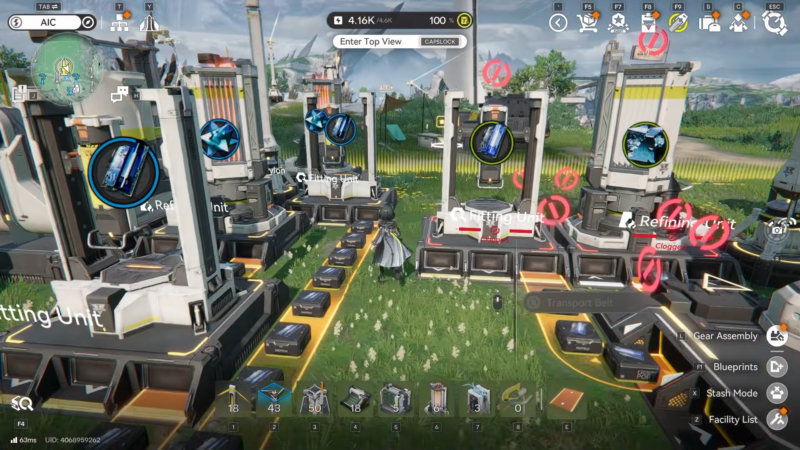
Place the blueprint in a flat, unobstructed area with enough clearance for conveyor routing, splitters/mergers, and facility footprints.
Step 2
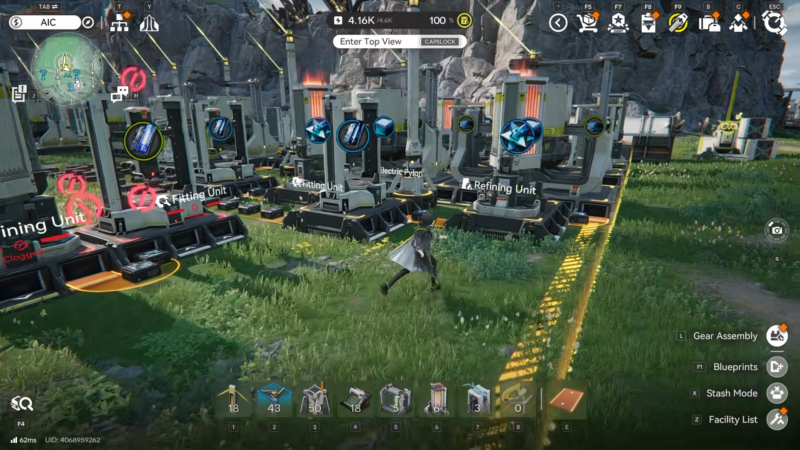
After placement, inspect whether every facility in the blueprint actually spawned; if something is missing, it usually means the unit is not unlocked yet, lacks required parts, or couldn’t be auto-built.
Step 3
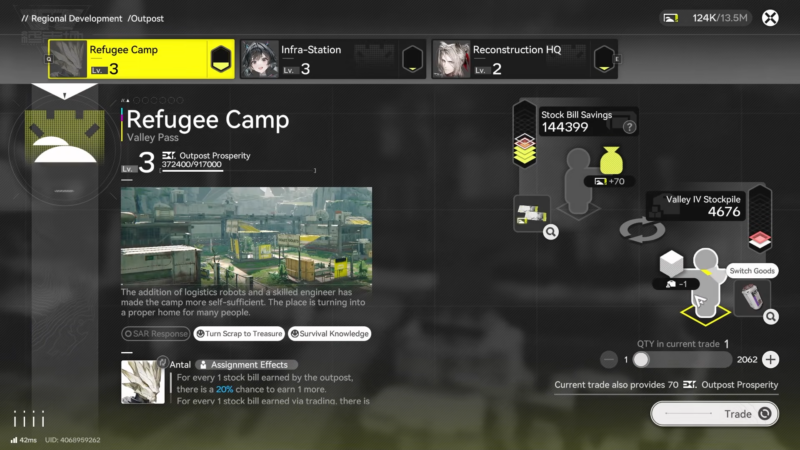
Verify the earliest input stage in the chain and confirm the correct raw materials are reaching the first processing unit (most stalls come from the first belt being empty or feeding the wrong item).
Step 4
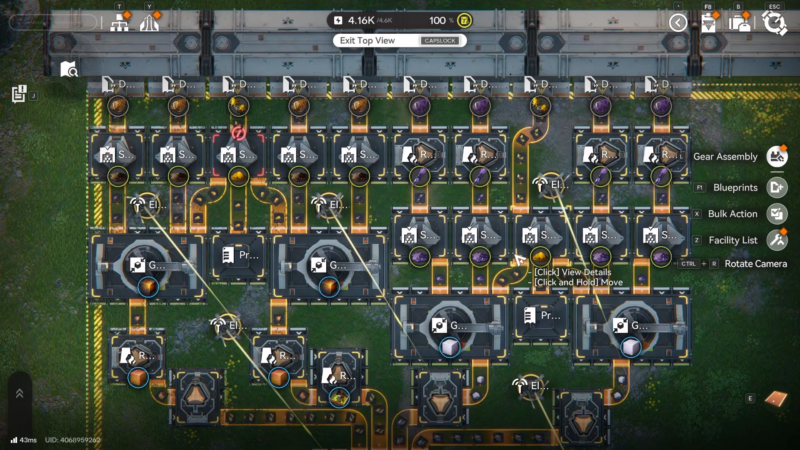
Trace the line section-by-section: input → processing → intermediate buffers → component production → output. Fix problems in that order, because downstream fixes won’t matter if upstream supply is broken.
Step 5
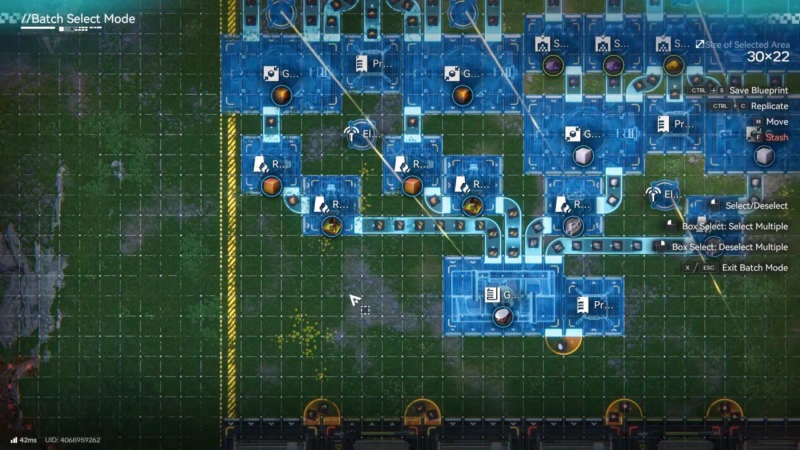
Confirm the final output goes into a storage solution that won’t fill immediately. If the last storage fills up, the final belt backs up, then the entire line can progressively jam.
Step 6
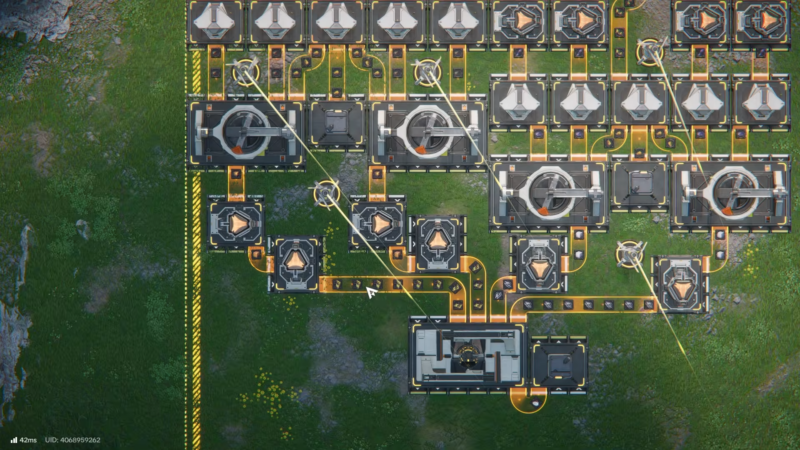
Let the line run long enough to observe steady-state behavior. A line that “works for 30 seconds” can still be unstable if buffers fill unevenly or one branch starves another.
How to prevent component jams and shortages
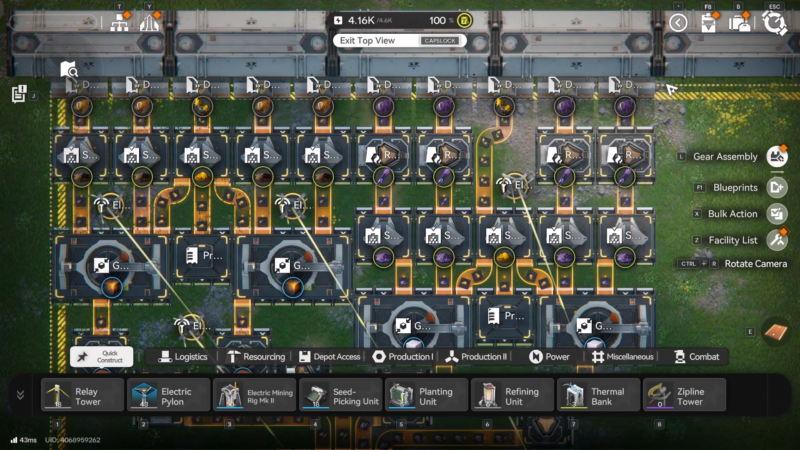
Even good blueprints can become unstable after expansion if the input supply or output handling changes. A few small practices prevent most long-session failures.
Step 1
Keep a dedicated storage buffer for outputs so component belts don’t dead-end into a full container.
Step 2
Avoid mixing unrelated items onto the same belt unless a sorter/filter is explicitly handling it; mixed belts are a common reason for clogged machines.
Step 3
If the blueprint splits inputs into multiple branches, watch for “one branch hogging everything.” Adjust splitters so every critical machine gets a consistent share.
Step 4
Scale in one direction at a time: increase mining/input first, then processing, then component production, then storage. Scaling only the final machines usually causes starvation.
Step 5
When adding new machines, confirm power capacity and coverage again. A single unpowered unit in the middle can silently halt the chain.
Where Purple Gear blueprints fit into progression (and when to use them)
Factory Simulations reward Oroberyls plus blueprints that produce specific materials used to craft Gear. These simulation blueprints are valuable early because they establish reliable patterns for routing and production ratios, making it easier to identify what a “healthy” gear-material pipeline looks like.
Purple gear can function as a bridge tier depending on what gear tiers unlock next. In many progressions, crafting a few key purple pieces (instead of fully converting everything) is enough to stabilize combat effectiveness while continuing to push story/region progression.
Common issues and fast fixes
| Problem | Likely cause | Fix |
|---|---|---|
| Blueprint imports but doesn’t appear | Imported into the wrong place, not saved after preview, or code pasted with hidden spacing | Re-import via Shared Blueprints → Import Blueprint → save; paste carefully and retry |
| Some machines didn’t build | Structure not unlocked, missing parts, or depot can’t auto-build it | Place missing units manually or temporarily replace with available equivalents |
| Belts jam at the end | Output storage is full, missing, or too small for sustained output | Add/clear storage, or add a secondary output route |
| No components produced | Wrong input item, missing input link, or stalled upstream stage | Verify resource source, then trace belts from first input through each stage |
| One machine always idle | Uneven distribution due to splitters/mergers | Adjust splitter priority or add buffering so critical machines receive supply |
| Production stops after expansion | Power, storage, or input supply no longer matches throughput | Re-check power coverage/capacity, increase storage, then increase inputs |
Rewards awarded after completion (when using this approach)
| Activity completed | Rewards awarded after completion |
|---|---|
| Factory Simulations | Oroberyls plus blueprints that produce specific materials used to craft Gear |
| Importing and placing the blueprint code | A reusable factory layout that can be placed again after rebuilds or base moves |
| Stable component-production line running | Ongoing output of gear components that can be consumed to craft purple gear as needed |
Purple gear crafting with an importable blueprint
Purple Gear becomes much easier once component production is automated: import the blueprint, validate every facility, confirm power and correct inputs, then let components accumulate for crafting. Keeping output storage from filling and ensuring balanced input distribution are the two most consistent ways to keep the line running smoothly.