What to know
- Hytale automatically creates backups for most worlds
- Restoration replaces the corrupted “universe” folder with a healthy backup
- Very new worlds may not have any backups yet
- Manual backups are the safest way to prevent permanent data loss
World corruption can happen unexpectedly in Hytale, especially during crashes, forced shutdowns, or unstable pre-release builds. The good news is that Hytale quietly maintains automatic backups for most worlds, making recovery straightforward if you know where to look. Even better, manual backups let you secure your progress across devices or share worlds without risk.
Overview of restoration and backup options
| Method | Purpose | Risk level | Data loss |
|---|---|---|---|
| Automatic backup restore | Fix corrupted worlds | Very low | Minimal |
| Manual save backup | Prevent future loss | None | None |
Understanding Hytale world folders
Each Hytale world is stored locally, much like Minecraft. Inside every world directory, the “universe” folder contains the live world data, while a “backups” folder stores compressed snapshots created automatically by the game. These backups are your lifeline when corruption occurs.
If a world is extremely new, the backups folder may be empty. In those cases, recovery is unfortunately not possible, which is why manual backups are strongly recommended once you start investing time into a world.
How to restore a corrupted Hytale world using backups
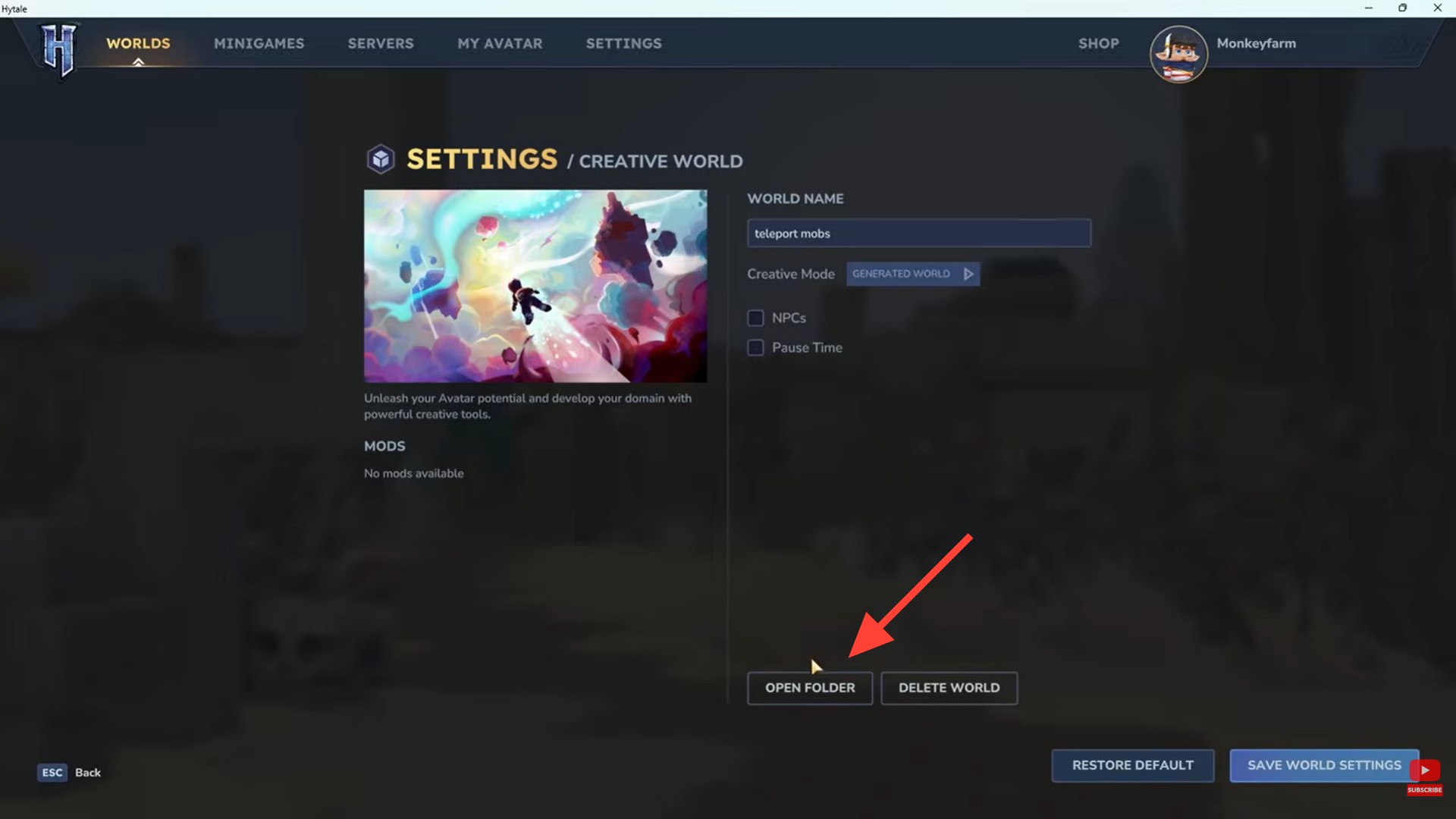
Step 1: Open the corrupted world’s folder
Right-click the corrupted world from the Hytale world selection screen and choose “Open Folder.” This automatically takes you to the correct location inside AppData, removing the need to search manually.
Step 2: Identify the universe and backups folders
Inside the world directory, you will see two important folders. The “universe” folder is the corrupted world, while the “backups” folder contains zipped backup files created by Hytale. These backups are usually timestamped, making it easier to identify the most recent stable version.
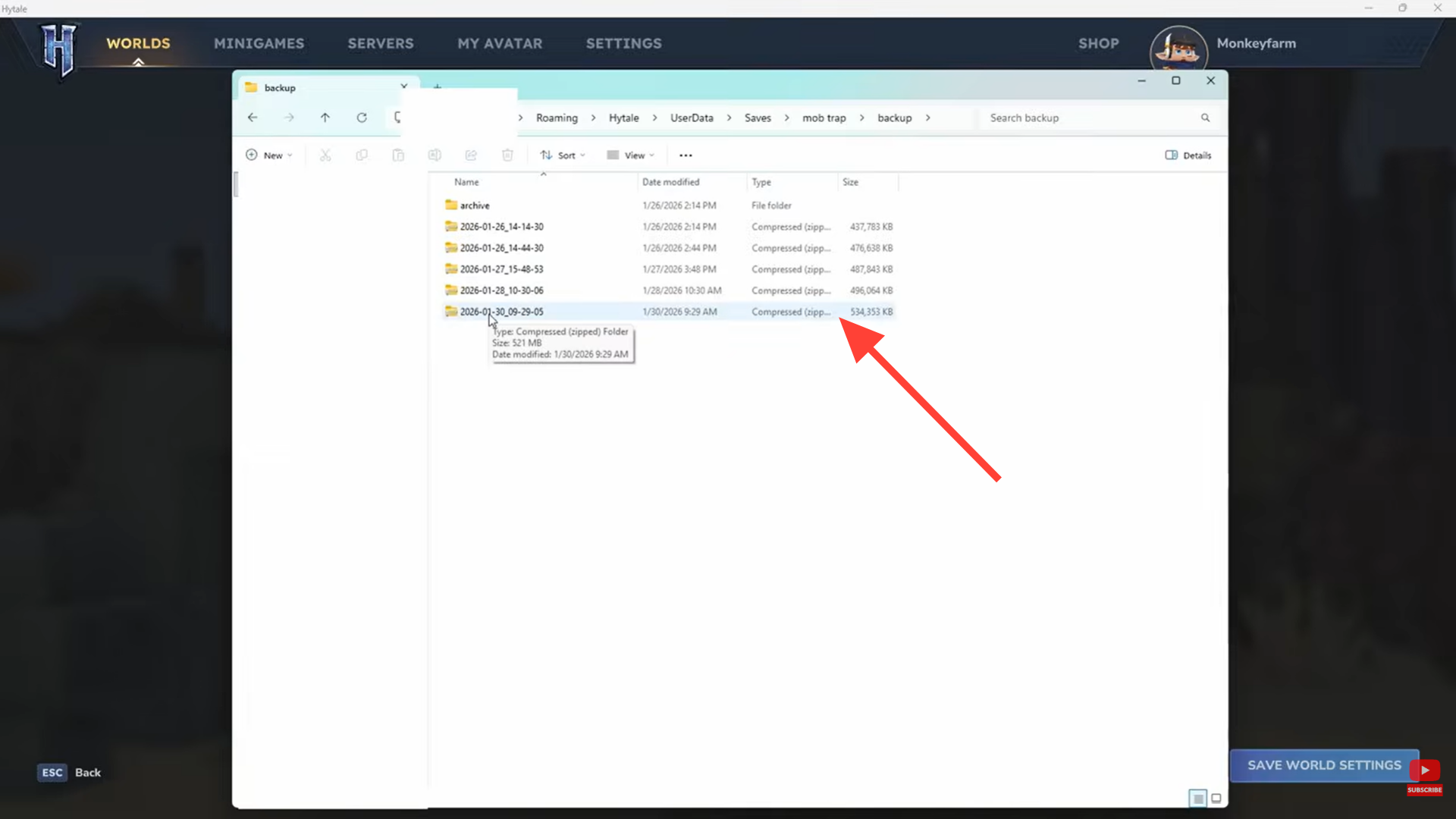
Step 3: Copy and extract the latest backup
Select the most recent backup .zip file, copy it to a safe location such as your desktop, and choose “Extract All.” This creates a new folder containing restored world data.
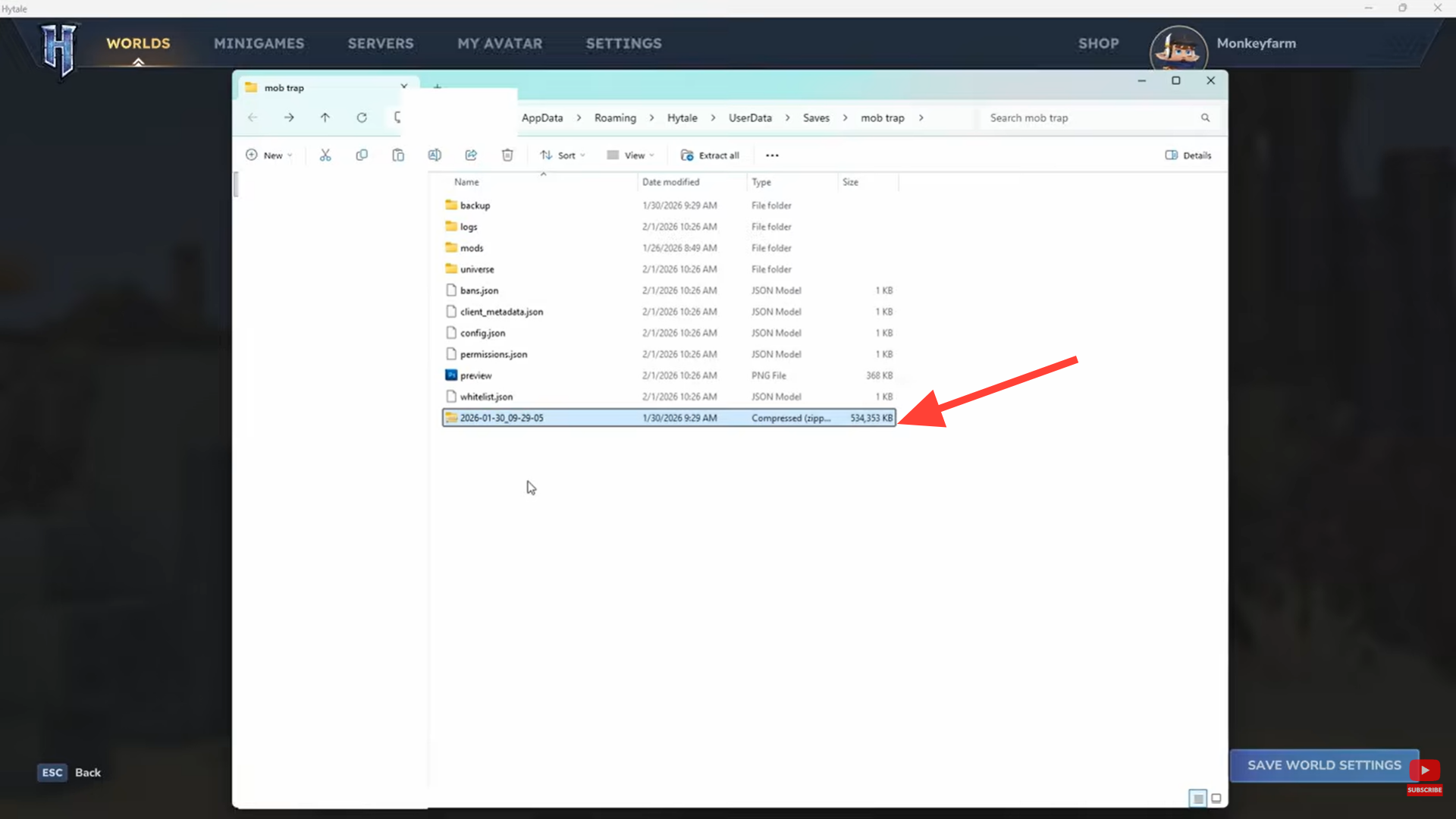
Step 4: Replace the corrupted universe folder
Delete the original corrupted “universe” folder from the world directory. Then rename the newly extracted folder to “universe.” This step is critical, as Hytale only recognizes worlds with this exact folder name.
| Folder action | Result |
|---|---|
| Delete old universe | Removes corrupted data |
| Rename extracted folder to universe | Restores world |
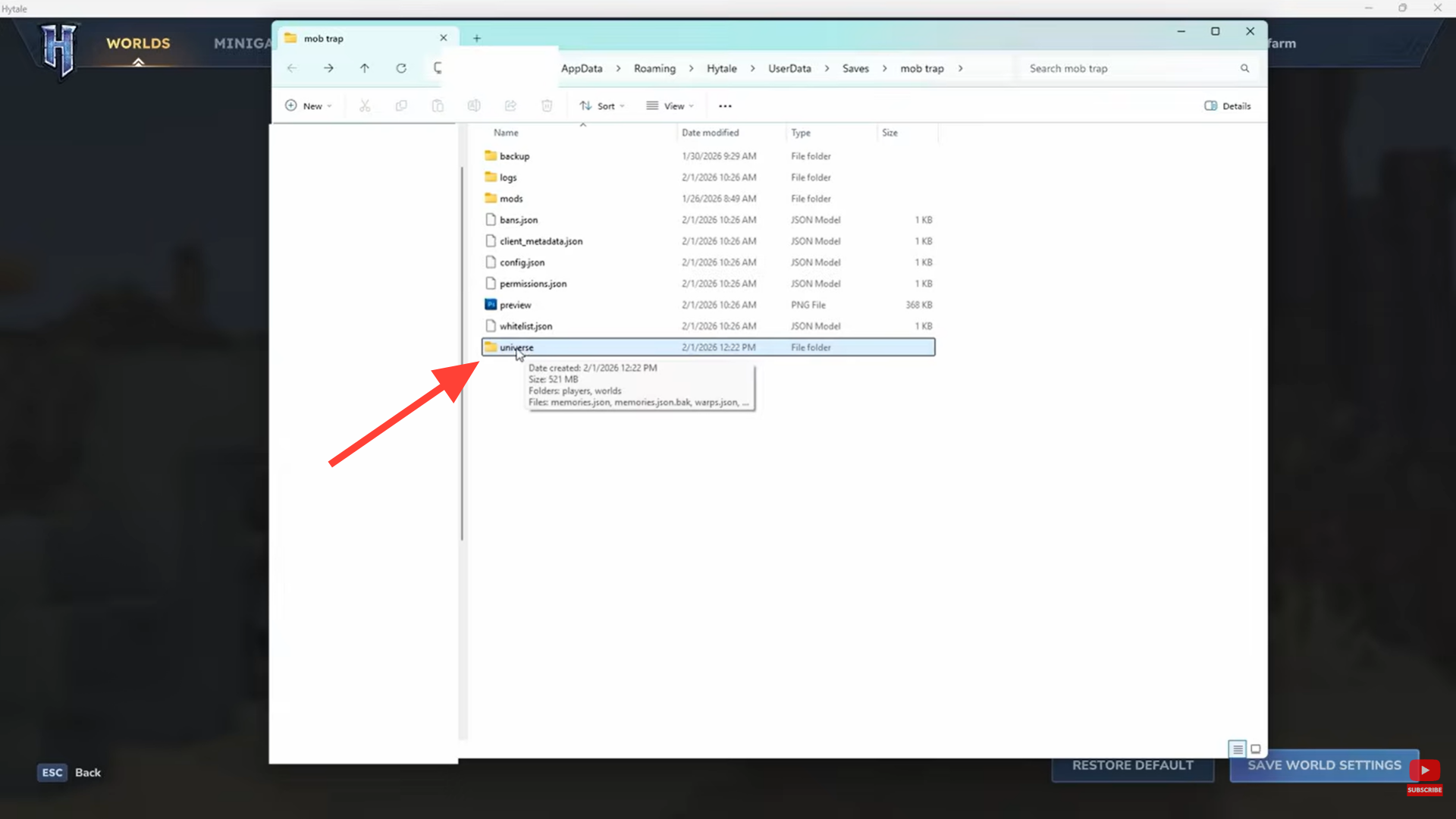
Step 5: Verify the restored world
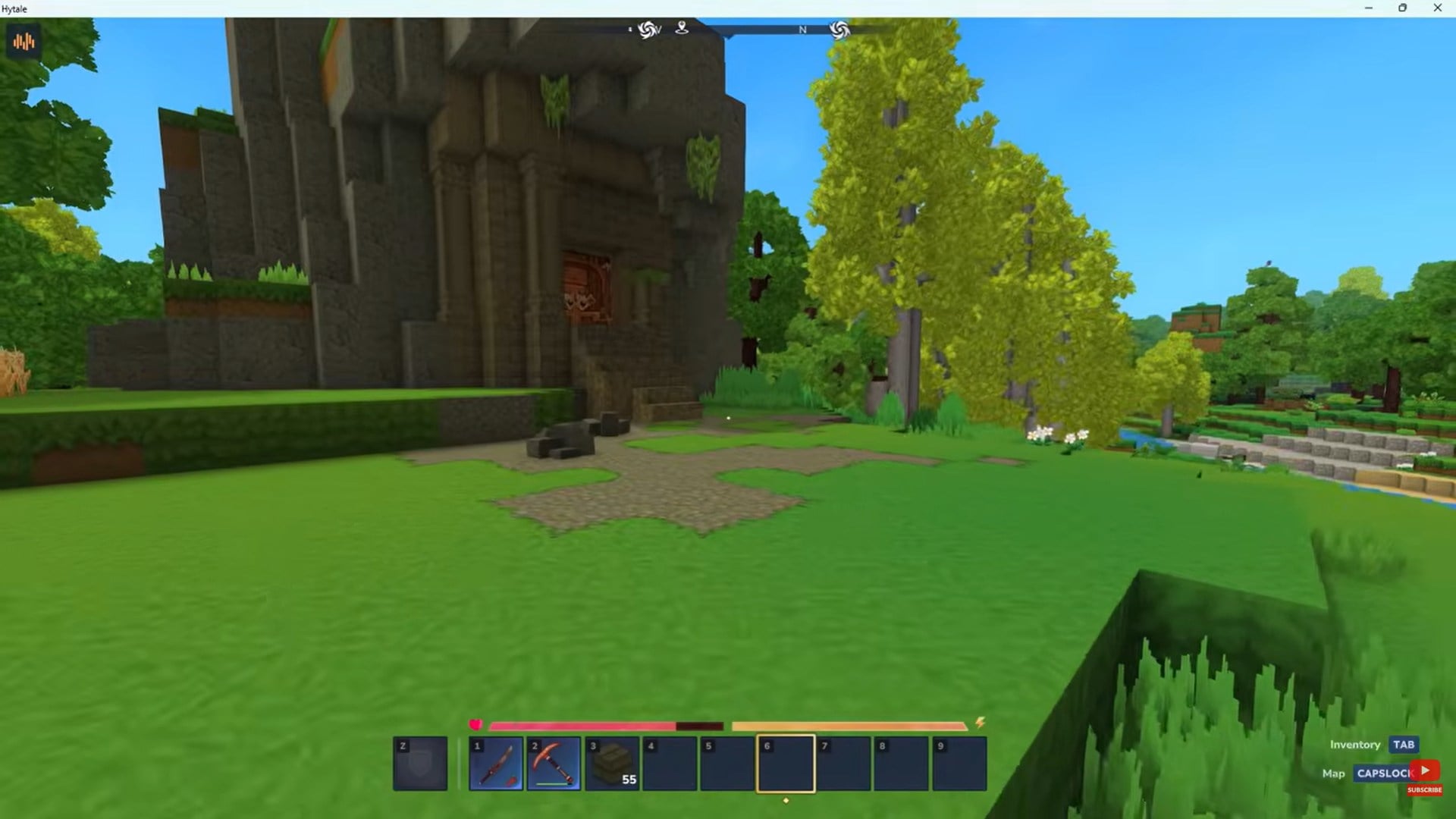
Close the file explorer and reopen the world in Hytale. The world should now load correctly. You may notice minor progress loss, depending on when the last backup was created, but the world will be playable again.
How to manually back up a Hytale world
Automatic backups are helpful, but manual backups offer complete control and peace of mind, especially before major builds, updates, or multiplayer sessions.
Step 1: Open the world folder
From the world list in Hytale, right-click the world you want to back up and select “Open Folder.”
Step 2: Copy the saves directory
Navigate one level up until you see the “saves” folder, then copy the entire folder to another location such as an external drive or cloud storage. This backup can be restored at any time or transferred to another computer.
| Manual backup use | Benefit |
|---|---|
| World transfers | Move saves between PCs |
| Update protection | Roll back if updates break worlds |
| Multiplayer sharing | Send worlds to friends safely |
Why regular backups matter in Hytale
Because Hytale is still evolving, file structures and systems may change between updates. That makes regular manual backups essential, especially for long-term survival or creative worlds. Spending a few minutes backing up your saves can prevent hundreds of hours of lost progress.
Protecting Hytale worlds
World corruption is frustrating, but it does not have to be permanent. Hytale’s automatic backup system is reliable, and manual backups give you complete control over your progress. By understanding where your world files live and how restoration works, you can recover quickly and continue building without fear of losing everything.