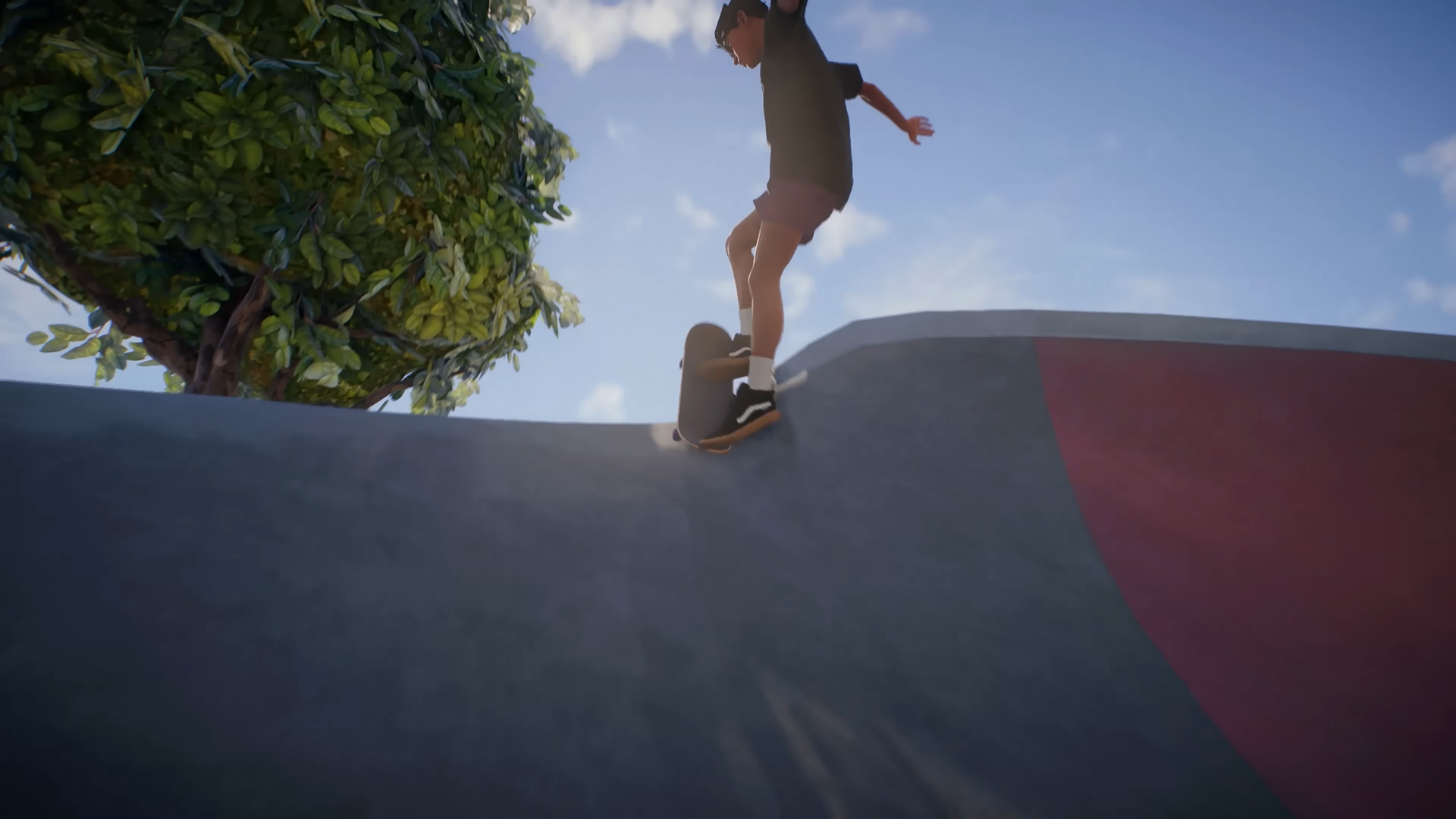
Setting a kicker in the highlighted area is essential for customizing your skate park experience. You can easily do this by following placement and building guidelines suited to your space and needs.
What to know
- Kicker ramps can be placed and moved in skate parks or games like Skate 4 for new trick opportunities.
- Choosing your area and ensuring a stable base is crucial for safe and effective kicker installation.
- Materials like wood, concrete, or pre-built structures are commonly used depending on your project goals.
- Proper assembly and secure placement help prevent injuries and ensure smooth riding.
Sometimes Skate 4 challenges are unintuitive, especially when cues and colors aren’t obvious. This step-by-step guide will ensure the kicker is placed exactly where required for the objective.
How to place the Kicker in highlighted area: SKATE 4 step by step Guide
Step 1
Start the mission that highlights the area where the kicker ramp goes.

Step 2
Open the park or prop editor mode and select the kicker ramp from the available objects.

Step 3
Move the kicker over the highlighted area, making sure the entire ramp fits precisely inside the boundary of the white box painted on the concrete.

Step 4
Watch for a change in the highlight color (usually from blended to green) to confirm the correct placement.

Step 5
Save or confirm your placement; now the mission will allow you to proceed with the challenge (such as grinding or jumping over).
Controls reference (controllers only — PC requires a controller)
| Platform | Quick Drop open | Quick Drop add/place | Quicker Drop (radial) | Interaction |
|---|---|---|---|---|
| Xbox / PC (controller) | Right on D-Pad (tap/open) | A to Add / place | Hold Right on D-Pad for radial | Press L-stick to interact with existing objects |
| PlayStation / PC (controller) | Right on D-Pad | X to Add / place | Hold Right on D-Pad for radial | Press L-stick to interact |
Common placement problems and quick fixes
| Problem | Why it happens | Quick fix |
|---|---|---|
| Object turns red / can’t drop | Outside your editable green circle or overlapping geometry | Move inside the green circle, raise/lower or rotate until it turns green |
| Mission won’t advance after placing kicker | Tiny misplacement, timing, or a known mission bug | Reopen Quicker Drop and quick-place again; make sure the kicker is fully inside the purple tile |
| Your placed object disappeared / someone else edited it | Quick Drop has a 5-object limit and multiplayer visibility/edit settings | Check Quick Drop settings (Replace Oldest Object, Visibility, Editing) or delete/replace old objects |
How to troubleshoot when the objective still won’t register
Step 1 — recheck exact coverage
Ensure the kicker is completely inside the mission highlight (not just overlapping an edge). Tiny overhangs can fail detection.
Step 2 — use Quicker Drop to place the kicker again
Open the radial (hold right on D-Pad) and quick-select the kicker — sometimes the quick method registers mission placement more reliably than the full menu.
Step 3 — check Quick Drop settings and visibility
Make sure Quick Drop privacy or editing settings aren’t preventing interaction; if someone else’s object is interfering, disable or delete it locally via the interaction button.
Step 4 — if that fails, do a session refresh
Quit and re-enter the challenge or reload the session; some players have found reloading or toggling crossplay forces the challenge to re-sync and allow placement to register.
Step 5 — check for known bugs and official fixes
If the mission remains bugged, check in-game news or community posts — the developer has acknowledged and discussed Quick Drop / mission issues and suggested session reloads and settings tweaks. If you keep hitting the same bug, file a report so the studio can investigate.
Wrap-up: reliable kicker placement in skate.
Use Quick Drop (or the faster Quicker Drop radial) to spawn a kicker, then rotate and raise/lower it until the object is fully green and sits entirely inside the mission’s highlighted tile. If the mission doesn’t advance, quick-place the kicker again, verify privacy/visibility settings, and, as a last resort, reload or follow session refresh suggestions — those steps solve most placement problems reported by the community.