Hytale is built with modding in mind, and the process is designed to be incredibly user-friendly. By using the CurseForge platform, you can browse and install mods with just a few clicks. Here is how to get started:
Install CurseForge
The easiest way to manage Hytale mods is through the CurseForge launcher:
- Download: Go to curseforge.com and download the launcher for Overwolf.

- Setup: Open the CurseForge application once the installation is complete.
Browse and Install Mods
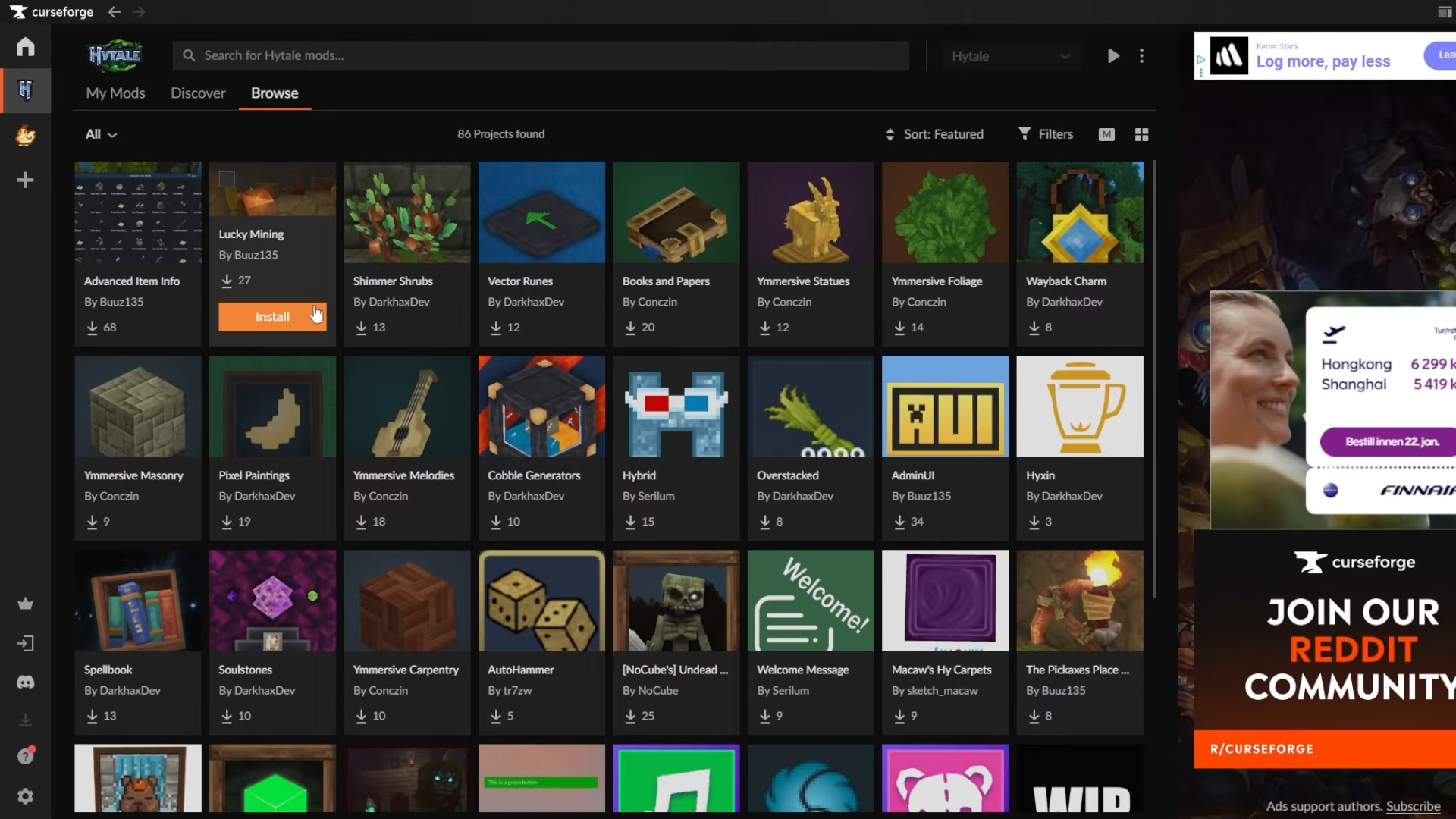
CurseForge automatically detects your Hytale installation, making the modding process seamless:
In the CurseForge launcher, click on Hytale from your list of installed games.

Click on Browse for Mods to see the variety of community-created content already available.

When you find a mod you like (such as “Lucky Mining”), simply click the Install button. The launcher will automatically connect the mod to your game.
Enabling Mods in Your World
Once the mod is installed via CurseForge, you need to activate it within Hytale:
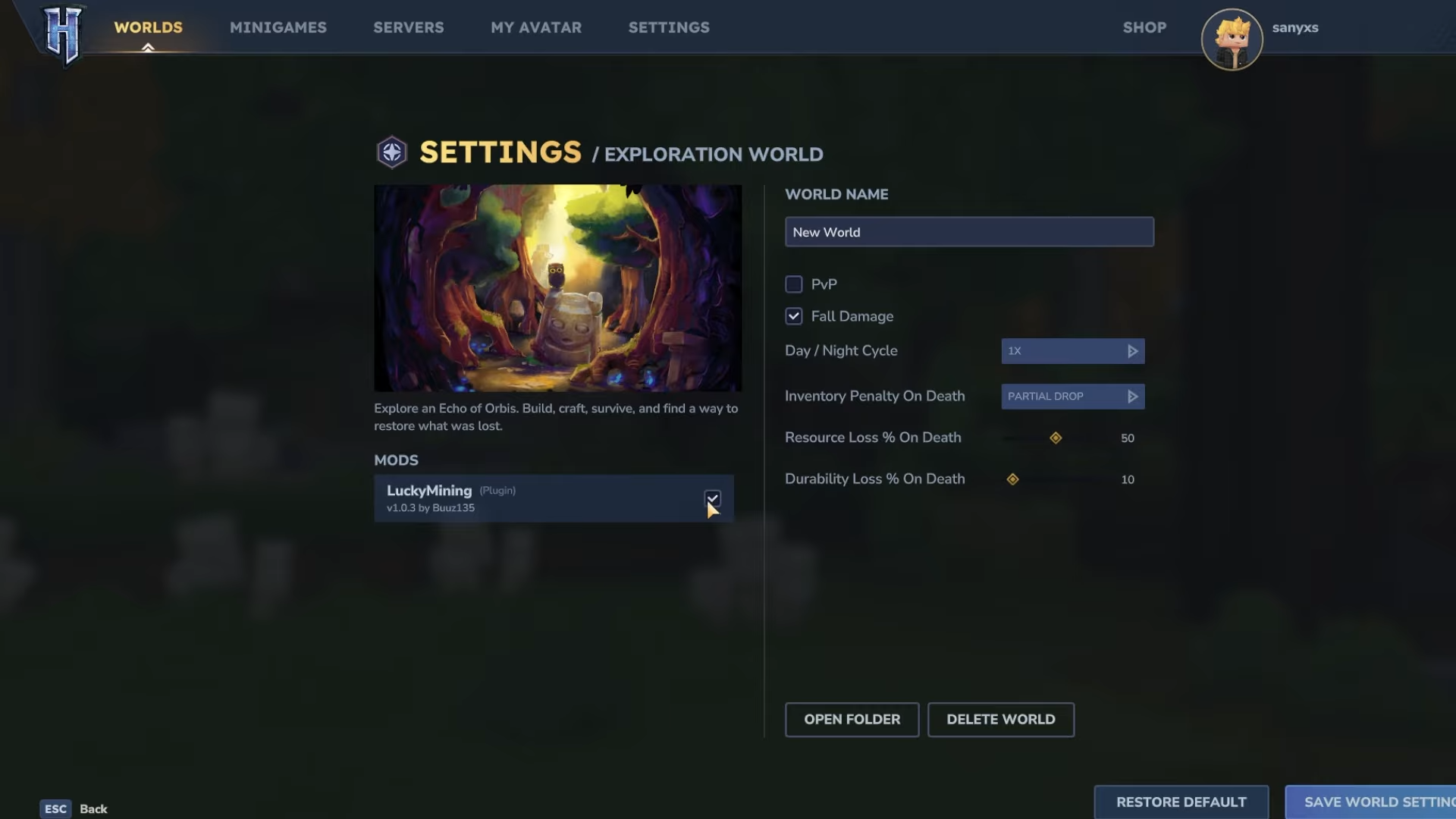
Open the game and navigate to the Worlds menu. Find the specific world you want to enhance and Right-Click on it.

Select the Mods option from the menu. Click the toggle next to your installed mod to enable it for that world
With these steps, you can easily tailor your Hytale experience with new gameplay mechanics, items, and more!