What to know
- You must be in a creative world with commands enabled to use the image import feature.
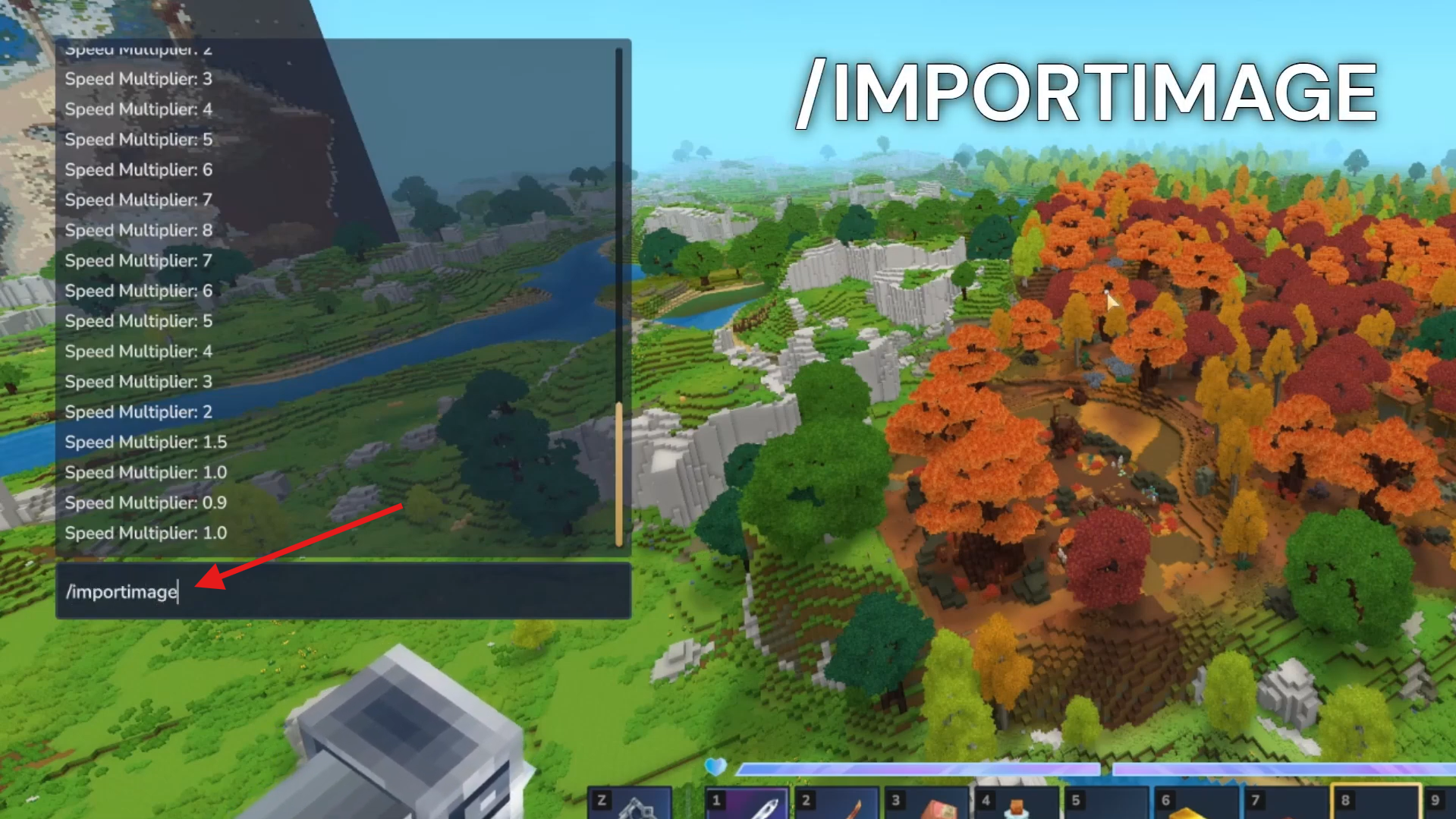
- Open chat and type /imp import image to open the image import menu with size, orientation, and origin options.
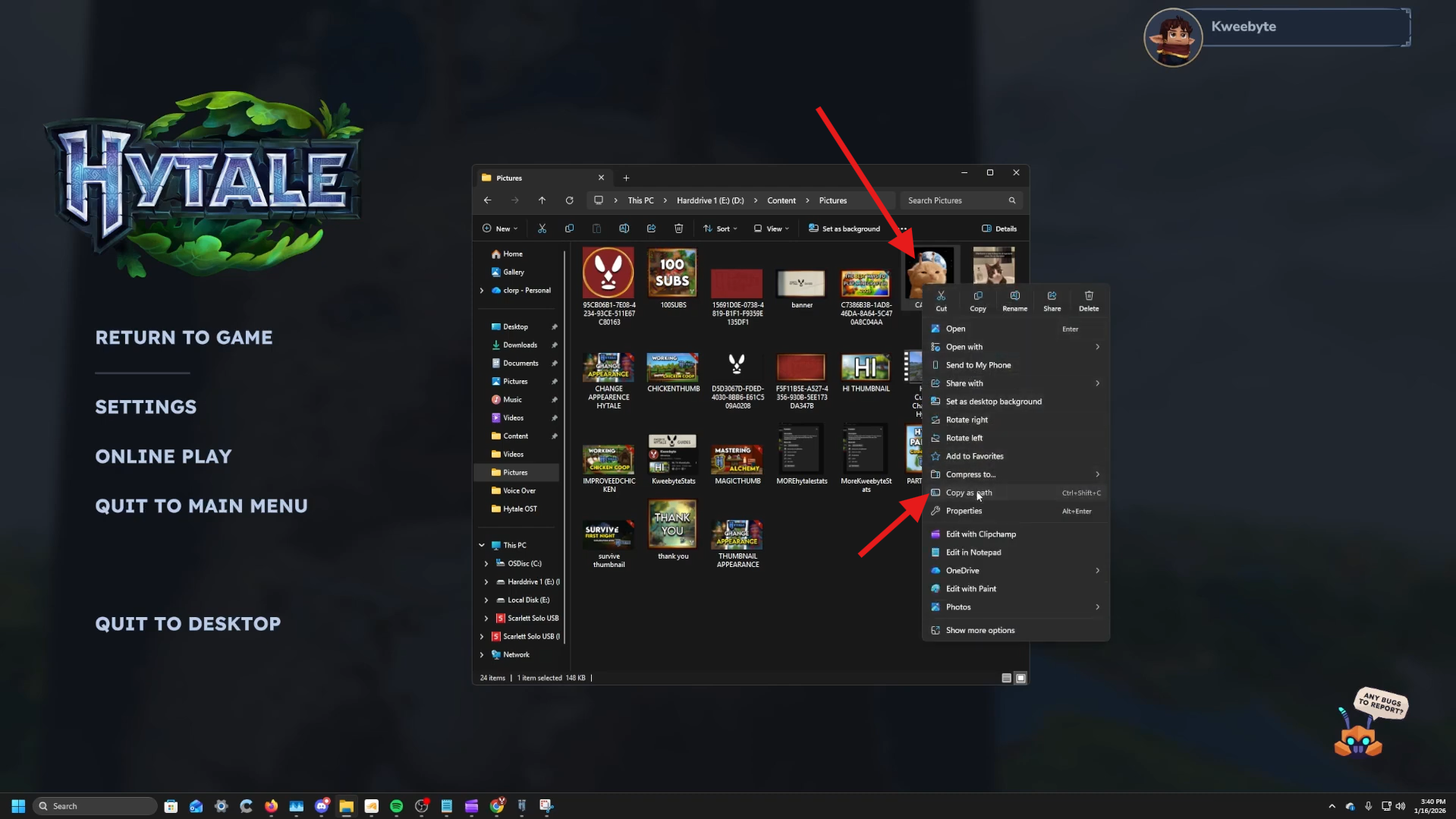
- On Windows, locate your image in File Explorer, right-click it, and choose “Copy as path.”
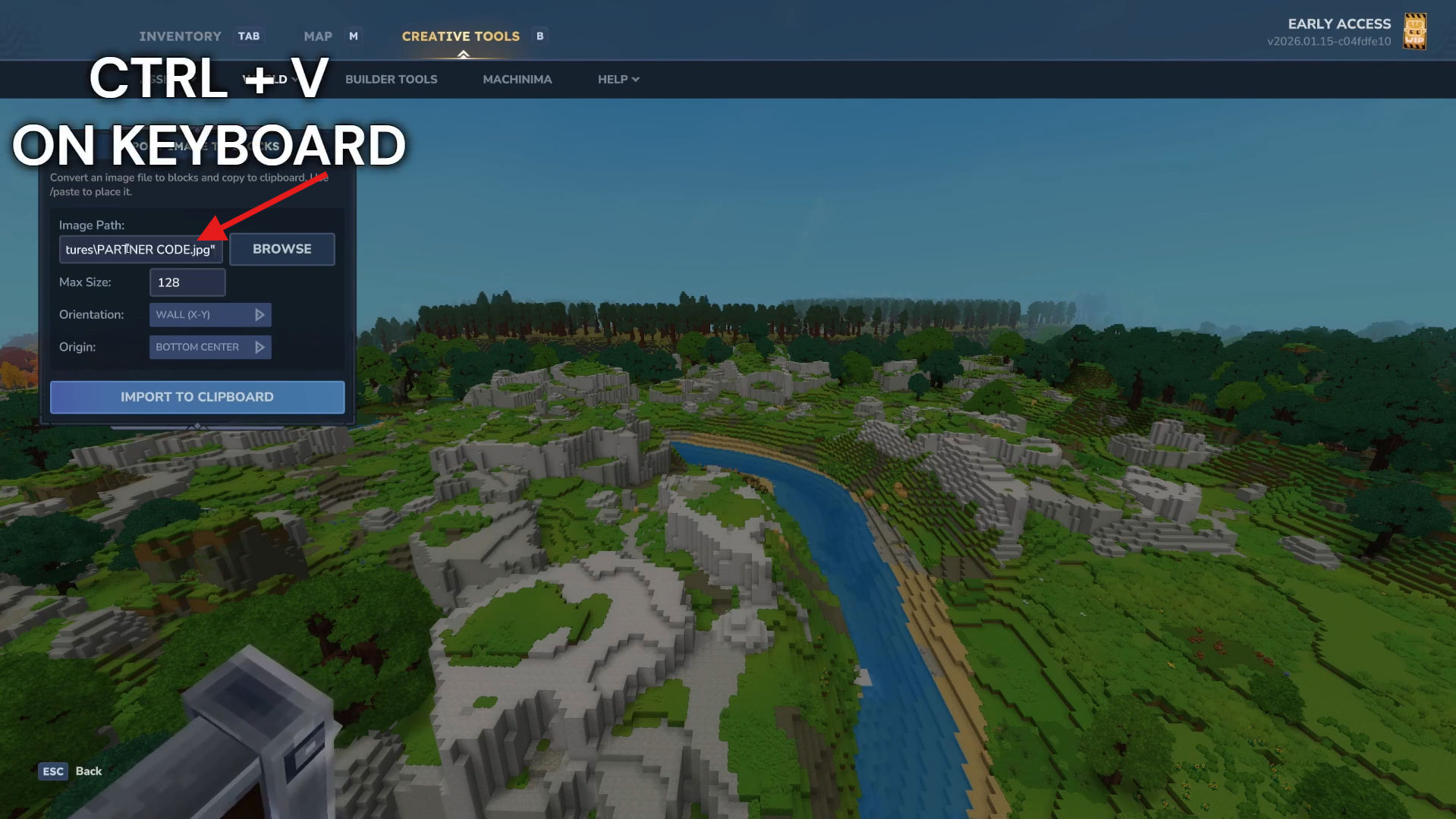
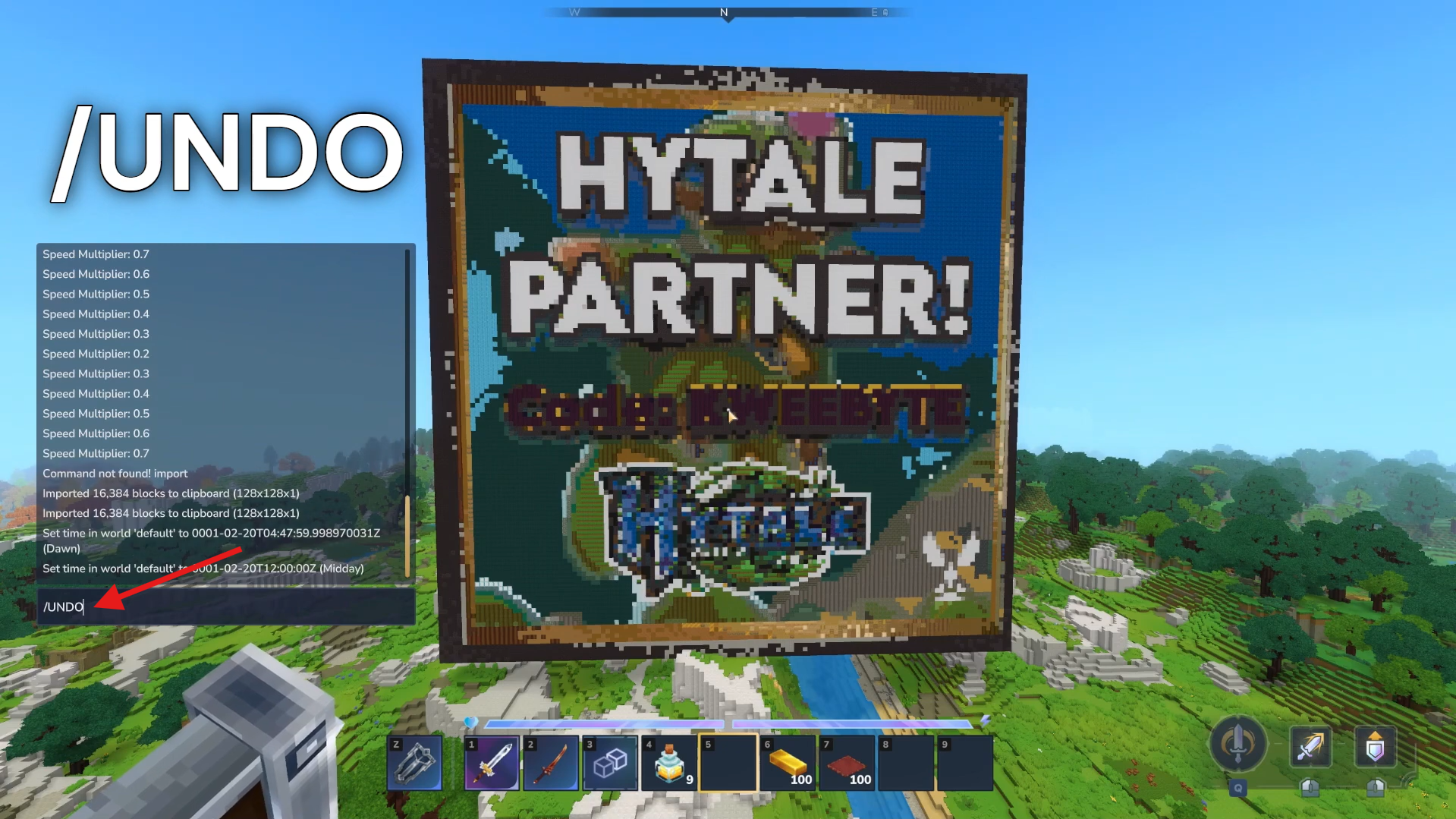
- Back in Hytale, paste that path into the import window and place the image. If the placement is wrong, use /undo.
Importing custom images into Hytale is an easy way to add pixel art, logos, and unique designs directly into your world without building everything by hand. With the built-in image import command, you can turn any picture on your PC into a block-based structure in just a few steps. This guide walks you through the full process so you can start creating detailed builds quickly and accurately.
How to import images in Hytale
Follow the steps below to easily import images into Hytale:
Make sure you’re in a creative world with commands enabled, then press Enter, type /imp import image, and press Enter again to open the import window.
Step 2: Review the import options
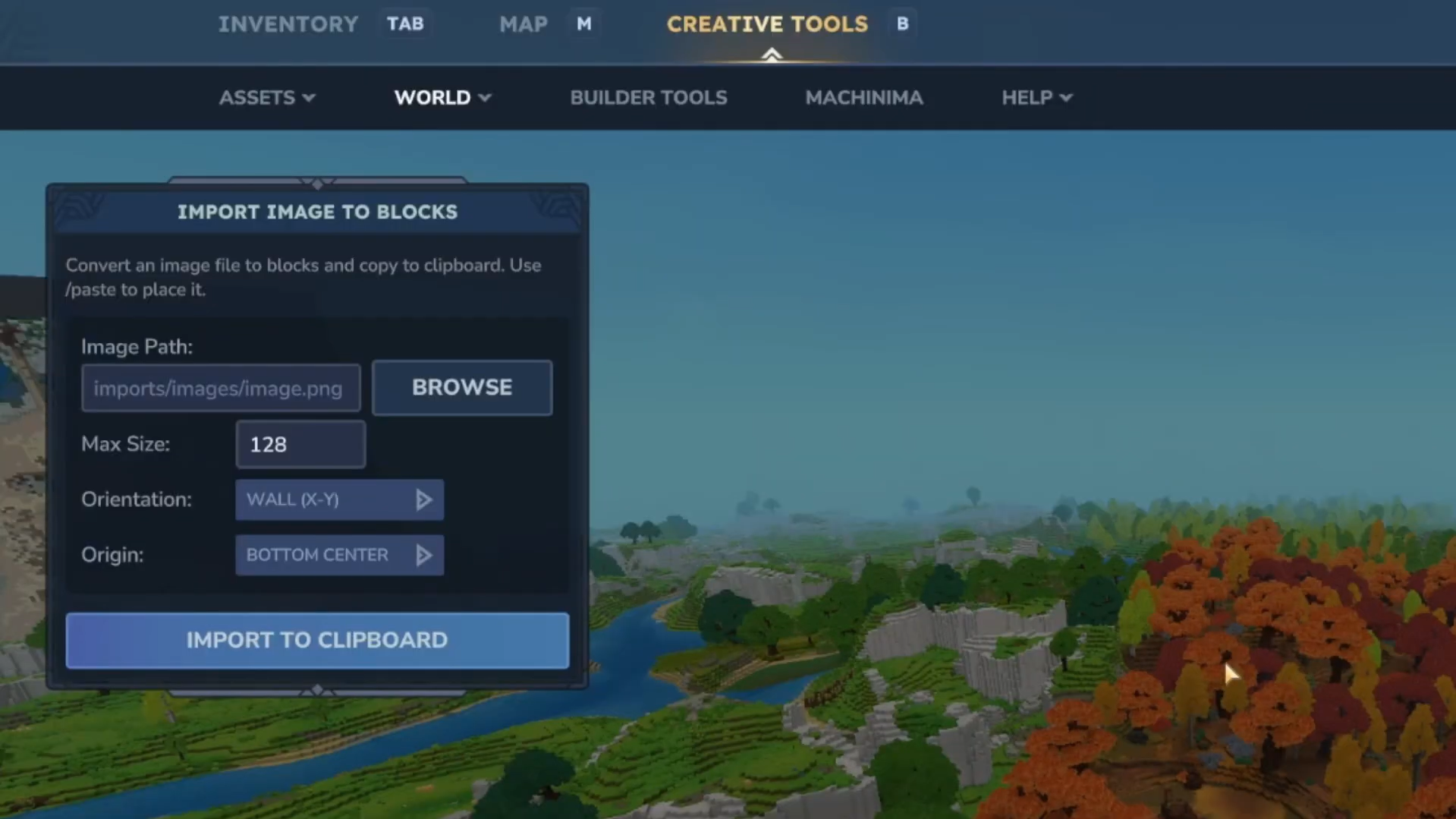
In the import window, you’ll see:
- Max size – Limits the image dimensions.
- Orientation – Places the image vertically or flat.
- Origin – Sets where the image anchors to your cursor.
The default settings work well for most imports.
Step 3: Get your image file path
Open File Explorer, locate the image you want to import, then right-click it and select “Copy as path.”
Step 4: Paste and import the image
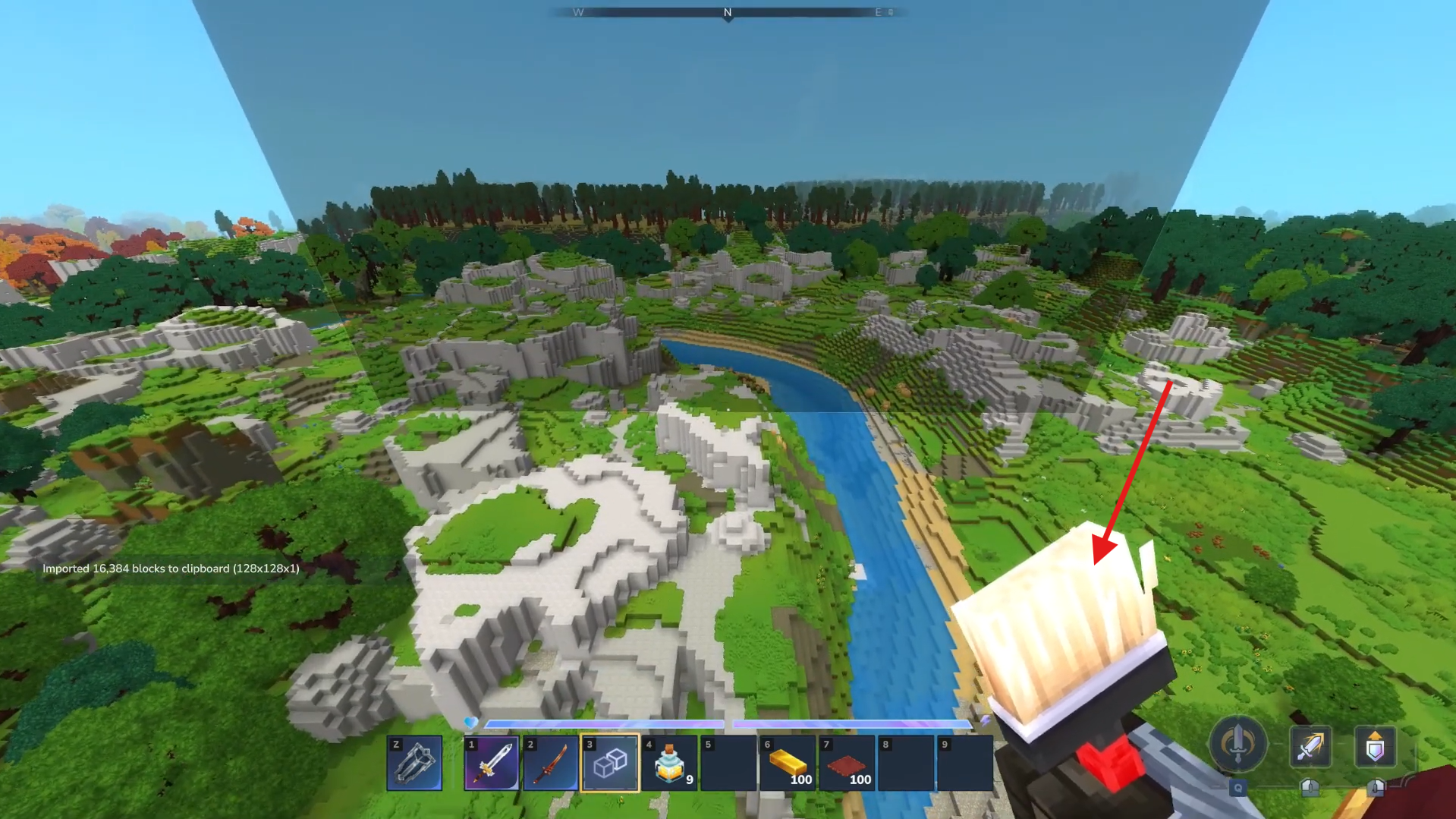
Return to Hytale, click the path field in the import window, press Ctrl + V, and then click “Import to clipboard.” Your cursor will now be ready to place the image in the world.
Step 6: Place or undo the image
Aim at the location where you want the image to appear and place it in the world. If the placement isn’t right, simply type /undo to remove it and try again.
Tips for best results
- Start with small, simple images to quickly test the import and placement.
- If the path doesn’t work, try moving the image to a simple folder like C:\Images and import it again.
- Always use “Copy as path” instead of a regular copy to ensure Hytale reads the file correctly.
Turn pictures into builds
With the image import tool, you can turn any picture on your PC into a detailed in-game build in just a few clicks. Once you get comfortable with the options and placement, it becomes an easy way to add logos, pixel art, or custom designs to your Hytale world.
Glad you followed along! If you have suggestions, questions, or want more details, just leave a comment—we’re always checking the section.