What to know
- This error occurs when you attempt to use administrative commands without the proper clearance level.
- Use the /op self command in single-player or self-hosted worlds to grant yourself access instantly.
- On dedicated servers, you must use the server console to add yourself to the operator list.
- Permission plugins can sometimes override default settings, requiring specific configuration.
Running into a message that says you do not have permission to use a command can be frustrating, especially if you’re trying to change the time of day. In Hytale, this is a security feature designed to prevent players from accidentally or intentionally disrupting a game session. Fortunately, if you are the owner of the world, fixing this is a very straightforward process.
How to fix “You do not have permission to use this command”
Here are a couple of ways of fix this error and gain permissions.
Using the Operator Command
The most common way to resolve this issue is by granting yourself operator status, often referred to as being “OP.” If you are the host of the game or playing by yourself, follow these steps:
Open the chat window by pressing Enter or the / key.
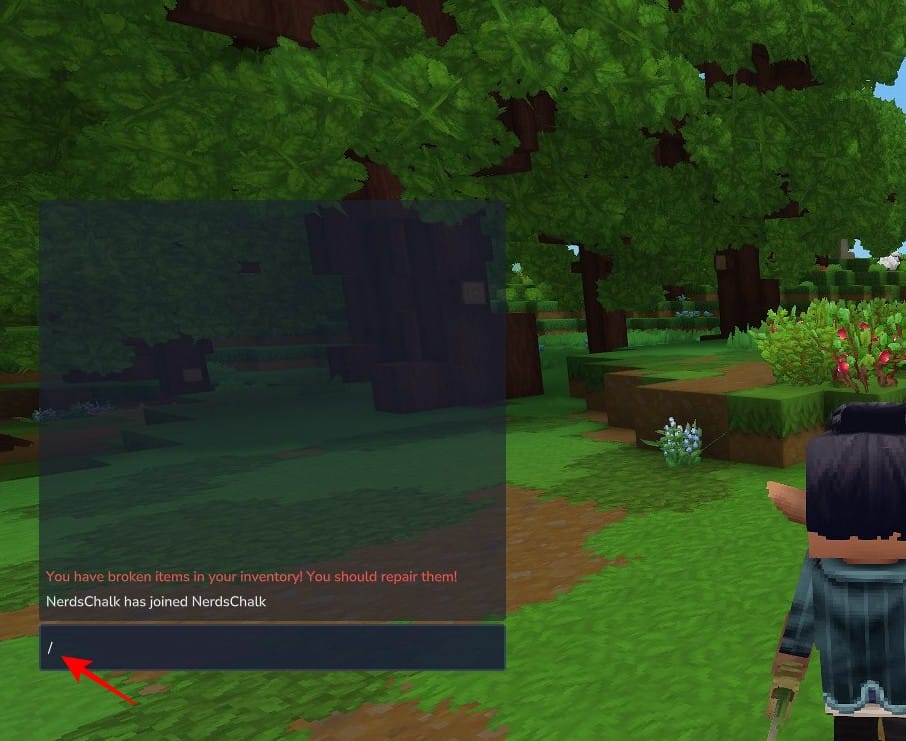
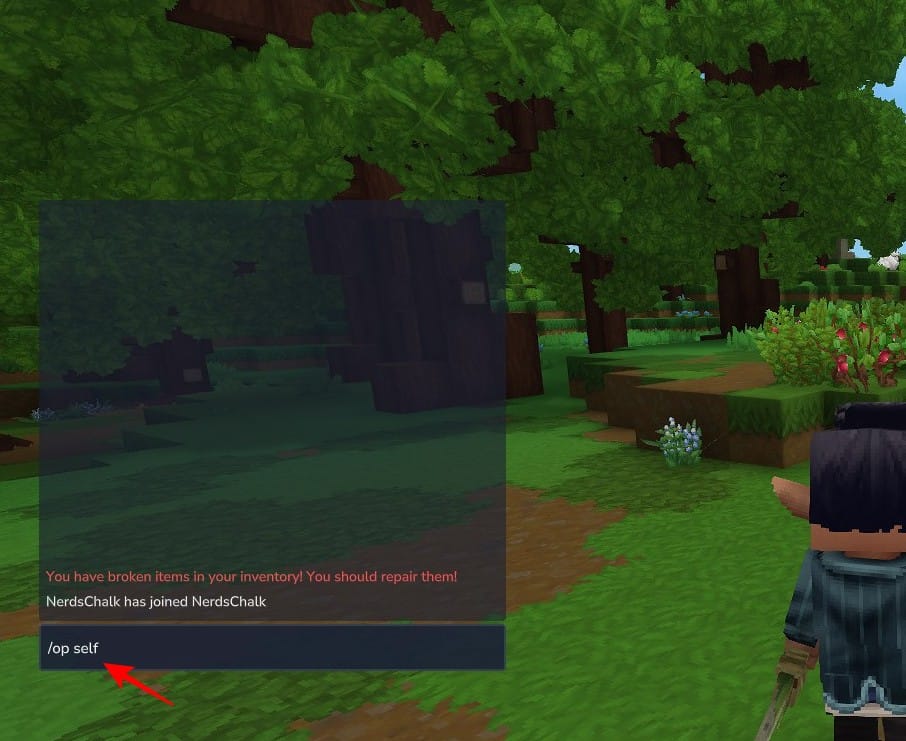
Type /op self and press Enter.
A notification should appear confirming that you are now an operator.
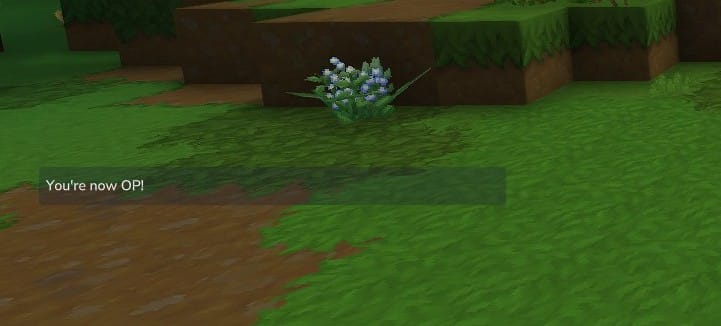
Once you have this status, you will no longer see the permission error when using standard commands.
Accessing the Server Console
If you are running a dedicated server, you might not be able to use the OP command from within the game until you have been given permission. To fix this, you will need to access your server’s command line or web console. Simply type:
op add [YourUsername]
This bypasses the in-game permission check and gives you full administrative rights. You can then use the game to manage other players’ permissions as needed.
Getting past the permission error in Hytale is as simple as identifying your role in the world and using the correct operator command to unlock your potential.