What to know
- These errors are commonly triggered by Windows Smart App Control blocking Hytale
- Firewall restrictions can also prevent server authentication
- Disabling Smart App Control is the most reliable fix—but has a major drawback
- Firewall changes are safer short-term but may need repeated adjustments
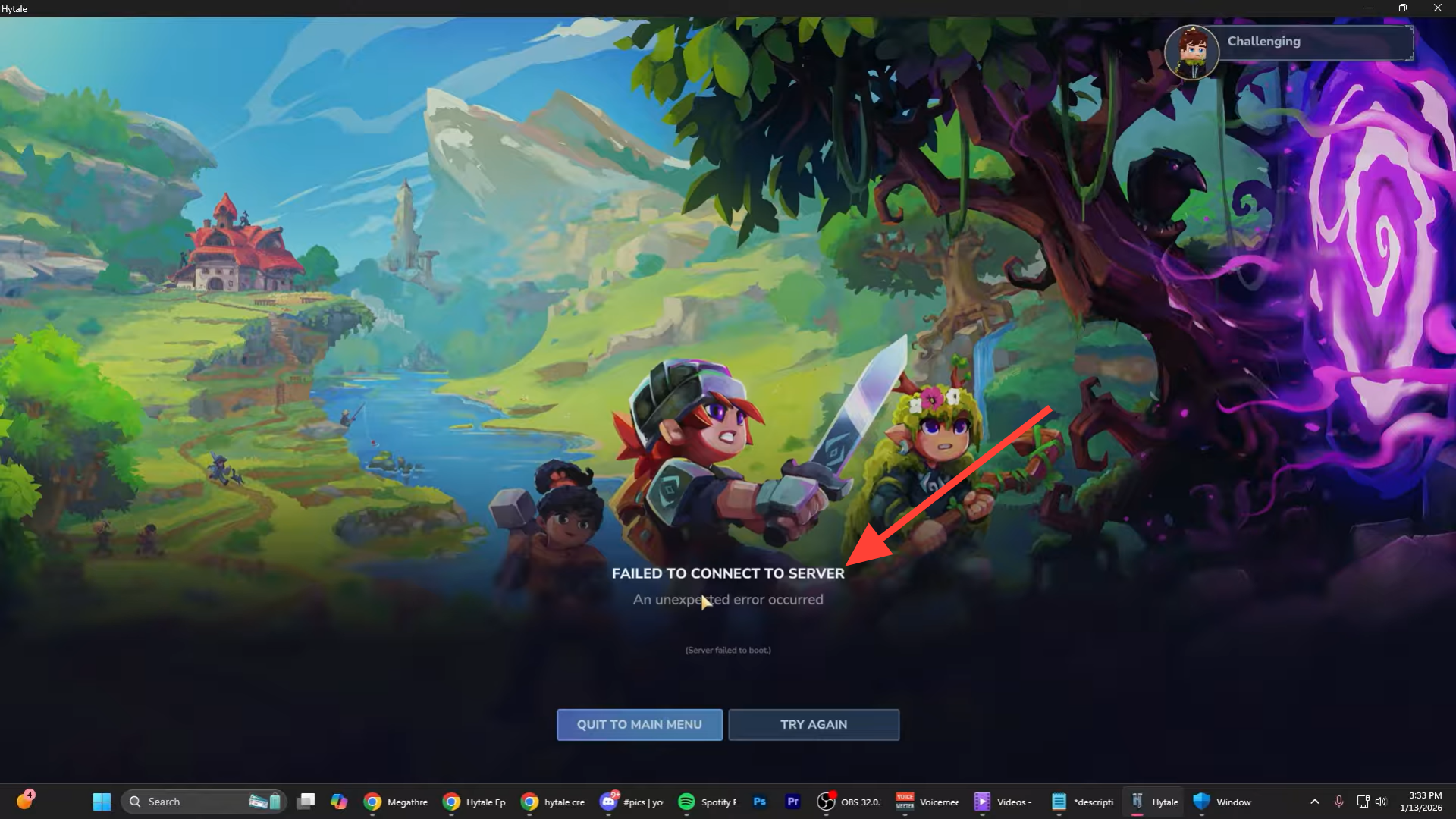
If you’re seeing “Failed to Connect to Server,” “Server Authentication Failed,” or “Server Failed to Boot” in Hytale, the issue usually isn’t your internet connection. Instead, it’s Windows treating the game as untrusted software and blocking its network access.
Below is a clear breakdown of what’s happening and how to fix it safely.
Why Hytale server connection errors happen on Windows
Hytale’s current builds are often flagged by Windows security systems because they’re not widely recognized or digitally trusted yet. Two components are responsible in most cases:
- Smart App Control silently blocks the executable
- Windows Defender Firewall prevents authentication traffic
When either happens, Hytale can’t complete its server handshake, leading to connection and boot errors.
How to disable Smart App Control on Windows
This is the most consistent fix, but it comes with an important warning.
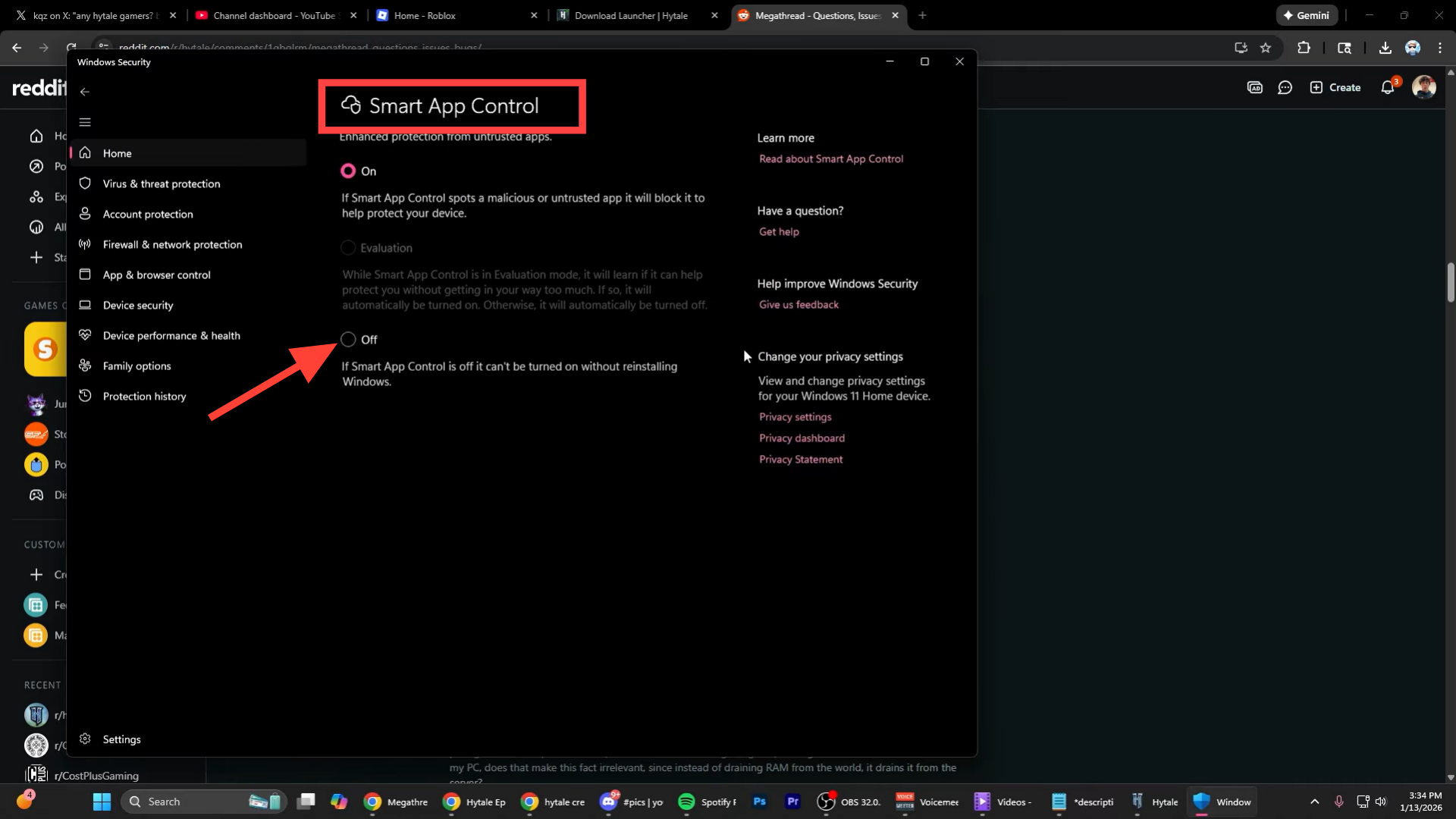
Step 1: Open Smart App Control settings
- Press the Windows key
- Search for Smart App Control
- Open the system settings result
Step 2: Turn Smart App Control off
- Toggle Smart App Control to Off
- Restart your system
Step 3: Launch Hytale and test server connection
- Start Hytale normally
- Attempt to join or boot a server
Important limitation:
Once Smart App Control is disabled, Windows does not allow you to re-enable it without reinstalling Windows. Only use this fix if you’re certain and understand the trade-off.
How to disable Windows Defender Firewall for Hytale
This method is safer short-term and useful for testing.
Step 1: Open Windows Defender Firewall
- Search for Windows Defender Firewall in Windows search
- Open the control panel option
Step 2: Turn off the firewall temporarily
- Select Turn Windows Defender Firewall on or off
- Disable it for private networks only
Step 3: Test Hytale server access
- Launch Hytale
- Check if authentication and server boot errors are resolved
Security note:
Disabling your firewall leaves your system exposed. Re-enable it after testing or configure a proper firewall exception once the game connects successfully.
Which fix should you use?
If you want a permanent fix and understand the consequences, Smart App Control is the root cause in most cases. If you’re troubleshooting or testing, firewall changes are safer but may not fully resolve the issue every time.
At the moment, these are the only confirmed fixes consistently resolving Hytale’s server authentication problems on Windows systems.