What to know
- Error 0xE0670402 is triggered by incompatible BIOS boot configuration
- The issue is not caused by game files or your Highguard account
- Changing the OS Type setting in BIOS resolves the problem for most players
- Secure Boot compatibility is the key factor behind this error
If you are launching Highguard and immediately hit the “Machine Integrity Failed” error with code 0xE0670402, the problem can feel intimidating at first. The wording suggests a serious hardware or software fault, but in reality, this error is almost always caused by a simple mismatch between your system’s BIOS boot configuration and what Highguard expects.
This guide walks you through what the error means, why it happens, and exactly how to fix it safely. You do not need to reinstall Windows, reset your PC, or modify any system files. The solution lives entirely inside your BIOS settings.
Quick overview of the error
| Item | Details |
|---|---|
| Error name | Machine Integrity Failed |
| Error code | 0xE0670402 |
| Affected game | Highguard |
| Root cause | BIOS OS Type / Secure Boot mismatch |
| Risk level | Low if settings are changed correctly |
Why the Machine Integrity Failed error happens
Highguard performs a system integrity check during launch. This check verifies that your system meets modern security requirements, including Secure Boot compatibility. When your BIOS is set to “Other OS”, the system disables or limits Secure Boot features.
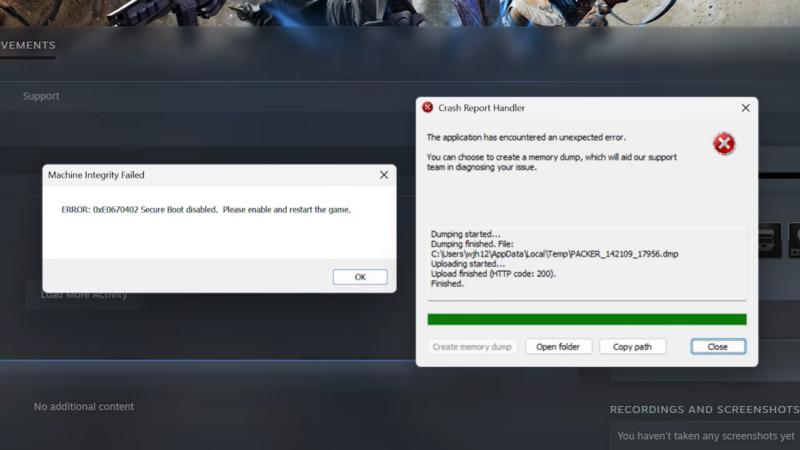
While this setting works fine for many games, Highguard specifically expects a Windows-oriented boot environment. When it detects a mismatch, it blocks the launch and throws the Machine Integrity Failed error instead of risking unstable behavior or security issues.
Importantly, this does not mean your PC is unsafe or damaged. It simply means your BIOS is configured in a way Highguard does not support.
How to fix Machine Integrity Failed (Error 0xE0670402)
Step 1: Enter your BIOS or UEFI firmware
Shut down your PC completely. Power it back on and repeatedly press the BIOS access key for your motherboard. Common keys include Delete, F2, F10, or Esc, depending on the manufacturer.
If you are unsure which key to use, watch for a brief on-screen prompt during startup indicating how to enter setup.
Step 2: Switch to advanced mode
Once inside the BIOS, you may initially see a simplified or EZ mode interface. Look for an option labeled Advanced Mode, Advanced BIOS, or press F7 on many systems.
Advanced Mode exposes the boot and OS configuration settings required to fix the error.
Step 3: Locate the OS Type setting
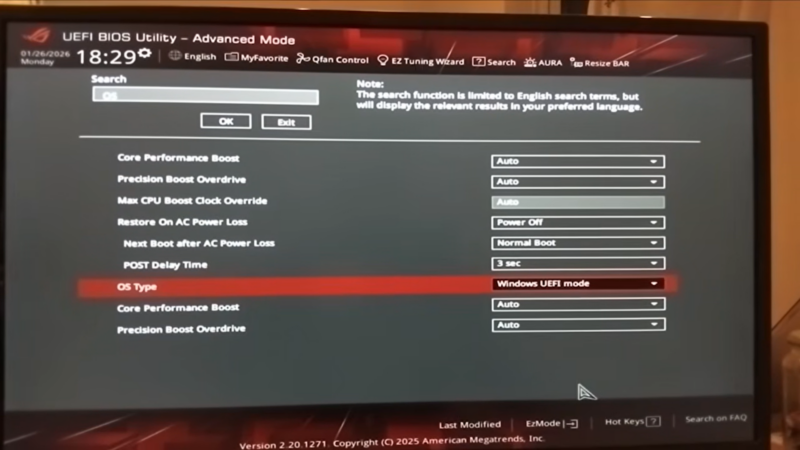
Navigate to the Boot, Security, or Advanced tab depending on your BIOS layout. Find the option labeled OS Type. If your BIOS supports search, typing “OS” can help locate it quickly.
On systems affected by this error, the OS Type is usually set to Other OS.
Step 4: Change OS Type to Windows UI mode
Change the OS Type from Other OS to Windows UEFI Mode, Windows UI Mode, or a similarly named Windows-specific option. The exact wording varies by motherboard manufacturer, but the key is selecting the Windows-focused option rather than the generic one.
This change enables Secure Boot compatibility that Highguard requires for its integrity check.
Step 5: Save settings and reboot
Exit the BIOS and choose Save & Exit. Confirm when prompted. Your system will reboot normally with the new configuration applied.
Once Windows loads, launch Highguard again. In most cases, the game will now start without triggering the Machine Integrity Failed error.
What if the error still appears?
If the error persists, double-check that:
- The OS Type change was saved correctly
- Secure Boot is not manually disabled elsewhere in BIOS
- You are booting in UEFI mode rather than Legacy or CSM mode
Avoid changing unrelated BIOS settings. Do not disable TPM, virtualization, or CPU security features unless specifically instructed by official support.
Is this fix safe?
Yes, changing the OS Type to a Windows mode is safe for systems already running Windows. This setting aligns your BIOS with how modern versions of Windows are designed to operate. It does not delete files, reset drives, or alter your Windows installation.
However, if you dual-boot Linux or another operating system, be aware that enabling Windows UI mode may affect those setups.
Why Highguard enforces this check
Highguard’s integrity check is designed to reduce cheating, prevent kernel-level conflicts, and ensure stable performance across supported systems. While it can be frustrating, it also reduces crashes and exploit-related issues long-term.
The error message itself is misleading, but the fix is straightforward once you know where to look.
Getting back into Highguard
The Machine Integrity Failed (0xE0670402) error in Highguard looks serious but is ultimately a configuration issue, not a system failure. By adjusting a single BIOS setting, you bring your PC into alignment with the game’s security requirements.
Once fixed, the error does not return, and you can play normally without performance or stability drawbacks. If you encounter it again after a BIOS reset or firmware update, repeating the same steps will resolve it quickly.