What to know
- Save files are accessed directly from the Hytale launcher
- No manual folder searching is required
- Each world has its own dedicated folder
- Files can be copied, shared, or uploaded safely
Hytale stores all single-player and local worlds in a clearly structured save directory on PC. The fastest way to reach it is through the launcher itself, rather than navigating Windows folders manually.
Below is the exact process used in the current build.
How Hytale save files are structured
Each time you create a world, Hytale generates a separate folder inside the Saves directory. These folders contain all world data, including terrain, structures, and progression.
Because worlds are self-contained, you can safely copy or move them without breaking other saves.
How to find your Hytale save files on PC
Step 1: Open the Hytale launcher
Launch Hytale normally until you see the main launcher window.
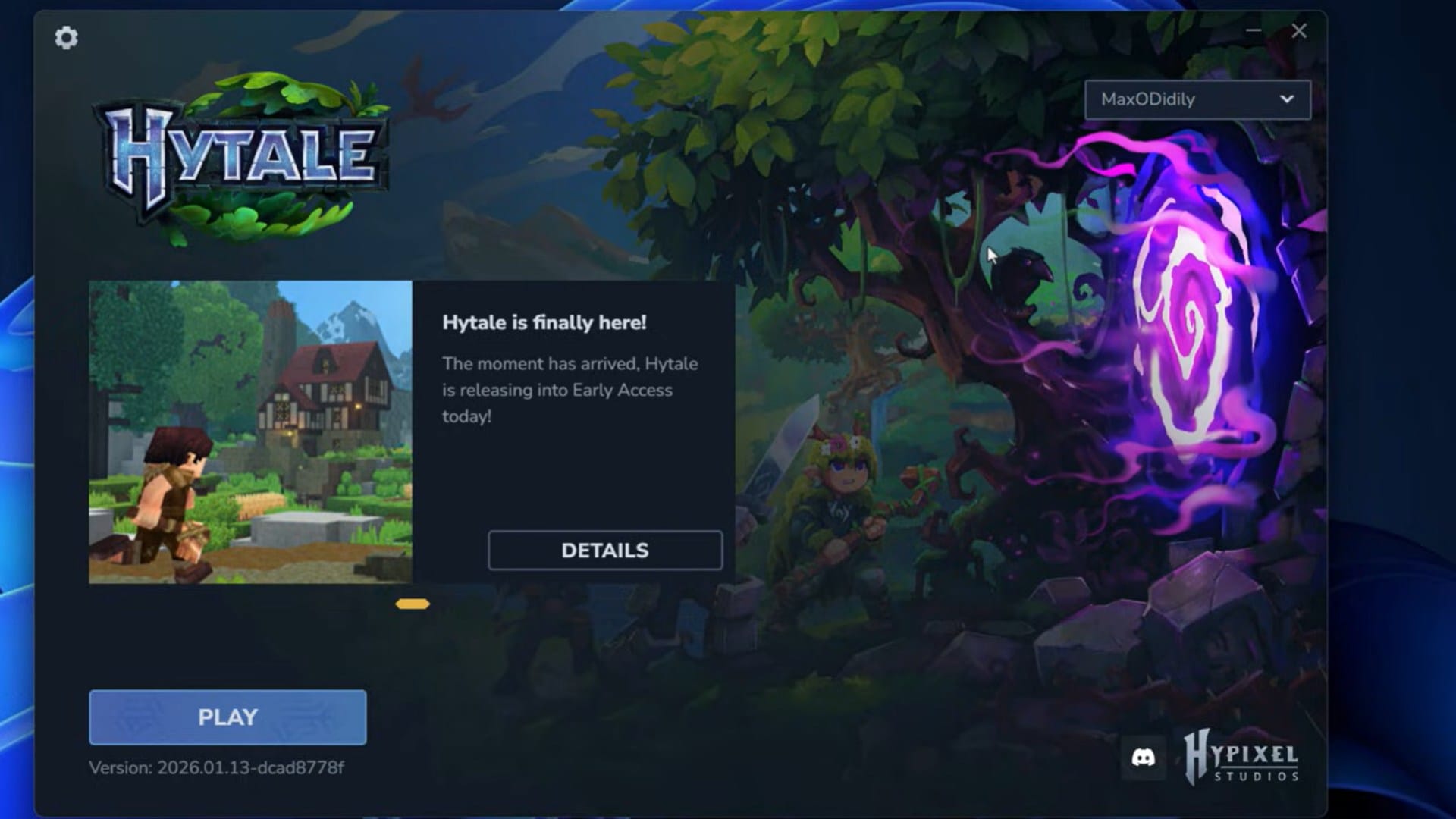
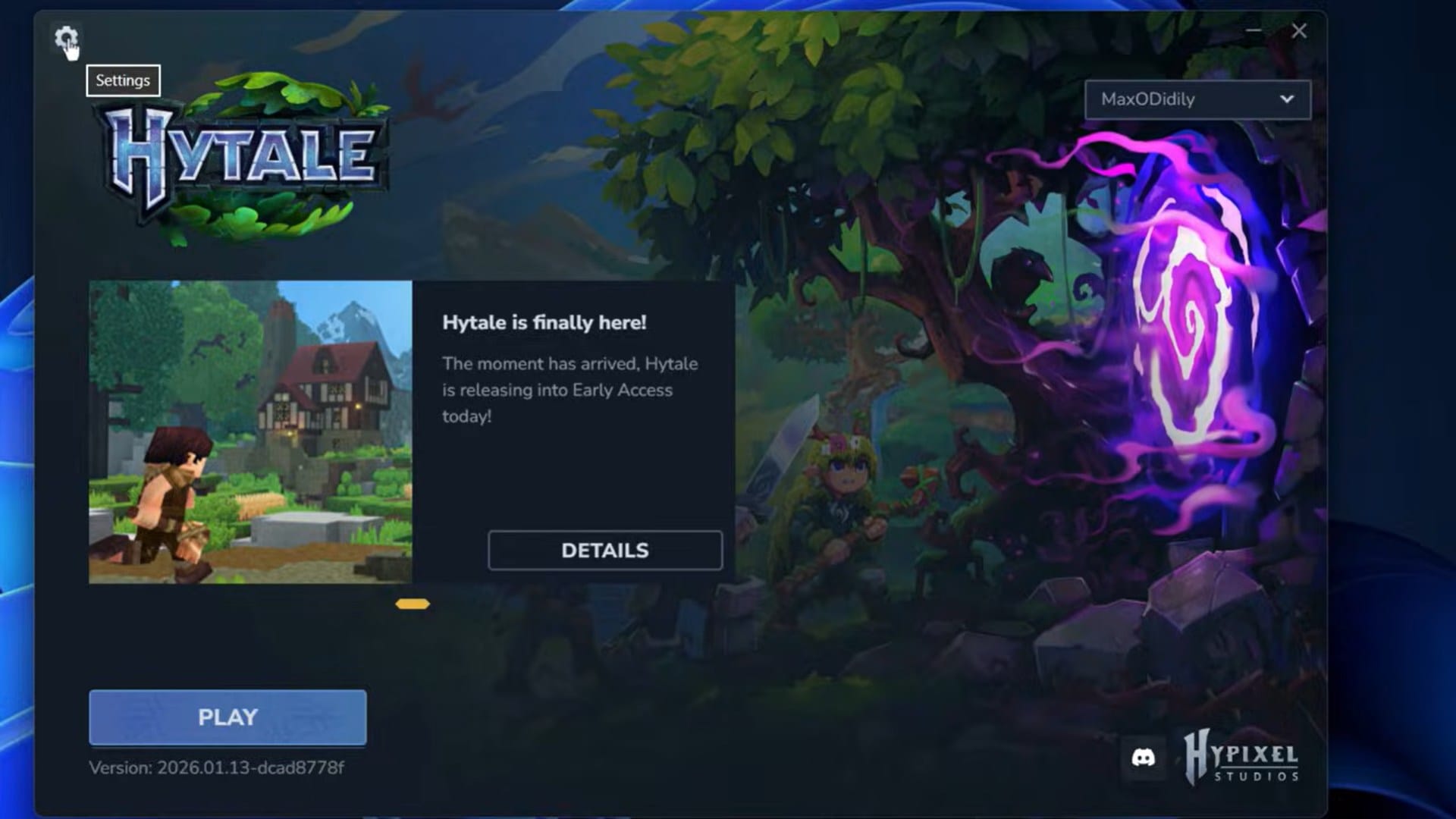
Step 2: Open launcher settings
Click the Settings button in the launcher interface.
Step 3: Use the Open Directory option
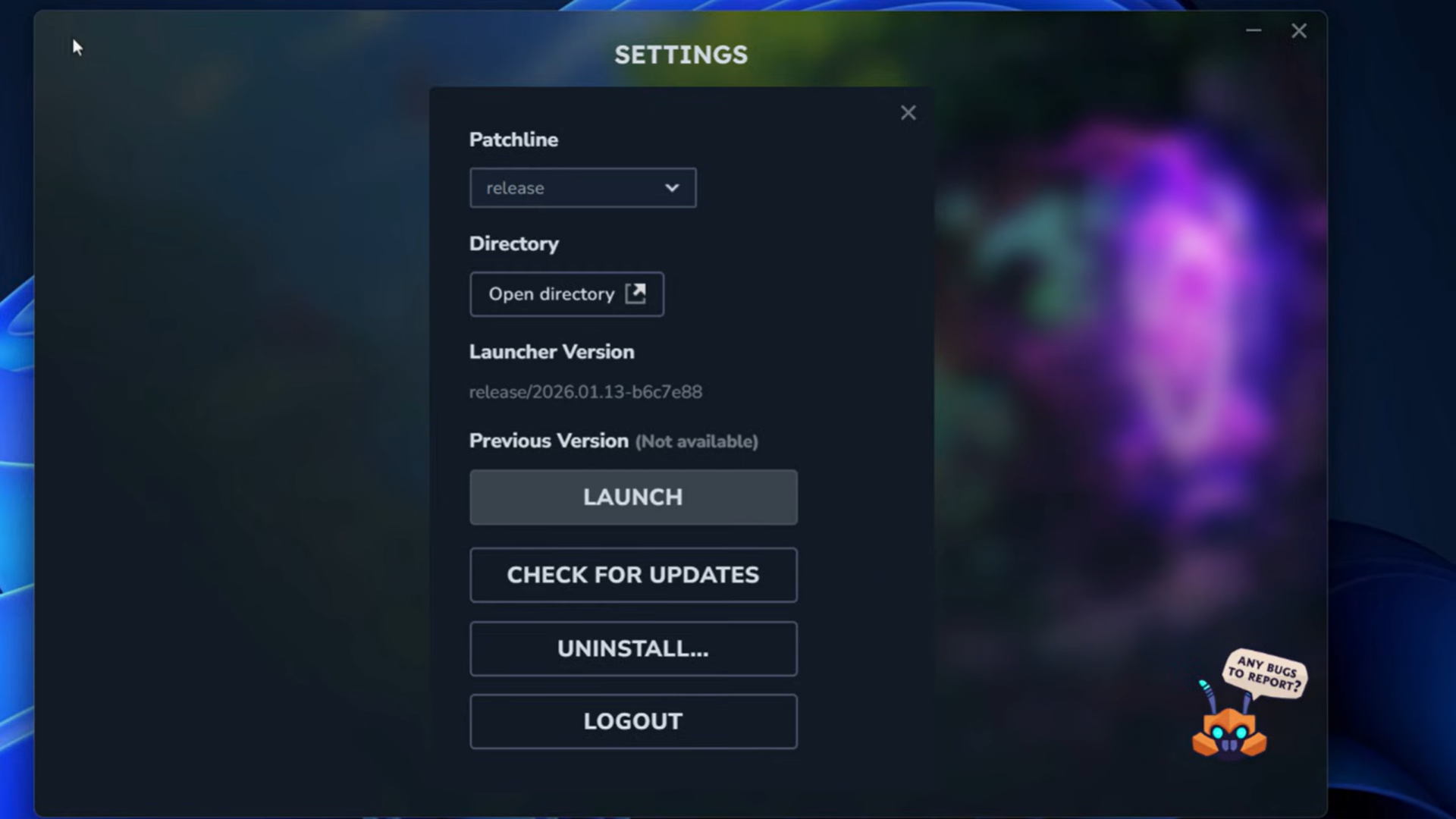
In the settings menu, click Open Directory.
This automatically opens the Hytale installation directory in Windows File Explorer.
Step 4: Open the UserData folder
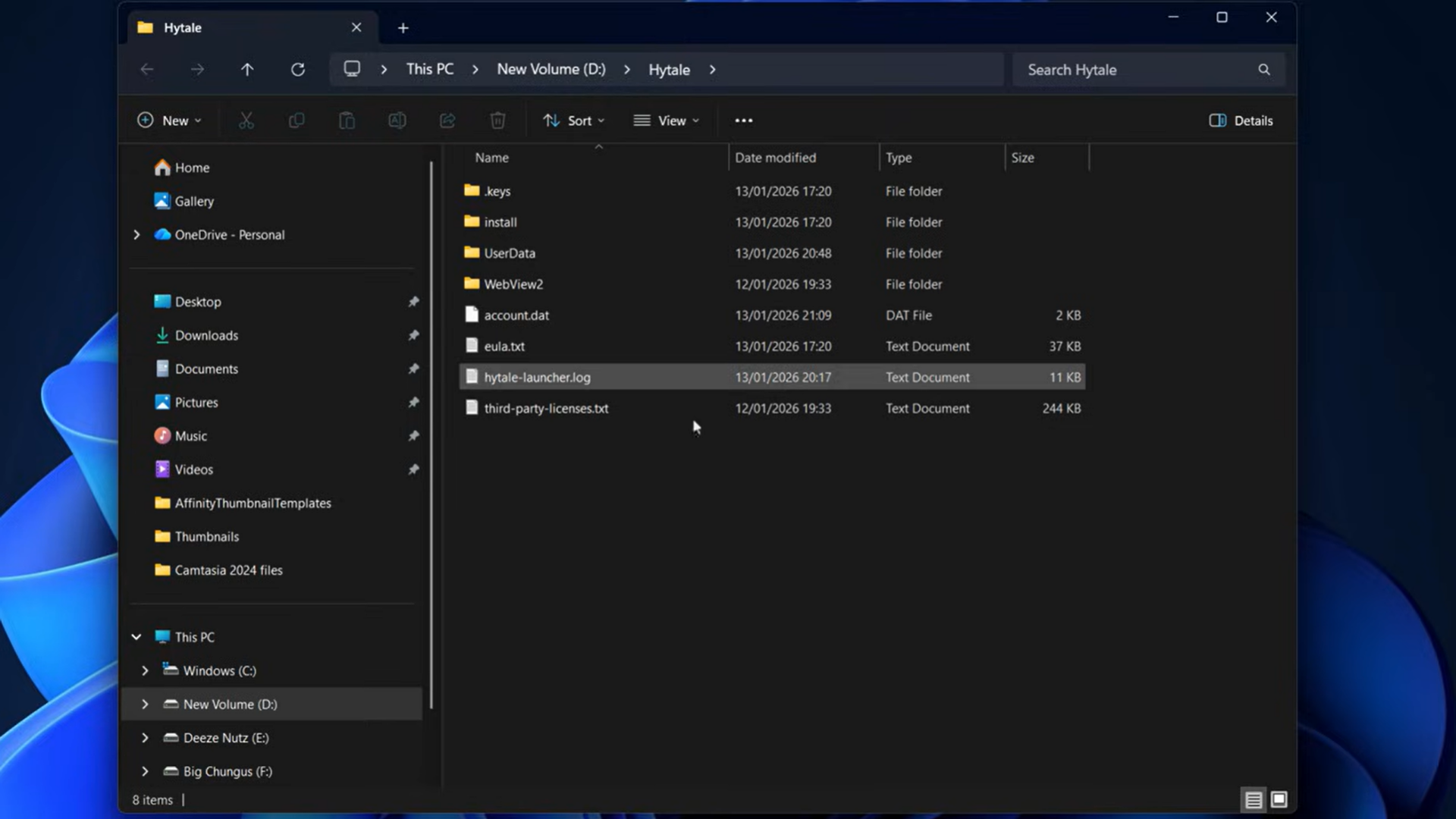
Inside the directory that opens, locate and open the UserData folder.
Step 5: Navigate to the Saves folder
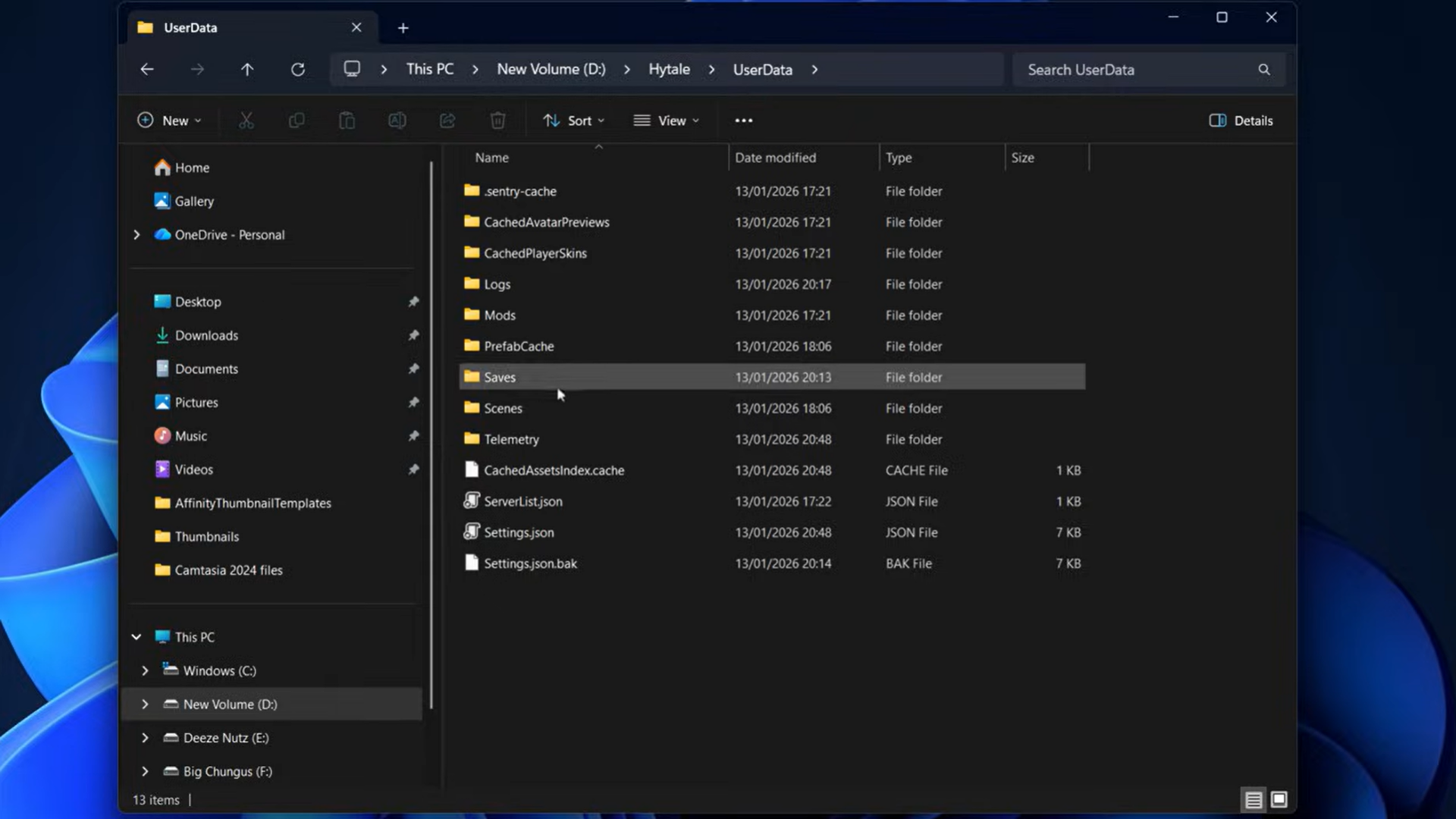
Open the Saves folder inside UserData.
You will now see a list of folders, each representing one of your saved worlds.
What you can do with Hytale save files
| Action | What it allows |
|---|---|
| Copy world folders | Create manual backups |
| Share saves | Send worlds to friends |
| Upload to servers | Host singleplayer worlds online |
| Restore progress | Recover deleted or corrupted worlds |
When sharing a world, always copy the entire folder, not individual files inside it.
Common mistakes to avoid
- Renaming files inside a world folder
- Moving only part of a save directory
- Editing save data while Hytale is running
- Deleting UserData subfolders you don’t recognize
If you plan to modify or transfer saves, close the game first to avoid corruption.
Final notes on Hytale save file access
Hytale makes save management straightforward by placing everything behind a single launcher shortcut. Once you know where the UserData and Saves folders are, backing up or sharing worlds becomes quick and risk-free—no advanced file knowledge required.
Thanks for staying till the end! If this finding save files guide for Hytale made things easier or gave you useful insights, we’d love to hear your thoughts. Drop your feedback or questions in the comments—we’re always active and ready to assist with anything that still feels unclear.