What to know
- Open the settings menu from the main game screen.
- Scroll down to the bottom of the general tab to find development options.
- Enable diagnostic mode to print out error messages for content creation and development.
- Remember to save your changes for them to take effect.
- Diagnostic mode is a powerful tool for modding and server development.
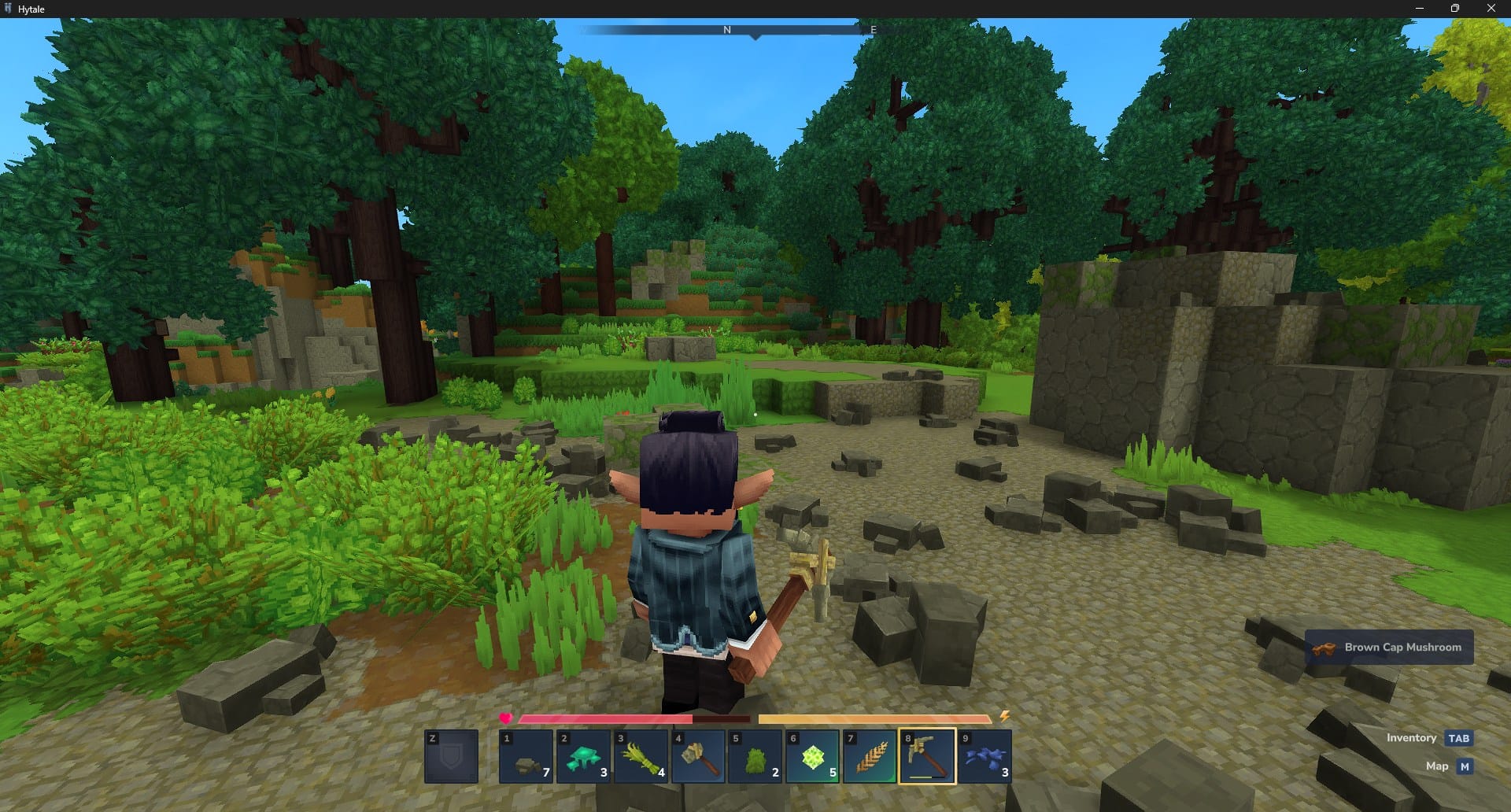
Hytale is an upcoming game that promises a wide range of creative tools and features for content creators and developers. One of the most important tools for these advanced users is the diagnostic mode, which allows them to easily identify and troubleshoot errors in their content.
How to Enter Diagnostic Mode
Step 1
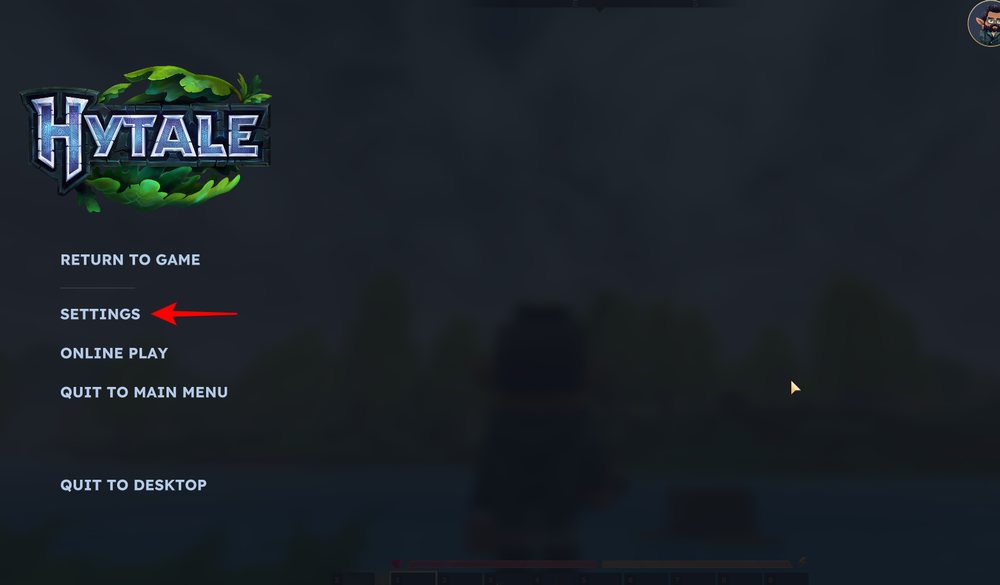
Open the settings menu in Hytale pressing the Escape key and selecting “Settings” from the menu.
Step 2
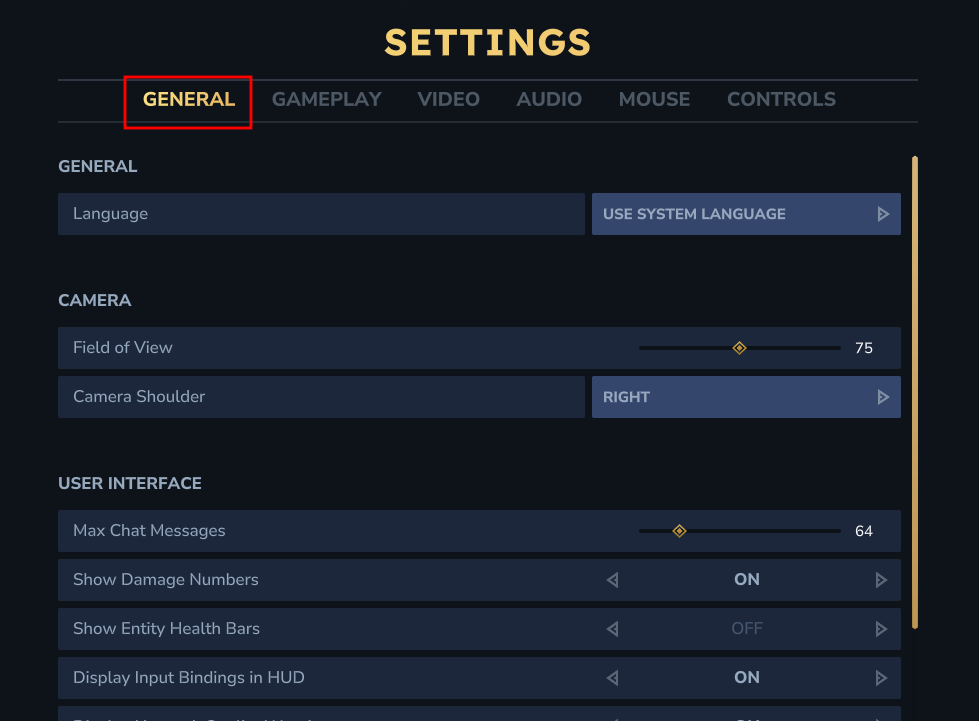
Navigate to the “General” tab. This section contains a variety of general settings for the game, including development options.
Step 3
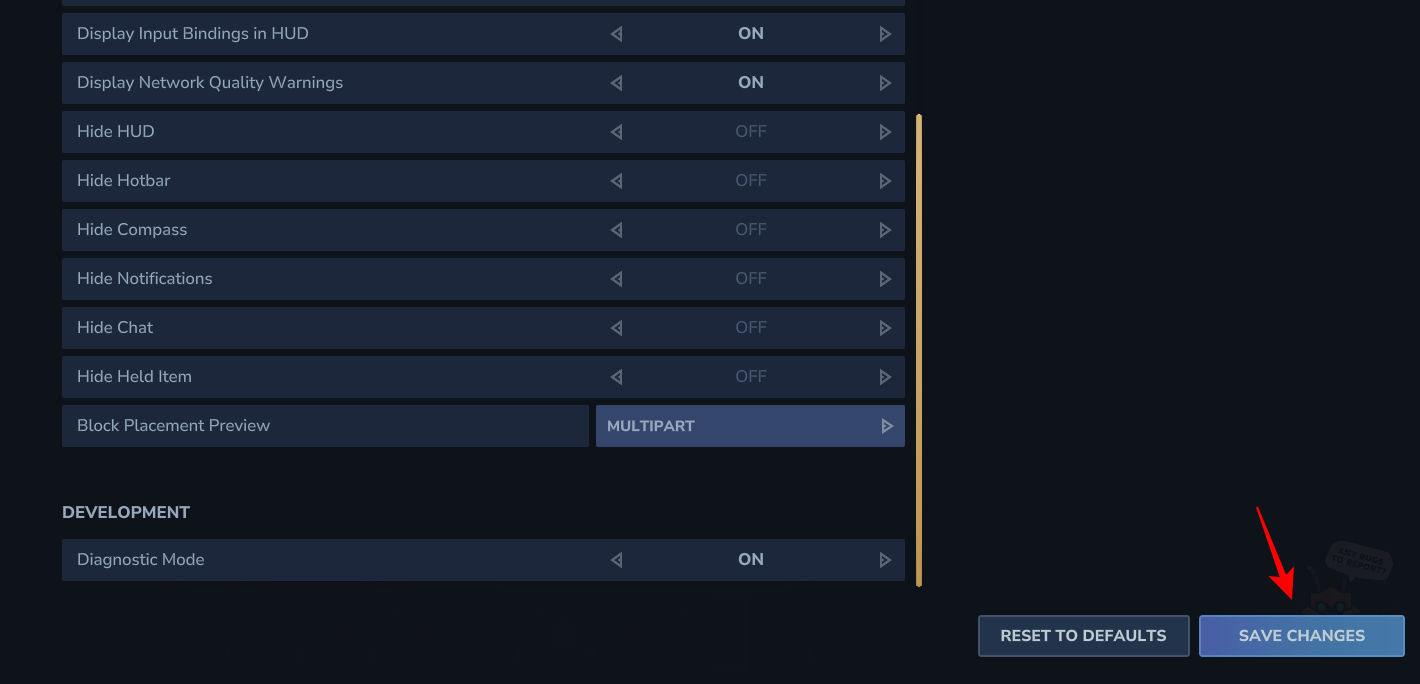
Scroll down to the very bottom of the general tab, and under the development section, you’ll find the “Diagnostic Mode” setting. Simply toggle this option to “On” to enable it.
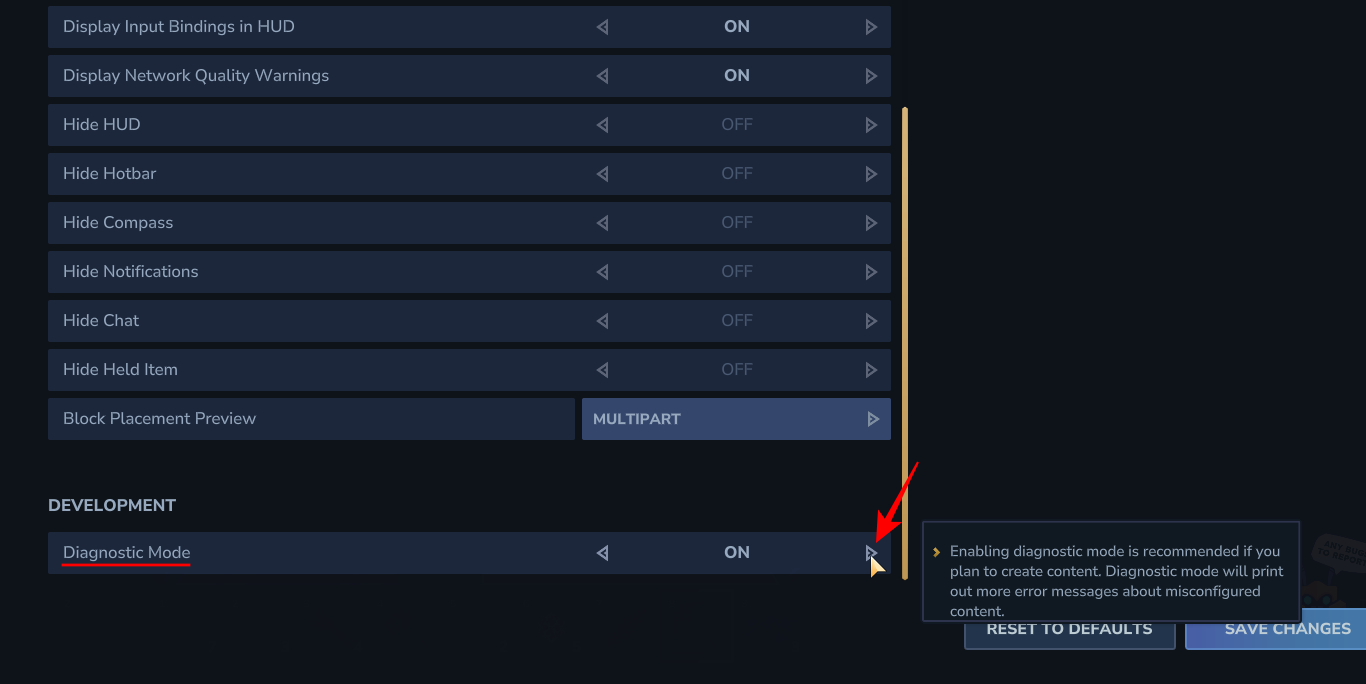
Once enabled, Hytale will print out more error messages about misconfigured content, making it easier to identify and fix issues.
Step 4
After you’ve enabled diagnostic mode, be sure to click on the “Save Changes” button to apply the new setting.
You’re now ready to use this powerful tool for your content creation and development projects.
Diagnostic mode is an essential tool for any advanced user who wants to create content for Hytale. By following these simple steps, you can easily enable this mode and take your modding and development skills to the next level.