
What to know
- Join the world where the server was created and press Escape to open the main menu.
- Navigate to the Online Play section to find server visibility and access controls.
- Locate the “Allow other players to join” option, which is set to “On” by default.
- You must click the Save button after toggling the setting to “Off” for the server to actually close.
Managing who can enter your world is a critical part of the Hytale experience, especially when you want to transition from a public or friend-based session back to a private one. Closing your server doesn’t delete your progress; it simply restricts access so that other players can no longer join your active world. By using the in-game settings, you can easily toggle your server’s status without needing to exit the game entirely.
How to Close Your Server in Hytale
To begin the process of closing your server, ensure you are currently logged into the specific world where the server is hosted.
Once inside, press the Escape key on your keyboard to bring up the primary settings menu. From this menu, click on the Online Play.

Within the Online Play settings, you will find your server’s share code and password configurations. Look for the toggle labeled “Allow other players to join,” which should currently be set to “On”. Click the arrow or toggle to change this setting to “Off“.
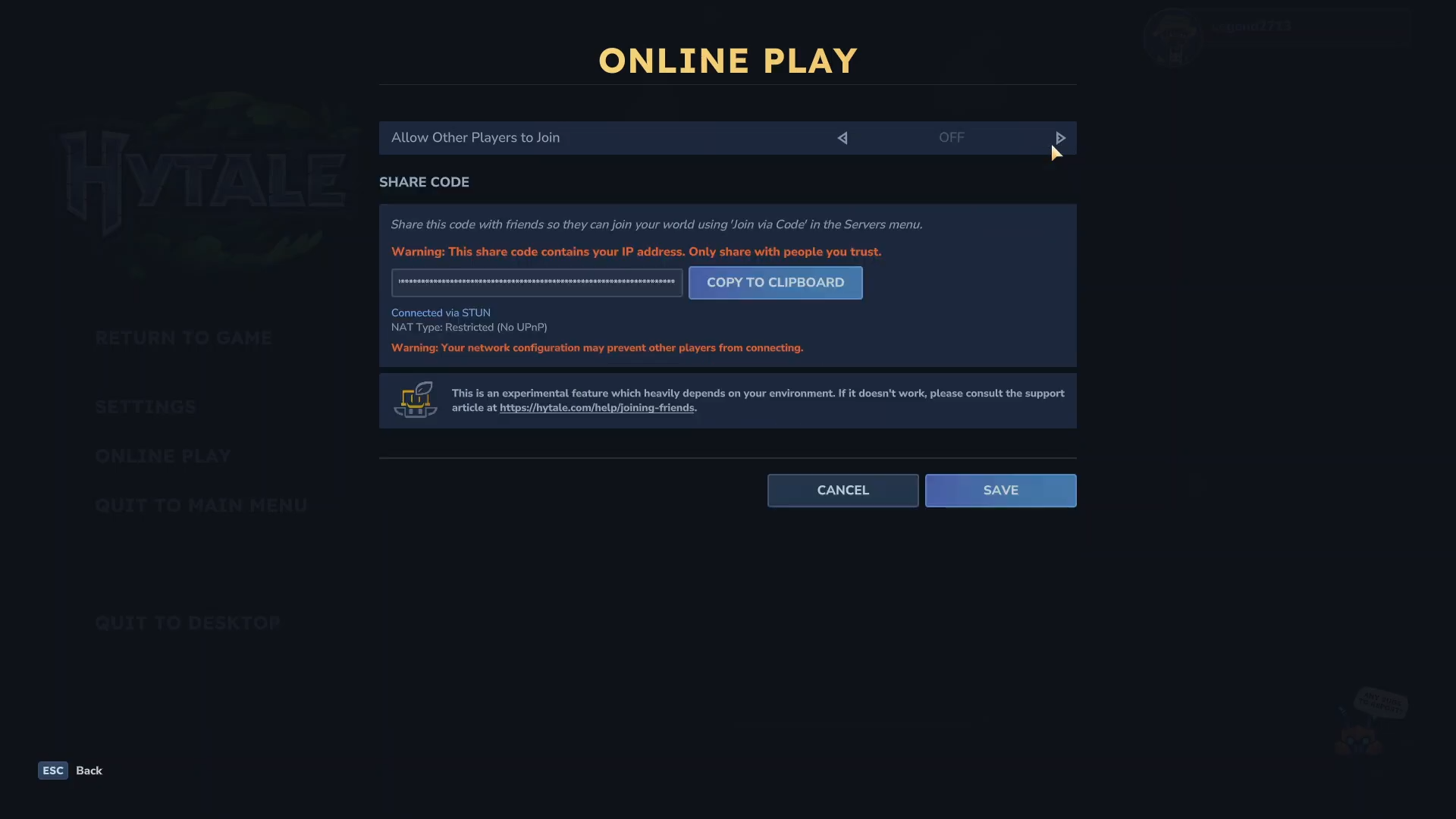
It is crucial to then click the Save button at the bottom of the menu; if you exit without saving, the server will remain open to other players. Once saved, your server is officially closed, and you can return to your game in private.