Want to give your Hytale character a unique look? Changing your skin color is a simple way to personalize your avatar. Here’s a step-by-step guide:
How to change your Avatar’s skin color
Here’s a step-by-step breakdown of how to change your Avatar’s skin color:
Step 1
Press the Escape key on your keyboard to bring up the pause menu.
Step 2
Select the Quit to Main Menu option to return to the initial screen.

Customize your Avatar
Step 1
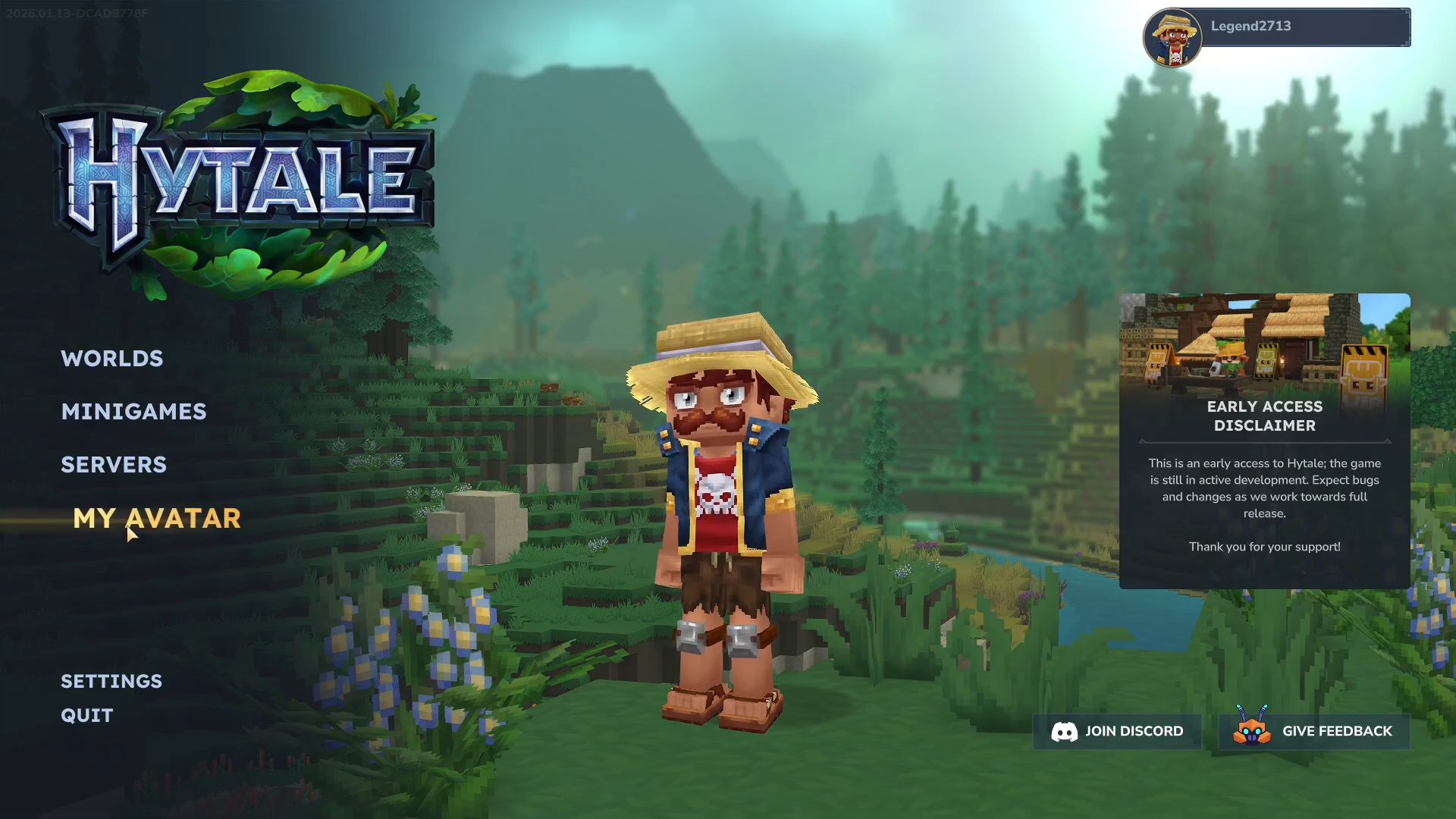
From the main menu, click on the My Avatar option in the sidebar.
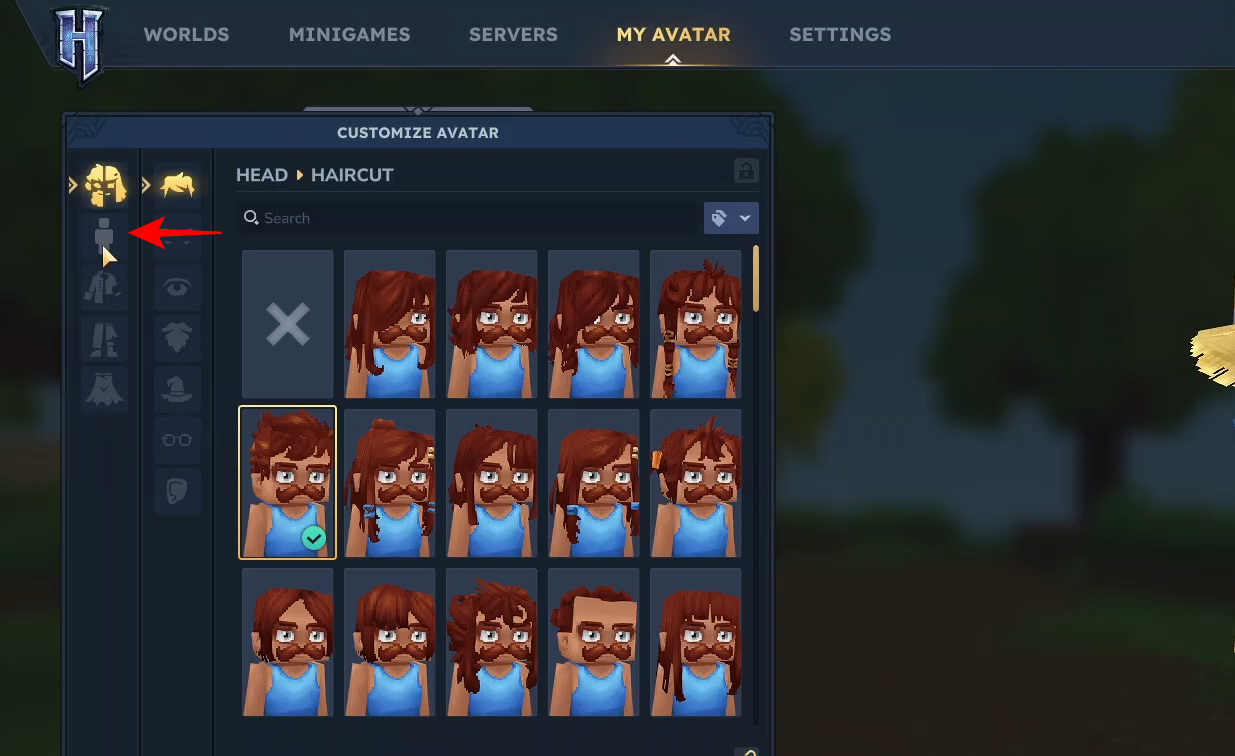
Step 2
Look for the icon that looks like a person’s head and torso. Click on this icon to access your body settings.
Step 3
Click on the same icon again to reveal more options.
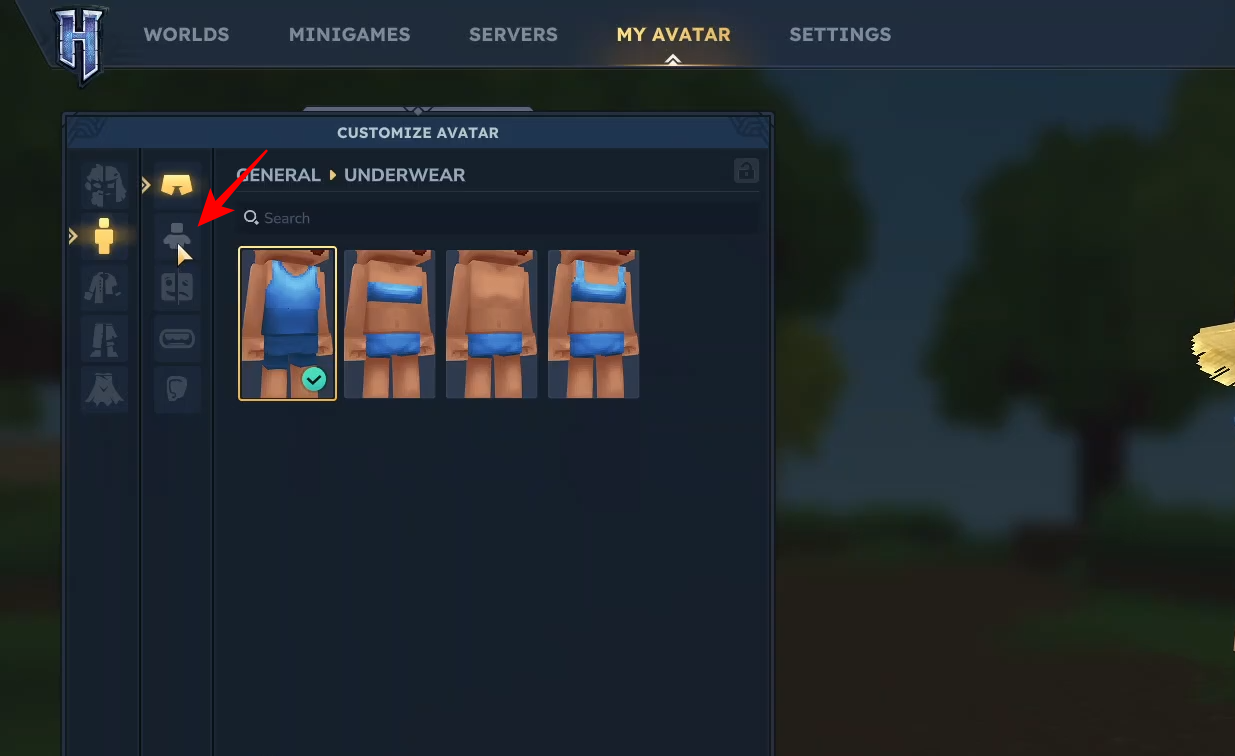
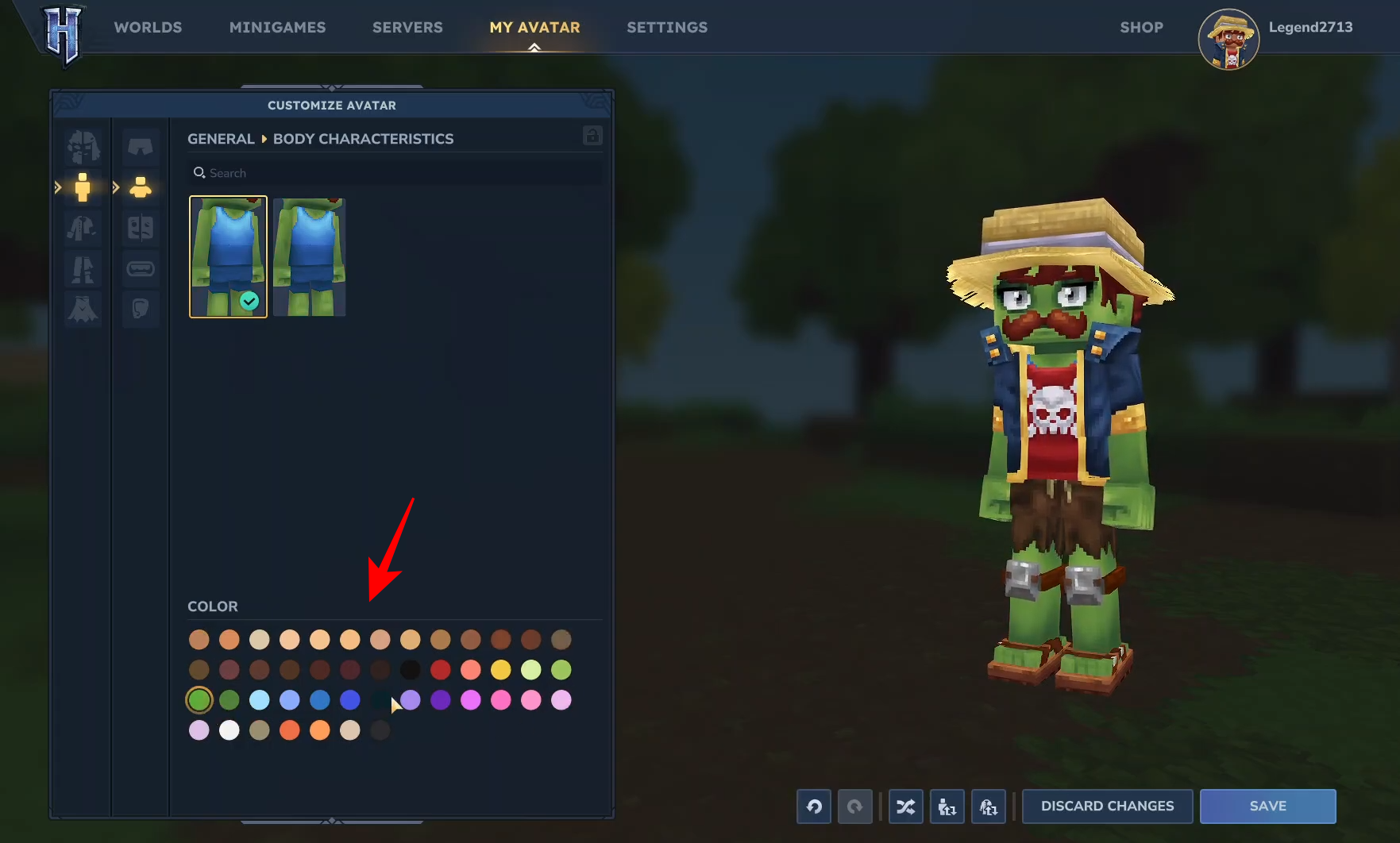
Here you’ll find a variety of skin color swatches, ranging from natural tones to more unconventional colors like green and red.
Step 4
Select the skin color you want to use for your character. You can see the changes reflected on your avatar in real-time.
Step 5
Click the Save button in the bottom-right corner to apply the new skin color to your avatar.
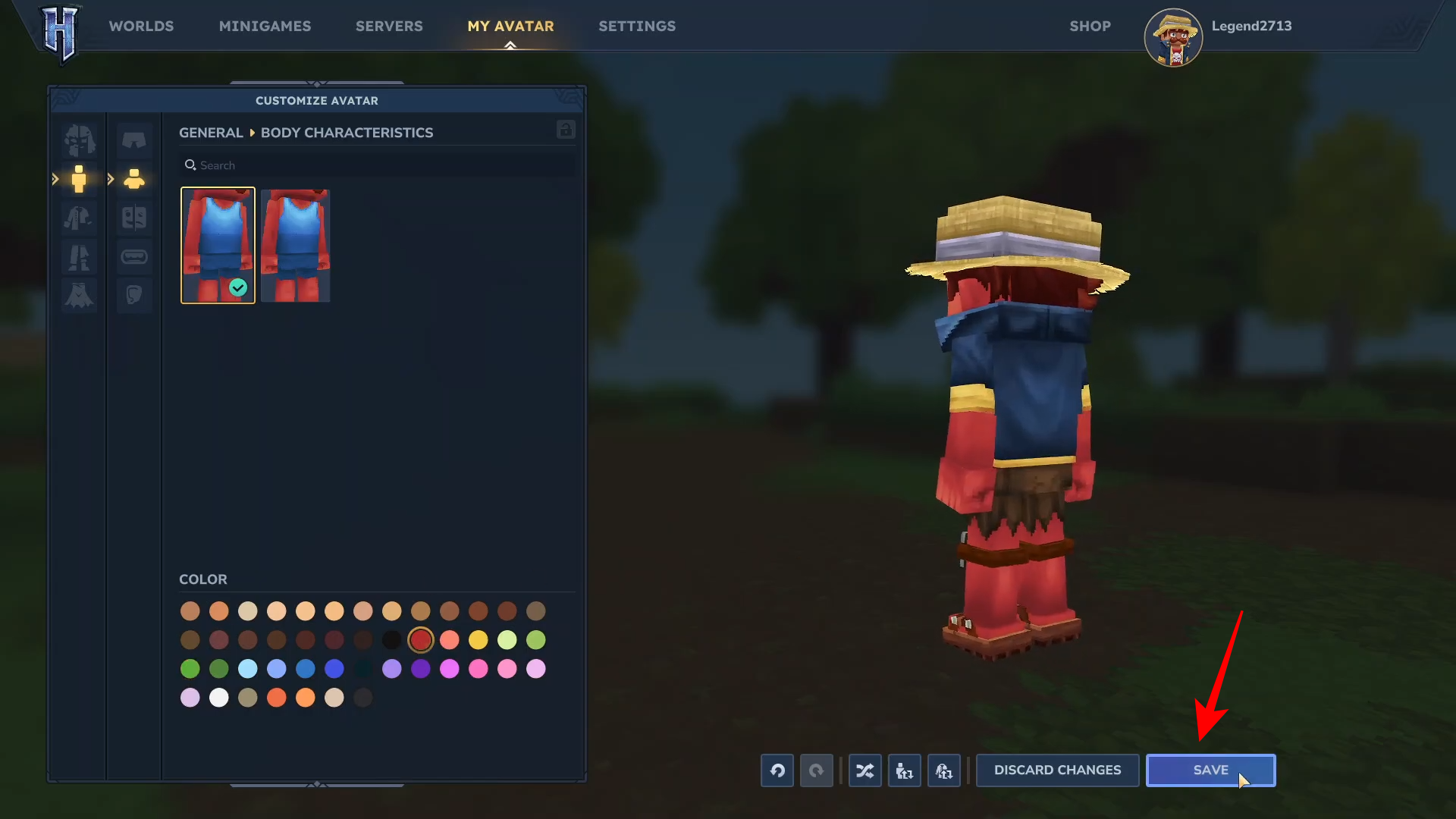
You can now jump back into your game with your newly customized character! Personalizing your character is part of the fun in Hytale. Experiment with different colors and create a character that is fun!