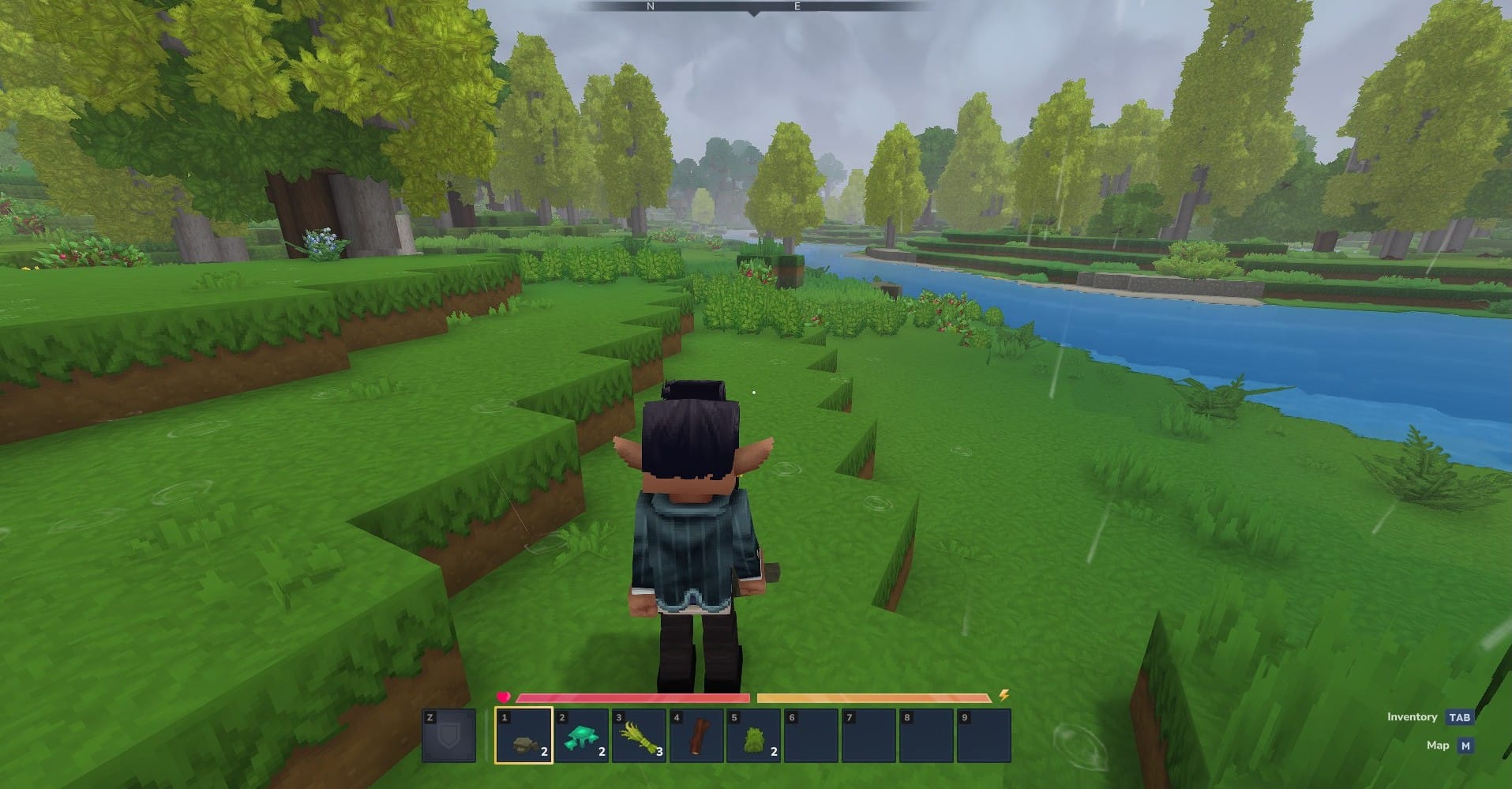
What to know
- Open the settings menu and navigate to the controls tab.
- Find the walk behavior setting under the general section.
- Choose between hold and toggle modes.
- Save your changes to apply the new walk mode.
Hytale offers players a variety of movement options, and one of the most useful features is the ability to change your walk mode. Whether you prefer to hold down a button to walk or toggle it on and off, Hytale makes it easy to customize your experience.
How to change walk mode
Step 1
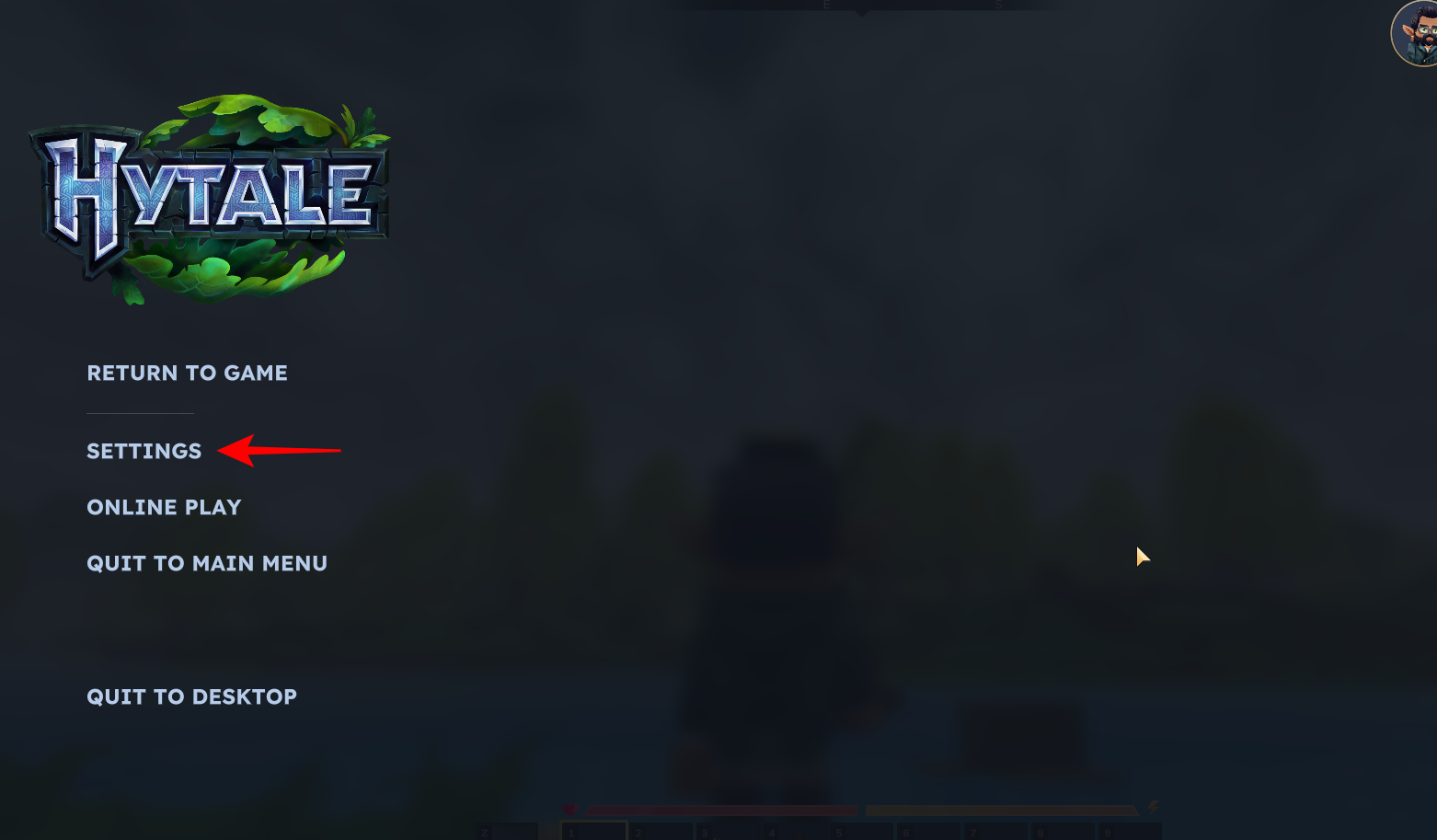
To begin, you’ll need to open the settings menu in Hytale. Do this by pressing the Escape key and selecting “Settings” from the menu.
Step 2
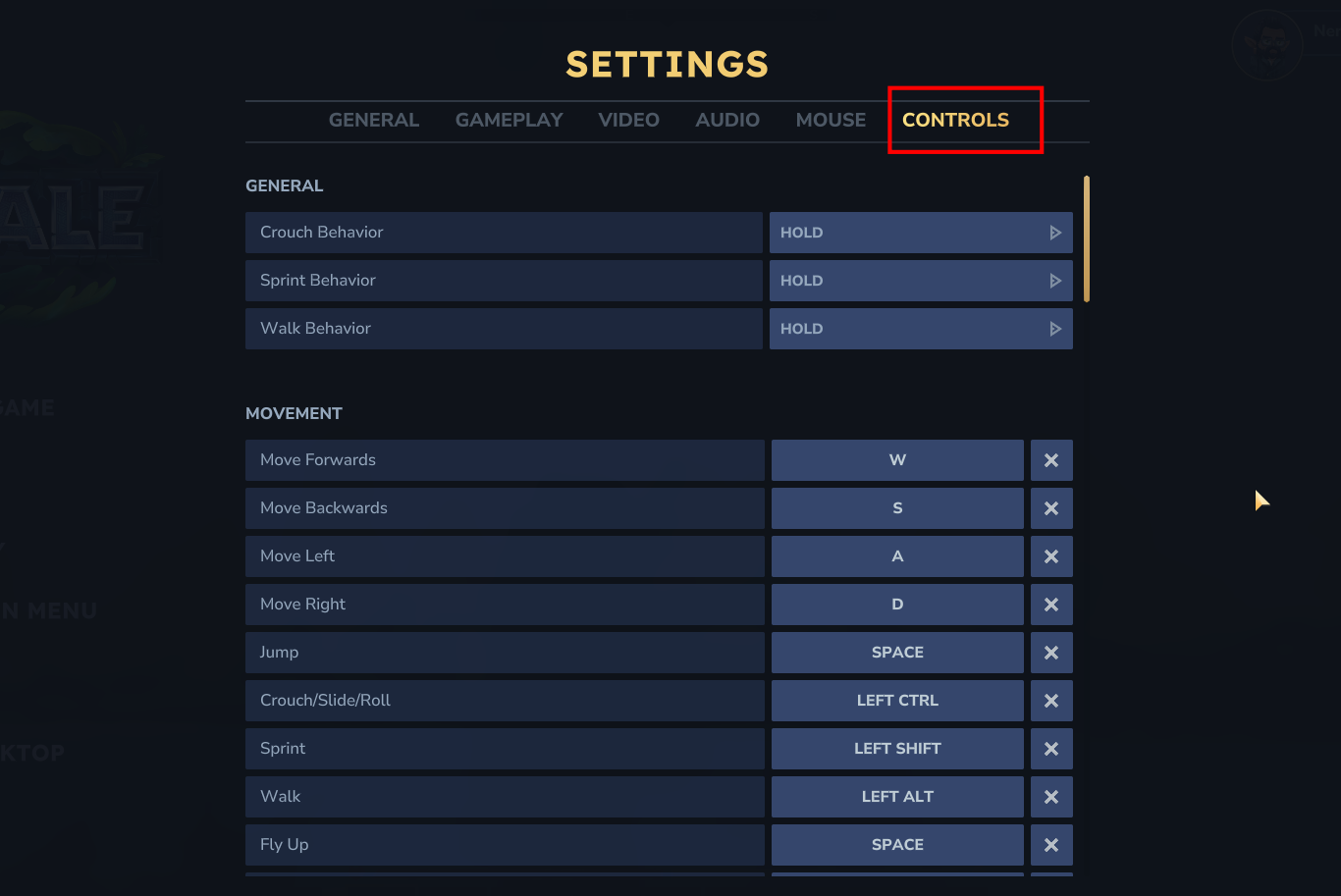
Once you’re in the settings menu, navigate to the “Controls” tab. This will display a list of all the different actions and functions that can be assigned to keys.
Step 3
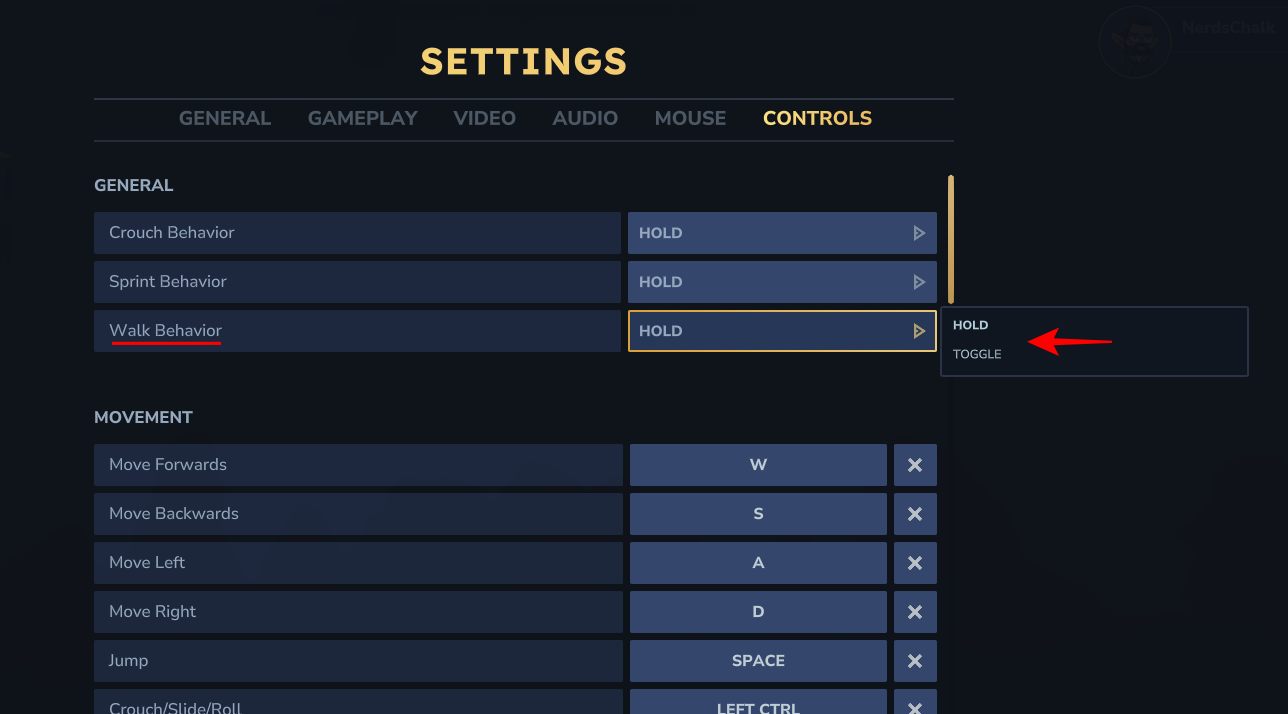
Look for the “Walk Behavior” setting under the general section. Here, you can choose between two modes: Hold and Toggle.
- Hold: In this mode, you’ll need to hold down the walk button to stay in walk mode.
- Toggle: In this mode, you can press the walk button once to toggle walk mode on and off.
Step 4
Once you’ve made your choice, simply hit the “Save Changes” button to apply the new walk mode.
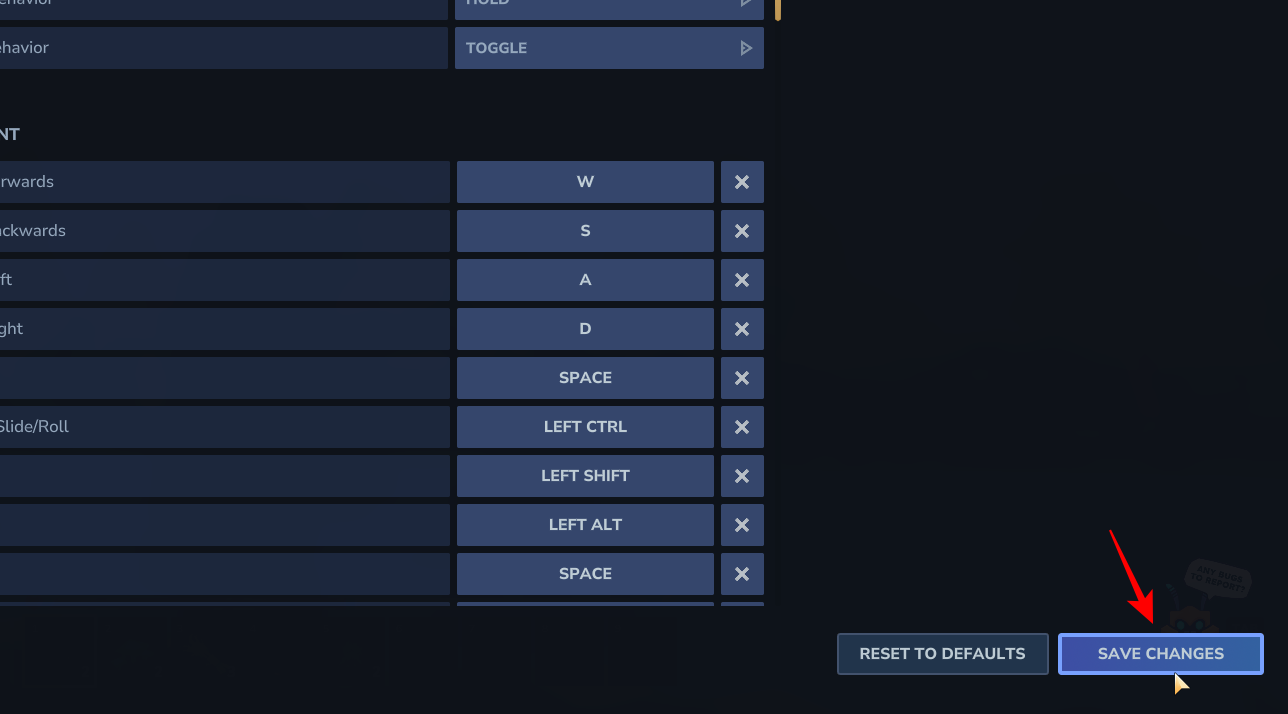
You can now test it out in-game and see which one works best for you.
Customizing your walk mode is a great way to make Hytale feel more personalized and comfortable to play. With the ability to choose between hold and toggle modes, you can tailor your movement to your liking and enjoy a more immersive gaming experience.