What to know
- Open the settings menu and navigate to the audio tab.
- Adjust various volume levels, including master, music, ambience, and sound effects.
- Customize your audio experience to your liking.
- Remember to save your changes before exiting the menu.
Hytale offers a wide range of audio settings that allow you to fine-tune your gaming experience. Whether you want to crank up the music or turn down the sound effects, Hytale makes it easy to customize your audio levels.
How to Change Volume Settings
Step 1
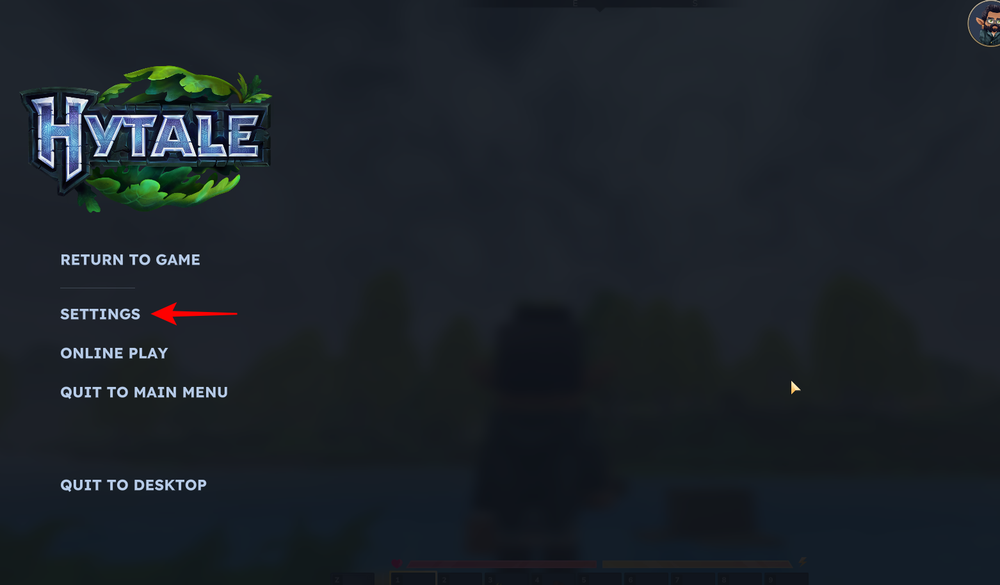
Open the settings menu by pressing the Escape key and selecting “Settings” from the menu.
Step 2
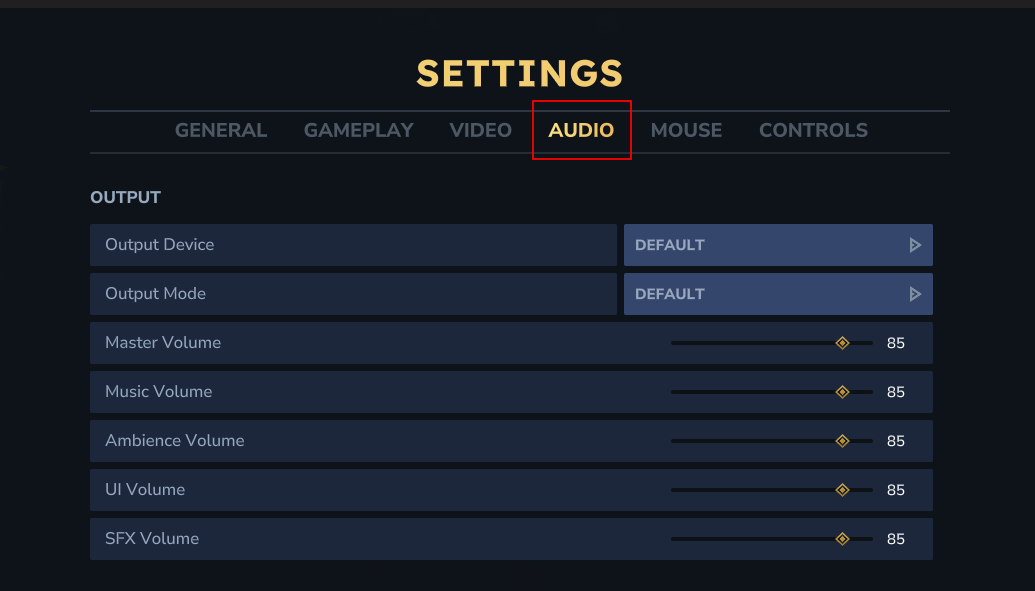
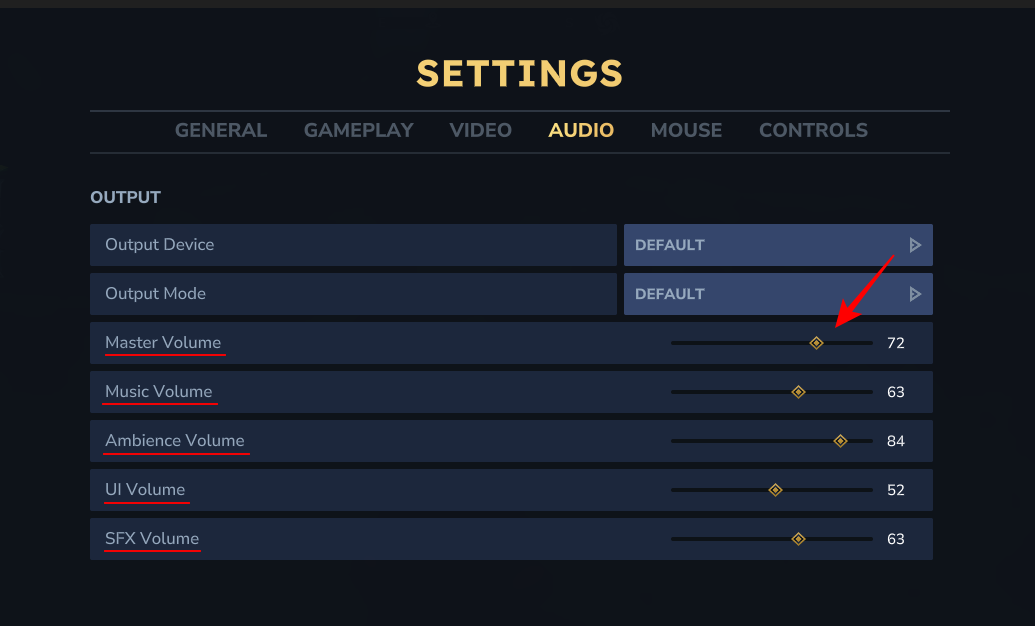
Navigate to the “Audio” tab.
Step 3
In the audio settings, you’ll find sliders for Master volume, Music volume, Ambience volume, User interface volume, and Sound effects volume. Simply move the sliders to adjust the volume levels to your liking.
Step 4
After you’ve adjusted the volume levels, be sure to click on the “Save Changes” button to apply the new settings.

Your audio levels will now be updated in Hytale.
Customizing your volume settings is a great way to personalize your Hytale experience. By following these easy steps, you can tailor your audio levels to your liking and enjoy a more immersive gaming experience.