What to know
- Access the settings menu to locate the user interface options.
- Customize your chat experience by adjusting the maximum number of messages displayed.
- Toggle visual indicators like damage numbers, health bars, and network quality warnings.
- Modify your HUD visibility by hiding elements such as the hot bar, compass, or held items.
- Adjust the block placement preview to help visualize where items will be placed in the world.
A clean and functional user interface is key to enjoying any sandbox adventure. Hytale provides players with deep customization options for their UI, allowing you to tailor what information is visible and how it is presented. Whether you want a minimal screen for immersion or a data-rich display for building and combat, these settings have you covered.
How to Change User Interface Settings
Firstly, open the settings menu.
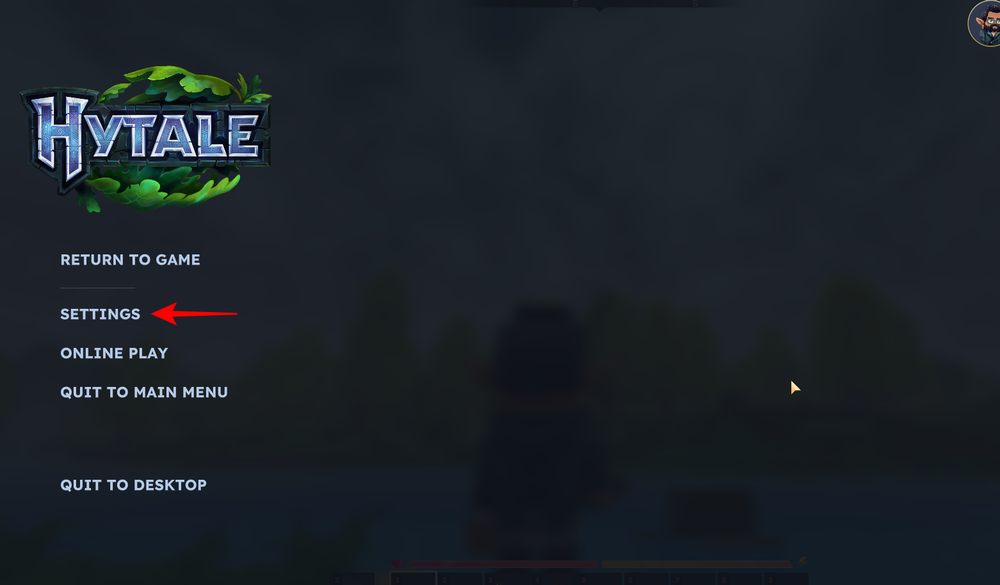
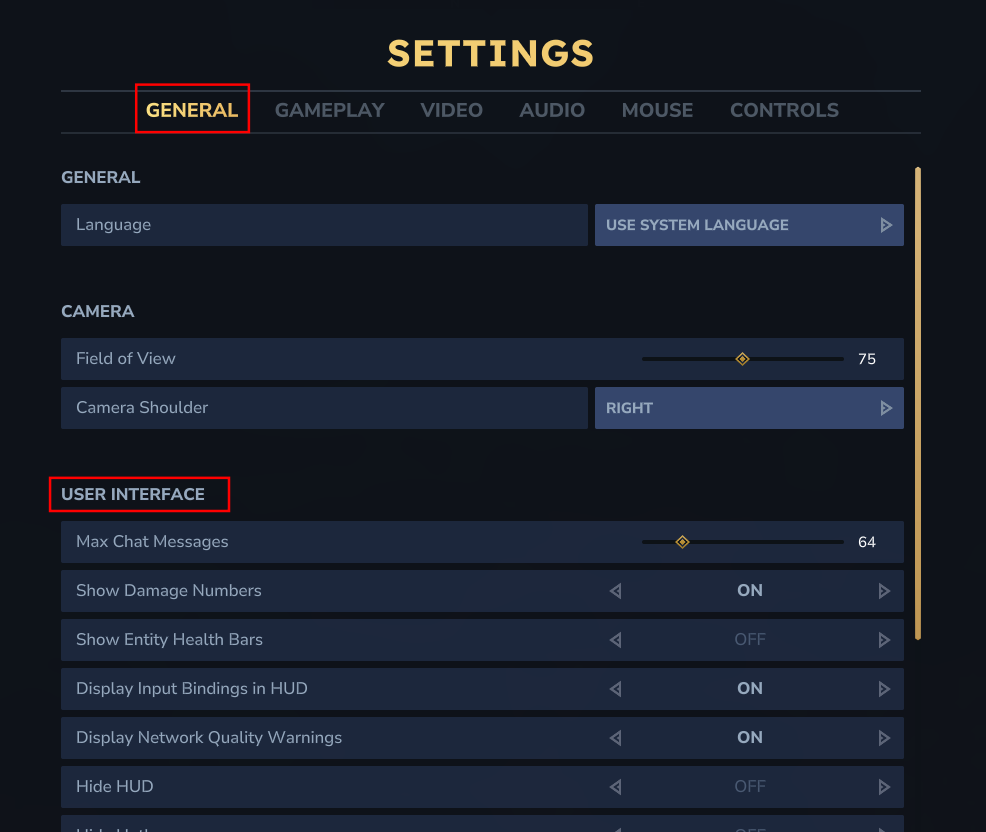
Then make sure you’re under the “General” tab. You can find the User Interface section here. This menu contains a variety of toggles and sliders to refine your visual experience.
Customizing Chat and Notifications
One of the first options you will encounter is the chat configuration. You can set the maximum number of chat messages to show, with a range from 16 to 256. Additionally, you can choose to hide notifications or the chat window entirely if you prefer a distraction-free screen.

Visual Combat and Feedback Toggles
For players who want more feedback during gameplay, Hytale allows you to toggle damage numbers and entity health bars. You can also enable network quality warnings to keep an eye on your connection performance or display input bindings directly on the screen for quick reference.

HUD and Immersion Options
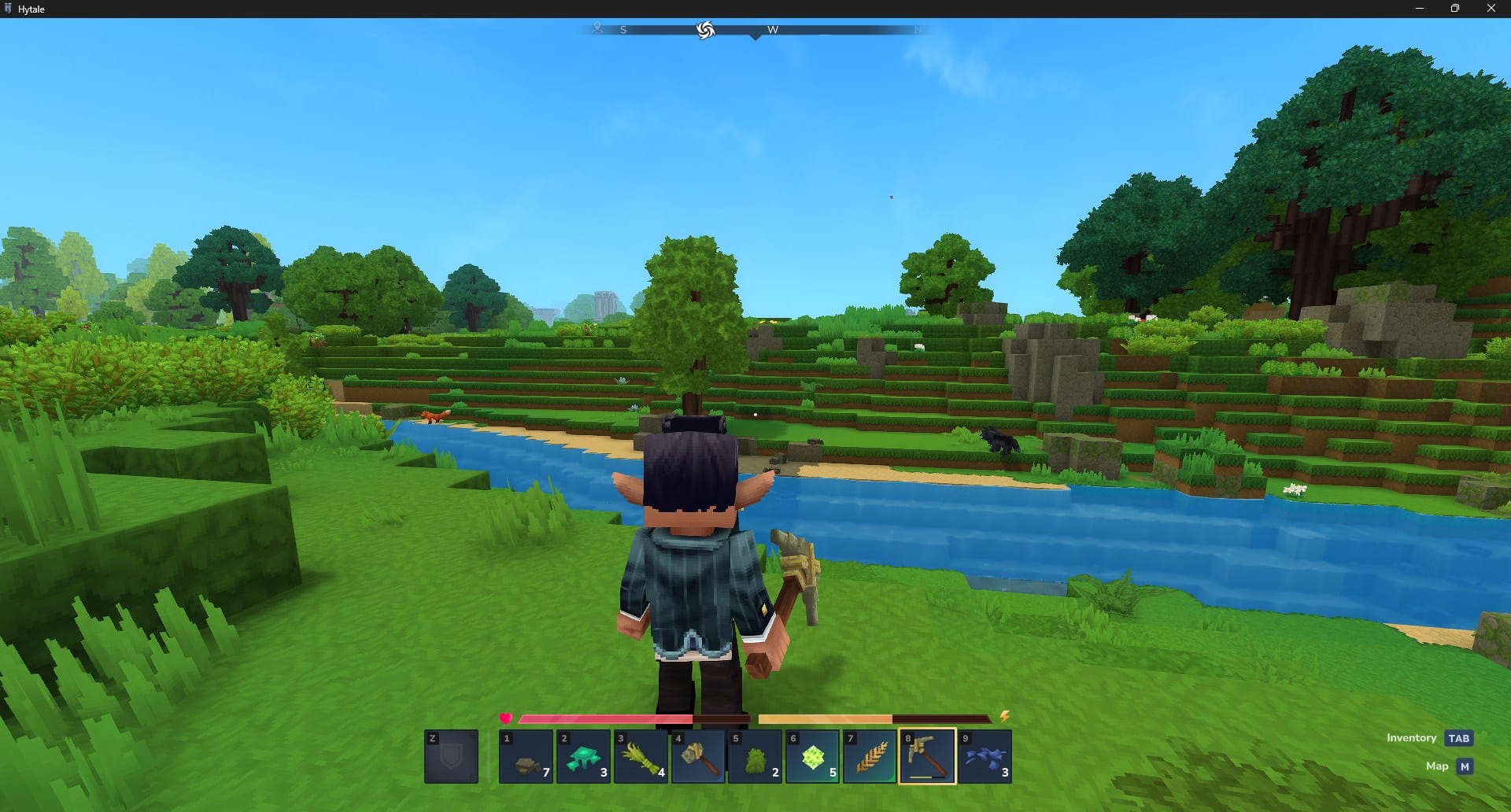
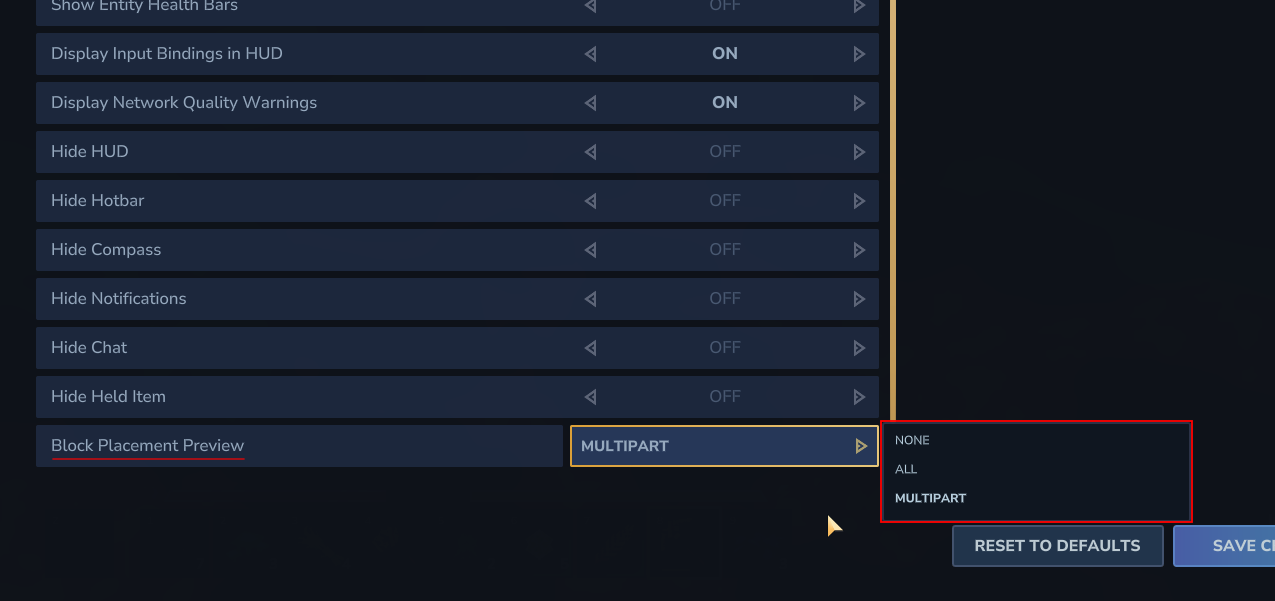
If you are looking to capture screenshots or simply want a more immersive view, you can hide various parts of the Heads-Up Display (HUD). Options include hiding the entire HUD, the hot bar, the compass, and even the item currently held in your hand.

Block Placement Preview
The block placement preview is a helpful tool for builders. It creates a “phantom” or “ghost” image of a block before you place it. You can set this to:
- None: No preview is ever displayed.
- All Blocks: A preview shows for every block you place.
- Multipart Blocks: Previews only appear for larger, complex blocks (this is the default setting).
Taking a few minutes to adjust your user interface settings can significantly impact how you experience Hytale. By fine-tuning these visual elements, you can create a layout that perfectly matches your playstyle, whether you are a master builder or a brave explorer.