What to know
- Access the settings menu from the main game screen.
- Navigate to the audio tab.
- Look for the output device setting.
- Select your preferred speaker, headphones, or other output device.
- Remember to save your changes to apply the new setting.
Hytale lets you change your sound output device easily from the Settings menu. This allows you to choose where you want the game’s audio to be played, whether it’s through your speakers, headphones, or another device.
How to change sound output device
Step 1
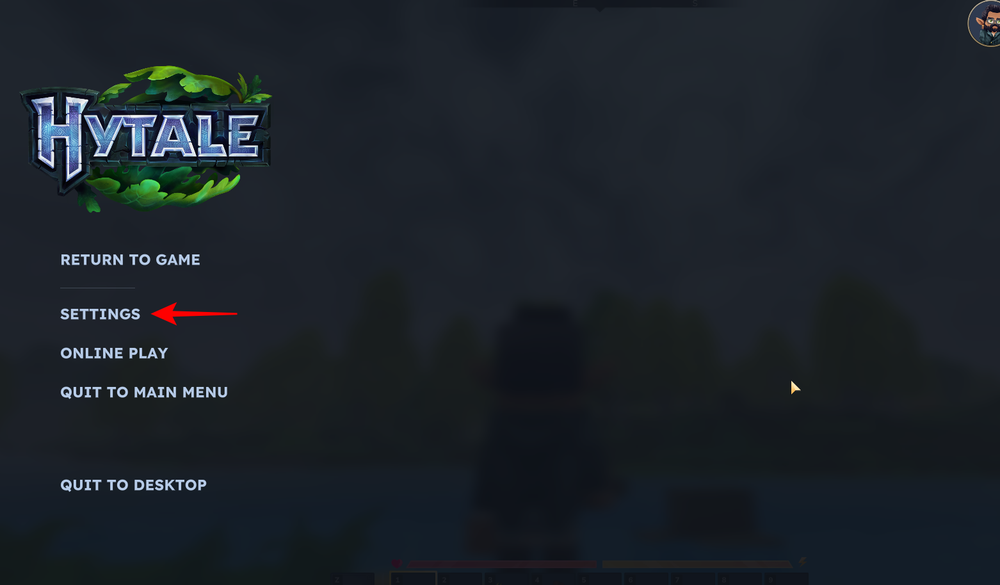
Open the settings menu by pressing the Escape key and selecting “Settings” from the menu.
Step 2
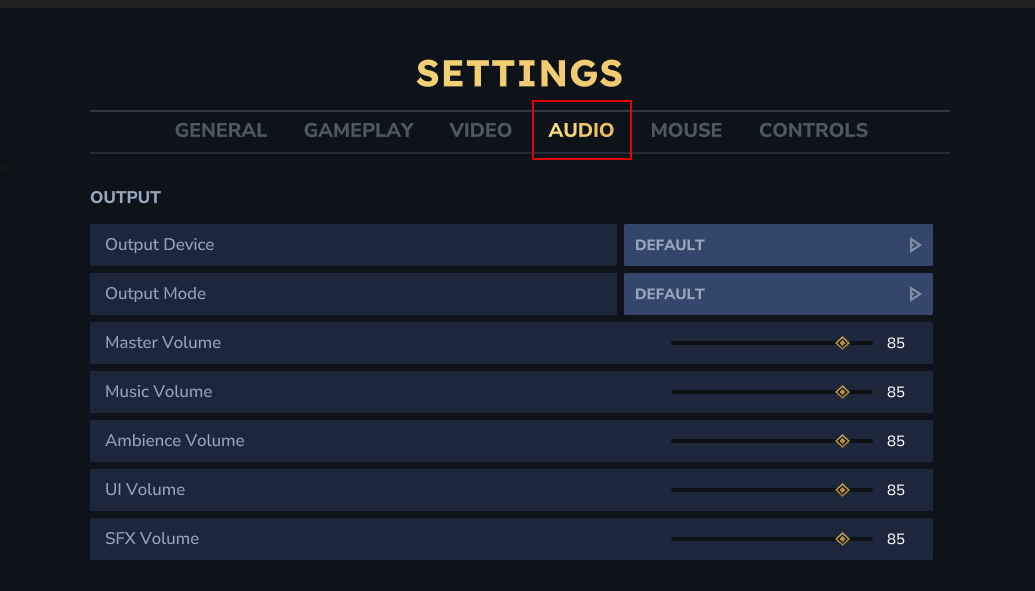
Navigate to the “Audio” tab.
Step 3
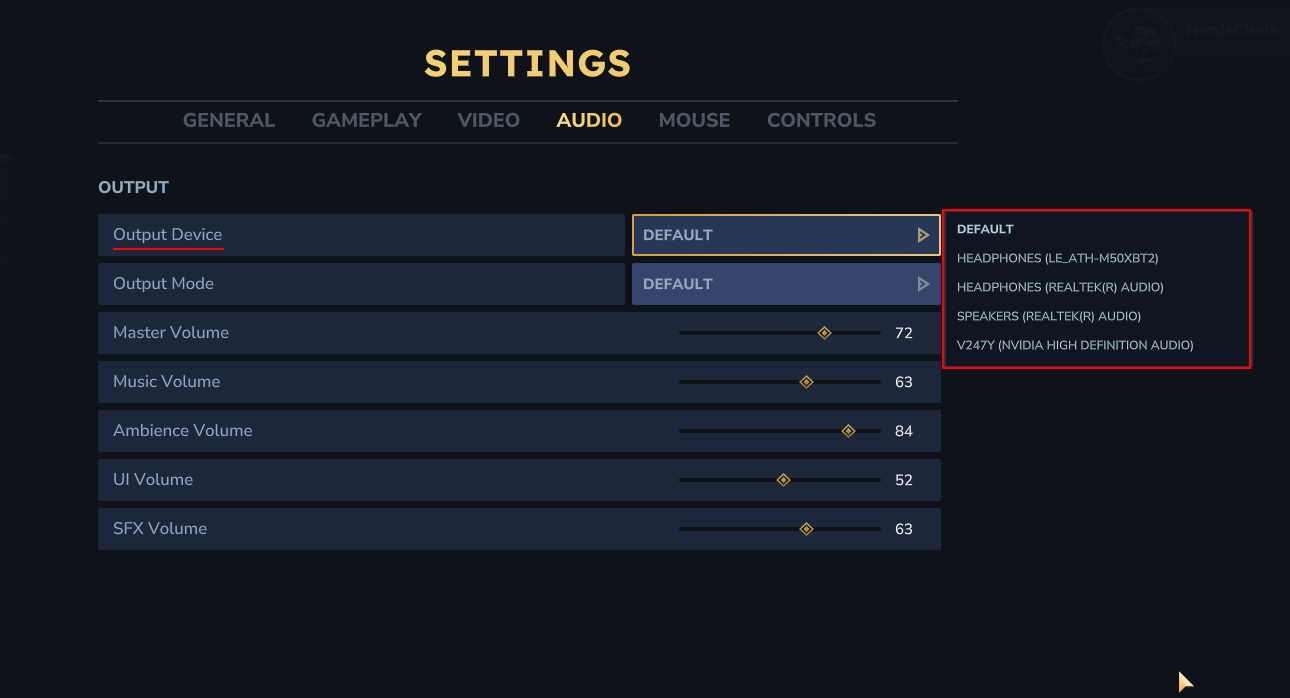
Under the output section of the audio settings, you’ll find the “Output Device” option. Simply click on this to see a list of available devices and choose the one you want to use. You can select your speakers, headphones, or any other sound output device connected to your computer.
Step 4
Be sure to click on the “Save Changes” button to apply the new setting. Your audio will now be played through the device you’ve selected.

Changing your sound output device is a simple way to customize your Hytale experience. By following these easy steps, you can ensure that the game’s audio is played where you want it and enjoy a more personalized gaming experience.