What to know
- Change keybinds in Hytale from the Menu > Settings > Controls.
- You can easily modify the keys for movement, actions, and other functions.
- Simply click on an action to modify its key. You can also reset your keybinds anytime.
Hytale offers a wide range of customization options, including the ability to change keybinds to suit your preferences. Whether you prefer a different layout for movement or want to assign specific actions to different keys, Hytale makes it easy to personalize your controls.
How to Change Keybinds
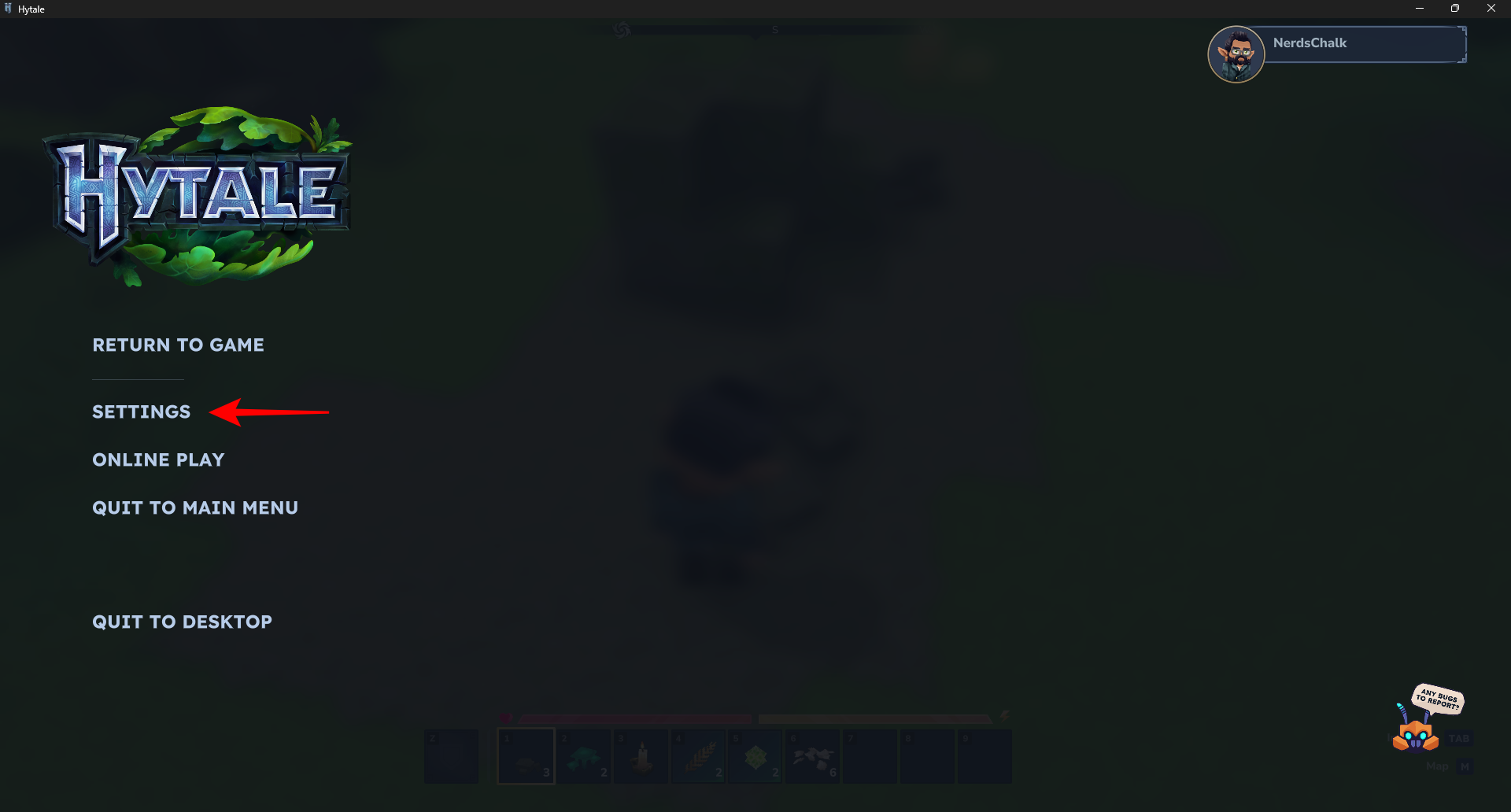
To begin, you’ll need to open the settings menu in Hytale. You can do this by pressing the Escape key and selecting “Settings” from the menu.
Once you’re in the settings menu, navigate to the “Controls” tab.
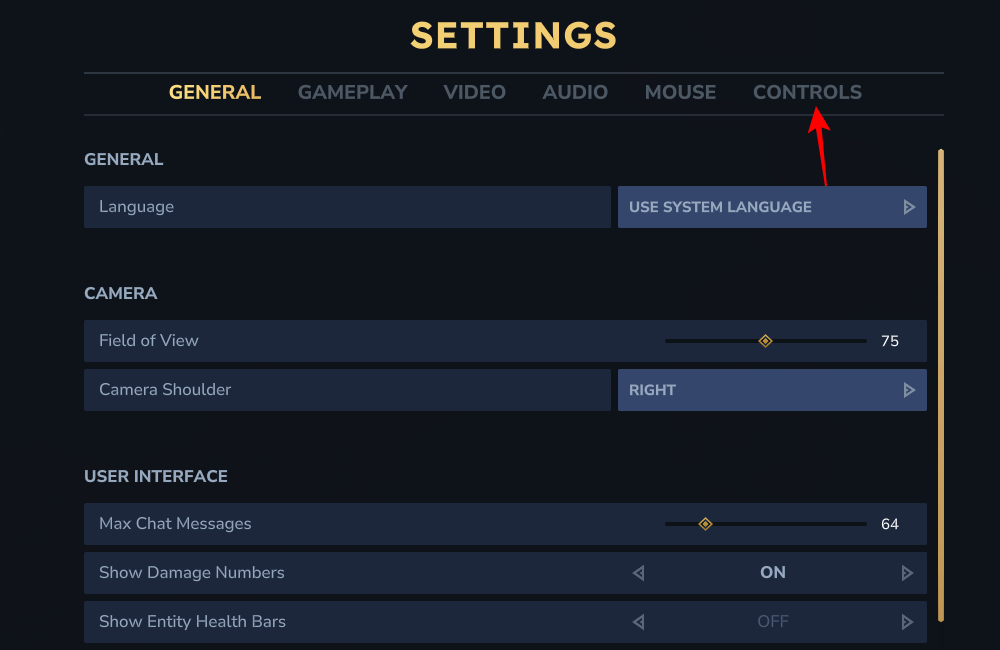
This will display a list of all the different actions and functions that can be assigned to keys.
Changing Keybinds
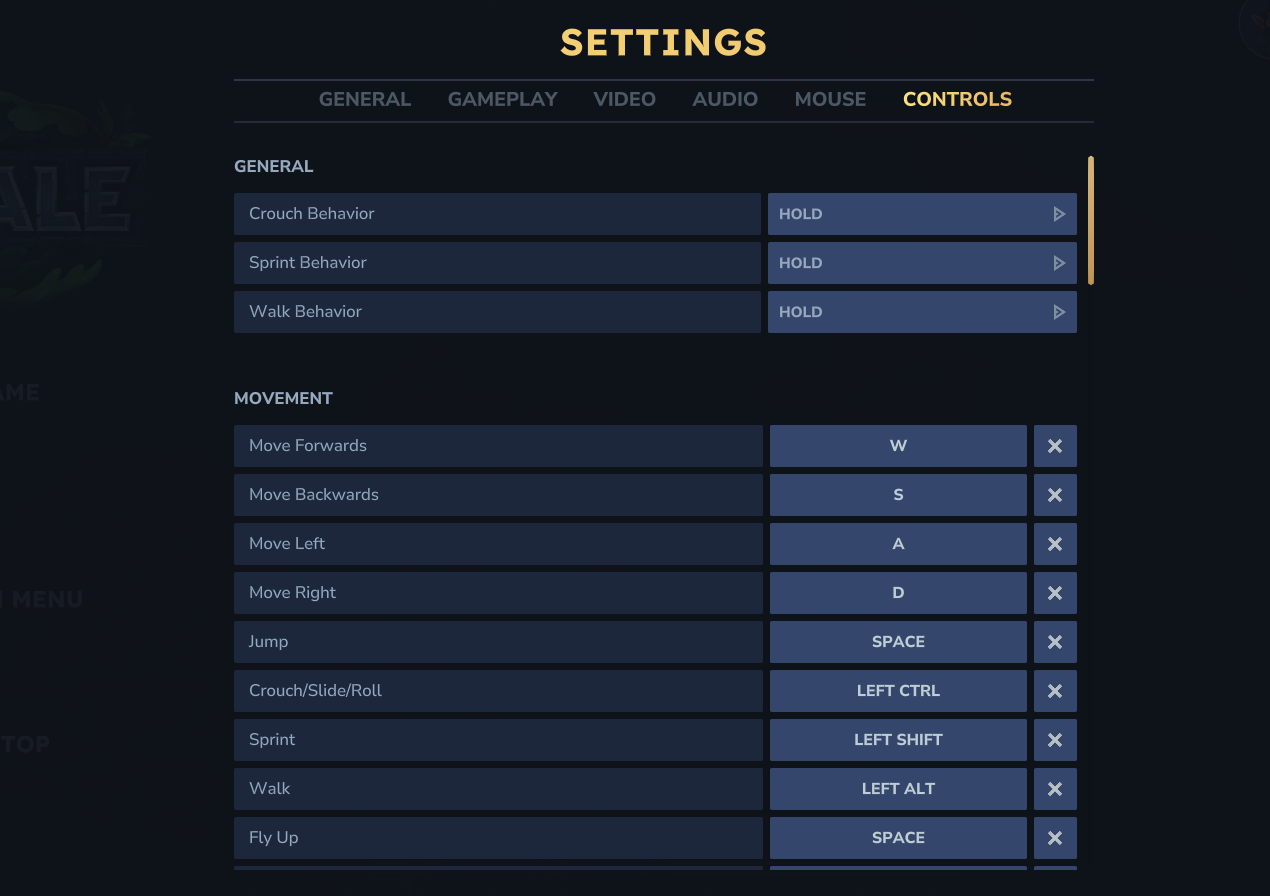
To change a keybind, simply click on the action you want to modify.
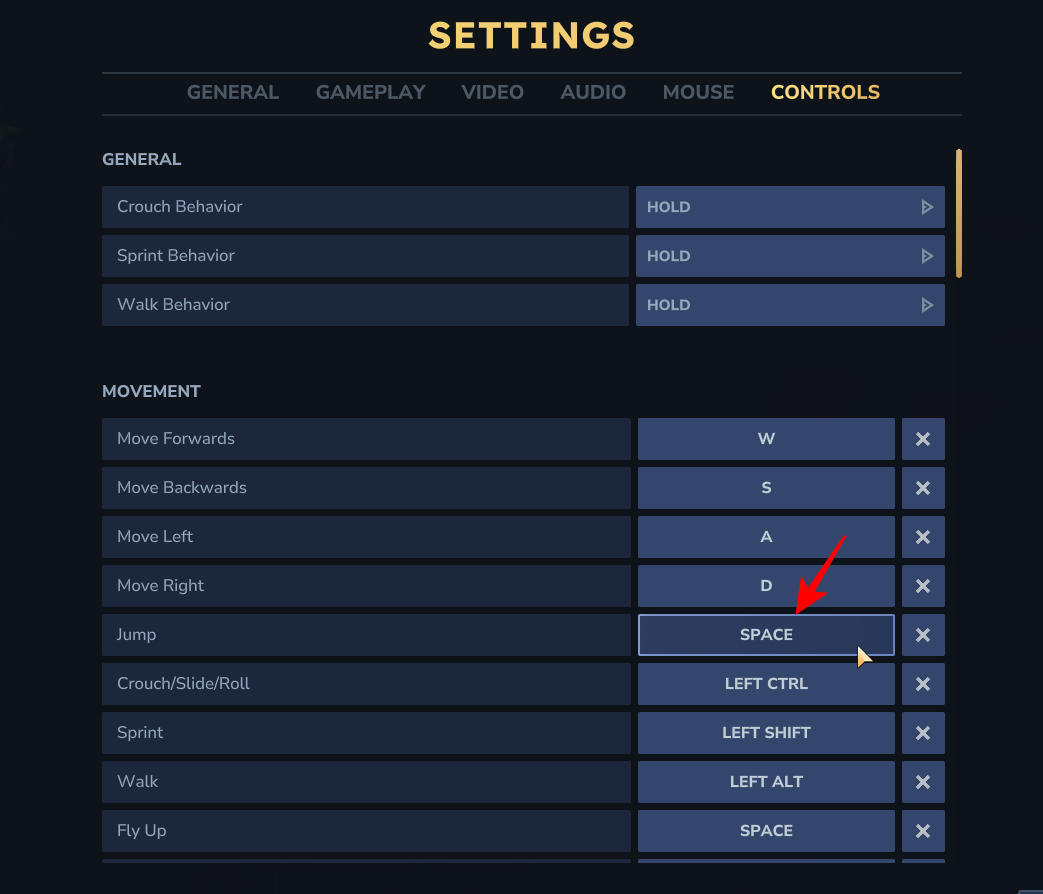
A window will appear, prompting you to press the new key you want to assign to that action.
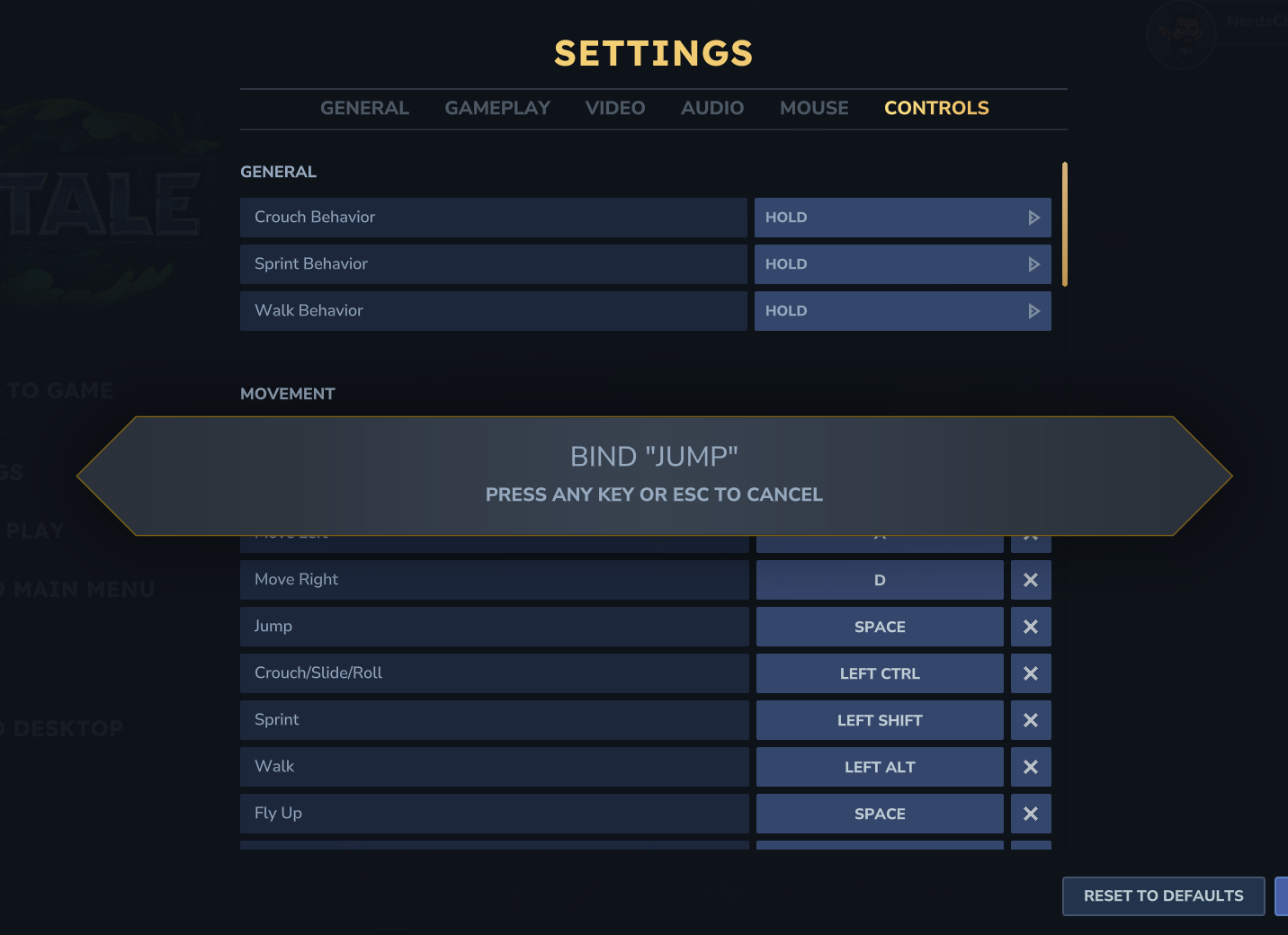
You can also clear a keybind by clicking on the “X” next to it.
Resetting Keybinds
If you ever want to revert back to the default keybinds, you can do so by clicking on the “Reset to Defaults” button. Keep in mind that this will also reset any other settings you’ve modified in the controls menu.

Saving Your Changes
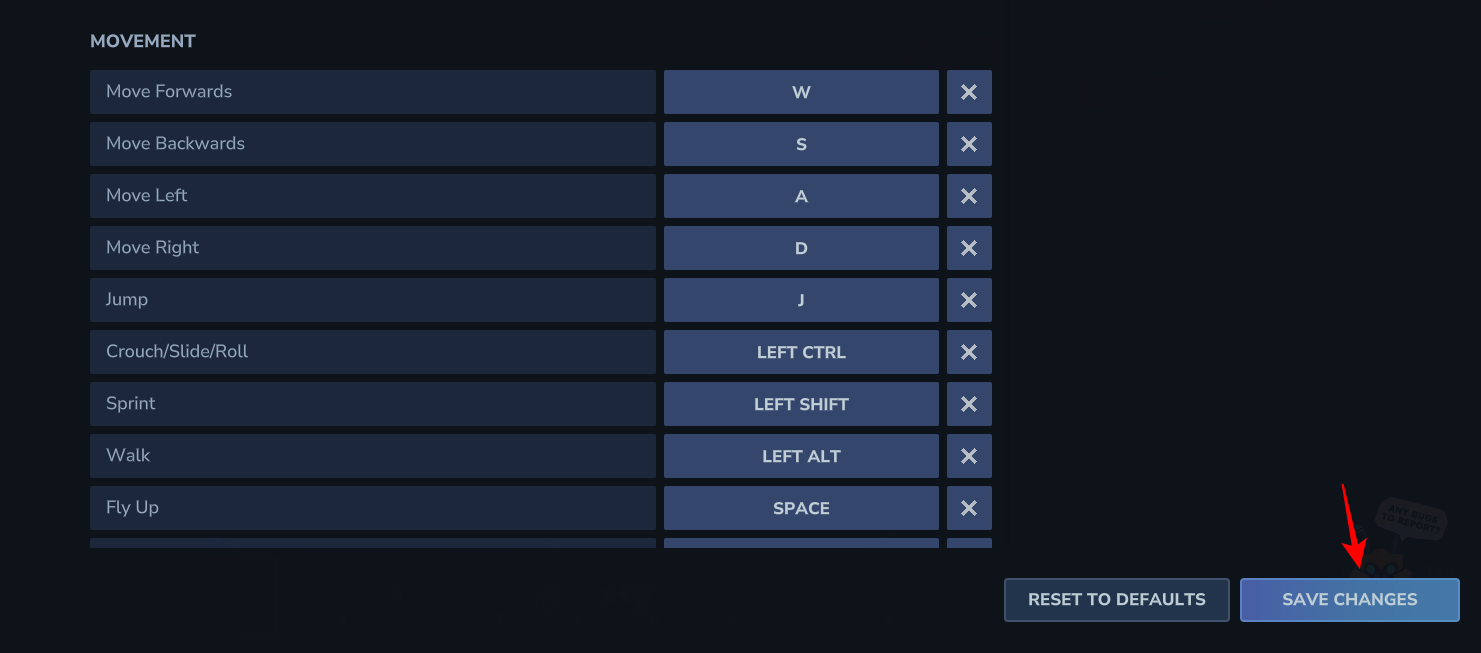
Once you’ve made all your changes, be sure to click on the “Save Changes” button to apply them. Your new keybinds will now be active in Hytale.
Customizing your keybinds is a great way to make Hytale feel more personalized and comfortable to play. With the ability to easily modify controls for movement, actions, and more, you can tailor your gaming experience to your liking.