What to know
- Open the settings menu and navigate to the video tab.
- Find the “Foliage Fading” setting under the advanced rendering section.
- Toggle the setting to “On” or “Off” as desired.
- Remember to save your changes before exiting the menu.
Hytale delivers a wealth of customization options, including the ability to change your foliage fading. This can be a useful feature for players who want to improve performance and reduce flickering in their game. Here’s how to enable or disable it.
How to Change Foliage Fading
Step 1
Open the settings menu in Hytale by pressing the Escape key and selecting “Settings” from the menu.

Step 2
Navigate to the “Video” tab.
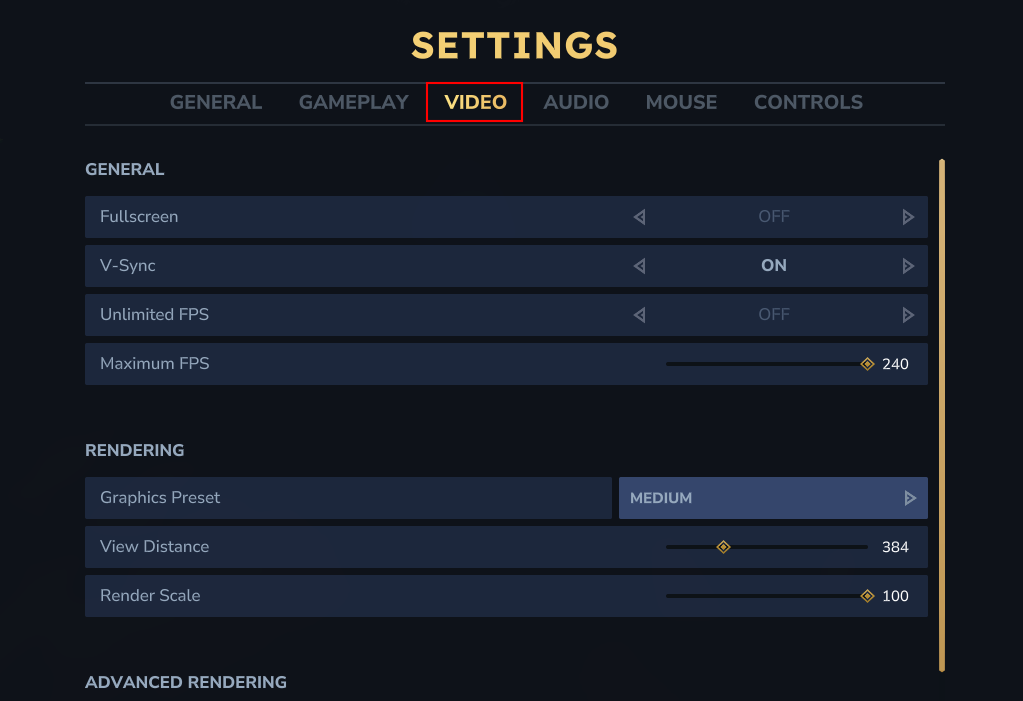
Step 3
Under the advanced rendering section of the video settings, you’ll find the “Foliage Fading” option. Simply toggle this setting to “On” or “Off” based on your preference.
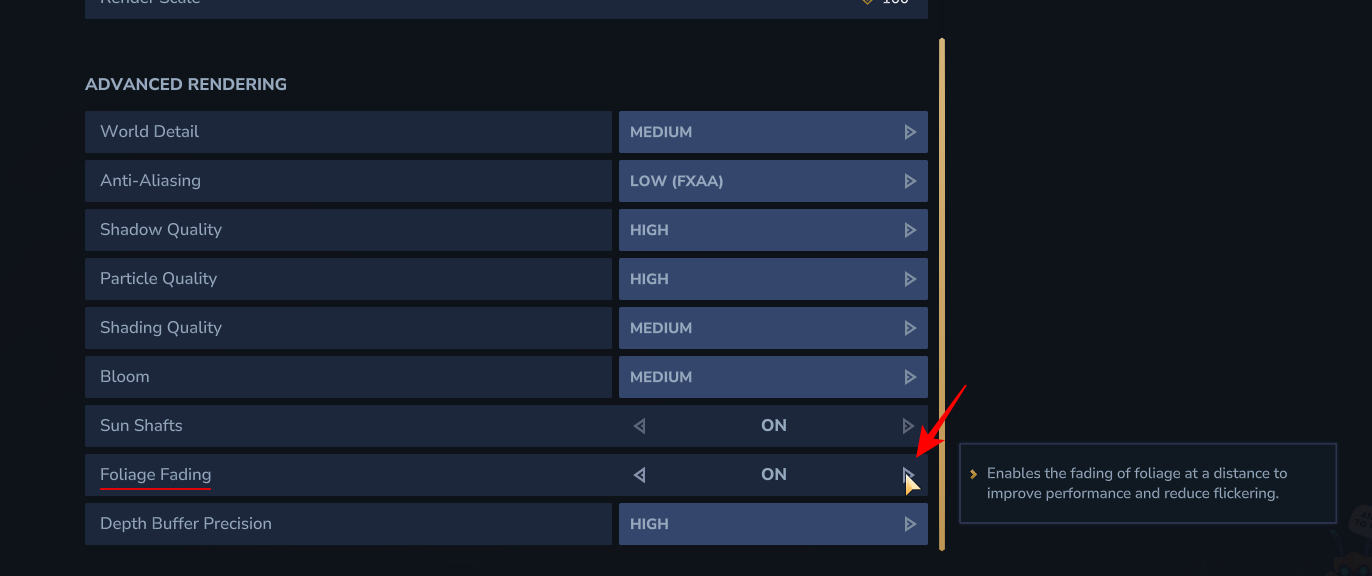
When enabled, this will fade out foliage at a distance to improve performance and reduce flickering
Step 4
After you’ve adjusted the foliage fading, be sure to click on the “Save Changes” button to apply the new setting. Your foliage will now follow the new fading behavior in Hytale.
Changing your foliage fading is a simple yet effective way to personalize your Hytale experience and improve your game’s performance. By following these easy steps, you can tailor your graphics to your liking and enjoy a smoother gaming experience.