
What to know
- Team-up requests appear as an on-screen prompt during online play
- Accepting instantly places you into the other player’s team
- You can view team members and identify the leader at any time
- Leaving a team is simple and can be done from the team menu
Once you unlock online features in Where Winds Meet, teaming up with other players becomes a core part of exploration, combat, and quest progression. The team-up system is lightweight and designed so you can join or leave without friction.
What you must know about the team-up requests
| Feature | Details |
|---|---|
| Availability | Online / co-op mode only |
| Request type | Real-time pop-up invitation |
| Acceptance method | One-click confirmation |
| Team visibility | Team panel shows members and leader |
| Exit option | Manual “Leave Team” command |
How team-up requests work in Where Winds Meet
When another player sends you a team-up request, the game displays a clear notification while you’re playing. You don’t need to open additional menus or pause your session. Accepting immediately syncs your character into the shared team space, allowing coordinated exploration and combat.
Team formation does not lock you into long-term commitments. You can freely join for a short activity and leave afterward without penalties.
How to accept a team-up request
Step 1: Wait for the team-up prompt
While playing online, keep an eye out for the team-up notification. It appears directly on your screen when another player invites you.
Step 2: Select accept
Choose the “Accept” option on the prompt. The game immediately places you into the team.
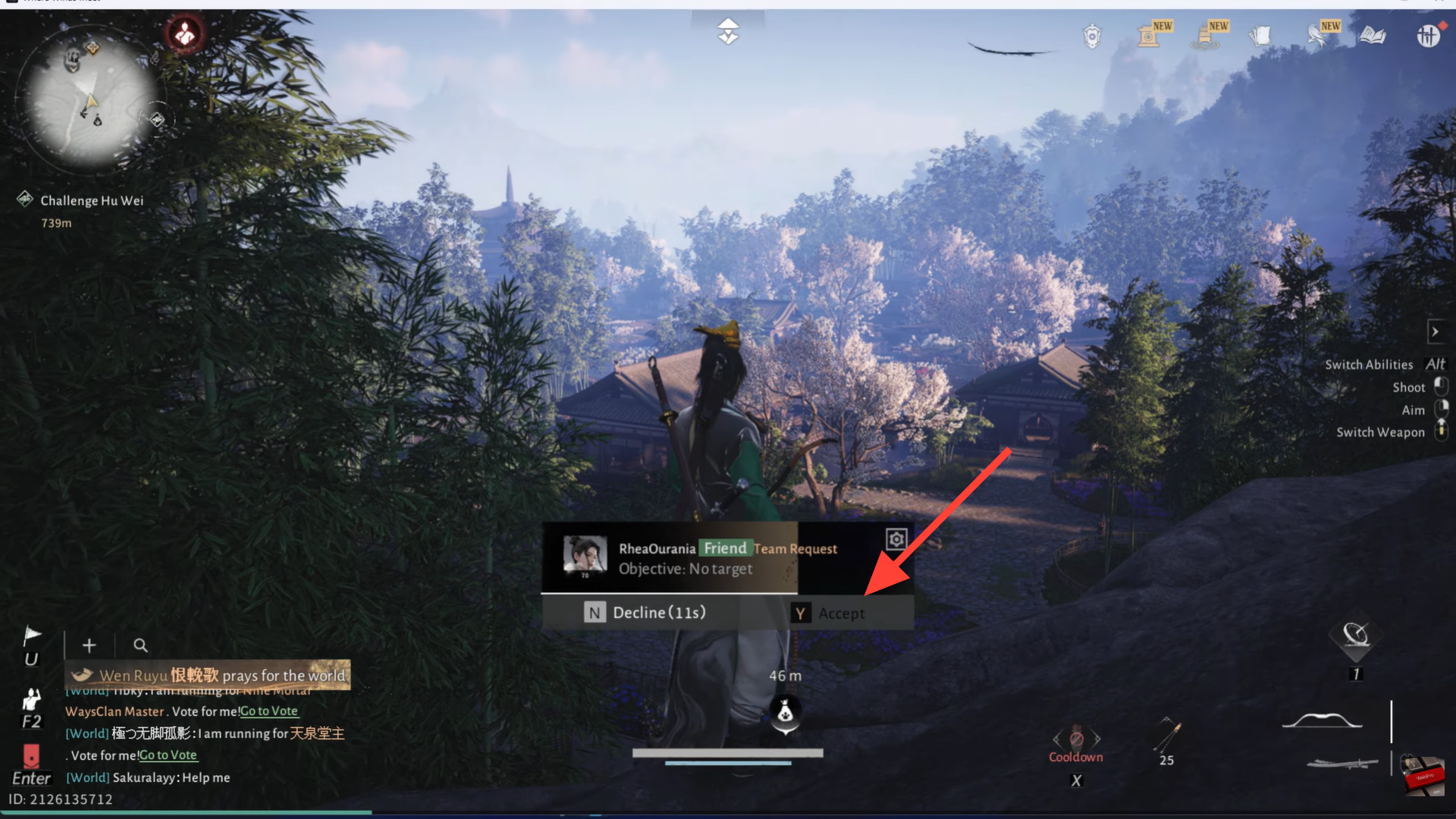
Step 3: Confirm team status
Open the team interface to see all current members. The interface also clearly shows who the team leader is, which helps when coordinating objectives.
How to view your current team
Once you’re in a team, the team menu becomes accessible from the main interface. Here, you can:
- Check player names and positions
- Identify the team leader
- Confirm you are properly synced into co-op play
This menu is useful before starting combat encounters or shared activities.

How to leave a team safely
Step 1: Open the team menu
Access the team interface from the main menu or quick-access UI.
Step 2: Select leave team
Choose the “Leave Team” option. A confirmation prompt appears to prevent accidental exits.

Step 3: Confirm your choice
Confirming removes you from the team and returns you to solo play instantly.
Tips for smooth co-op play
- Accept team-up requests when you’re not mid-combat for smoother syncing
- Check the team leader before starting shared quests
- Leave the team after completing objectives to avoid unintended pulls into new activities
The team-up system in Where Winds Meet is designed to be fast, flexible, and non-intrusive. Whether you’re joining briefly for a fight or staying together for longer exploration, accepting and managing team-up requests takes only a few seconds and keeps co-op play flowing naturally.
We hope this Team Up guide for Where Winds Meet offered all the clarity you were looking for and made your experience smoother. If you have any feedback, suggestions, or questions, drop them in the comments below. We actively read and respond, so feel free to reach out whenever you need extra help or guidance.