- What to know
- Where GameShare can be accessed in the game
- How to start a GameShare session in Pokémon Pokopia
- How local GameShare works with nearby players
- How online GameShare works using GameChat
- Gameplay limitations during a GameShare session
- How to end a GameShare session
- Using GameShare effectively in Pokémon Pokopia
What to know
- GameShare allows you to share your game session with another player on Switch.
- It only works from the PC in Pallet Town.
- You can connect with nearby players or through GameChat.
- Some gameplay features are limited during a GameShare session.
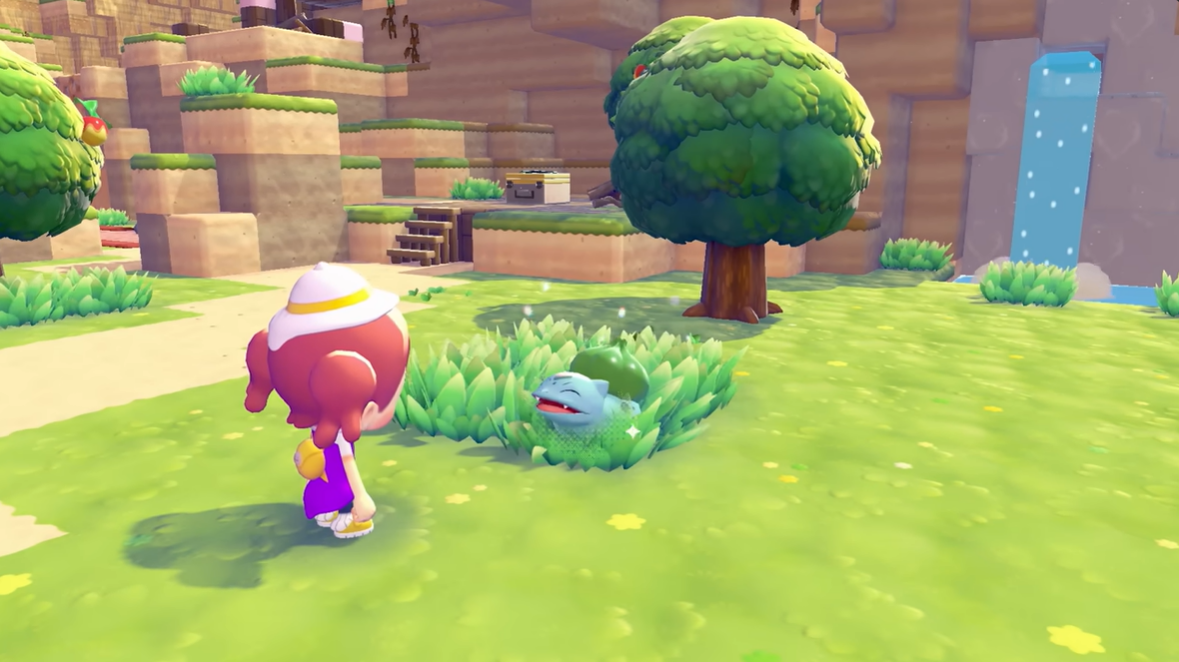
Pokémon Pokopia includes a feature called GameShare, which allows you to invite another player into your world and experience the game together. Instead of starting separate worlds, GameShare lets one player host while another joins the session. This is particularly useful if you want to explore the town together, test mechanics, or simply play cooperatively.
However, GameShare has a few restrictions. The feature is only accessible from a specific PC in Pallet Town, and certain game mechanics become limited during shared sessions. If you try to access it from other PC terminals across the game world, the option will not appear.
Below is a quick overview of how GameShare works and how you can activate it on both Nintendo Switch 1 and Switch 2 systems.
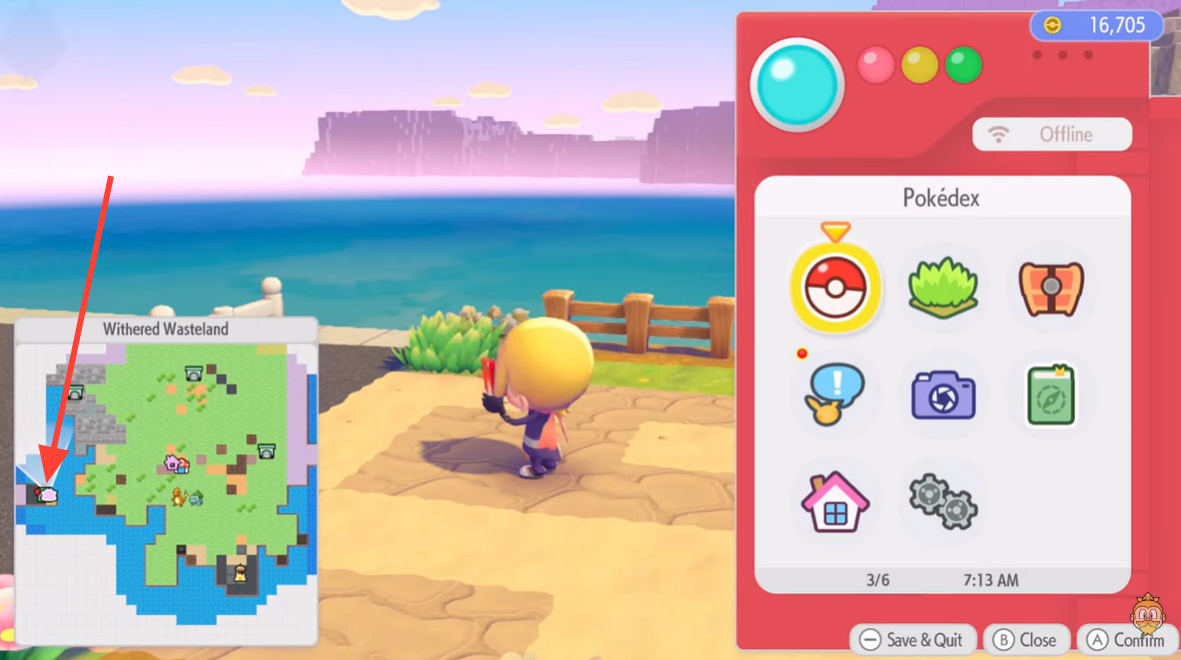
GameShare is restricted to Pallet Town, which acts as the central multiplayer hub in Pokémon Pokopia. The developers intentionally limited the feature to this location so the game can maintain stable multiplayer sessions without conflicts from exploration zones.
| Feature | Details |
|---|---|
| Game mode | Multiplayer sharing session |
| Supported systems | Nintendo Switch 1 and Nintendo Switch 2 |
| Host location | Pallet Town |
| Access point | PC Box |
| Menu path | Link Play → Game Share |
| Connection types | Nearby Players (local) or GameChat (online) |
| Session restrictions | Cannot switch areas, limited features, no spectator mode |
| Session ending | End through PC or the + menu |
When you arrive in Pallet Town, you need to interact with the PC box located in the Pokémon Center area. This PC contains the multiplayer options including Link Play and GameShare. Attempting to open GameShare from PCs in other towns or facilities will not work.
Because the multiplayer session is tied to this location, players cannot freely travel between different regions while the session is active. The shared gameplay remains inside the Pallet Town environment.
Step 1
Travel to Pallet Town in your game world. GameShare can only be activated from this location.
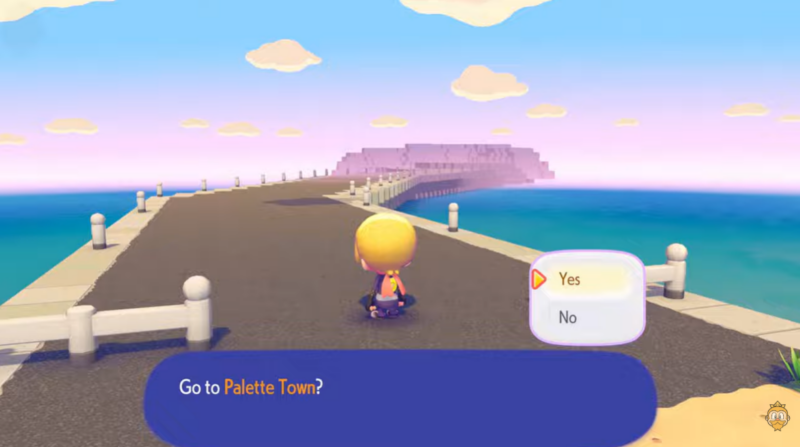
Step 2
Find the PC box in Pallet Town and interact with it.
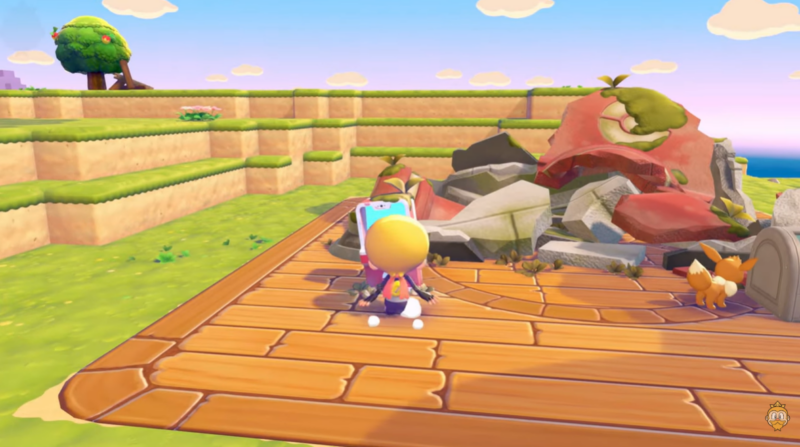
Step 3
Open the Link Play option in the PC menu.
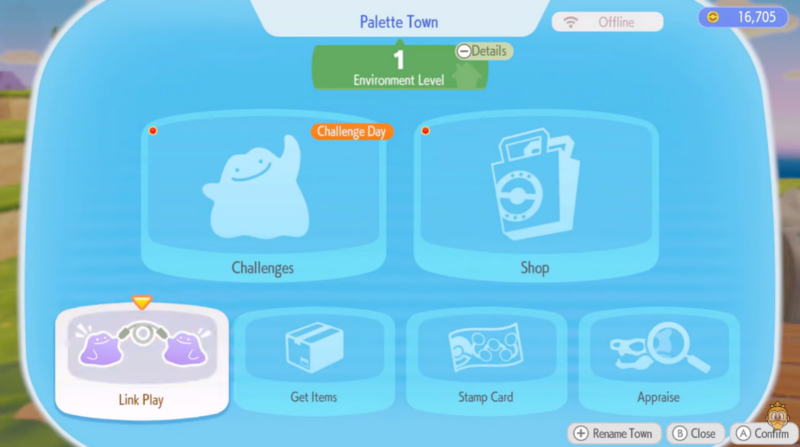
Step 4
Select Game Share from the Link Play options.
Step 5
Choose how you want to start the session:
| Option | Description |
|---|---|
| With Nearby Players | Connect locally with another Switch system near you |
| Via GameChat | Connect online with another player |
Step 6
Once the connection is established, the second player joins your session and you can play together in the Pallet Town area.
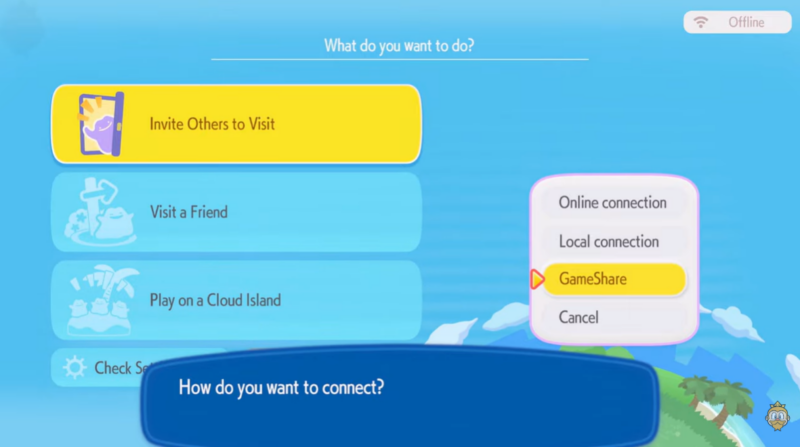
If you and another player are physically close to each other, you can use the Nearby Players option. This creates a local wireless connection between the two Nintendo Switch consoles.
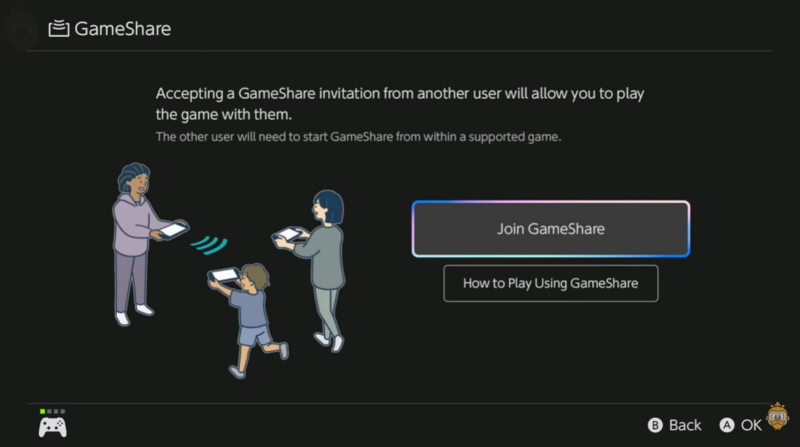
The host selects Invite Others to Visit, while the joining player chooses Visit a Friend from their GameShare menu. Once both players confirm the connection, the shared session begins.
Local play is usually the most stable method because it does not rely on internet connectivity. It also has faster synchronization between players.
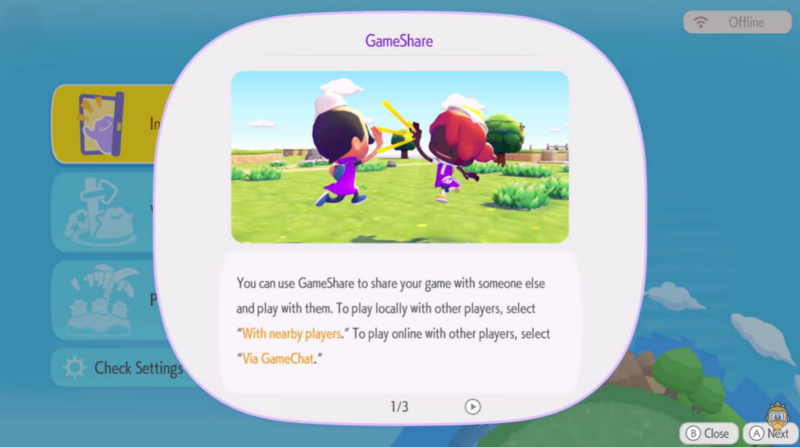
For players who are not physically together, Pokémon Pokopia allows GameShare sessions through GameChat. This method uses the internet to connect players.
The host starts GameShare and selects Via GameChat, which sends a connection request through the chat system. The other player joins the session through the same GameShare menu.
Keep in mind that online sessions may depend on network stability. If the connection drops, the GameShare session will automatically end.
GameShare is designed mainly as a cooperative or social gameplay feature rather than full multiplayer exploration. Because of this, several features are restricted.
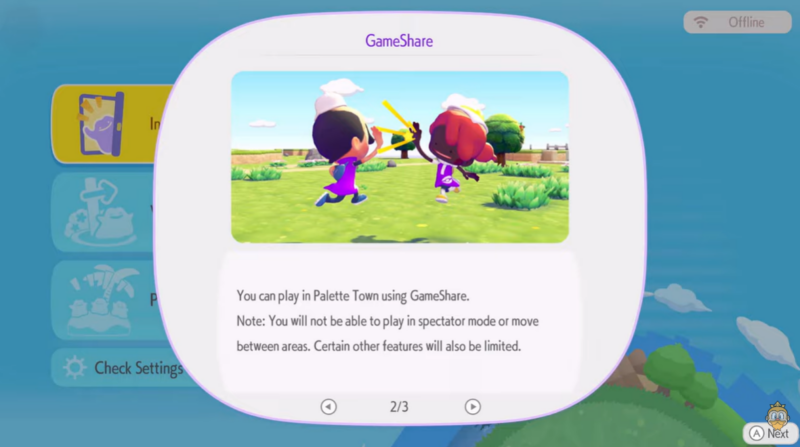
Players cannot activate spectator mode, and they cannot move between major areas or regions while the session is active. Certain gameplay systems may also be temporarily limited to prevent conflicts between players.
Despite these restrictions, you can still interact within the shared environment, experiment with game mechanics, and enjoy cooperative gameplay inside Pallet Town.
Ending the GameShare session is simple and can be done in two ways.
You can return to the PC in Pallet Town and close the GameShare session from the menu. Alternatively, you can open the + menu and press the – button to terminate the connection.
Once the session ends, any items obtained by visiting players are automatically transferred to the Lost & Found system, ensuring nothing is permanently lost after the multiplayer session closes.
GameShare works best when used as a quick cooperative feature rather than a full multiplayer campaign. Many players use it to test mechanics, show their setups to friends, or explore Pallet Town together.
Since the feature supports both Nintendo Switch 1 and Switch 2 systems, it is accessible regardless of which version of the console you are using. As long as both players have Pokémon Pokopia installed and access to the Pallet Town PC, GameShare can be started without additional requirements.
GameShare is a convenient multiplayer feature that lets you invite friends directly into your Pokémon Pokopia session. By accessing the PC in Pallet Town and using the Link Play menu, you can quickly start a shared session locally or online. While the feature has some limitations, it still offers a fun way to interact with other players and experience parts of the game together.