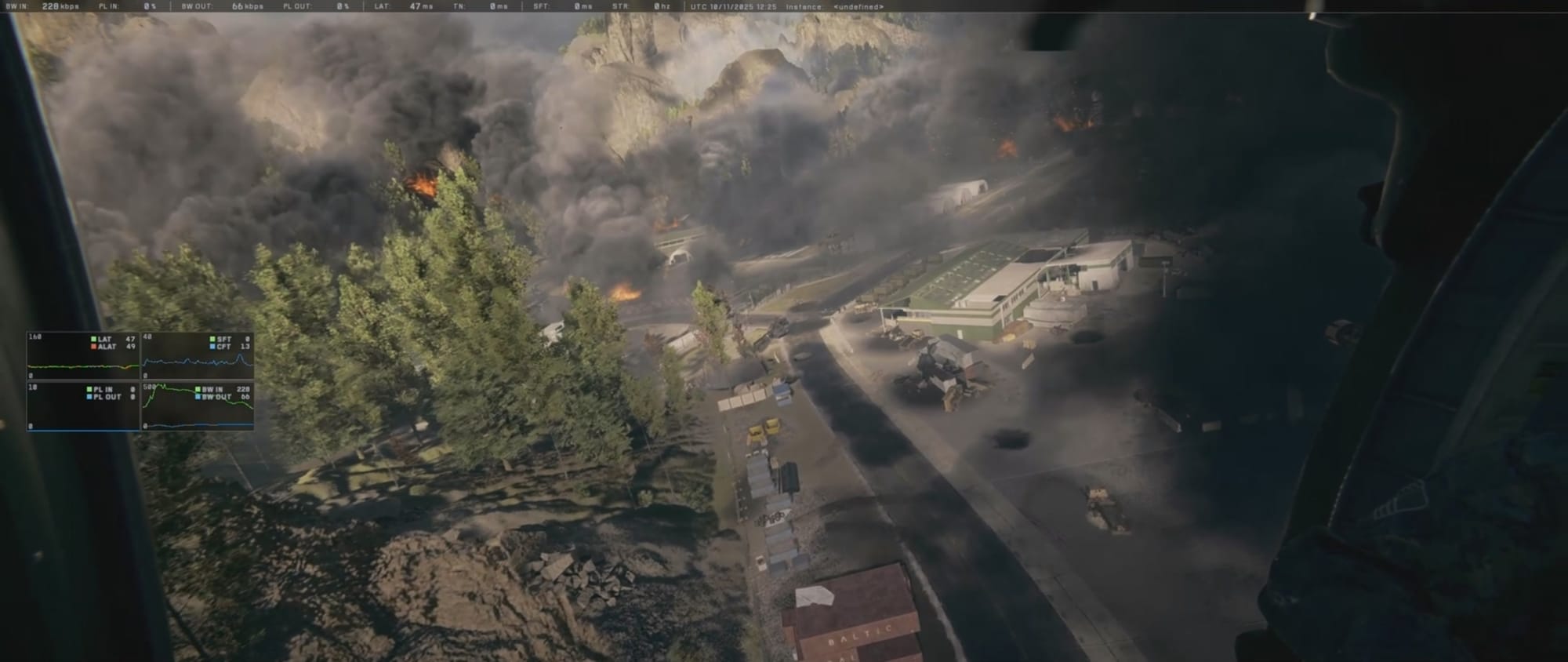
Battlefield 6’s DirectX Function Error is common and disrupts play, but several proven steps can help resolve it quickly.
What to know
- The error mostly affects PC players, showing messages like DXGI_ERROR_DEVICE_HUNG or DXGI_ERROR_DEVICE_REMOVED.
- Common fixes involve changing launch options, graphics driver updates, and disabling third-party software.
- Reducing overclocks or reverting settings to stock can help stability.
- Developers are actively working on patches and collecting community reports.
Right now, Battlefield 6’s launch has seen widespread technical issues for PC players, especially the DirectX function error. Let’s break down step-by-step fixes you can try.
DirectX function error explained

Battlefield 6’s DirectX error is typically: DXGI_ERROR_DEVICE_HUNG, DXGI_ERROR_DEVICE_REMOVED, or DXGI_ERROR_DEVICE_RESET. This usually signals that the graphics card stopped responding to Windows, often because of unstable drivers, aggressive overclocking, or conflicts with overlays and third-party apps.
Fixes for Battlefield 6 DirectX errors
Before we jump in to step-by-step guides, let’s take a look at the summary of these fixes quickly.
| Method | Details / What to do |
|---|---|
| Rename Documents folder | Backup, rename, and relaunch |
| Set launch options | Try -dx11, -dx12, etc. |
| Adjust GPU settings | Turn off Smooth Motion, enable Low Latency |
| Disable iGPU | Turn off in BIOS/settings |
| Fresh GPU driver install | Use Nvidia/AMD official clean installer |
| Close overlays/tools | Exit Discord, Afterburner, Razer, overlays |
| Lower overclocks/undervolt | Use stock settings |
| Limit FPS/resolution | 60–90 FPS, 1920×1080, borderless mode |
| Verify or repair files | Use Steam/EA App functions |
How to troubleshoot Battlefield 6 DirectX error on your PC
Here’s a step-by-step guide you can follow:
Step 1

Go to the ‘Documents’ folder on the computer and back up your Battlefield 6 folder. Rename the Battlefield 6 folder to reset saved settings (this can fix configuration-related crashes, but you may lose saved game progress).
Step 2
You can force the game to use a specific version of DirectX.
In your launcher’s game properties (under “Advanced launch options” in the EA App or “Launch options” in Steam), type -dx11 or -D3D11 and save. If that doesn’t work, try -dx12.


Step 3
Turn off Smooth Motion and enable Low Latency Mode in your Nvidia Control Panel or AMD’s settings utility. These settings improve driver stability with Battlefield 6.

Step 4
Disable integrated graphics via BIOS or your system’s settings (especially for users with both iGPU and discrete GPU), as the game sometimes gets confused and crashes.
How to disable integrated graphics in Windows
Step 1
Right-click Start and select “Device Manager.”

Step 2
Expand “Display adapters.”

Step 3
Right-click the integrated GPU entry (such as Intel UHD or AMD Radeon Vega) and click “Disable device.”

Step 4
Confirm and close Device Manager. Your system will now use only the dedicated GPU for all display outputs (make sure monitor is plugged into the discrete GPU).
Important notes for disabling integrated graphics:
- Disabling the iGPU is generally recommended only for desktops with a dedicated GPU installed and active. Do not try this on laptops unless the option is explicitly available and supported, since it may affect power management or display outputs.
- If you lose all video output after disabling the iGPU, you’ll need to reset the BIOS (by clearing the CMOS) to restore display functionality.
Step 5
Do a clean installation of graphics drivers:
- For Nvidia, use the official clean install from the Nvidia website.

- For AMD, install the newest drivers (or try rolling back to the previous stable release if crashes persist).

Step 6: Close unnecessary background applications and overlays
- Shut down apps like Discord, Nvidia/AMD overlays, Razer Synapse, MSI Afterburner, and other third-party tools.
- Remove undervolts and disable all overclocks to ensure maximum GPU stability.
Step 7: Limit your in-game FPS and resolution
Set the frame rate limiter to 60–90 FPS and resolution to 1920×1080. Try switching to borderless fullscreen mode if you’re in full screen.

Step 8: Verify game files on Steam and EA app
Try verifying game files (Steam) or repair (EA App). If the error persists, a full uninstall/reinstall may be necessary.
8.1 – Follow this guide for the Steam app:
Step 1: Launch the Steam client on your PC or Mac and make sure you are logged in.

Step 2: Click the “Library” tab at the top to view your installed games.

Step 3: Locate the game you want to verify in your library list. Right-click the game title and select “Properties” from the context menu.

Step 5: Verify the game files:
- On the left sidebar, select the “Local Files” tab (or “Installed Files” in some versions).
- Click the button labeled “Verify integrity of game files” or “Verify integrity of game files”.

Step 6: Let the process finish. Steam will scan the game files and identify any missing or damaged ones. It will then automatically download and replace problematic files. This process may take several minutes depending on the game size.

8.2 – Follow this guide for the E app:
If using the EA App and experiencing issues, follow these steps to repair game files:
Step 1: Launch the EA App on your computer.

Step 2: Find the game in the EA App game library.

Step 3: Initiate repair. Right-click the game or select the options menu. Now, select “Repair”. The EA App will then check the game files and fix any corrupted or missing files automatically.

Expect more updates and patches
EA and Battlefield Studios have acknowledged the issue in version 1.0.1.0 and collected community reports. They’re actively preparing further updates to tackle disruptive bugs including crashes and DirectX errors. If fixes above don’t work, keep an eye on official news or submit detailed bug reports.
Battlefield 6’s DirectX function error is a widespread technical setback, but there are several practical fixes available right now. Apply each step methodically, and check for ongoing developer patches to keep your play experience as smooth as possible.