What to know
- Access settings anytime by pressing Escape in-game or via the main menu button for quick tweaks.
- Video options like anti-aliasing and render scale boost visuals or performance based on your hardware.
- Audio sliders let you balance meows, music, and effects without muting the fun.
- UI adjustments such as tooltip size make info easier to read during intense battles.
Every setting tweak in Mewgenics can mean smoother runs and clearer strategy. Whether you battle lag or cluttered interfaces, these changes help you focus on breeding winners and conquering grids.
| Setting Category | Key Options | Why Change It |
|---|---|---|
| Video | Anti-Aliasing (Off/2x/4x/8x), Render Scale (20-100%), V-Sync (On/Off), Noise & Grain (Normal/No Hair/None) | Balances sharp visuals with high FPS; reduces tearing or grain for cleaner views. |
| Audio | Master, Music, SFX, Meow, Meow House (0-100) | Customizes sound without overwhelming meows during house management. |
| Game/UI | Tooltip Size (50-200%) | Improves readability of stats and abilities in combat. |
| Controls | Keybinds, Tactical View Toggle | Speeds up inputs for faster decisions in turn-based fights. |
How to access and adjust video settings
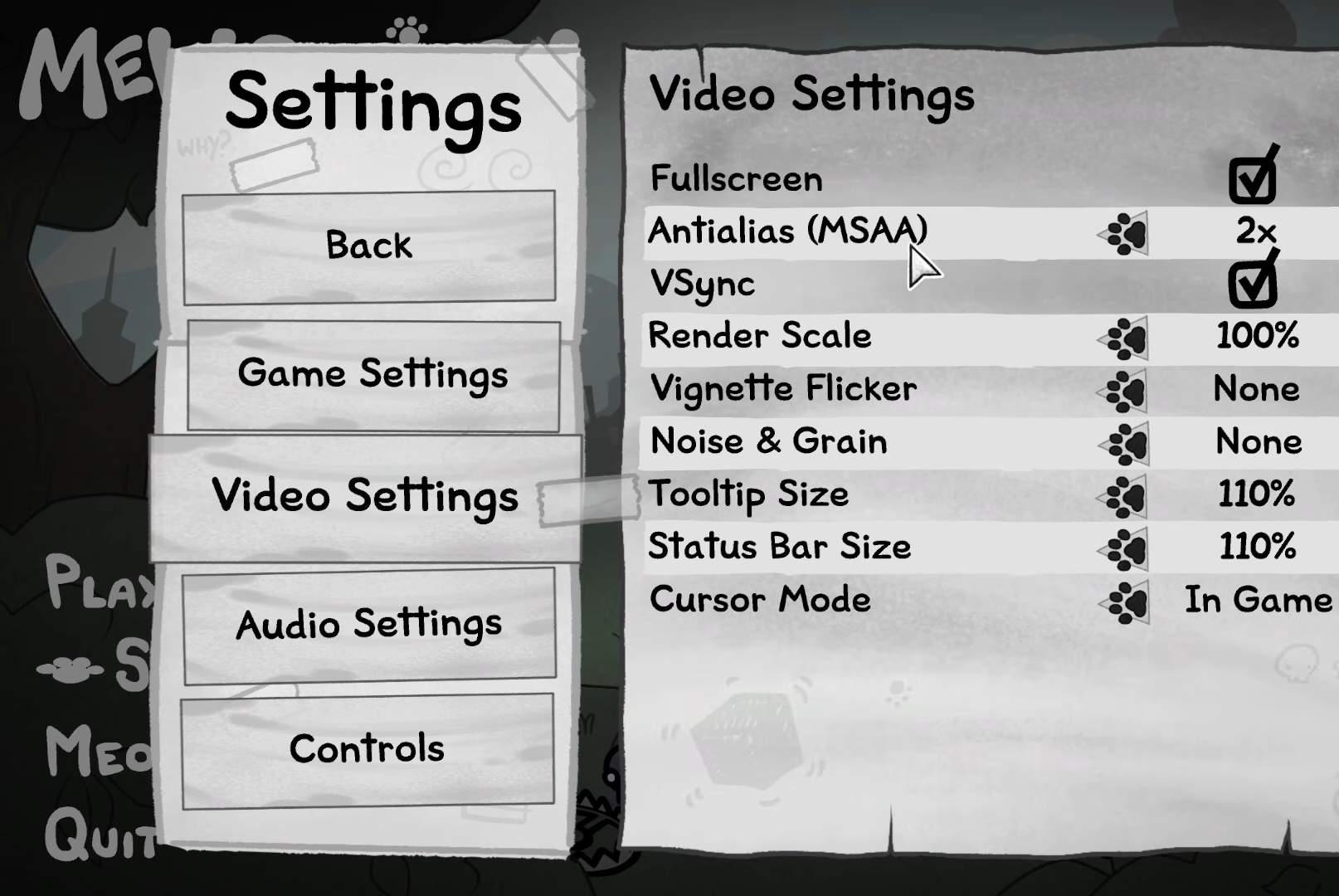
Start by pressing Escape to open the menu, then select Settings and head to Video.
Step 1: Set anti-aliasing for smoother edges
Navigate to Anti-Aliasing or MSAA. Choose Off for max performance, 2x or 4x for balance, or 8x if your rig handles it. Higher values smooth jagged lines but drop FPS, so test 4x first for most systems.
Step 2: Optimize render scale for performance
Find Render Scale at 100% default. Lower to 75% or 50% if FPS dips below 60; the image gets fuzzier but runs silkier on lower-end PCs. Never exceeds 100%.
Step 3: Toggle V-Sync to end screen tearing
Switch V-Sync off for unrestricted FPS on high-refresh monitors, or on to sync with your display and prevent tearing. Disable if input lag bothers you.
Step 4: Reduce Noise & Grain for clarity
Select Noise & Grain and drop to No Hair, No Dust, or None. This cleans up the gritty film look, making cats and environments pop without performance hits.
Step 5: Turn off Vignette Flicker
If you want to save your eyeballs, you should definitely disable Vignette Flicker. This will improve the look of the game and allow you to play for longer.
How to fine-tune audio settings
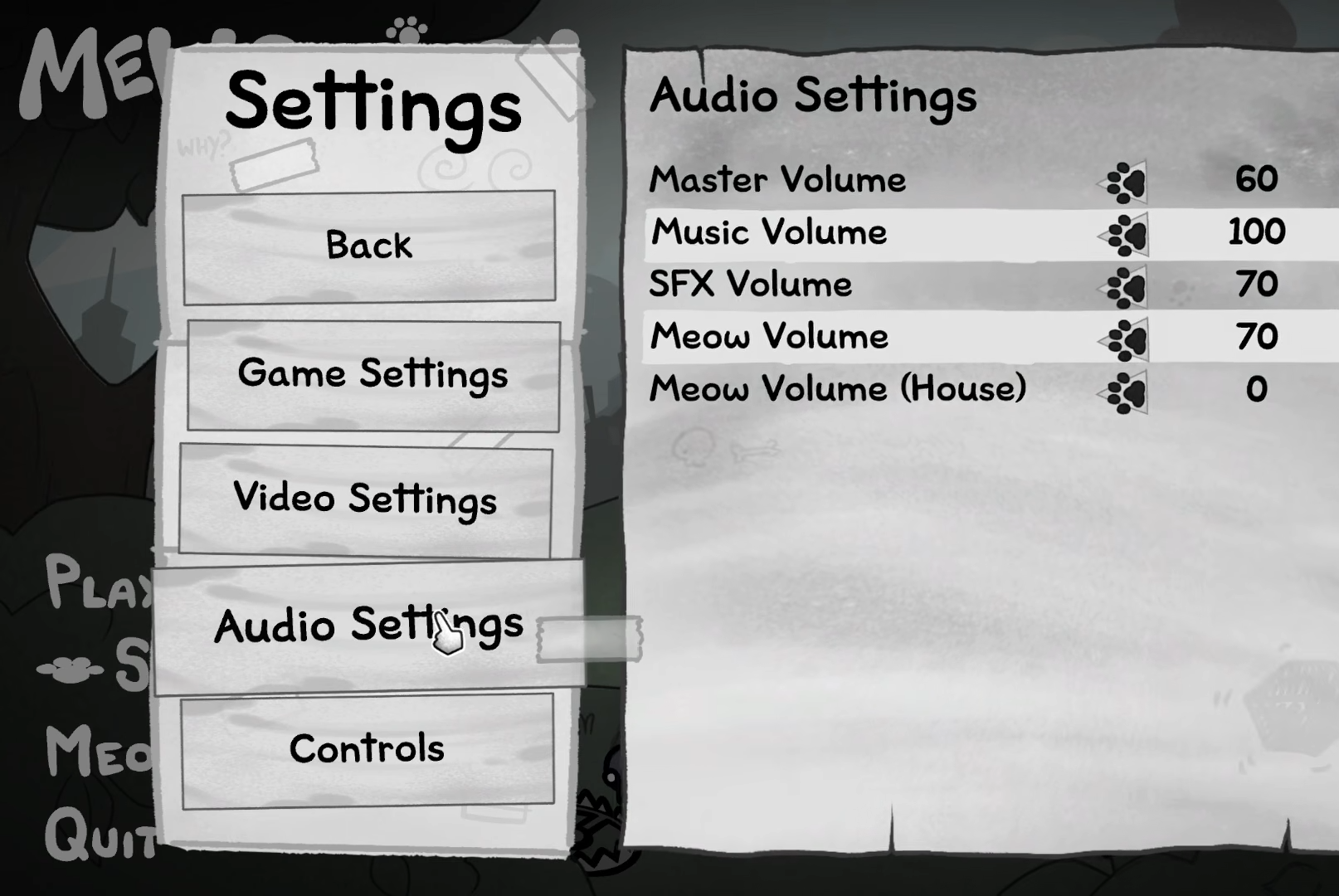
From Settings, go to Audio for sliders that keep the chaos audible but controlled.
Step 1: Balance master volume
Set Master Volume around 80 to cap overall output, then adjust others relative to it.
Step 2: Dial down meows if they distract
Lower Meow Volume and Meow House to 40-60; keeps cute sounds present without drowning combat cues.
Step 3: Prioritize SFX over music
Crank Sound Effects to 90 for punchy hits, drop Music to 50 if it clashes during tense turns.
Apply changes and resume to hear the difference instantly.
How to customize game and UI settings
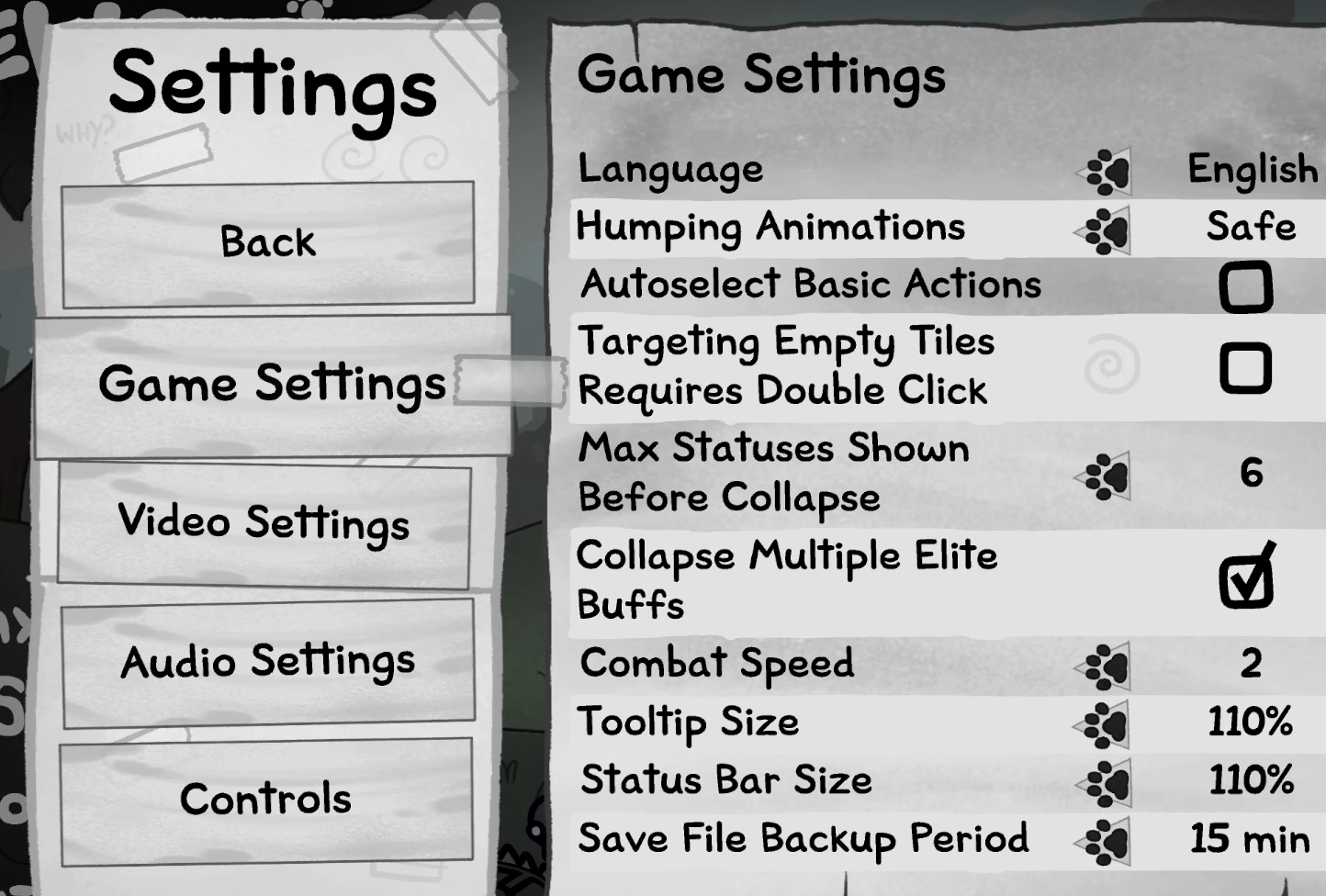
In Game Settings, tweak interface for your playstyle.
Step 1: Resize tooltips for better info
Slide Tooltip Size to 150% if text feels tiny during ability drafts, or 75% for compact HUDs.
Step 2: Change ‘Humping Animations’
Not everyone needs to see humping animations the way they see them in real life. Change these to ‘Safe’ so you don’t get sick watching two kitties going at it.
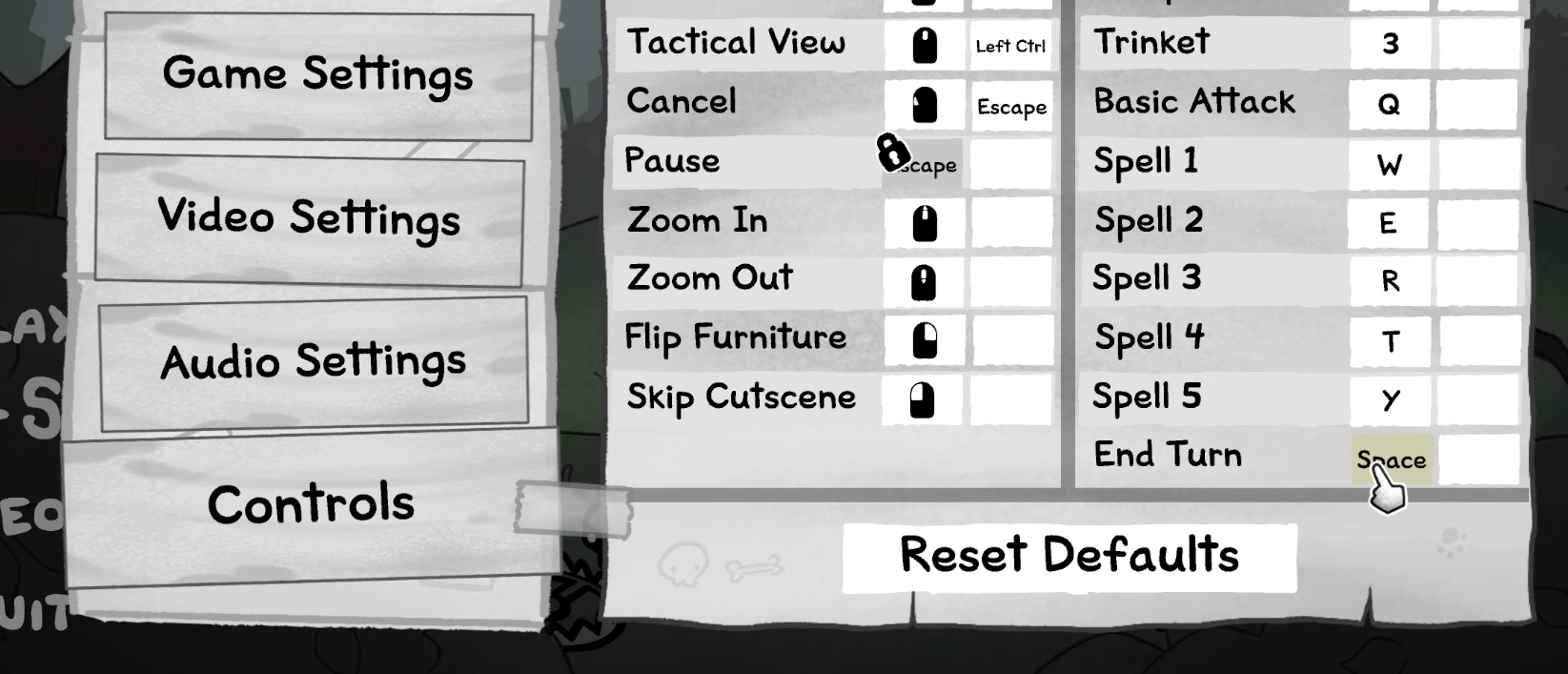
How to customize Keyboard Controls
Most combat hotkeys are fine. But for convenience, set ‘End Turn’ to Space so whenever you’re done, just hit the spacebar. The widest key on the keyboard is hard to miss.
Quick performance tweaks beyond in-game
Pair settings with system optimizations. Switch to Ultimate Performance power plan via Settings.
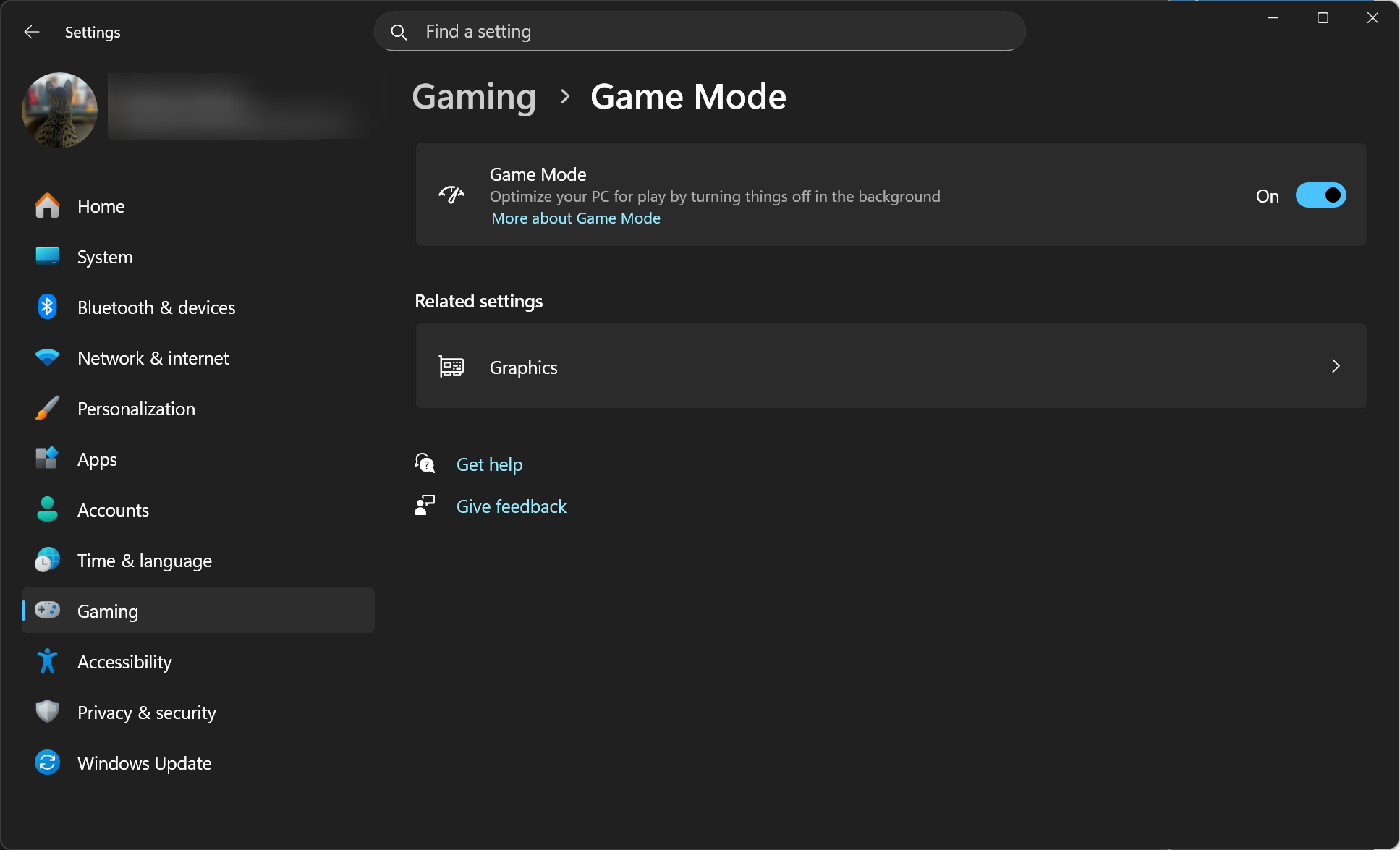
Enable Game Mode in settings.
In NVIDIA/AMD control panels, set power to maximum and V-Sync off. Close background apps via Task Manager startup tab.
These adjustments unlock Mewgenics’ full potential, letting you breed elite cats and dominate battles effortlessly.