What to know
-
Controller play is supported on PC & mobile using PlayStation (DualSense/DualShock 4) and Xbox (Xbox Wireless/Elite) controllers.
-
You can connect via USB (wired) or Bluetooth (wireless) on PC and mobile.
-
The UI can switch between controller and keyboard/touch layouts based on your input, but some screens do not allow switching.
-
Third-party controllers may work, but compatibility issues are explicitly possible.
Arknights: Endfield’s current builds treat controller support as a first-class input option, especially for combat and exploration, while still allowing you to fall back to mouse/keyboard or touch when needed. If you’re deciding whether to start (or return) with a controller, it helps to know what’s officially supported, how switching works, and where controller input is limited.
| Topic | What it means for you |
|---|---|
| Does it support controllers? | Yes, controller input is supported in the current version. |
| Supported controller families | PlayStation (DualSense, DualSense Edge, DualShock 4) and Xbox (Xbox Wireless Controller, Xbox Elite). |
| Platforms mentioned for controller info | PC and mobile devices are covered in the official controller support documentation. |
| Connection methods | USB wired and Bluetooth wireless. |
| UI/input switching behavior | Controller input can switch UI to controller layout; keyboard/touch can switch back. |
| Known limitation | Some scenarios do not support switching input layouts (specific menus and sequences). |
| Third-party pads | May have compatibility issues even if they sometimes work. |
Which controllers are officially supported
GRYPHLINE’s support documentation lists the following supported controllers for PC and mobile devices. It specifically names PlayStation controllers (PS5 DualSense, DualSense Edge, and PS4 DualShock 4) and Xbox controllers (Xbox Wireless Controller and Xbox Elite Wireless Controller).
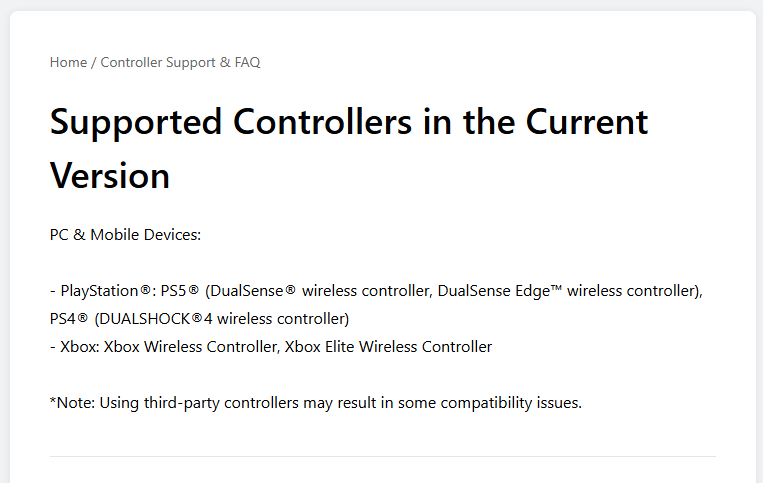
It also warns that using third-party controllers may cause compatibility issues, which matters if you plan to use popular “unofficial” pads (even ones that emulate XInput).
How to connect a controller on PC and mobile
The official guidance supports two connection methods on both PC and mobile.
USB wired connection
A wired setup is the simplest way to avoid pairing issues: connect the controller directly to your device using a USB cable. GRYPHLINE also recommends wired play on PC for DualSense/DualShock 4 if you want the best experience.
Bluetooth wireless connection
If your device supports Bluetooth, you can pair the controller over Bluetooth. If your PC lacks built-in Bluetooth, using an external Bluetooth adapter is noted as an option.
How to enable controller input in-game
Controller support in Endfield isn’t only about “the controller works”—it also includes how the game swaps its UI and input mode depending on what you press.
What you’ll see at login
At the login screen, pressing any controller input automatically switches the interface to the controller UI layout.
What you’ll see in gameplay
During gameplay, pressing any controller button typically triggers a prompt asking whether to switch to controller input. Confirming that prompt enables full controller gameplay in those scenarios.
Switching back to keyboard/touch
When you’re in the controller UI layout, pressing any keyboard key (PC) or tapping the touchscreen (mobile) triggers a prompt to switch back to the original input layout.
Where controller switching does not work
Endfield’s official FAQ calls out situations where you cannot switch input layouts. These include operator selection/naming screens, tutorial sequences, character dialogues or story cutscenes, and certain battle scenes/simulations.
Practically, this means you may still need to keep your keyboard (or touch controls) ready for specific moments even if you prefer playing primarily on a controller.
Text entry and “full functionality” expectations
Even with controller mode enabled, text entry depends on your platform rather than the controller itself. On PC, the official guidance is to use the keyboard for text fields; on mobile/PlayStation, you use the system on-screen keyboard.
For DualSense on non-PS5 platforms, GRYPHLINE notes that wired is recommended for “full functionality,” and that Bluetooth can limit certain features (for example, only adaptive triggers being supported, with vibration and controller speaker not supported). For official Xbox controllers, it notes full functionality on PC via Bluetooth and wired, while on mobile (Bluetooth) vibration and impulse triggers are not supported.
How to troubleshoot common “controller not detected” situations
The official docs focus on supported pads and connection methods rather than platform-by-platform troubleshooting, but you can still narrow problems quickly using what GRYPHLINE confirms.
-
Verify you’re using one of the officially listed controller models (PlayStation or Xbox families listed above).
-
Prefer USB wired first (especially for DualSense/DualShock 4 on PC), then try Bluetooth after confirming wired works.
-
If you use a third-party controller, keep in mind compatibility issues are explicitly possible even if the controller works in other games.
-
If audio output changes when connecting DualSense to PC, GRYPHLINE notes Windows may switch audio output to the controller, and you may need to manually switch it back.
If you want to play Arknights: Endfield with a controller, the official answer is yes—controller support is built into the current version, with specific supported PlayStation and Xbox controllers and both USB/Bluetooth connection options. The main thing to plan around is that input layout switching isn’t allowed in some specific screens and sequences, so it’s worth being comfortable swapping inputs when needed.