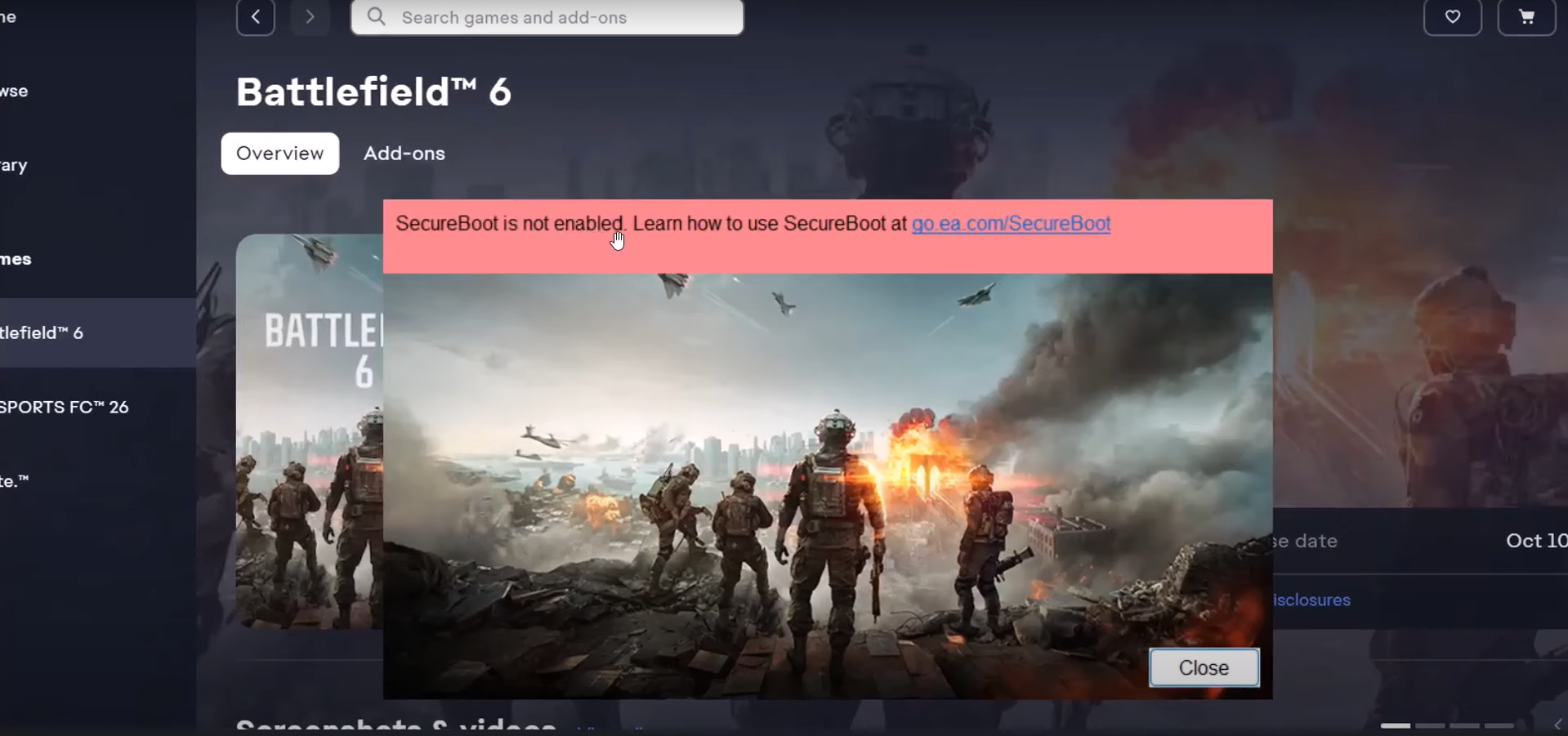
Battlefield 6 requires Secure Boot enabled on Windows 10 and 11 PCs to launch and play, as part of its anti-cheat measures. If this setting isn’t activated, the game won’t run and will prompt for Secure Boot to be turned on.
- What to know
- Why Battlefield 6 needs Secure Boot
- How to check and enable Secure Boot for Battlefield 6
- Troubleshooting Secure Boot issues
- How to check If your PC is running MBR or GPT.
- Check via Disk Management
- Step 1
- Step 2
- Step 3
- How to convert from MBR to GPT using MBR2GPT
- Step 1
- Step 2
- Step 3
- Step 4
- Step 5
- Step 6
- When MBR2GPT isn’t possible
- Wrapping up: Making Secure Boot ready
- Secure Boot and PC gaming security
- Wrapping up for Battlefield 6 on PC
What to know
- Secure Boot must be enabled to play Battlefield 6 on PC.
- The requirement is enforced for anti-cheat protection through EA’s Javelin Anticheat system.
- The setting is managed through your BIOS/UEFI firmware.
- If Secure Boot is not on, the game will display an error and not launch.
Battlefield 6 brings robust security measures to fight cheating, and one of the core requirements for PC players is enabling Secure Boot. This measure not only blocks malware but is used by EA’s anticheat system to prevent unauthorized apps and cheats from interfering with the game.
Why Battlefield 6 needs Secure Boot
Secure Boot is a feature built into Windows 10 and 11 PCs, designed to block harmful and unauthorized software from loading while the computer starts. For Battlefield 6, EA made this feature mandatory to help the Javelin Anticheat system work at the kernel level, ensuring that cheats and exploits are much harder to run. This aligns Battlefield 6 with other modern PC shooters like Valorant, which also demand heightened security for fair play.
How to check and enable Secure Boot for Battlefield 6
Here is how to enable TPM 2.0 and Secure Boot in a Windows 11 PC.
Step 1
Open the System Information window by typing msinfo32 into the Windows Start menu.

Step 2
Find the line labeled ‘Secure Boot State’ to see if it’s ON or OFF. A bit further up, check that ‘BIOS Mode’ displays ‘UEFI’. If BIOS Mode is not UEFI, Secure Boot cannot be enabled without additional motherboard support or disk formatting.

Step 3
Restart your PC and enter the BIOS/UEFI setup menu, typically by pressing F2 or Delete repeatedly as your system starts.
Step 4
Within BIOS/UEFI, find and activate Secure Boot. Turn off CSM (Compatibility Support Module) first if prompted, and make sure the boot disk uses the GPT partition scheme rather than MBR.
Step 5
Save changes and exit BIOS. After rebooting into Windows, recheck ‘msinfo32’ to confirm Secure Boot is now enabled. Proceed to launch Battlefield 6, which should now run without Secure Boot errors.
Visit this page for more help: How To Enable TPM 2.0 and Secure Boot in BIOS for Windows 11
Troubleshooting Secure Boot issues
- Make sure Windows is installed using UEFI and not Legacy/CSM mode.
- Convert your disk from MBR to GPT if necessary with tools like
mbr2gpt(built into Windows). - If your motherboard doesn’t support Secure Boot, unfortunately, Battlefield 6 won’t run on your system. Consider contacting your hardware manufacturer for assistance or verifying hardware compatibility with Secure Boot before upgrading components.
How to check If your PC is running MBR or GPT.
If your PC is running an MBR partition scheme, Secure Boot won’t work until you convert it to GPT. Windows provides a safe and straightforward way to upgrade your disk layout while keeping your files intact.
To check if your PC is running MBR or GPT partition scheme, you can:
Check via Disk Management
Step 1
Right-click the Start button and select “Disk Management.”

Step 2
In the lower pane, right-click the disk you want to check (e.g., “Disk 0”) and select “Properties.”

Step 3
Go to the “Volumes” tab. Look for “Partition style,” which will say either “Master Boot Record (MBR)” or “GUID Partition Table (GPT).”

How to convert from MBR to GPT using MBR2GPT
To enable Secure Boot on your PC, you need your system drive (where Windows is installed) to use the GPT partition style instead of MBR. This can be achieved without data loss using Microsoft’s MBR2GPT tool, available on Windows 10 (version 1703 and newer) and Windows 11.
Step 1
Back up key files to an external drive, even though MBR2GPT preserves data during conversion.
Step 2
Open Command Prompt as administrator (search for “cmd” in Start, right-click, select “Run as administrator”).

Step 3
Type mbr2gpt /validate /disk:0 /allowFullOS and press Enter. Replace 0 with the number of your system disk if different. This command validates if your disk can be safely converted.

Step 4
If validation is successful, type mbr2gpt /convert /disk:0 /allowFullOS and press Enter to start the conversion.

Step 5
Once complete, restart your computer, enter the BIOS/UEFI menu, and change Boot Mode from Legacy/CSM to UEFI. This step is crucial for Secure Boot.
Step 6
Save the BIOS changes and reboot. Your PC should now boot using the GPT partition style. Secure Boot can now be enabled in BIOS/UEFI settings.
When MBR2GPT isn’t possible
MBR2GPT only works on system disks. For purely data drives or unsupported OS versions (like Windows 7), back up data and consider other conversion tools or a clean install, keeping in mind data loss may occur.
Wrapping up: Making Secure Boot ready
Switching your disk from MBR to GPT is essential for Secure Boot—using MBR2GPT ensures safety and speed. Always confirm you’re on Windows 10/11 and back up data to avoid loss. After conversion, toggle your firmware to UEFI and enable Secure Boot for a secure, compatible gaming experience with Battlefield 6.
Secure Boot and PC gaming security
Enabling Secure Boot for Battlefield 6 not only meets the game’s requirements but also provides your system with enhanced defenses against malicious programs and kernel-level exploits. This contributes to a fairer, safer online community.
Wrapping up for Battlefield 6 on PC
In short, Secure Boot must be turned on for Battlefield 6 to launch or work on any PC. Be sure your system supports and uses UEFI firmware, and follow the BIOS instructions to enable Secure Boot before jumping into the game. This step ensures the best protection against cheaters and a smoother gaming experience for everyone.