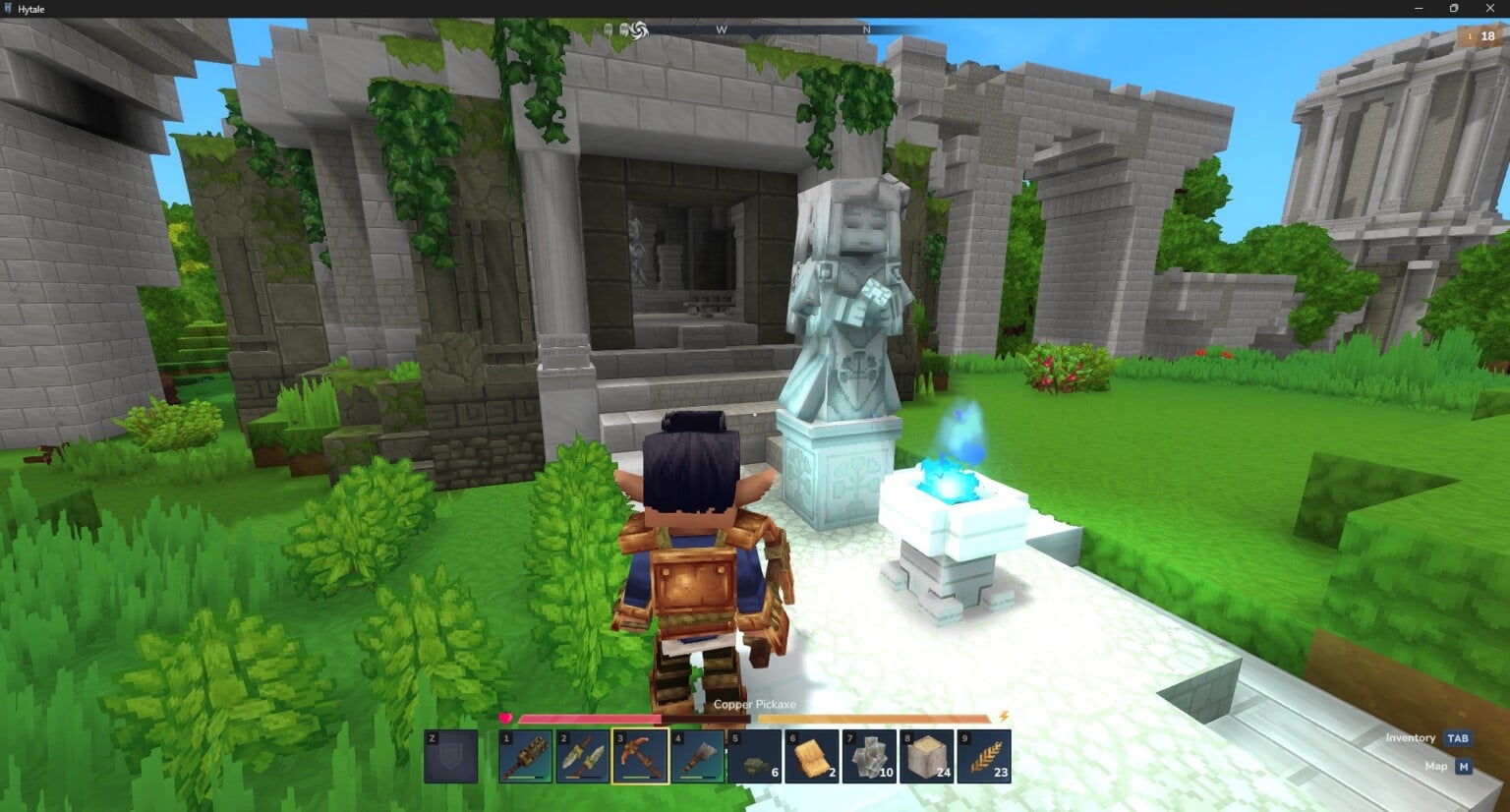
What to know
-
Access username change option through accounts.hytale.com under Game Profiles.
-
Full username swaps allowed once every 30 days; capitalization anytime.
-
Rules: 3-16 characters, letters/numbers/underscores only, no profanity.
-
Restart the game client after changes to see updates in sessions.
Personalize your Hytale profile easily from any browser by logging into your account dashboard. This keeps your display name consistent across servers and adventures.
How to access your Hytale account
Head to the official site first.
Step 1: Visit accounts.hytale.com
Open your browser and go to accounts.hytale.com.
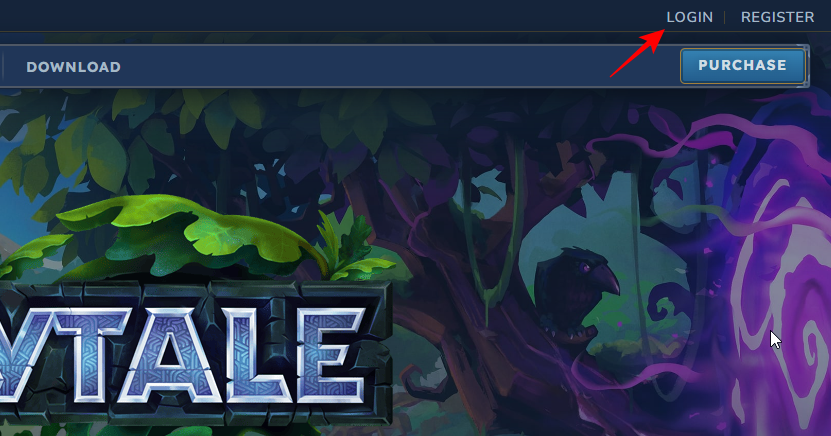
Step 2: Log in
Click login in the top right; use email, Epic, or other linked method. Verify with email code if prompted.
How to change your username
Navigate to profiles after logging in.
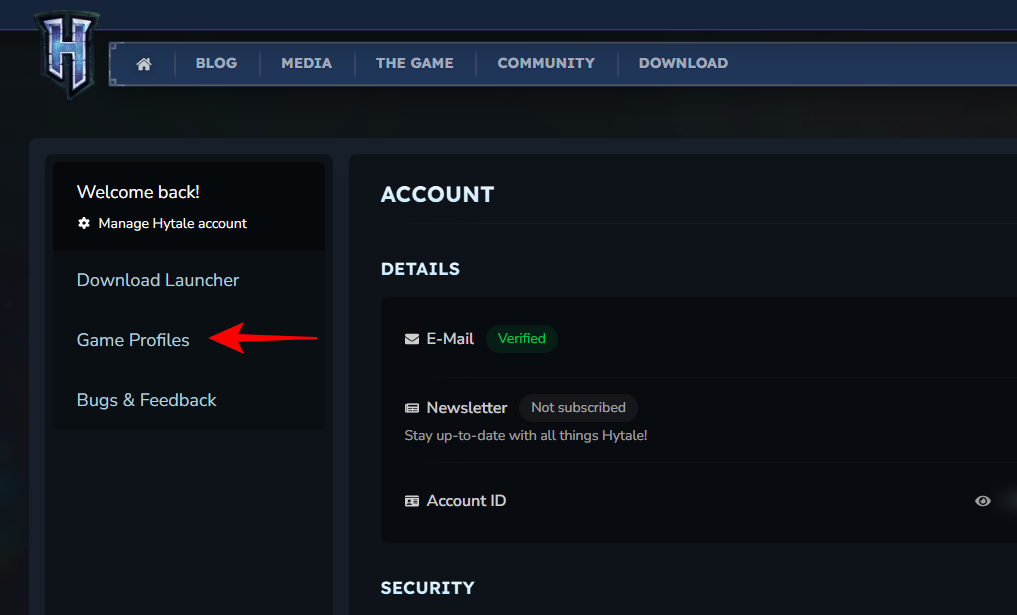
Step 1: Select Game Profiles
Click “Game Profiles” on the left sidebar or account page.
Step 2: Choose your profile
Pick the relevant game profile from your list.
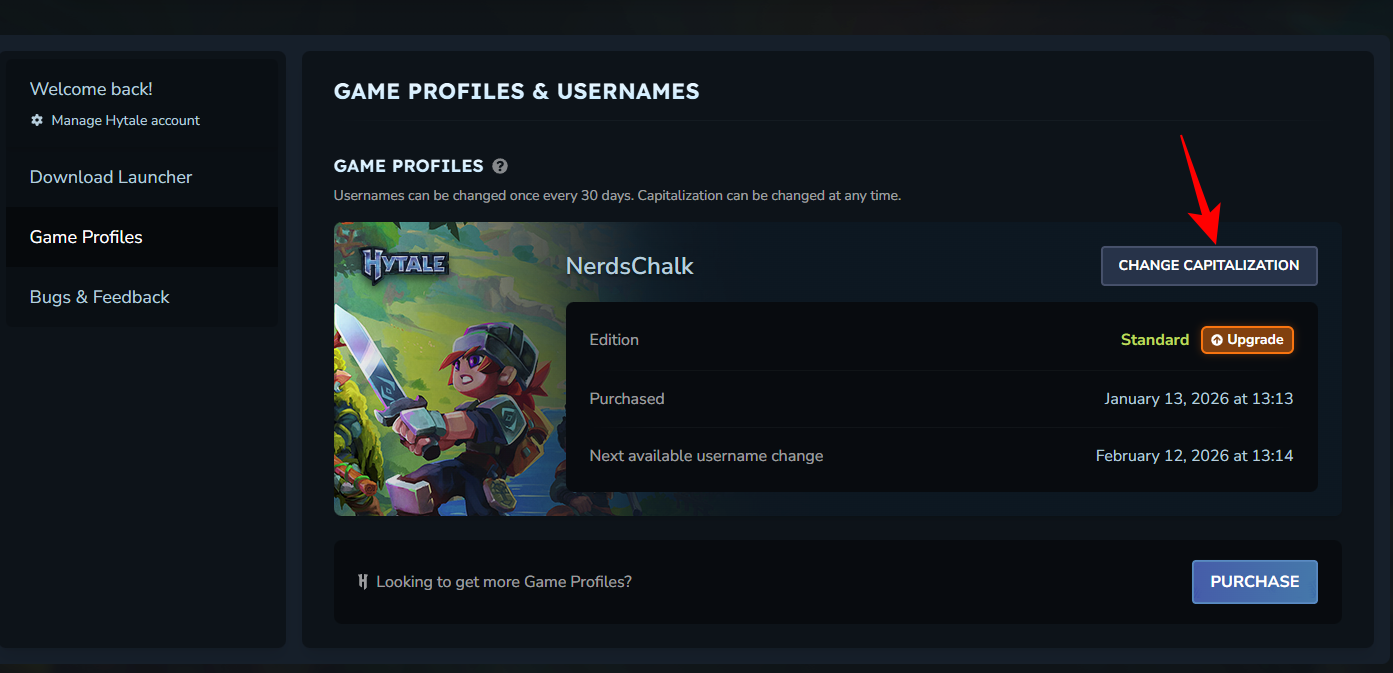
Step 3: Click Change Username
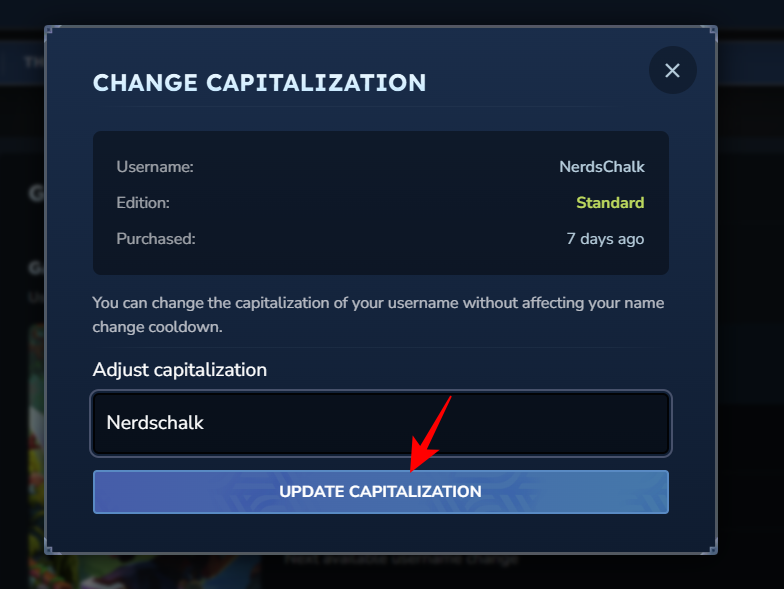
Hit Change Username” (or “Change Capitalization” for case tweaks).
Step 4: Enter new name
Type your desired username; check rules in the popup.
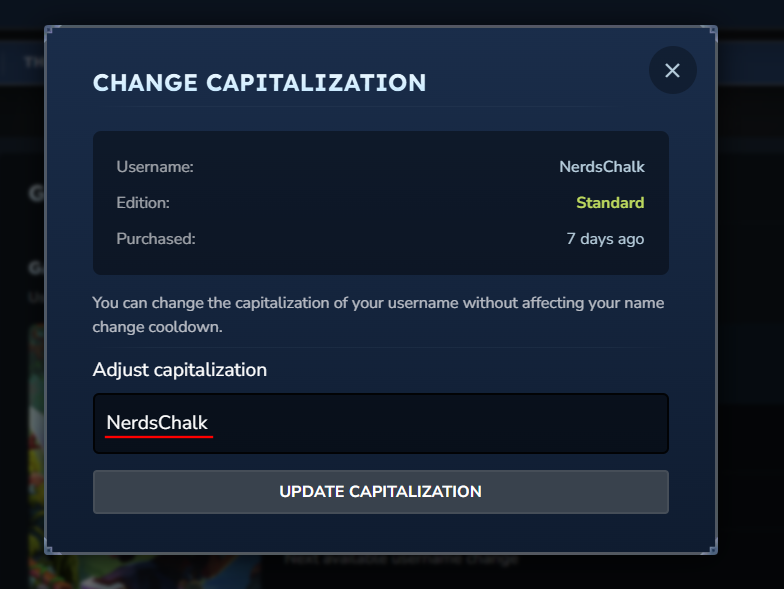
Step 5: Confirm and update
Press “Update Capitalization” or “Change Username”; restart Hytale launcher.
Common username rules and tips
Follow these to avoid errors.
-
Names must be unique; try variations if taken.
-
No spaces, special chars beyond underscores.
-
Changes apply after relaunch; test in single-player first.
Secure your ideal Hytale username swiftly to match your playstyle, remembering the cooldown keeps things fair across the community.