Explore how to control the cinematic horse camera in Ghost of Yotei, including toggling black bars, camera angles, and practical riding tips.
What to know
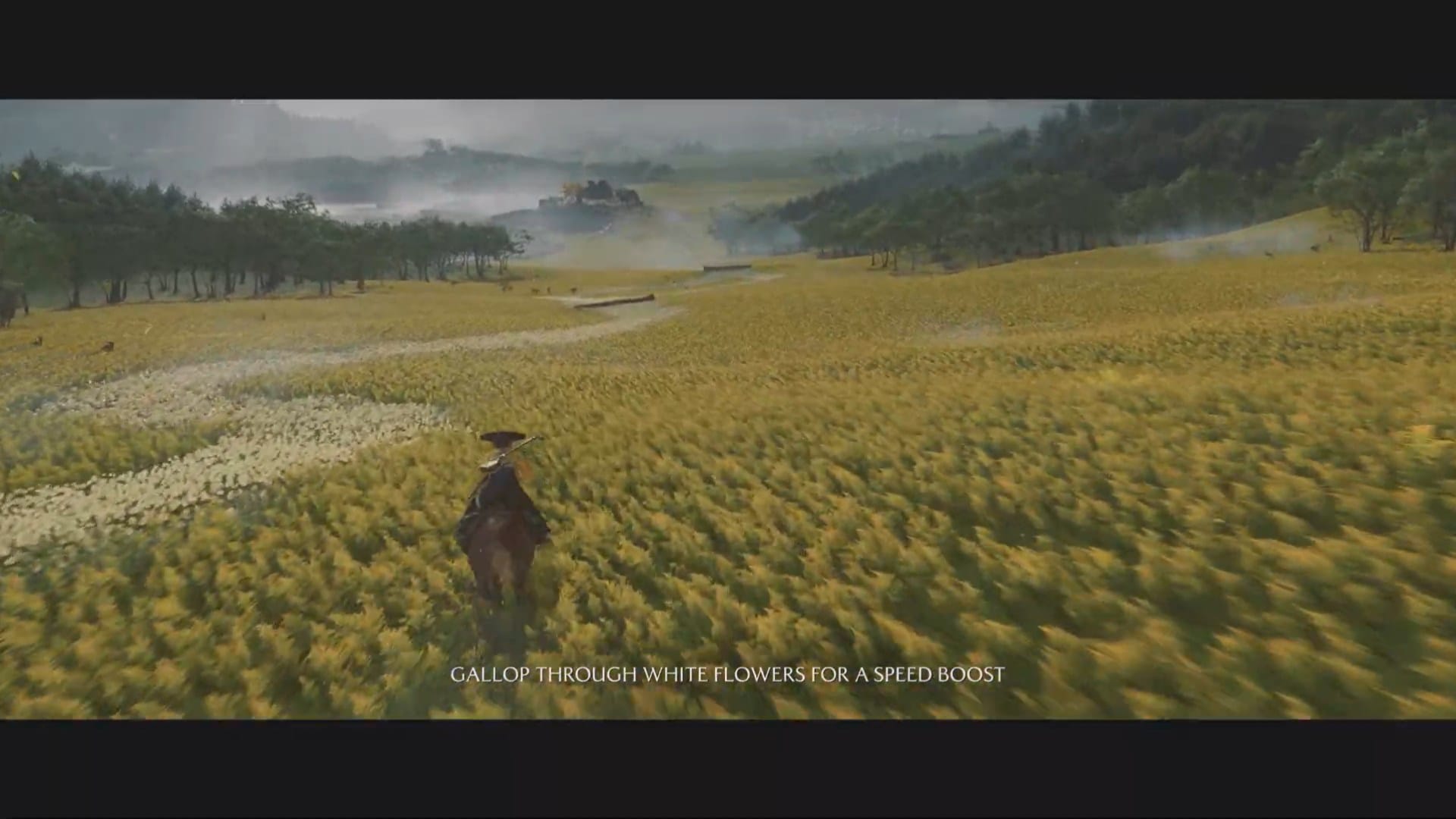
- The camera defaults to a cinematic widescreen with black bars when riding your horse.
- You can cycle between three views (cinematic with black bars, widescreen without black bars, and default over-the-shoulder) by pressing R3 (right stick down).
- The cinematic effect is intended for visual immersion but can be toggled off at any time.
- Camera switching is not highlighted in-game, so most players discover it only from guides or community tips.
Getting around Mount Yotei is central to Ghost of Yotei’s gameplay, with your horse serving as the main method of travel across the expansive Ezo region. While the cinematic camera is meant to enhance immersion, many find it impractical for exploration or action. Here’s how the system works, how to switch views, and what’s important for navigating the wilds on horseback.
The cinematic horse camera explained
When riding your horse, the camera by default crops into a panoramic widescreen, often with black bars at the top and bottom—the familiar “letterbox” effect. This is meant to instill a sense of epic sweeping vistas around Mount Yotei and can look beautiful when crossing open terrain. However, the view can restrict awareness of nearby threats or collectible items, and does not offer the most precise control.
How to change the horse camera in Ghost of Yotei
Below is a simple step-by-step guide for toggling the horse camera and understanding each mode.
Step 1
Mount your horse by pressing the usual button prompt (typically R2 or the contextual button depending on your controller setup).

Step 2
Once you start riding, notice if the screen crops to a cinematic widescreen with black bars.

Step 3
Press the right analog stick inward (R3) to cycle the camera view. Each press changes to the next mode:
- First press: Cinematic with black bars
- Second press: Panoramic (no bars)
- Third press: Standard third-person.
Step 4
Repeat step 3 to find the camera perspective that suits your situation or preference—toggle as often as necessary during your journey.
Step 5
If you dismount and remount, the camera will likely reset to the default cinematic mode. Just use R3 again as needed.
Horse camera modes in Ghost of Yotei
| Camera mode | Appearance | Purpose / use case |
|---|---|---|
| Cinematic (Black Bars) | Wide, letterboxed (black bars) | Scenic travel, immersion |
| Cinematic (No Bars) | Wide, full view (no black bars) | Wider awareness, still cinematic |
| Standard third-person | Normal over-the-shoulder | Navigation, action, close control |
You have direct control over this feature. Pressing the R3 button (by clicking the right stick) toggles through these three camera modes:
- Cinematic panoramic view with black bars for a filmic experience.
- A similar panoramic view but without the letterbox bars for more screen visibility.
- A normal, closer third-person camera similar to the default on-foot perspective, allowing for better navigation and awareness.
Most players prefer the third mode in areas needing more situational awareness or during fast-paced encounters. It’s notable that this control option isn’t explained in the game’s opening tutorials, leaving many players unaware until they discover it through a guide or online discussion.
Mastering camera controls while on horseback can transform your journey up and around Mount Yotei—from breathtaking cinematic scenery to tactile navigation during tense moments. Cycling camera modes gives you the best of both worlds: full immersion and practical control, ensuring exploration never feels restricted.