Unlock the strongest sticky aim in Black Ops 7 by using Target and ADS Aim Assist ON, Dynamic curve, ADS Sensitivity Transition on Gradual or Instant, and adjusting sensitivity for fast yet precise tracking. Perfect your aim for every close-range encounter!
If you want to master your aim in Call of Duty: Black Ops 7, optimizing your controller settings for sticky aim is essential. Sticky aim lets your reticle “stick” to targets during close encounters, improving accuracy and target tracking. This guide lays out the ideal settings and tips to get strong, reliable aim assist for dominating gunfights.
Why sticky aim is important
Sticky aim makes your crosshair slightly magnetic to targets while aiming, which helps when tracking fast-moving enemies or landing precision shots in tight situations. This is mostly controlled by aim assist, a crucial feature for controller users to stay competitive in Black Ops 7’s intense multiplayer gameplay.
Key Aim Assist settings
Target Aim Assist: ON

Location: Controller > Aiming >Target Aim Assist
Enables the core sticky aim assist and helps your reticle stay locked onto enemies. Make sure it’s always activated.
ADS Aim Assist: ON

Location: Controller > Aiming > ADS Aim Assist
Crucial for landing shots while aiming down sights; it boosts precision in target acquisition during gunfights.
Aim Assist Curve Type: Dynamic

Location: Controller > Aiming advance setting > Aim Assist Curve Type
Dynamic provides smooth and responsive aim slowdown near enemies, maximizing stickiness. Standard is an option for predictability if you’re new to FPS games.
ADS Sensitivity Transition Timing: Gradual or Instant

Location: Controller > Aiming advance setting > ADS Sensitivity Transition Timing
Gradual makes for a smoother sensitivity shift between hip fire and ADS. Use Instant if you prefer snappy target-locking when aiming quickly.
Custom Sensitivity Per Zoom: Recommended

Location: Controller > Aiming advance setting > Custom Sensitivity Per Zoom
Lower sensitivity for close/medium scopes and higher for long-range scopes will keep your aim assist working reliably at all distances.
Sensitivity and Deadzone Settings
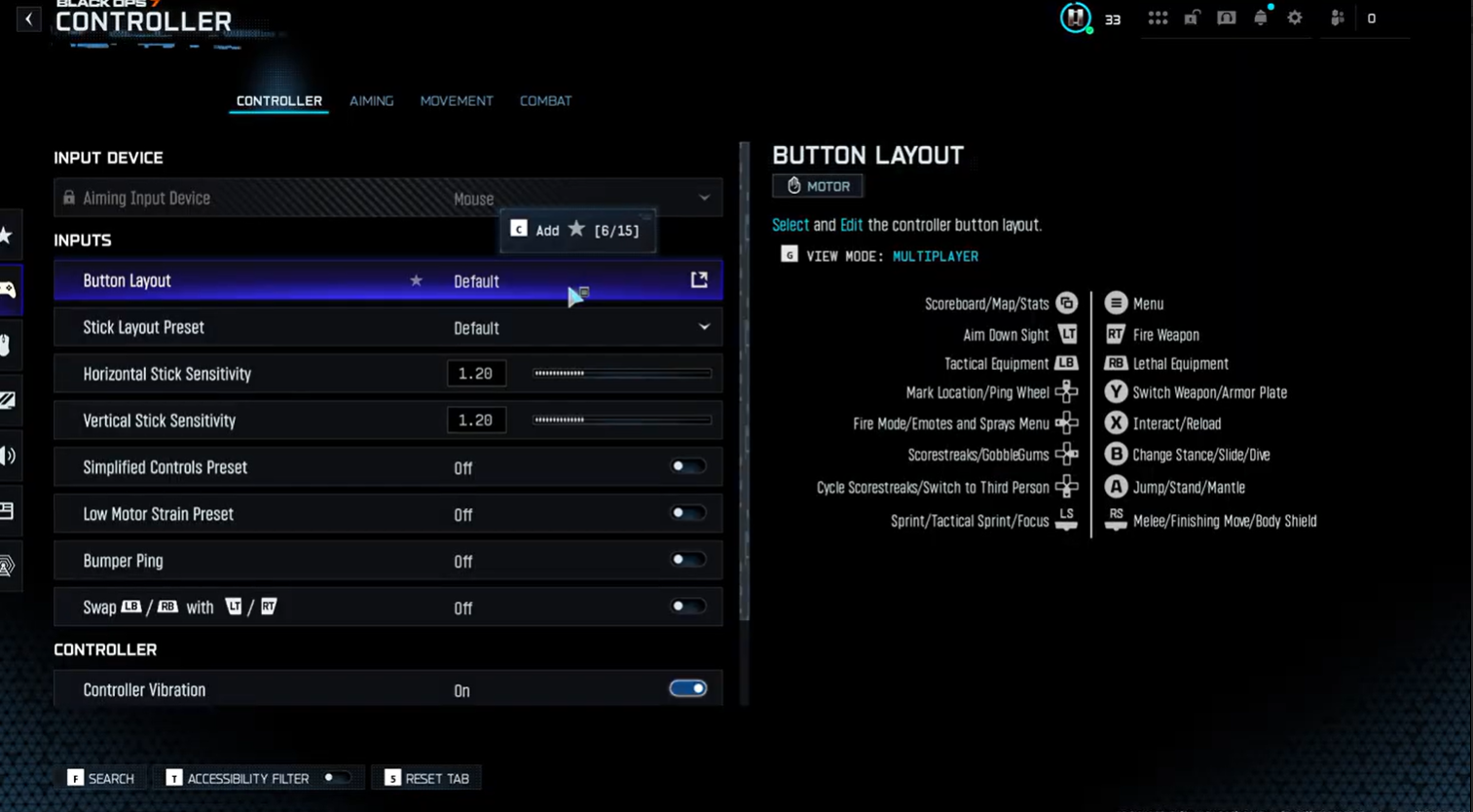
Horizontal and Vertical Stick Sensitivity:

Location: Controller > Horizontal and Vertical Stick Sensitivity
- Around 1.60 to 1.65.
- This range balances fast target acquisition with fine control for adjustments.
Right Stick Deadzone (Controller):

Location: Controller > Right Stick Deadzone
- Minimum 3–6, Maximum 95–100.
- Lower minimum deadzone increases stick responsiveness for micro adjustments, while a high maximum ensures full movement range is usable without sluggishness.
Left Stick Deadzone (Controller):

Location: Controller > Left Stick Deadzone
Minimum 0–6, Maximum 60–70
- Keeps movement smooth with minimal stick drift or unintended input.
ADS Sensitivity Multiplier: 0.80 to 1.0

Location: Controller > Aiming > ADS Sensitivity Multiplier
Values below 1.0 amplify sticky aim assist at close and mid-range fights by slightly slowing your ADS sensitivity for tighter control.
More settings
Motion Blur (World and Weapon): OFF

Location: Graphics > View > Motion Blur (World and Weapon)
Improves clarity for enemy tracking during fast-paced aim adjustments.
Camera Shake: 50% or lower

Location: Graphics > View > Camera
Minimizes screen distractions, letting you aim and react with focus in gunfights.
FOV Sensitivity Scaling: OFF

Location: Controller > Motion Sensor Function Advance Setting > FOV Sensitivity Scaling
Ensures your aim maintains a consistent feel regardless of changes to your field of view.
Field of View (FOV): 100 to 110

Location: Quick Setting > View > Field of View (FOV)
A wider field boosts situational awareness and helps in spotting enemies, keeping your aim assist balanced.
Tips
- Center your crosshair on common enemy paths before aiming down sights for quicker lock-on.
- Use the controller’s jump/slide/mantle button layout that suits your playstyle to keep you mobile.
- Practice adjusting sensitivity gradually to find your comfortable sweet spot.
- Turn off trigger effects on controllers for faster shooting response.
In a gist!
| Setting | Recommended Value | Purpose |
|---|---|---|
| Target Aim Assist | ON | Activates sticky aim assist functionality |
| ADS Aim Assist | ON | Ensures aim assist while aiming down sights |
| Aim Assist Curve Type | Dynamic | Smooth, responsive aim slowdown near targets |
| ADS Sensitivity Transition | Gradual or Instant | Controls ADS sensitivity shift speed |
| Custom Sensitivity Per Zoom | Lower for close, higher for long scopes | Consistent aim assist at all zoom levels |
| Horizontal/Vertical Sensitivity | 1.60 to 1.65 | Balanced speed and fine control |
| Right Stick Deadzone (Min/Max) | 3–6 / 95–100 | Responsiveness and full stick range utilization |
| Left Stick Deadzone (Min/Max) | 0–6 / 60–70 | Smooth movement, minimal stick drift |
| ADS Sensitivity Multiplier | 0.80 to 1.0 | Improved aim control at close–mid ranges |
| Motion Blur (World and Weapon) | OFF | Better visual clarity |
| Camera Shake | 50% or less | Reduced distraction |
| FOV Sensitivity Scaling | OFF | Consistent aim feel across FOV |
| Field of View (FOV) | 100 to 110 | Wider view for situational awareness |
By applying these settings and tweaking them to your personal comfort, you will experience a much stronger sticky aim assist in Black Ops 7 — enabling you to track enemies smoothly and win more fights with precision. Take time to experiment and adjust these parameters to fit your unique playstyle and controller sensitivities for the best possible result.