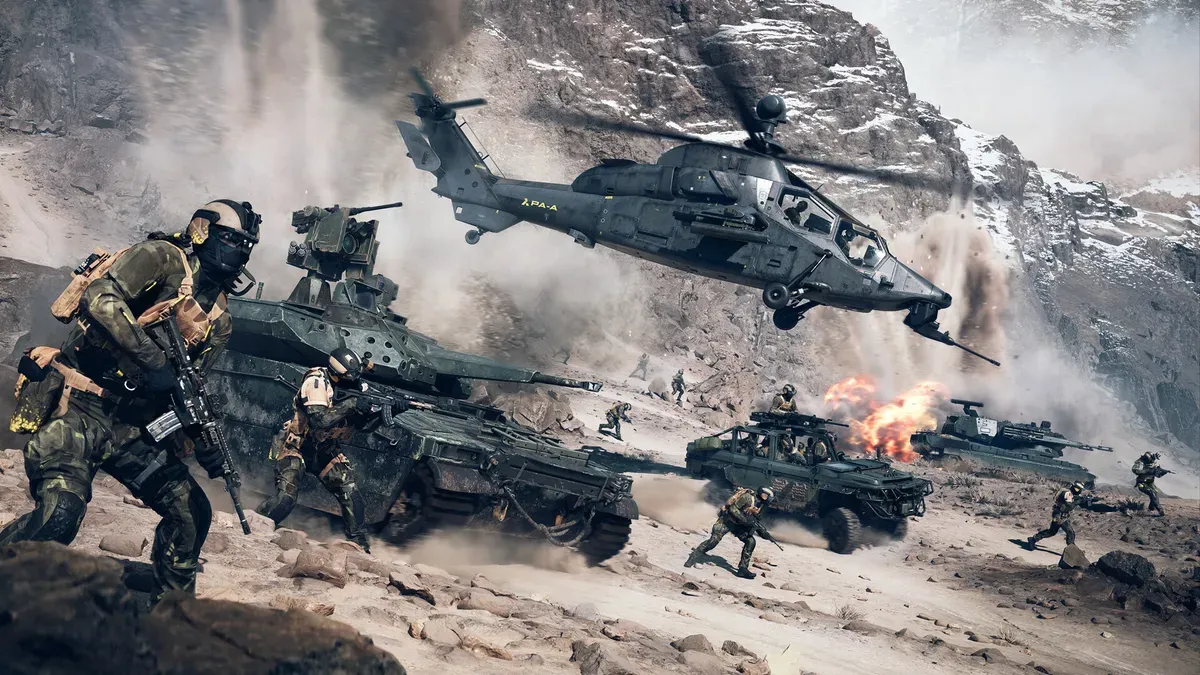
Battlefield 6 voice chat issues often come from misconfigured settings or driver problems. Here’s how to get your mic and squad communication working again.
- What to know
-
How to fix Battlefield 6 voice chat issue
- Fix 1: Enable and configure voice chat in Battlefield 6
- Fix 2: Check your microphone and audio devices
- Fix 3: Disable conflicting chat systems
- Fix 4: When teammates’ voices cut out
- Fix 5: Restart game and update your drivers
- Fix 6: Adjust microphone threshold and sensitivity
- Fix 7: Temporary workarounds
- Why Battlefield 6 voice chat might not be working
- Restoring communication in Battlefield 6
What to know
- Restart Windows Audio services and update sound drivers.
- Check in-game voice chat is enabled and volume levels are correct.
- Ensure system microphone permissions are granted to Battlefield 6.
- Console players should double-check headset connections and mute toggles.
Voice chat in Battlefield 6 can sometimes break mid-match or fail entirely, preventing players from coordinating in crucial moments. Whether you’re on PC, PlayStation, or Xbox, most fixes involve quick system and in-game adjustments that restore communication quickly.
How to fix Battlefield 6 voice chat issue
Fixing Battlefield 6 voice chat is usually a matter of resetting permissions, updating drivers, and rechecking in-game audio options. Check out these fixes for voice chat not working in Battlefield 6:
Fix 1: Enable and configure voice chat in Battlefield 6
Follow these steps for enabling voice chat in Battlefield 6:
Step 1
Open Options → Sound → Voice Chat. Ensure Enable Voice Chat is turned On.
Step 2
Check Microphone Mode (Open Mic or Push-to-Talk).
Step 3
Set Voice Chat Volume to an audible level.
Step 4
Verify the correct input/output devices are selected. If these settings are greyed out, restart the game — it may indicate a temporary device detection bug.

Fix 2: Check your microphone and audio devices
Checking you device setting is a must, here is how you can do it:
Checking audio device settings on PC
Step 1
Go to Windows Settings → System → Sound → Input and confirm your mic is active.
Step 2
Open Sound Control Panel → Recording tab and verify your preferred mic is enabled and set as Default Device.
Step 3
In the Advanced tab, disable exclusive mode by unchecking “Allow applications to take exclusive control of this device.”
Step 4
In Battlefield 6 audio options, manually select your headset mic instead of “Default.”
Checking audio device settings on Console
Step 1
Open Audio Settings in your PS5 or Xbox dashboard.
Step 2
Ensure your headset mic is active and not muted.
Step 3
Check controller headset ports for loose connections.
Step 4
Confirm party privacy settings allow voice communication.
Fix 3: Disable conflicting chat systems
If you use external voice apps like Discord, Steam Chat, or console party chat, they can override the in-game system. Here is how you can disable the conflicting chat systems:
- Close or leave any active console parties.
- Exit third-party chat software before testing the game.
- Ensure only Battlefield 6 has mic access while troubleshooting.
Fix 4: When teammates’ voices cut out
If your teammates’ voices randomly disappear or distort during matches:
- Lower Voice Chat Ducking to around 25 (keeps game sounds balanced).
- Avoid high CPU load (streaming + high graphics can cause packet loss).
- Use a wired connection instead of Wi-Fi for voice stability.

Fix 5: Restart game and update your drivers
Follow these steps to make sure your device drivers are updated and Battlefield 6 is working properly:
Step 1
Restart Battlefield 6 and your PC or console.
Step 2
Update your audio drivers, headset firmware, and system software.
Step 3
On PC, disable unused devices in Device Manager → Audio Inputs and Outputs to prevent conflicts.
Step 4
If the issue appears after plugging/unplugging a headset mid-game, restart the title completely.

Fix 6: Adjust microphone threshold and sensitivity
Follow these steps to adjust microphone threshold in Battlefield 6:
Step 1
In Voice Chat Settings, lower the Mic Threshold (too high a threshold may stop voice pickup).
Step 2
Set to around “–80 dB” if the game allows manual adjustment.
Step 3
Switch from Push-to-Talk to Open Mic to test responsiveness.
Step 4
Move your mic closer and ensure there’s no background muting or interference.

Fix 7: Temporary workarounds
If none of the above works:
- Use an external voice chat like Discord until an update arrives.
- Validate or repair game files (on PC).
- Reinstall Battlefield 6 as a last resort.
- Check official patch notes — some voice chat bugs are under investigation and may need an update to resolve.
Why Battlefield 6 voice chat might not be working
When Battlefield 6’s voice chat stops working, it’s often not a single issue but a combination of small configuration problems. The most common reasons include:
| Cause | Description |
|---|---|
| Voice chat disabled in settings | Sometimes voice chat is turned off after an update or by default on first launch. |
| Wrong input/output device | The game may select the wrong microphone or playback device. |
| Third-party app interference | Discord, Steam, or console party chat can override in-game mic access. |
| Server or region issues | Certain regions or servers may experience temporary chat desyncs. |
| Outdated or buggy drivers | Old sound drivers or corrupted firmware can stop voice recognition. |
| High mic threshold or muted audio | If the mic threshold is too high or chat volume is muted, no sound is transmitted. |
Understanding these underlying causes will make it easier to apply the right fix without unnecessary trial and error.
Restoring communication in Battlefield 6
By following these step-by-step fixes, you can usually restore Battlefield 6’s voice chat in minutes. Most issues stem from simple settings conflicts or outdated drivers, so checking your audio input/output, enabling in-game chat, and adjusting mic sensitivity often solve the problem without technical support. Stay updated for upcoming patches if the issue persists.