Master the art of aerial combat in Battlefield 6 with thrust vectoring—the game-changing jet technique that transforms dogfights
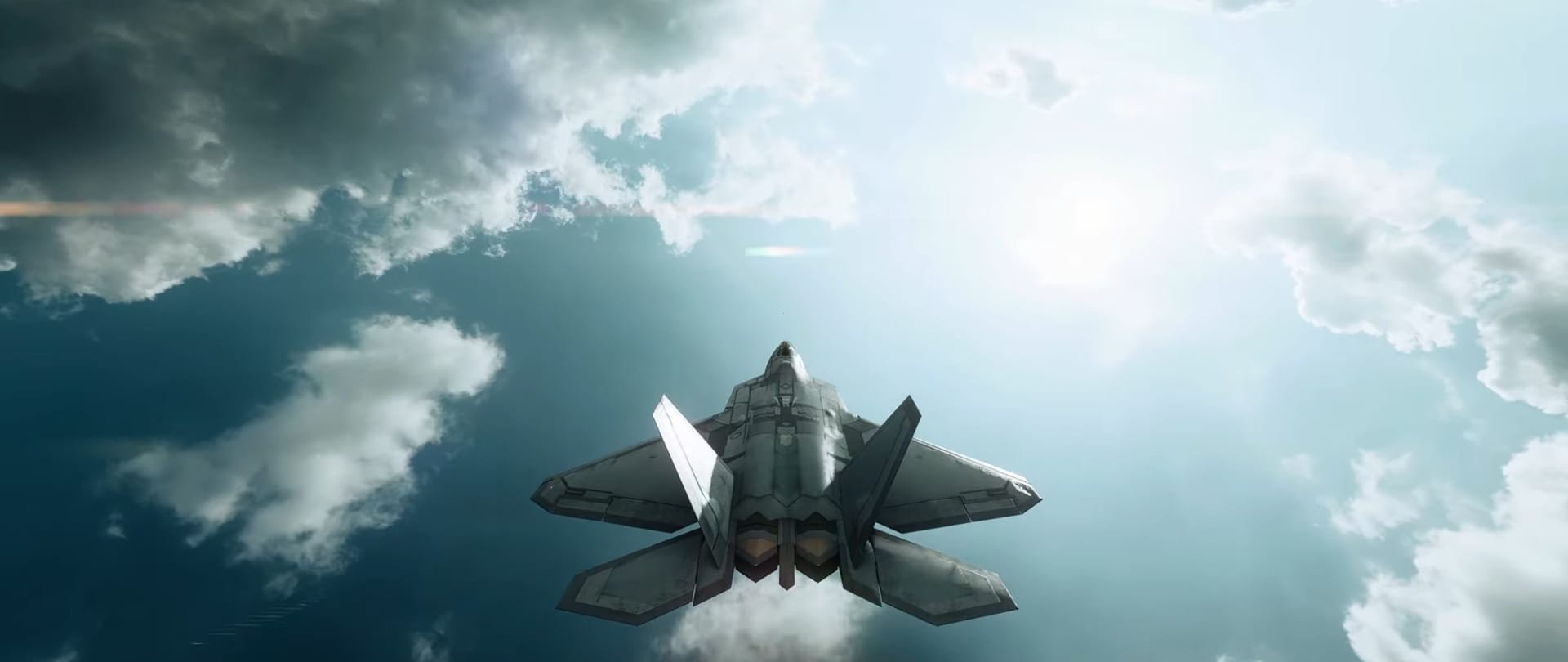
Thrust vectoring represents one of Battlefield 6’s most revolutionary aerial combat features, bringing real-world fighter jet technology into the virtual battlefield. This advanced technique allows skilled pilots to manipulate jet thrust direction, enabling maneuvers that would be impossible with traditional flight controls and fundamentally changing how dogfights unfold in the skies above the battlefield.
Understanding thrust vectoring mechanics

Thrust vectoring works by redirecting the jet’s engine exhaust, allowing the aircraft to move in ways that defy conventional aerodynamics. The system activates when pilots simultaneously engage the brake and afterburner controls, causing the jet’s thrust nozzles to vector in different directions based on pilot input. This creates what essentially amounts to a full-body air brake while maintaining the ability to change direction mid-flight.
The technology draws from real-world fighter jets, where computers manage complex thrust calculations. In Battlefield 6, this translates to gameplay mechanics that let pilots perform dramatic maneuvers reminiscent of Top Gun movies, though these techniques require significant skill to master effectively.
Quick Guide for Thrust Vectoring
| Platform | Control Type | Input Method | Specific Controls |
|---|---|---|---|
| PC (Keyboard & Mouse) | Primary Activation | Simultaneous Key Press | Hold S (Throttle Down) + Shift (Afterburner) |
| PC (Keyboard & Mouse) | Alternative Method | Mouse Button Binding | Bind Afterburner to Mouse Button + S key |
| PC (Keyboard & Mouse) | Directional Control | Keyboard | W (Pitch Down), S (Pitch Up), A/D (Roll), Q/E (Yaw) |
| PC (Keyboard & Mouse) | Recommended Binding | Spacebar / Alt Setup | Spacebar (Pitch Up), Left Alt (Pitch Down) |
| PlayStation 5 | Primary Activation | Controller Combination | Hold Left Stick Down + L3 (Left Stick Click) |
| PlayStation 5 | Directional Control | Right Stick | Use Right Stick for maneuvering while thrust vectoring is active |
| PlayStation 5 | Alternative Description | Brake + Boost | Hold brake control + engage afterburner simultaneously |
| Xbox Controller | Primary Activation | Controller Combination | Hold Left Trigger + Left Stick Click |
| Xbox Controller | Directional Control | Right Stick | Use Right Stick movements for vectored thrust direction |
| Xbox Controller | Alternative Setup | Aircraft Controls | Use Aircraft Alternate control scheme for better separation |
How to activate thrust vectoring on keyboard and mouse

Step 1: Configure basic controls
Set up your aircraft controls with throttle up on Shift, throttle down on S or Z, and afterburner on Shift with an additional mouse button binding. It is recommended to bind afterburner to both Shift and a mouse button for easier access during complex maneuvers.
Step 2: Enter thrust vectoring mode
Hold the throttle down key (S) while simultaneously pressing the afterburner key (Shift). This combination activates the thrust vectoring system, causing the jet’s thrust nozzles to redirect based on your directional inputs.
Step 3: Execute directional maneuvers
Once thrust vectoring activates, use your normal flight controls to direct the vectored thrust. Press W to pitch down, S to pitch up, A and D to roll left and right, and Q and E for yaw movements. The jet will respond dramatically to these inputs while maintaining the vectored thrust state.
Step 4: Maintain altitude awareness
Keep monitoring your altitude during thrust vectoring, as the aircraft will gradually lose height while performing these maneuvers. Plan your maneuvers with sufficient altitude to recover safely before returning to normal flight.
How to use thrust vectoring on controller

Step 1: Set controller bindings
Configure your controller with afterburner on L3 (left stick click) and ensure your throttle controls are properly mapped to the triggers. The default aircraft alternate control scheme works well for thrust vectoring operations.
Step 2: Activate thrust vectoring mode
Hold down your brake control (typically left trigger while pulling down on the left stick) and simultaneously engage the afterburner by clicking L3. This combination puts the jet into thrust vectoring mode.
Step 3: Control vectored thrust direction
Use your right stick to maneuver while thrust vectoring remains active. Pull the right stick in different directions to execute rolls, pitches, and yaw movements while the thrust vectors respond to your inputs.
Step 4: Practice smooth transitions
Work on smooth transitions between thrust vectoring and normal flight to avoid losing control during recovery. The jet becomes less responsive immediately after thrust vectoring, requiring careful throttle management to regain normal flight characteristics.

Thrust vectoring gives an edge in agility and situational control during aerial combat. Mastering its activation, combining it with roll/pitch inputs, and managing speed vs control tradeoffs will let the advantage shine. In close dogfights or evasive scenarios, vectoring can make the difference—but it’s less useful when cruising or engaging at long distances.