A quick overview of Battlefield 6 packet loss and rubberbanding issues, with practical fixes for smoother gameplay.
- What to know
- What causes packet loss and rubberbanding in Battlefield 6
- Is there a proven fix?
- Basic fixes to reduce packet loss and rubberbanding
- How to optimize your network for Battlefield 6
- Dealing with persistent issues
- What to expect when packet loss and rubberbanding occur
- Nothing fixes rubberbanding?
- Wrap-up — improving Battlefield 6 gameplay connectivity
What to know
- Rubberbanding is caused by network synchronization failures due to packet loss and high or unstable ping.
- Packet loss leads to delayed or lost movement data between your client and the game server, causing snapping back or lag.
- Common fixes include using a wired connection, closing background apps, updating network drivers, and using game acceleration tools.
- Persistent issues might require optimizing router settings, contacting your ISP, or using gaming VPNs for better routing.
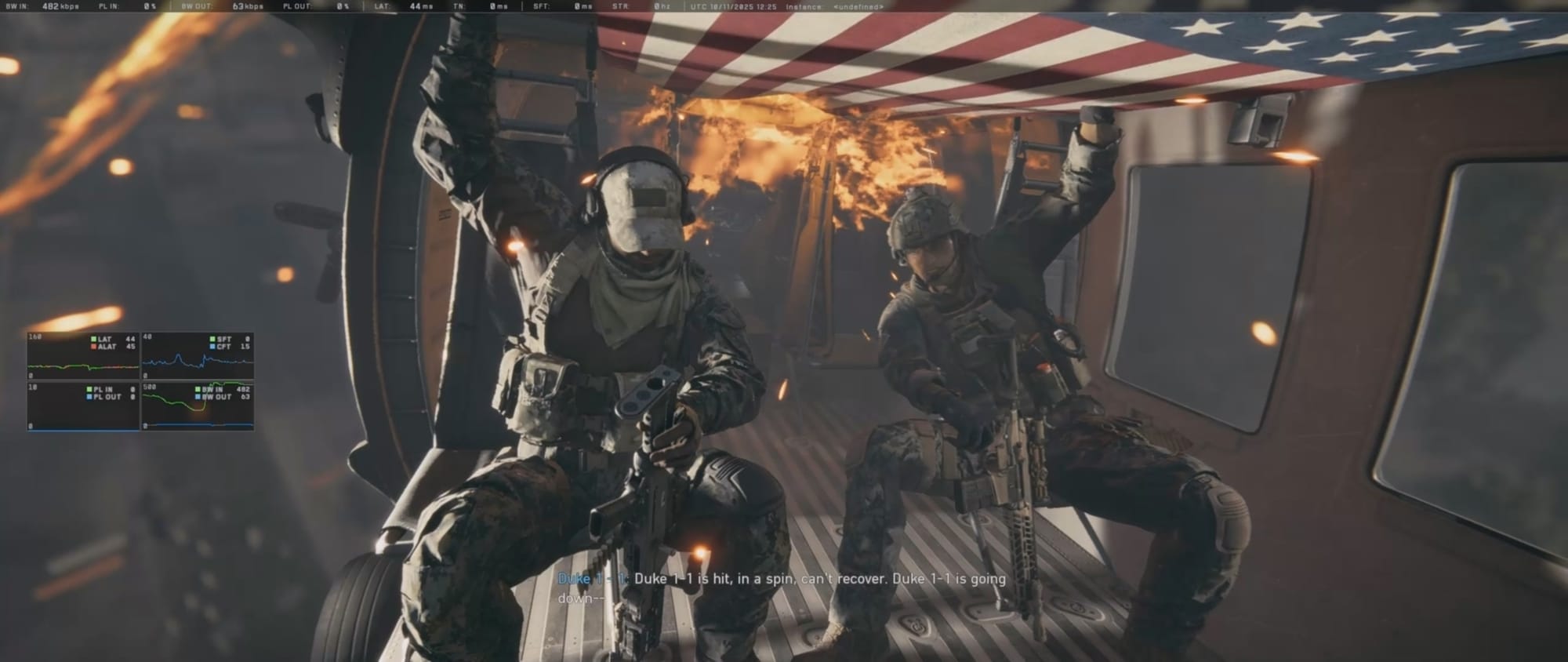
Packet loss and rubberbanding in Battlefield 6 manifest as sudden snapping back of characters, delayed actions, and stuttering movement. These network-related issues arise when the server and client fail to stay synchronized because of missing or delayed data packets or high ping spikes. Understanding and fixing these problems can improve gameplay significantly.
What causes packet loss and rubberbanding in Battlefield 6
The main causes include:
- Packet loss: Missing or dropped game data packets between your device and the server cause the server to correct your position abruptly, resulting in rubberbanding.
- High ping and jitter: Delays above 150ms and fluctuating latency confuse the game’s client-server synchronization.
- Wi-Fi instability: Wireless connections are prone to interference, causing packet loss.
- ISP routing inefficiencies: Poor or long network paths increase ping and packet loss.
Is there a proven fix?
Sadly, no. It’s a server side issue that you can’t fix.
But if you are unsure about your internet, you can check the fixes below to make sure that nothing is bad from your side.
Basic fixes to reduce packet loss and rubberbanding
- Use a wired Ethernet connection instead of Wi-Fi to prevent wireless interference and reduce latency.
- Close all bandwidth-heavy background applications like streaming services, cloud sync, and downloads that reduce available bandwidth.
- Update network drivers to the latest version to ensure compatibility and stability.
- Select game servers with the lowest ping to reduce delay.
- Restart your router and modem to clear temporary routing issues.
How to optimize your network for Battlefield 6
- Configure Quality of Service (QoS) on your router to prioritize gaming traffic, reducing lag during congestion.
- Use a reliable gaming VPN or accelerator like GearUP, which provides optimized routing to Battlefield 6 servers, lowering ping and smoothing packet flow.
- Choose the appropriate Wi-Fi band if you can’t use Ethernet: 5GHz for short-range speed, 2.4GHz for longer-range stability.
- Disable Windows settings that throttle network speed or allow the system to power down your network adapter.
Dealing with persistent issues
If problems continue after the above:
- Document your ping and packet loss statistics and contact your ISP to check for line quality or throttling.
- Play during off-peak hours to avoid server and network congestion.
- Verify game files and clear cache regularly to rule out corrupted data causing sync errors.
- Avoid crowded lobbies and select servers closest to your region.
What to expect when packet loss and rubberbanding occur
- Character rubberbanding: Your player snaps back to previous positions suddenly.
- Delayed shot registration: Bullets hit delayed or do not register instantly.
- Stuttering and frozen screens: Gameplay freezes momentarily during intense scenes.
- Audio and voice chat glitches: Delayed or looping sounds and chat drops.
Being aware of these symptoms can help you diagnose network causes versus server-side problems.
Nothing fixes rubberbanding?
Sometimes, server-side issues or overloaded game servers cause rubberbanding beyond your control. Checking community forums or official announcements can confirm if many players suffer the same issues. In such cases, patience and waiting for developer patches might be necessary.
Wrap-up — improving Battlefield 6 gameplay connectivity
By addressing network stability with physical connection improvements, software optimizations, and smart use of various other VPNs, players can significantly reduce packet loss and rubberbanding in Battlefield 6. Prioritize using Ethernet, close bandwidth-intensive apps, pick the right servers, and consider advanced router settings or VPNs for best results.