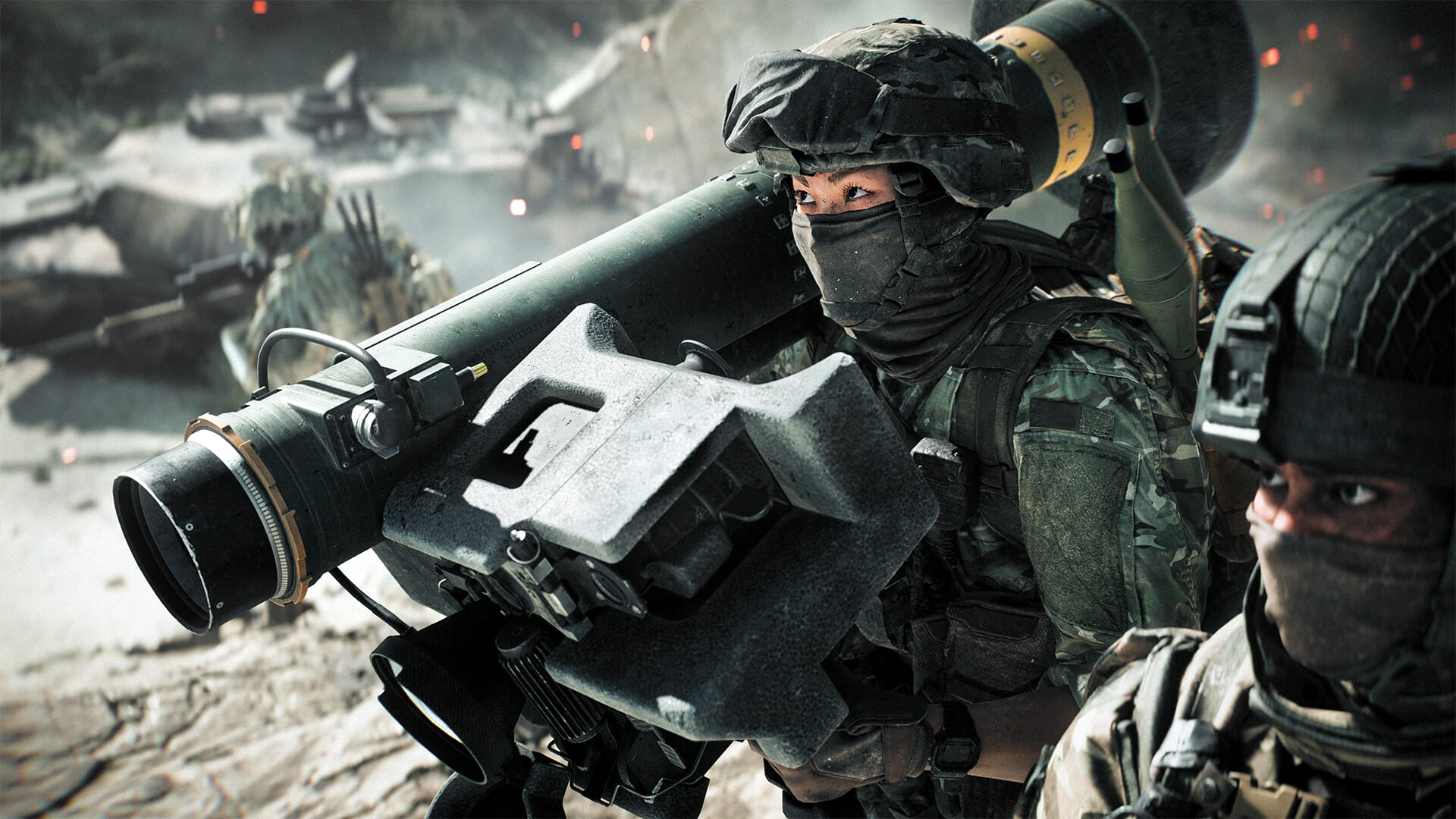
Changing sensitivity in Battlefield 6 lets players fine-tune how quickly their aim responds, whether using a controller or mouse, for smoother and more accurate gameplay.
All sensitivity options are located within the in-game Settings menu. Both controller and mouse users will find separate sections for their respective devices, each with unique controls for infantry, vehicles, and zoom.
How to access sensitivity settings in Battlefield 6
Step 1
From the main menu, go to Settings (the gear icon in the top-right corner).
Step 2
Select Controller (for consoles or gamepads) or Mouse & Keyboard (for PC players).

Step 3
Choose the Infantry or Soldier Controls section — this is where the main aim sensitivity sliders are located. Select Edit Settings.

Step 4
Locate Aim Sensitivity and Zoom Sensitivity (or ADS Sensitivity Multiplier).

These determine how fast your aim moves while aiming normally and while aiming down sights.

Vehicle sensitivity settings
Vehicle controls require separate sensitivity adjustments that affect how you control ground vehicles, aircraft, and gunner positions. These will be found under Gameplay > Vehicles.

For ground vehicles, set Vehicle Aim Sensitivity to around 70 for controllers or match your infantry sensitivity for mouse users. Aircraft sensitivity should typically be maximized for responsive flight controls, while maintaining lower values for precise gunner targeting.
The game automatically applies your infantry sensitivity settings to vehicles in most cases, but you can manually adjust each vehicle type if the automatic settings don’t feel comfortable.
How to change and test your sensitivity in Battlefield 6
Adjusting basic sensitivity
Step 1
Move the Aim Sensitivity slider left or right to change responsiveness. Lower values make aiming slower and steadier; higher values make it faster and more reactive.
Step 2
Enter a firing range or solo match to test how your aim feels. Make small adjustments instead of large jumps — this ensures better muscle memory development.
Adjusting zoom (ADS) sensitivity
Step 3
Scroll down to Zoom Sensitivity or ADS Sensitivity Multiplier. This affects how fast your crosshair moves while scoped in.
Step 4
If aiming feels inconsistent between hipfire and zoom, try using a Zoom Sensitivity Coefficient around 177.8, a commonly recommended value that maintains a 1:1 movement ratio.
Advanced sensitivity optimization techniques
Beyond basic sensitivity adjustments, Battlefield 6 offers sophisticated options for players seeking precise control over their aiming experience.
Aim assist configuration
Controller players can adjust multiple aim assist values to enhance their targeting capability. Set Infantry Aim Assist to 100, Aim Assist Slowdown to 100, and Aim Assist Zoom Snap to 100 for maximum assistance. More experienced players may prefer to reduce zoom snap to 0 for more manual control.
Input curves and acceleration
The Soldier Aim Input Curve can be set to Linear for direct 1:1 input, or to previous Battlefield game settings (BF1, BF4) for familiar feel. The Stick Input Acceleration should typically be set to Standard or a previous Battlefield setting, with aiming acceleration values around 25.
Deadzone adjustments
Access Controller Tuning settings to adjust stick deadzones. Set both Center Deadzone and Axial Deadzone to 3-5 to eliminate stick drift while maintaining responsiveness. Higher values may be necessary if you experience unwanted stick movement.
Recommended sensitivity values
While sensitivity is highly personal, these baseline values from community-tested setups can help you start out strong:
| Setting | Recommended Value | Notes |
|---|---|---|
| Aim Sensitivity (on-foot) | 30–40 | Balanced for both new and experienced players |
| Zoom / ADS Sensitivity | 75–100 | Keeps scoped aim consistent |
| Zoom Sensitivity Coefficient | 177.8 | 1:1 aiming ratio between hipfire and ADS |
| Controller Aim Acceleration | 60 | Helps smoother aim control |
| Left/Right Deadzone | 5–10 | Reduces stick lag without drift |
These numbers are not final — experiment with what feels right for your setup and playstyle.
How to match sensitivity from other shooters
Battlefield 6 includes a cm/360° readout, which tells how far your mouse must move for a full rotation. Use this to match your aim from games like Valorant, Apex Legends, or Call of Duty.
Step 1
Note your cm/360° in your preferred game.
Step 2
Adjust Battlefield 6’s mouse sensitivity until the same cm/360° value appears.
Step 3
Confirm the same feel in-game by testing weapon recoil and target tracking.
This method ensures consistent aiming muscle memory across games.
Getting your sensitivity right in Battlefield 6 takes a bit of experimentation, but it’s worth the effort. Use the firing range to test small changes, and fine-tune your zoom and deadzone settings for the best precision. Once dialed in, you’ll notice better recoil control, faster reflexes, and smoother overall aim in every firefight.